
Your Account: Profile, Password & Avatar
Audience: This article is for church administrators (and applies to any logged-in user).
This page covers managing your own user account — your name and contact info, your photo, your password, and the certifications listed on your profile. It is separate from the Church Profile (which covers your church's information, not yours).
Where to Find It
Open your account menu (your name or photo at the bottom of the sidebar) and choose My Profile.
Sections on the Profile Page
My Profile shows your photo, name and email at the top, then a set of sections you can open and close. Along the top, the My Account tabs -- Profile, Family, Privacy and Activity -- take you to the other parts of your account.
1. Photo
Click the camera button on your photo to upload a new picture. It is uploaded straight away; then click Save Changes in the bar at the bottom of the page.
Your photo appears in the sidebar account menu and anywhere your name shows up.
2. Personal Information
Edit:
- First Name, Last Name
- Email (used for sign-in)
- Phone
- Birth Date, Marital Status, Anniversary
- Address (Street, City, State, ZIP)
When you change something, a bar at the bottom of the page says Unsaved changes -- click Save Changes.
3. Directory Privacy
Choose whether you appear in the church directory (Show me in directory) and what it shows: Show email, Show phone, Show city.
4. Connected Accounts (Telegram)
If your church uses a Telegram bot, link your Telegram account here (Connect Telegram) to get messages from the church bot, choose Quiet hours, and decide whether to Share my birthday & anniversary in Telegram digests. See Integrations.
5. Language
Display language -- "Choose the language used across your portal." See Choosing Your Language.
6. Email Notifications
Your email notification choices live on a separate Notification Settings page; this section has the link. See Notifications & Preferences.
7. Certifications
Add and remove certifications relevant to your role (CPR, Background Check, Child Safety Training, etc.). Each certification can have an issued date, an expiration date and a document.
Certifications are visible on your profile to administrators (useful for volunteer screening) and may be referenced by serving team requirements.
8. Change Password
Change your password. You must enter your current password to confirm the change. (If your account doesn't have a password yet -- for example you always sign in with emailed links -- the section is called Set Password.)
Tip: If you've forgotten your current password, log out and use the Forgot password? link on the sign-in page instead.
9. Two-Factor Authentication
Enable or disable 2FA, and regenerate recovery codes. See Security Settings for the full walkthrough.
10. Privacy & Communication Preferences
Your consent choices: Marketing Communications, Photo/Video Release, Church Directory, and Data Processing. Each saves as soon as you change it.
Common Tasks
Update your email address
- Open your My Profile page.
- In Personal Information, edit the Email field.
- Click Save Changes. Your next login will use the new address.
Change your password
- Open your My Profile page.
- Open Change Password.
- Enter your Current Password, then your New Password and confirm it.
- Click Update Password.
After the update, you stay logged in.
Replace your photo
- Open your My Profile page.
- Click the camera button on your photo.
- Pick an image file.
- Click Save Changes.
Add a certification
- Open your My Profile page and go to Certifications.
- Click + Add.
- In Add Certification, choose the Type, enter the Name (e.g., "CPR — American Heart Association"), the Issued Date, and the Expiration Date if applicable. Optionally attach a Document (PDF, Word, or image file).
- Click Add Certification.
To remove one, click the remove button next to the certification and confirm with Remove Certification.
Deleting Your Own Account
Staff and administrators can delete their own TimelyChurch sign-in account themselves.
- Open your account menu (your name or photo at the bottom of the sidebar) and choose My Profile.
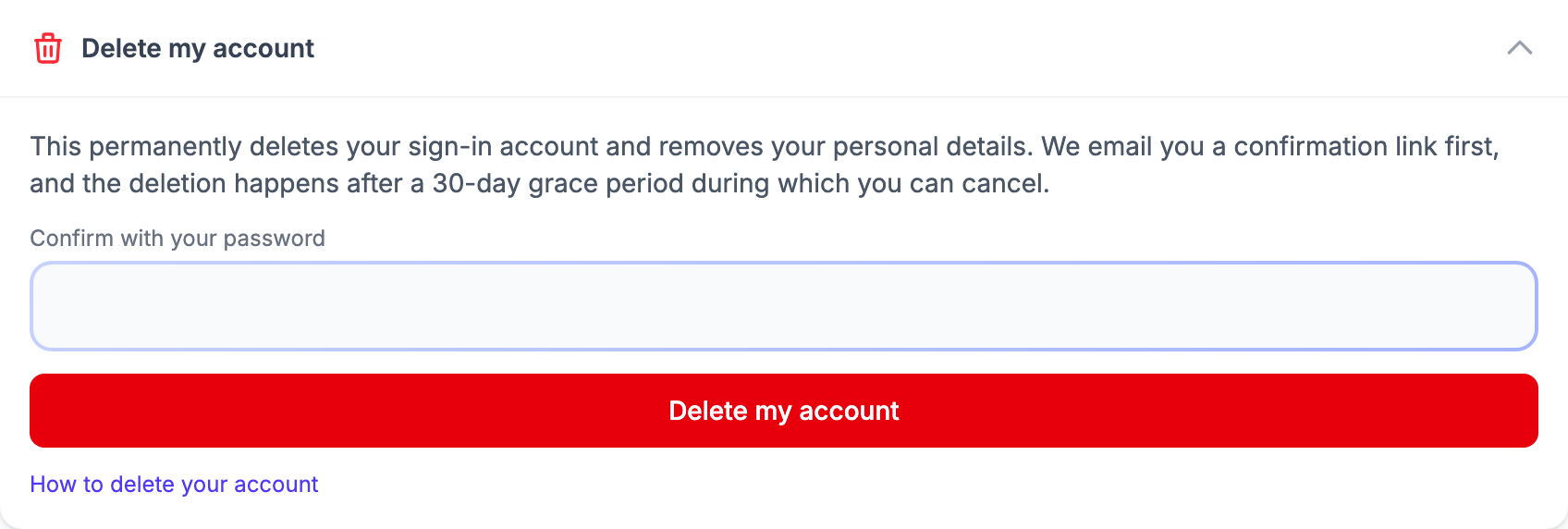
- Open the Delete my account section.
- Enter your password under Confirm with your password (if your account has no password, type
DELETEunder Type DELETE to confirm) and click Delete my account. - You'll see "We sent a confirmation link to your email. Open it within 24 hours to confirm deleting your account." Open that email and click the link.
- Your account is now scheduled for deletion 30 days later: "Your account will be deleted on [date]. You can cancel from your profile until then."
Changed your mind? During those 30 days you can keep using your account as normal. A red notice at the top of the admin pages -- "Your account is scheduled to be deleted on [date]. You can keep using it until then." -- has a Cancel account deletion button, and the same button is in the Delete my account section of My Profile.
The only administrator? If you are the only administrator of a church, you can't delete your account yet: "You are the only administrator of [church]. Make another team member an administrator, or close the church, before deleting your account." Make someone else an administrator first, so your church is never left without anyone who can manage it.
What is deleted and what is kept:
- Deleted: your name, email address, phone numbers, address, photo, notes, group memberships and sign-in credentials.
- Kept in anonymized form: donation totals and attendance counts, which your church may be legally required to keep for tax and accounting purposes. They are no longer linked to your name.
The How to delete your account link in the same section opens a public page with these steps, which you can also share with others.
Members don't use this section. They request deletion from Privacy & My Data in the Member Portal, and the request is reviewed before anything is deleted -- see Data Deletion Requests.
See Also
- Security Settings — 2FA setup
- Notifications & Preferences
- Member Portal > Managing Your Profile — same workflow, written for non-admin members