
Navigating the Admin Panel
The admin panel is where you manage everything about your church in TimelyChurch. This guide walks you through the sidebar navigation, how sections are organized, and how to find what you need quickly.
The Sidebar
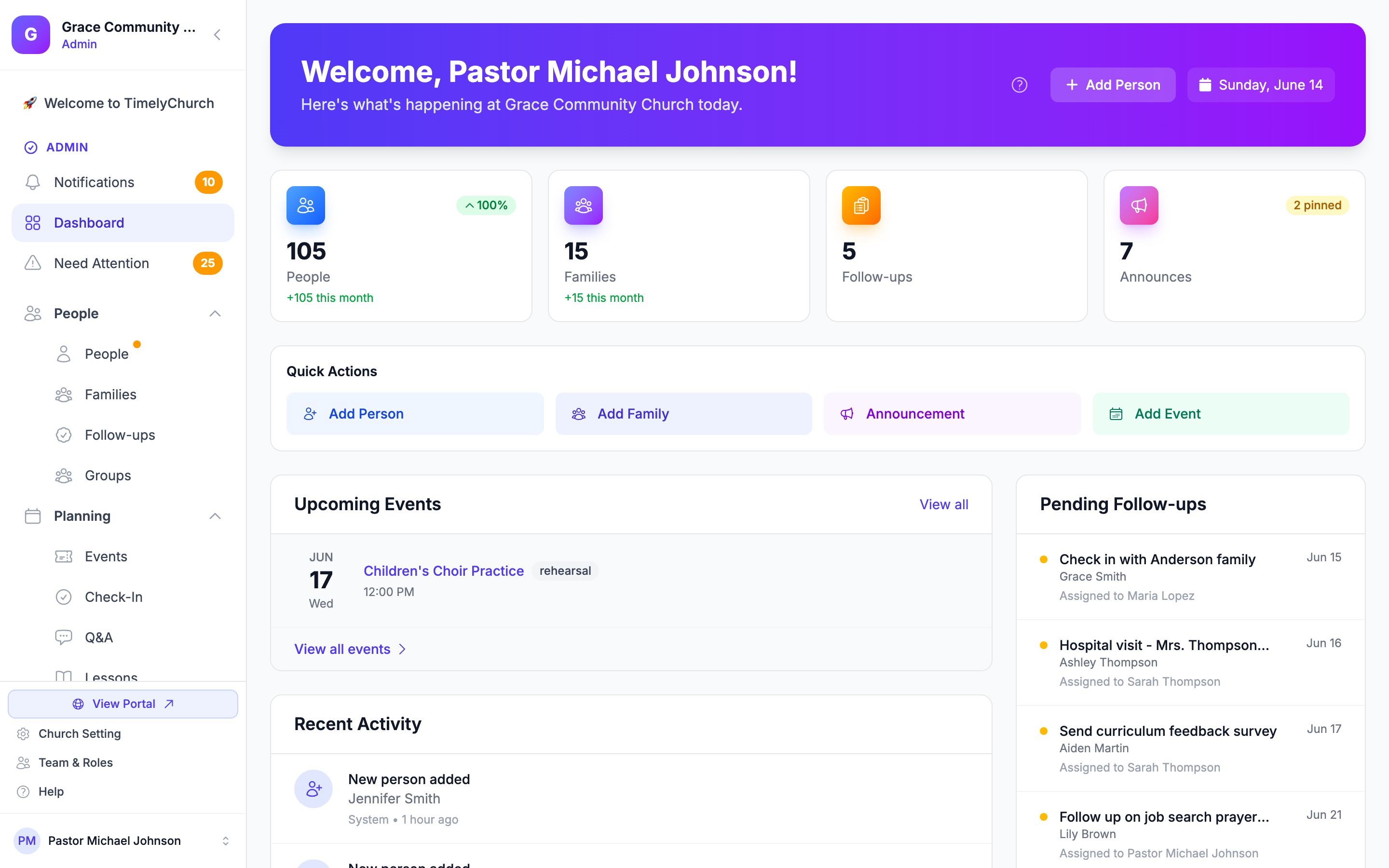
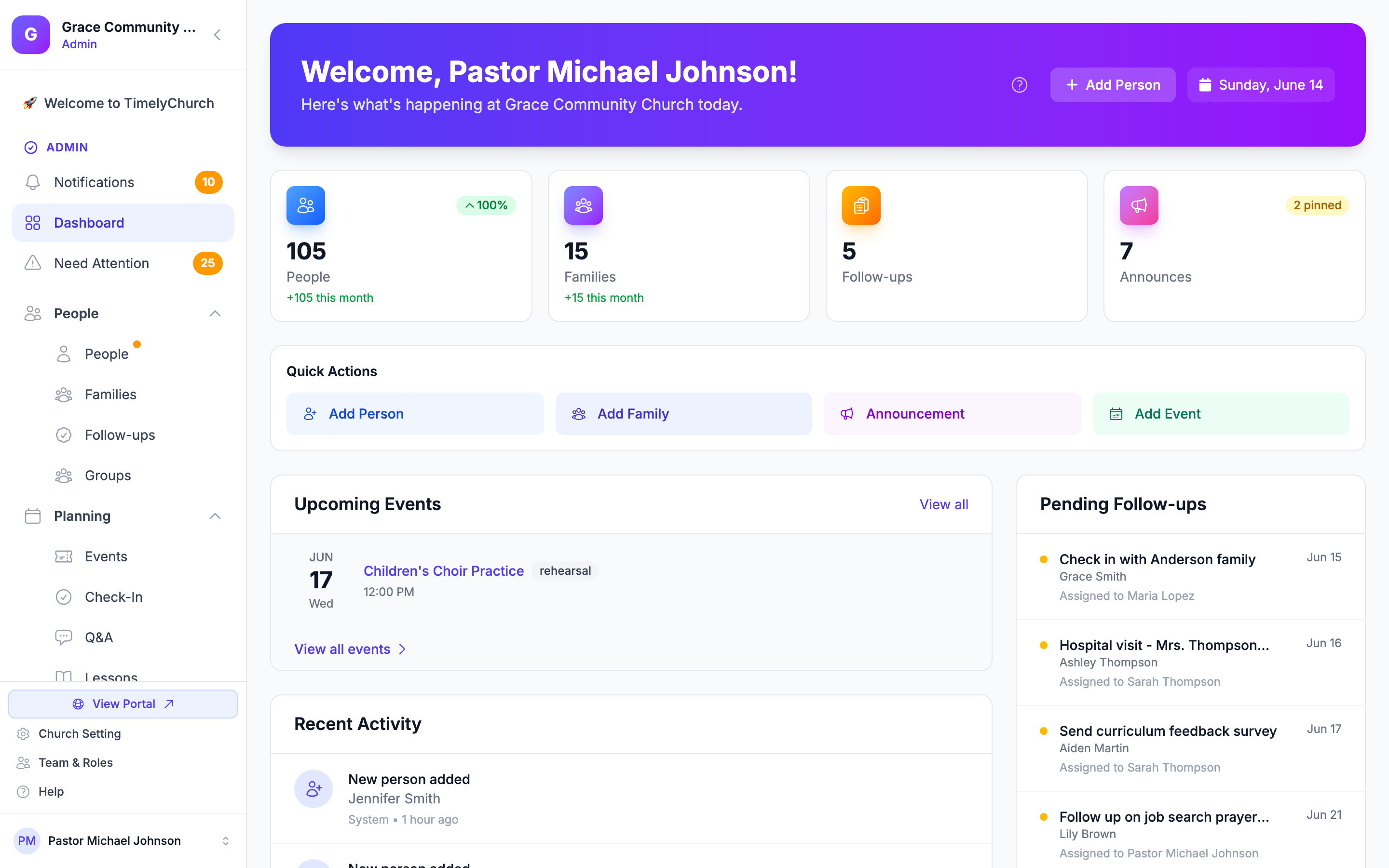
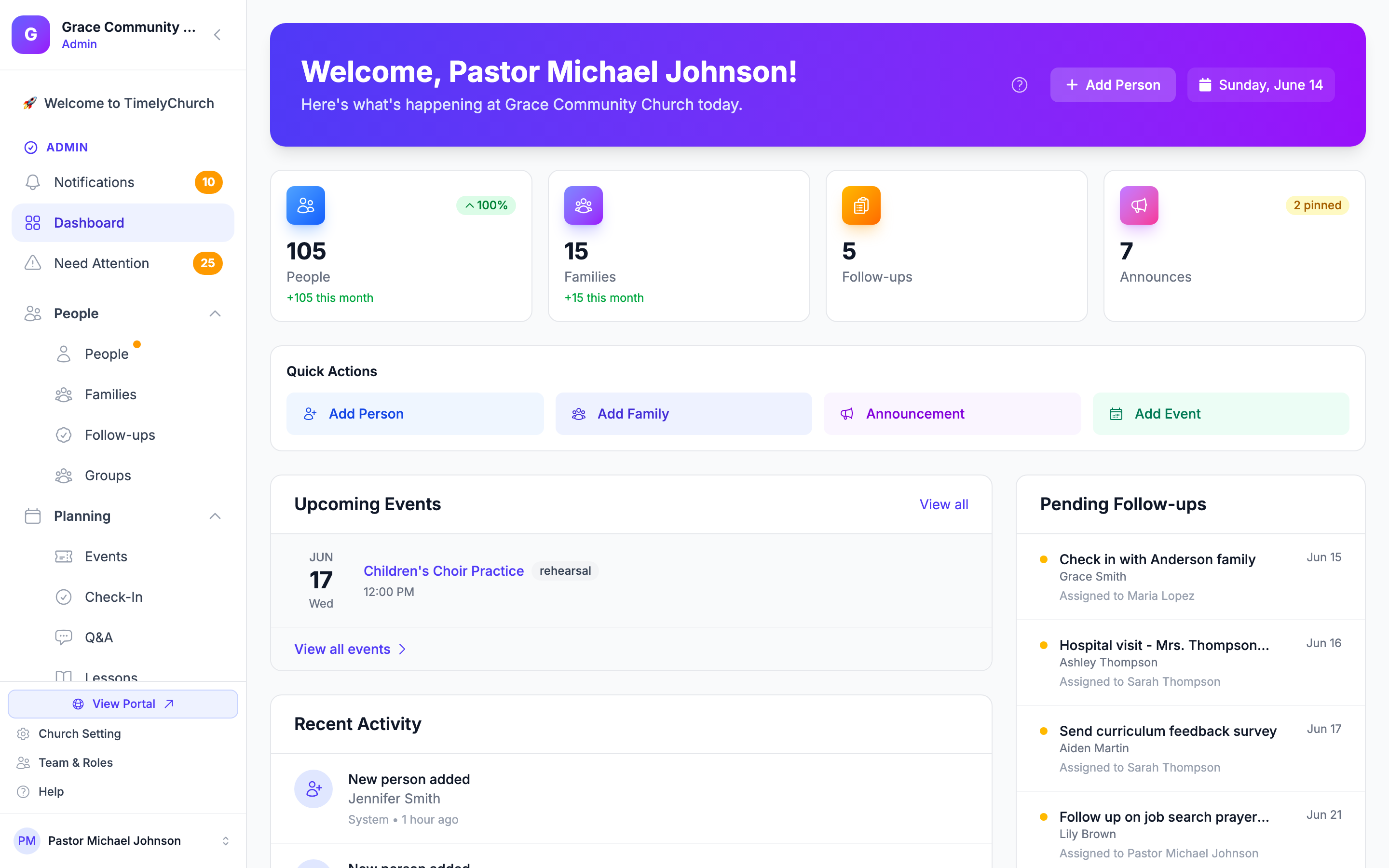
The sidebar is the main navigation menu that appears on the left side of your screen. It is organized into logical categories so you can find features easily.
Collapsing the Sidebar
You can collapse the sidebar to show only icons, giving you more room to work:
- Click the collapse button at the top of the sidebar to toggle between the full and collapsed views.
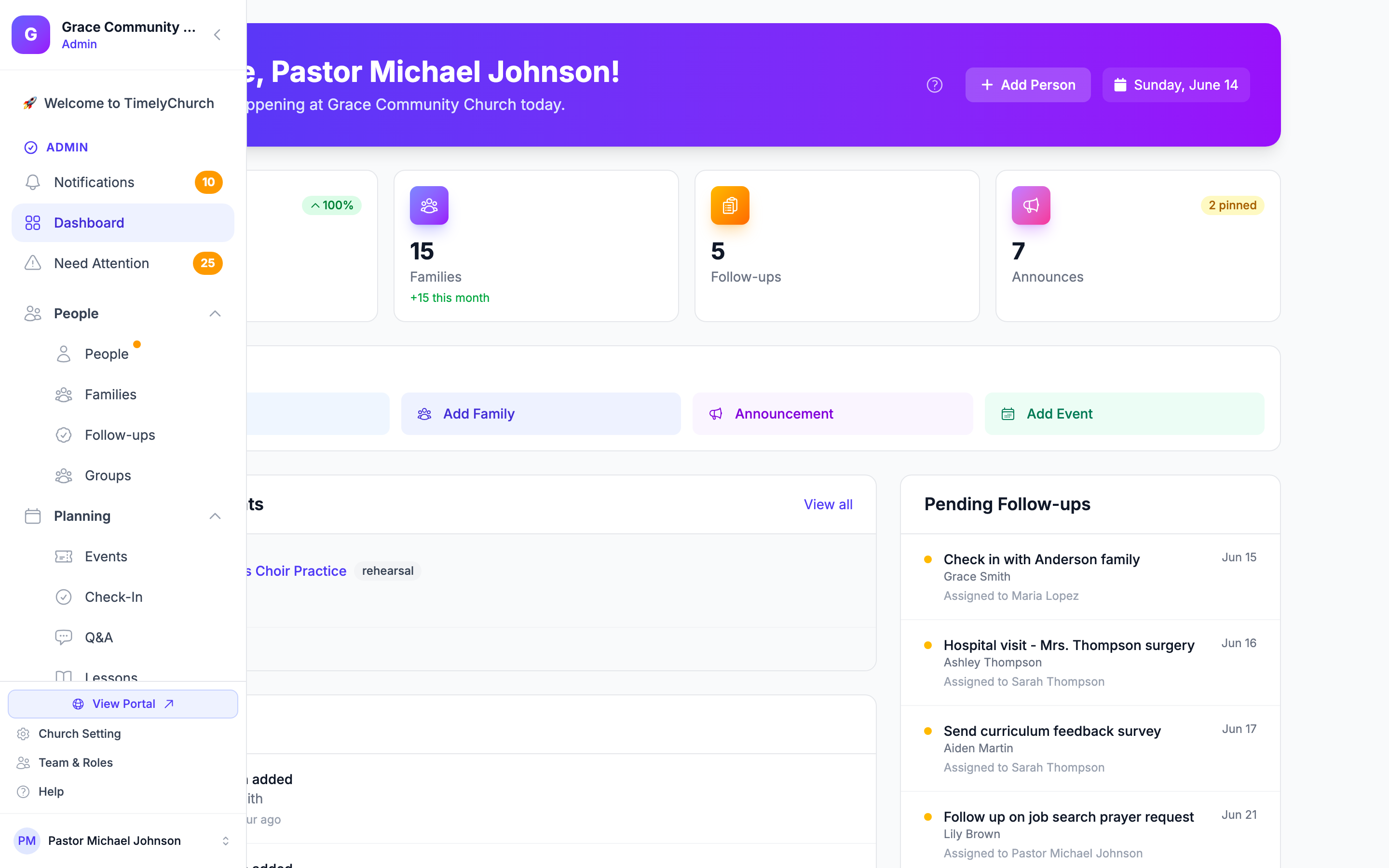
- When collapsed, hover over any icon to see a tooltip with the section name.
- The sidebar remembers your preference, so it will stay collapsed or expanded the next time you log in.
Tip: On mobile devices, the sidebar automatically hides and can be opened by tapping the menu icon.
Top-Level Items
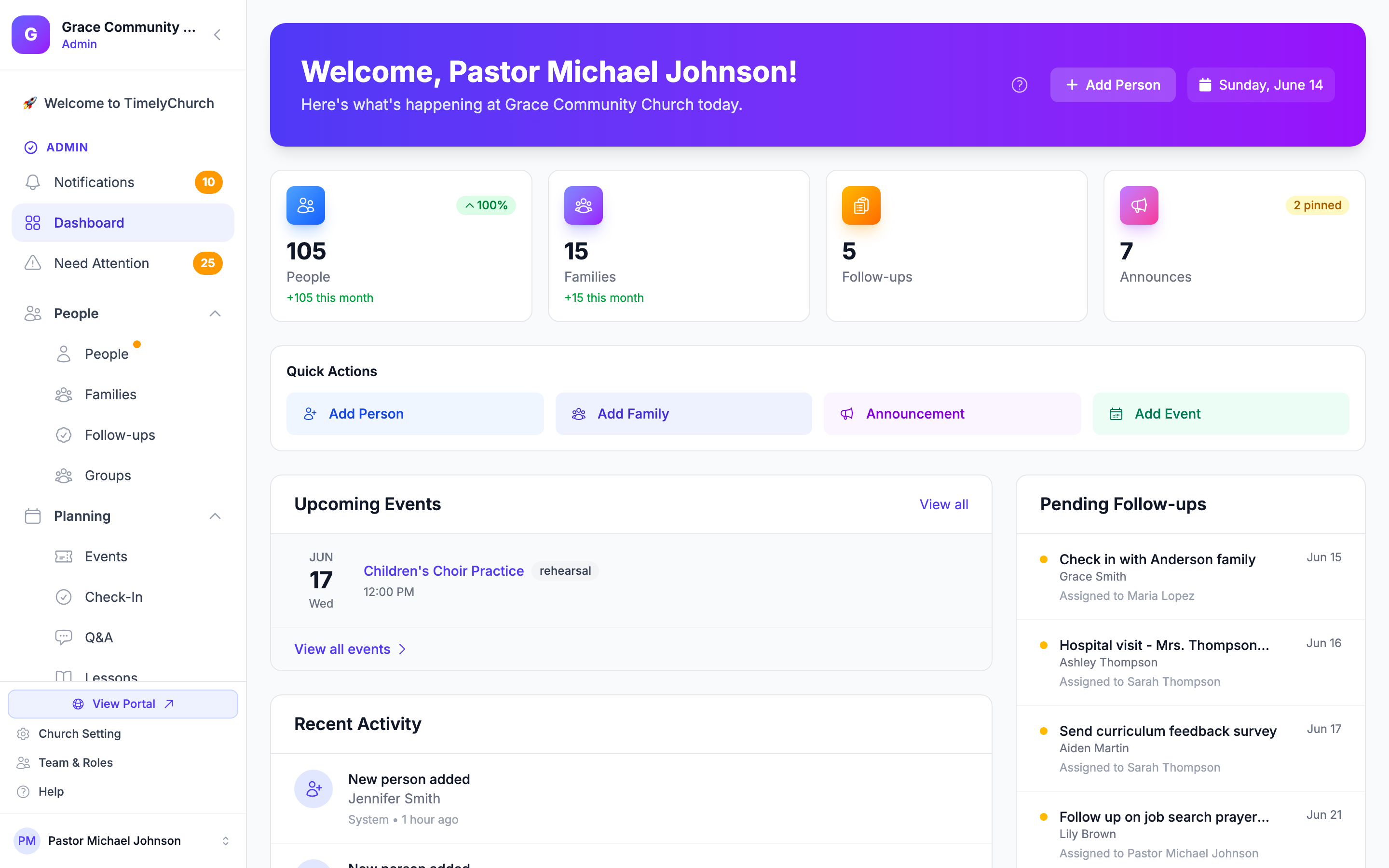
At the top of the sidebar, you will find items that are always visible (not grouped under a category):
- Notifications -- View alerts and updates about activity across your church.
- Dashboard -- Return to your main overview at any time.
- Need Attention -- Items that require your action, such as pending duplicate records or form submissions waiting for review. A numbered badge shows how many items need attention.
Navigation Categories
The rest of the sidebar is organized into expandable categories. Click a category name to expand or collapse it.
People
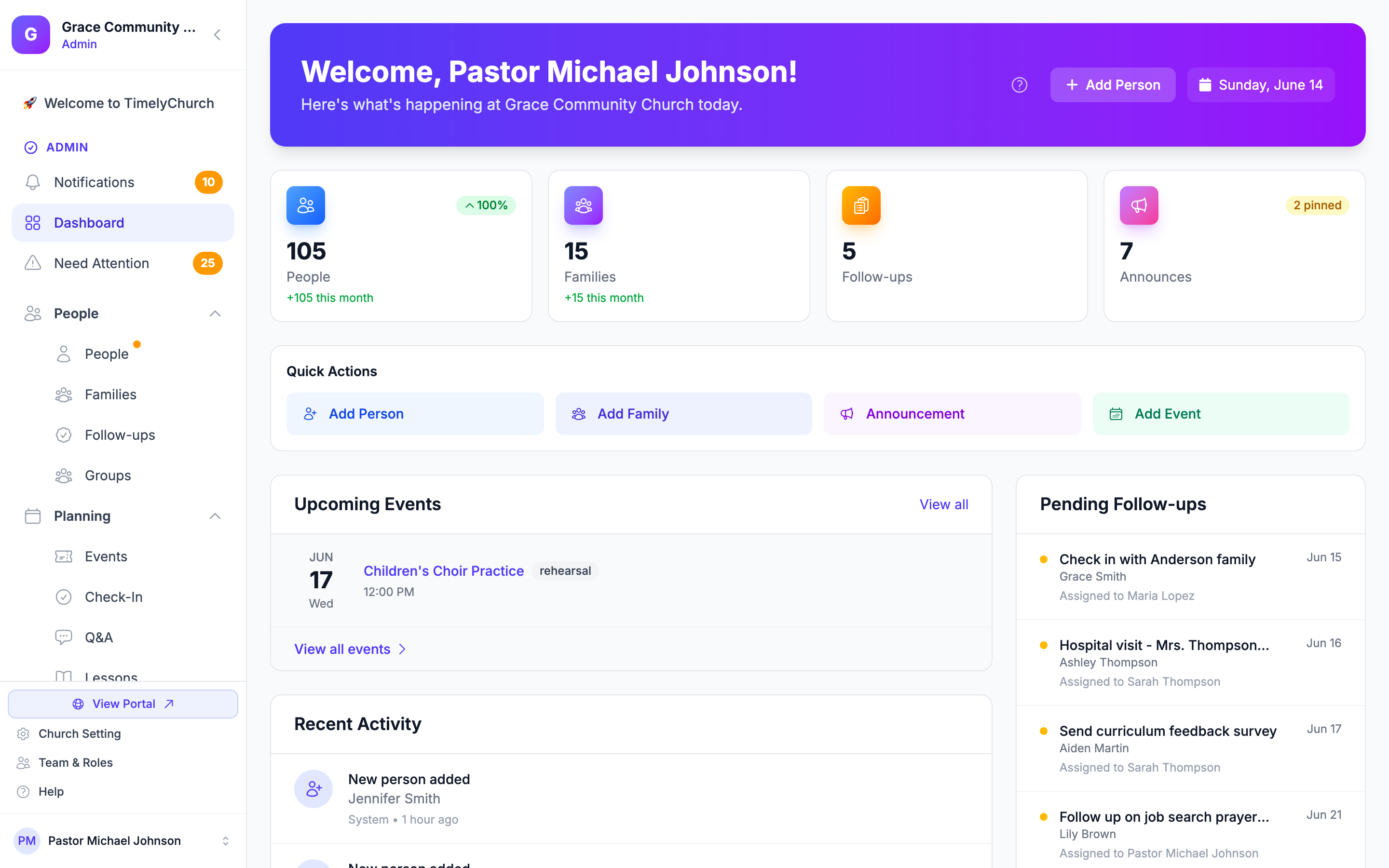
Everything related to your congregation:
- People -- Your full directory of individuals. Search, filter, and manage contact information.
- Families -- View and manage family groupings.
- Follow-ups -- Tasks for reaching out to visitors, new members, or anyone needing pastoral care.
- Groups -- Private groups, public groups, and ministry teams.
Planning
Tools for organizing your church events and services:
- Events -- Create and manage church events. The calendar lives here too -- open the Events page and switch to the calendar view to see everything laid out by date. (Your old
/calendarbookmark still works -- it just opens the Events page in calendar view.) - Schedule Grid -- The who-serves-when serving matrix (people across weeks). Team leaders can edit the grid for their own team.
- Check-In -- Manage child and family check-in for services and events. Each check-in is also recorded as attendance.
- Q&A -- Run live audience question-and-answer sessions and polls for your events.
- Classes -- Your classes (Sunday School, Bible studies and other teaching groups), with their rosters and teachers.
- Attendance -- Manual Attendance: record who attended each class on a given date when no check-in was running. Mark students present, absent, late or excused; records made here count in the same reports as check-ins.
- Drive -- Create and manage curriculum and lesson plans.
Classes and Attendance appear when your role includes those areas.
Worship
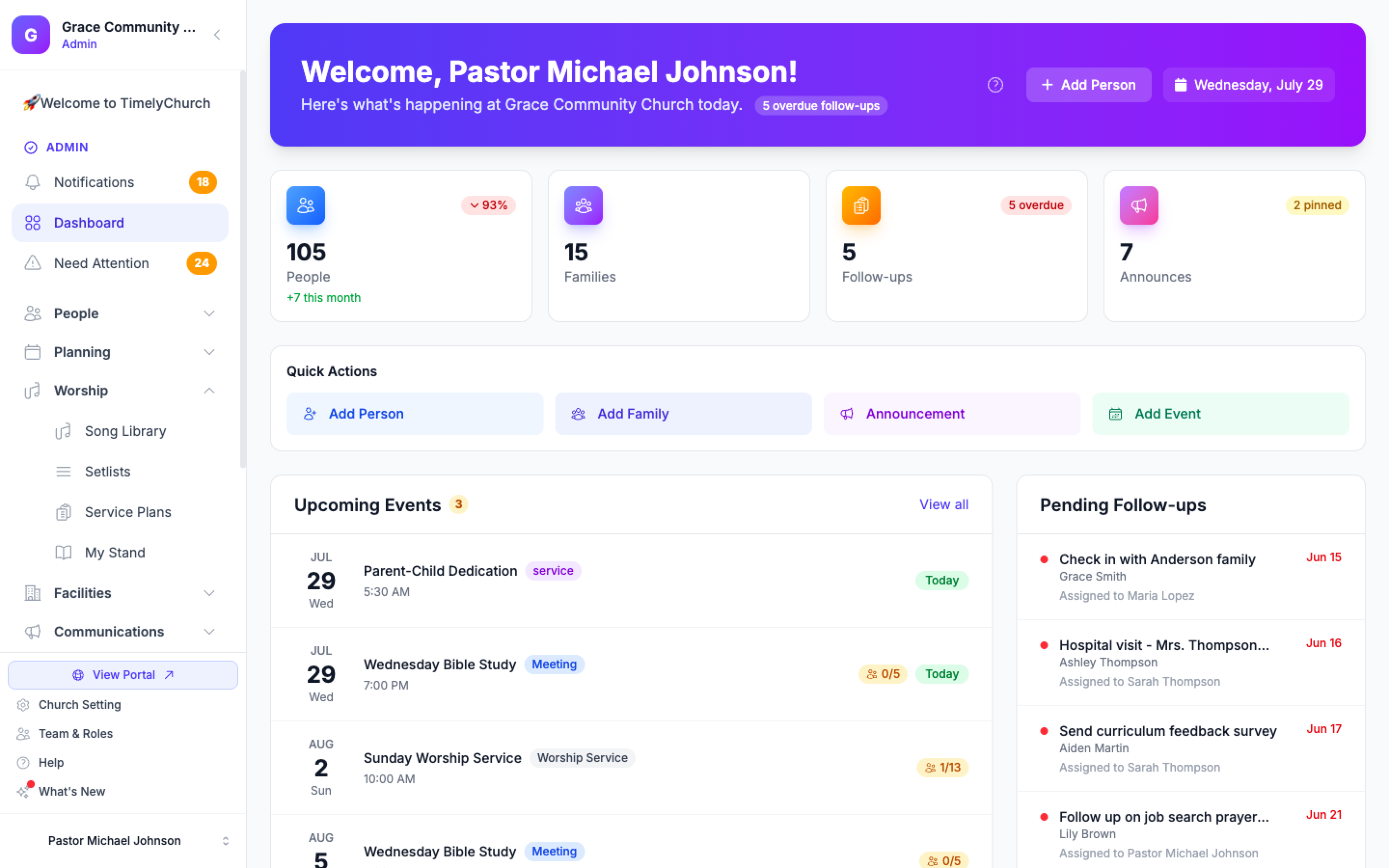
Everything for planning and leading worship, gathered in one place (songs moved here out of Planning):
- Song Library -- Your catalog of worship songs, arrangements, and chord charts.
- Setlists -- Build, save, and reuse a set of songs, then take it live or load it into a service plan.
- My Stand -- The live music stand your team uses to read charts, follow the leader, and practice.
Service Plans are not in this sidebar — open a worship event under Events and use its Service Plan tab.
Facilities
Manage your physical spaces:
- Rooms -- Set up and manage rooms for events and classes.
- Equipment -- Track equipment available for events and services.
Communications
Stay connected with your congregation:
- Announcements -- Create and manage announcements that appear in the portal.
- Messages -- Send direct messages to church members.
- Reported content -- Messages, comments and prayer requests your members have reported. Dismiss a report to keep the content, or remove the content. (Church administrators only.)
- Sermons -- Manage your sermon library and publish messages to your website.
- Email Campaigns -- Build and send email blasts to your congregation.
- Automations -- Set up automated email sequences that send on a schedule or trigger.
Forms
A standalone item (not in a category) for creating custom forms -- registrations, surveys, volunteer sign-ups, and more. Form submissions waiting for review are surfaced under Need Attention at the top of the sidebar.
Website
Another standalone item for managing your church's public-facing website through the Website Studio.
Finances
Manage your church's financial life:
- Giving -- Track donations and contributions.
- Funds -- Set up and manage designated funds.
- Pledges -- Track member pledge commitments.
- Accounting -- Manage accounts and transactions.
- Budgets -- Create and monitor budgets.
Reports
Access detailed reports about your church:
- Church Health -- An at-a-glance view of how your church is doing across attendance, engagement, and giving.
- All Reports -- View reports on attendance, giving, membership, and more.
Administration
Manage your team and what they can access:
- Team Members -- Invite teammates and manage who has access to the admin panel.
- Roles & Permissions -- Create roles and control exactly which modules and actions each role can use.
Tip: Team management is also reachable from the Team & Roles link at the bottom of the sidebar -- both paths lead to the same place.
Association HQ
If you also belong to an association (a group of churches or campuses), a link with the association's name appears below the categories. It opens that association's HQ.
Bottom of the Sidebar
At the very bottom of the sidebar, you will find several important links:
- View Portal -- Opens your church's public member portal in a new tab so you can see what your members see.
- Church Setting -- Opens the Church Settings page: your church profile, billing, custom fields, export, integrations, custom domain and activity. (Shown only if your role includes Settings.)
- Team & Roles -- Manage who has access to the admin panel and what they can do. (Shown only if your role includes Team Management.)
- Help -- Opens the Help Center in a new tab.
- What's New -- Opens TimelyChurch's product updates page in a new tab. A small red dot appears when there is an update you haven't opened yet on this device.
Below these links, you will see your user profile. Click on it to open the account menu:
- Plan and usage (church administrators only) -- your church's plan, a Trial badge with the days left if you're on a trial, how many team members and how much storage you are using, and a Manage subscription → link to the Billing & Plans tab.
- My Profile -- Edit your personal information.
- My Family -- View and manage your family connections (when your church has family management turned on).
- My Tasks -- See tasks assigned to you.
- Language -- Choose the language TimelyChurch shows you. See Choosing Your Language.
- Switch Church -- Appears only if you belong to more than one church; pick a church to switch to it.
- Sign out -- Log out of TimelyChurch.
The Help button
Besides the Help link in the sidebar, a Help button sits in the bottom-right corner of every page. It opens a chat with Sam, TimelyChurch's support assistant, with links to the Help Center and to our support team. See Getting Help and Chatting with Sam.
Feature Availability
Some features in the sidebar may appear differently depending on your church's plan and your role:
- Plan-gated features -- Modules not included on your current plan show up as locked items in the sidebar, greyed out with a small padlock icon. Hovering or clicking one shows an upgrade prompt. To unlock these features, upgrade your plan from the Billing & Plans tab of Church Settings. (See Trial and Plan Selection for what's included on each plan.)
- Permission-restricted features -- If your admin has not granted your role access to a module, it won't appear in your sidebar at all. If you think you should have access to a feature you cannot see, ask your church administrator to check your role permissions.
Tip: You only see the sections you have permission to access. If a teammate sees different menu items than you do, it is because they have a different role -- or your church is on a different plan than you expect. See Setting Up Roles and Permissions for details.
Finding Things Quickly
Here are some tips for navigating efficiently:
- Use the category toggles -- Collapse categories you rarely use to keep the sidebar clean.
- Look for badges -- Numbered badges on items like "Need Attention" and "Notifications" tell you where action is needed.
- Check the Dashboard first -- The Dashboard surfaces the most important items from across all sections.
- Remember the sidebar state -- The sidebar remembers which categories you had open or closed, even between sessions.