
Sign Up and Create Your Church
This is where every TimelyChurch journey starts. Setting up an account takes about five minutes, and by the time you finish this page you will be standing on your brand-new admin dashboard.
There are two steps:
- Create your personal user account at
/register. - Create your church workspace during onboarding.
We will walk through both in detail. Keep this page open in another tab if you'd like to follow along.
Before You Begin
Have these ready -- it will make the process smooth:
- Your full name as you'd like it to appear to your team.
- A work or personal email address you check regularly. This is where account notifications, verification links, and team invites will land. You will need to open a link from this inbox before your church workspace opens. Addresses from temporary or anonymous mail services (the "throwaway inbox" kind) cannot be used to open a church account -- use your church's own domain or a regular provider such as Gmail, Outlook, iCloud or Proton.
- A phone number (mobile preferred -- some features use SMS).
- A strong password (at least 8 characters).
- Your church's full legal or operating name. That is the only church detail sign-up asks for; the church address, phone and email are optional and can be added later.
Tip: Use an email address that is owned by your church (e.g.,
[email protected]rather than a personal Gmail). The first user to register becomes the founding administrator -- it's worth using an address that will outlast a single staff member.
Step 1: Create Your User Account
-
In your browser, go to timelychurch.com/register.
-
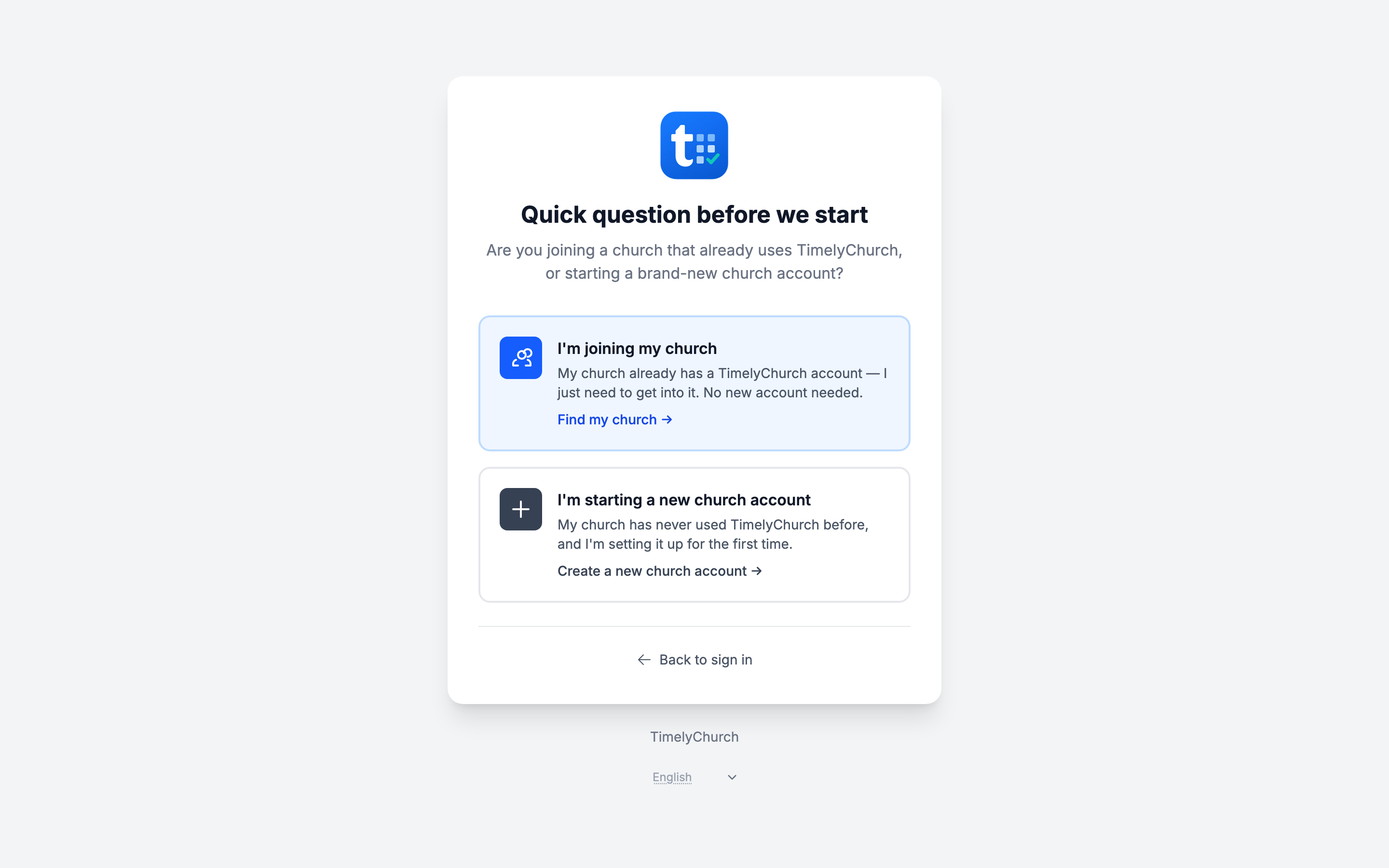
The first screen asks "Quick question before we start" -- "Are you joining a church that already uses TimelyChurch, or starting a brand-new church account?"
- I'm joining my church → Find my church →. Choose this if your church already uses TimelyChurch. You don't need a new account: enter the email your church has on file and you'll be emailed a sign-in link (see Magic Link Login for Members).
- I'm starting a new church account → Create a new church account →. Choose this to set up a church for the first time -- that is what the rest of this page covers.
-
You'll see the Create a New Church Account form.
-
Fill in the form:
- Your Name -- Your real name (letters, spaces, dots, hyphens, and apostrophes only).
- Email Address -- Must not already belong to a TimelyChurch account.
- Phone Number -- Used for account recovery and (optionally) SMS notifications.
- Password and Confirm Password -- At least 8 characters. Use a strong password you don't use anywhere else.
-
If you see a security check, complete it.
-
Click Create Account.
What Happens Next
- TimelyChurch creates your user account.
- You are automatically signed in -- no need to log in separately.
- A verification email is sent to the address you provided. The link in that email works for three days (72 hours), and you can open it on any device.
- You are immediately redirected to the next step: creating your church. You can fill in your church details right away, but your church workspace only opens once you have clicked the link in that email -- see Confirm Your Email below.
Tip: If you accidentally close the browser before finishing church setup, just sign in again at
/loginand TimelyChurch will pick up where you left off and route you back to the church onboarding screen.
Step 2: Create Your Church
After you sign up, you land on the Set Up Your Church screen. This is where you tell TimelyChurch about the church you are setting up.
Church Name
The full name of your church as you'd like it to appear in emails, on your portal, and on giving statements. Example: First Baptist Church of Springfield.
This is the only field you have to fill in. As the screen says: "That's all we need — we'll fill in the rest for you, and you can change any detail later in Settings." Type the name and click Set Up My Church.
More Options (optional)
Click More options if you'd like to check or change the details TimelyChurch fills in for you:
- Church Contact Email -- The primary email shown to your congregation -- on the portal, on giving receipts, and in your reply-to address for outbound church mail. Often your office or main pastoral inbox. If you leave it empty, your own sign-up email address is used.
- Church Phone (optional) -- A public-facing phone number for the church.
- Country -- "Sets your currency and default language." It is pre-selected based on where you are signing up from.
- Timezone -- See below.
- Church Address (optional) -- Your church's street address. This shows up on your public portal, giving statements, and (eventually) in directions on your website.
Timezone
This one matters more than you think. It should be the timezone where your church physically meets. It controls:
- Event start and end times shown to members.
- When scheduled emails and announcements actually send.
- Daily reset cutoffs for things like volunteer reminders and serving stats.
- Date displays on dashboards, statements, and reports.
TimelyChurch pre-selects the timezone your computer is set to. The list also offers the US time zones -- if your church is in Springfield, Illinois, choose Central Time (CT); on the West Coast, Pacific Time (PT). You can change it later in Church Settings → Profile.
Tip: If your church serves multiple campuses across timezones, pick the one where your administrative office is located.
Your Church Web Address
You don't choose a web address during sign-up. TimelyChurch creates it from your church name -- it's the short name after /c/ in every link to your church, so your member portal lives at an address like timelychurch.com/c/first-baptist/portal. To see it, copy it or change it, go to Church Settings → Profile and find the Your church web address card. If you change it, your old address keeps working and forwards people to the new one, so printed QR codes and links you have already shared do not break. See Your Church Web Address.
What Happens After You Click "Set Up My Church"
When you click Set Up My Church:
- Your church workspace is provisioned with all the default settings, roles, and modules.
- You are linked to it as the church administrator (the founding admin).
- A 30-day Pro trial is automatically started -- you can try every Pro feature for the next 30 days (sending bulk email is the one thing that waits for a paid plan). See Trial and Plan Selection for what's included and what happens when the trial ends.
- Your own account gets the Church Founder role -- full access to every area, including Giving and Accounting.
- Default roles are created for the people you invite -- Administrator, Finance Admin, Team Leader, Team Member, Member, Accountant (Read-Only) and Safety Officer -- so you can start inviting teammates immediately. See Setting Up Roles and Permissions.
- You are taken to the Welcome to TimelyChurch page in your brand-new admin area -- once your email address is confirmed. If you have not clicked the verification link yet, you see a Check your inbox page first (see below).
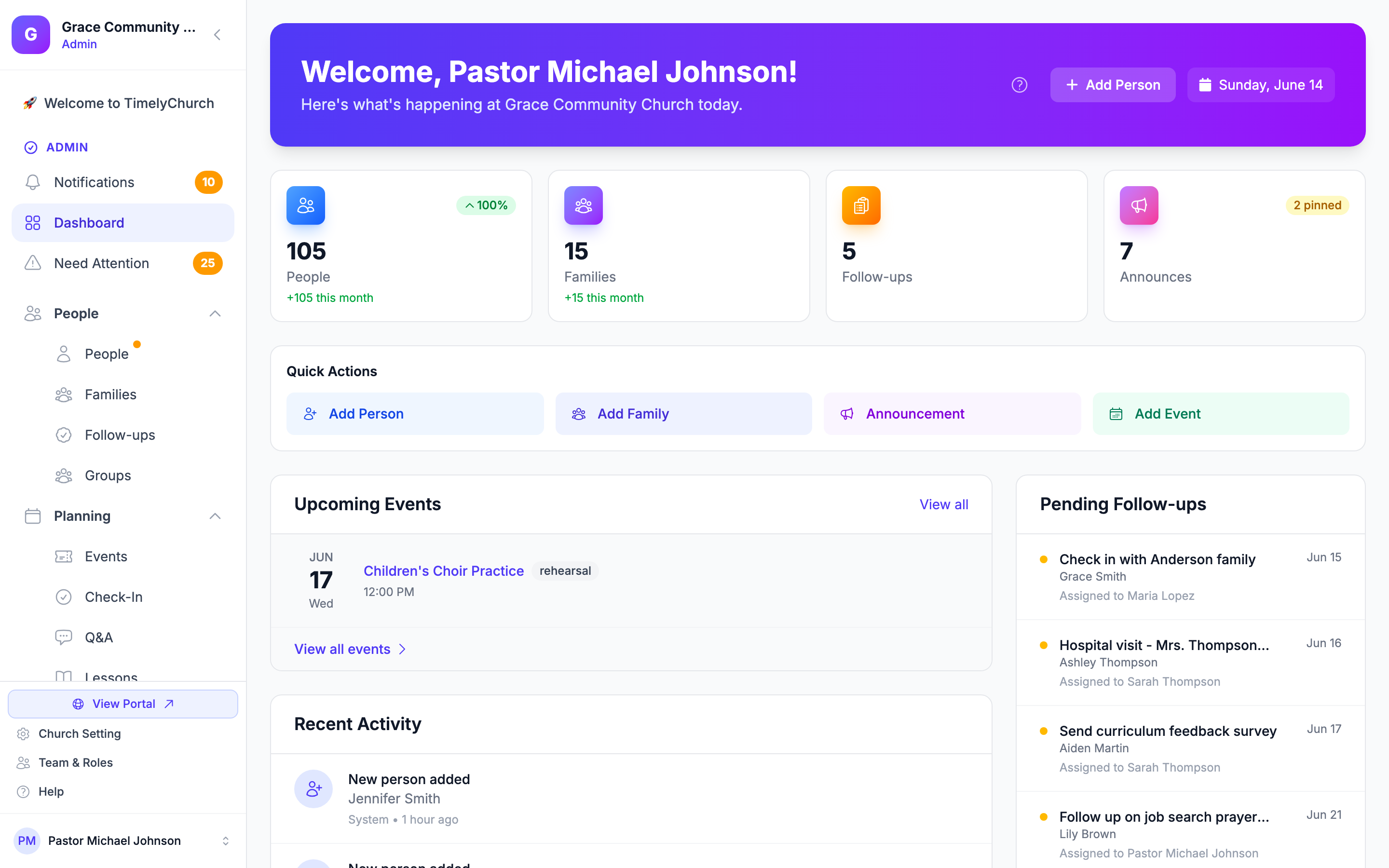
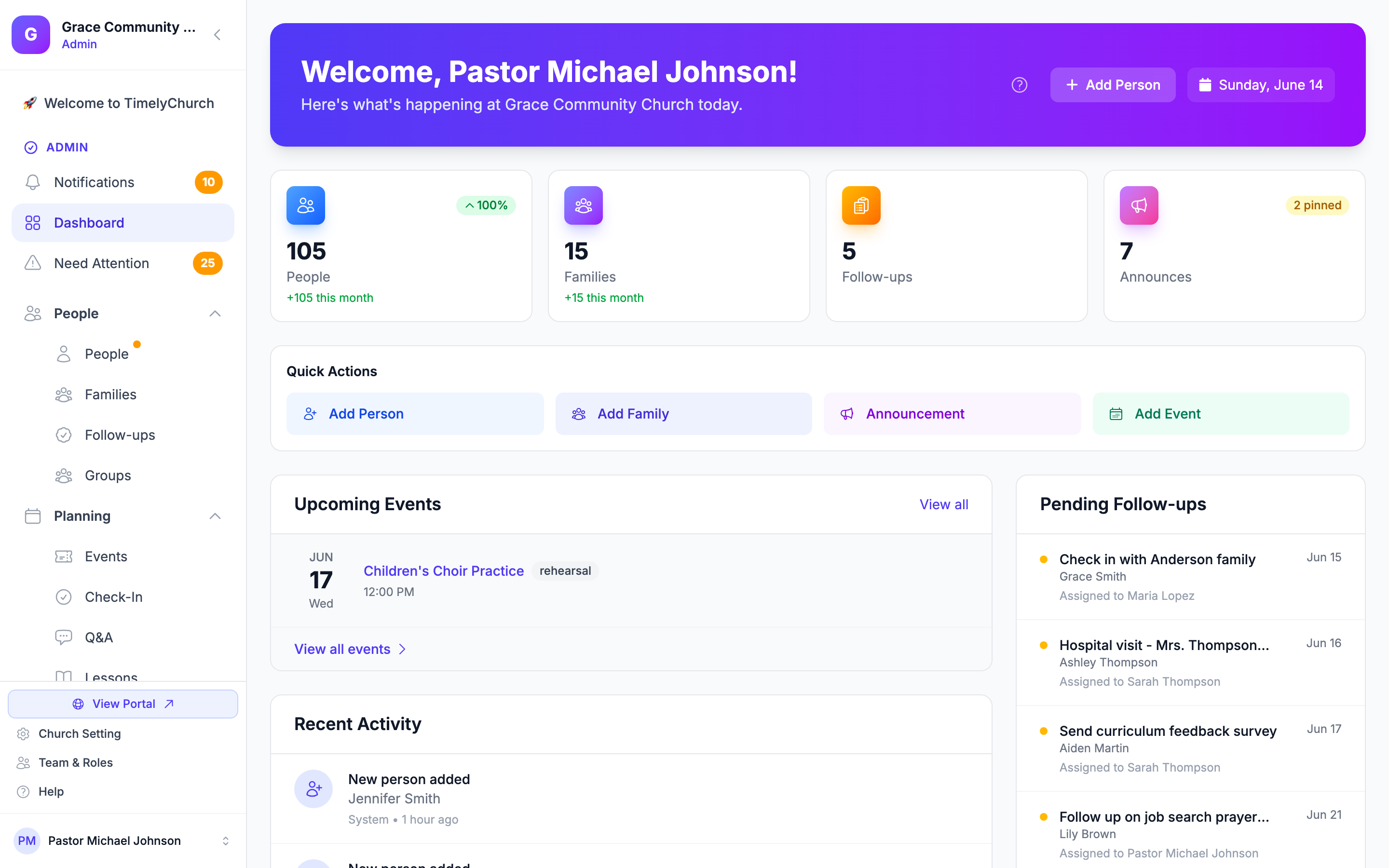
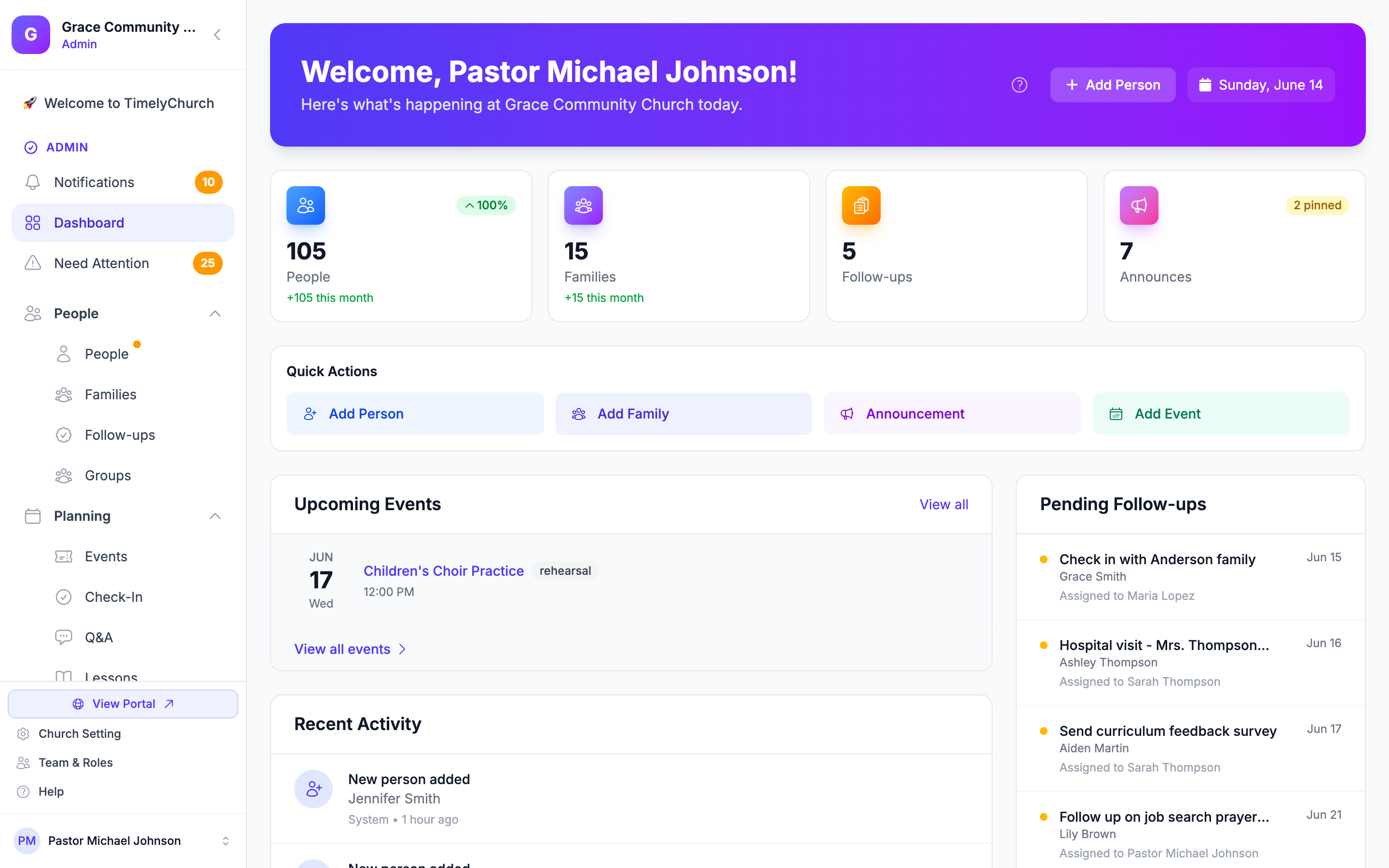
The Welcome page walks you through the first steps -- Add your people, Turn on online giving and Post your first announcement -- with a small dot for each step you have already done. You can come back to it any time.
- Import members or or share a sign-up link -- the sign-up link option creates a link (with a QR code you can download as a PNG) that new members can use to join your church from their phone. The panel shows Your sign-up link is ready, the link's expiry date, and a Preview the sign-up page link.
- Need a hand getting set up? -- Book a call opens a page where you can book a free 15-minute setup call.
- Hide this page (at the bottom) hides the Welcome page on this device. Click Show again to bring it back.
Sample data in your new church
To help you see how things fit together, every new church starts with some example content:
- Sample people and families -- the Smith, Johnson and Williams families plus two individual members, all with
example.comemail addresses. - Sample forms -- Visitor Connection Card, Prayer Request, Volunteer Signup, Contact Us, Membership Application and Baptism Request.
- Starter custom fields on people profiles (for example T-Shirt Size, Allergies, Medical Conditions and Emergency Contact), a General Fund, default event types, and starter website pages.
The sample people are ordinary records: they count toward your plan's people limit and they appear in your directory until you remove them. When you are ready to add your real congregation, delete them from People (and their households from Families). Edit or delete the sample forms, fields and pages the same way as anything you create yourself.
Confirm Your Email
Before your church workspace opens, TimelyChurch asks you to show that the email address is really yours. Until you do, you see a Check your inbox page instead of your dashboard: "Before your church workspace opens, please confirm your email address:", followed by your address (partly hidden for privacy).
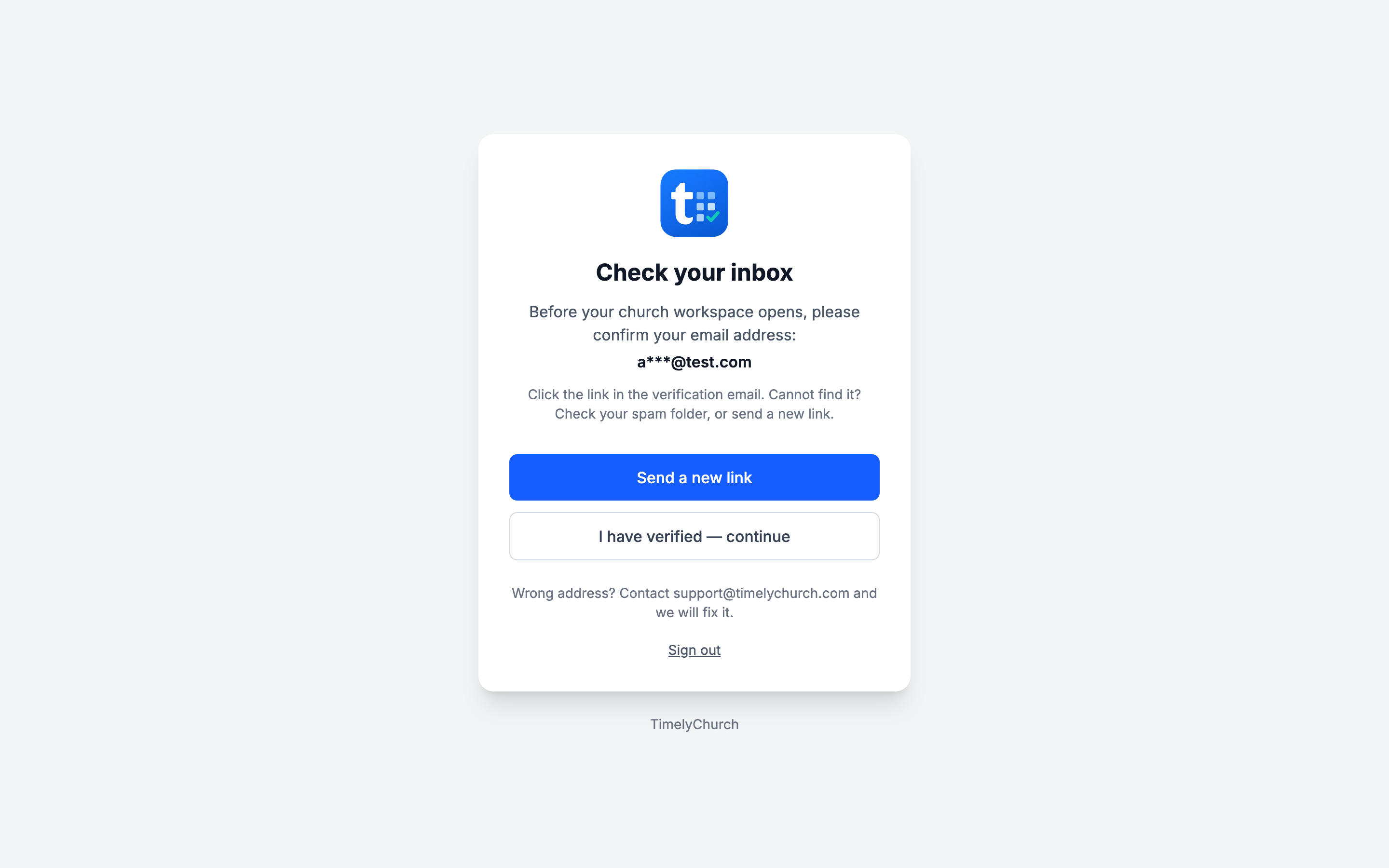
- Open the email from TimelyChurch and click the verification link.
- If you click it in the same browser, your dashboard opens straight away with "Thanks — your email is verified."
- If you click it on another device (your phone, for example), that device shows the sign-in page with the same message. Go back to the Check your inbox page on your computer and click I have verified — continue.
- That's it -- you only do this once.
Can't find the email? Check your spam or junk folder, or click Send a new link. You'll see "A new verification link is on its way to …" with your address. You can ask for a new link up to three times a minute.
The page also has a Sign out link, and a note for the case where the address itself is wrong: "Wrong address? Contact [email protected] and we will fix it."
Note: Until an administrator of a new church confirms their email, the church's member portal and public pages do not send email to anyone else -- for example, sign-in links requested by members. Everything starts working as soon as you confirm. Church accounts created before September 25, 2026 are not affected by this step.
Bookmark These Pages
Now that your workspace exists, save these two URLs:
- Admin login:
timelychurch.com/login - Your admin dashboard:
timelychurch.com/c/your-church/portal/admin
Your members will use a different URL -- /c/your-church/login -- and they sign in via magic link. See Magic Link Login for Members.
For your first 30 days, the dashboard's welcome banner also shows Your church web address with Copy and Change buttons, so you can share it or pick a different one.
Recommended Next Steps
You're now at the very start of the Quick Start Checklist. The first things we suggest:
- Read How TimelyChurch Works -- understanding the layered architecture (People → Groups → Events → Activities) makes everything else click.
- Read Trial and Plan Selection so you know how long you have full access.
- Finish your Church Profile -- upload your logo, double-check your timezone.
- Review Default Roles before inviting your team.
- Then run through Inviting Team Members and Add Your People.
Troubleshooting
"This email is already registered."
The address you tried to use is already attached to a TimelyChurch account. Sign in at /login instead, or use Forgot password? to recover access.
I meant to join my church, not create a new one. Go back to timelychurch.com/register and choose Find my church →, or open timelychurch.com/find directly. Enter the email your church has on file and you'll receive a sign-in link for every church that email belongs to.
"We can only open a church account with a church or personal email address — this one is on a temporary/anonymous mail service." The address you used belongs to a temporary or anonymous mail service. Sign up again with your church's own domain or a regular provider (Gmail, Outlook, iCloud, Proton…). If you believe the address is a normal one, contact [email protected] and we will set it up with you.
The verification email never arrived. Check spam/junk. On the Check your inbox page, look at the (partly hidden) address to make sure it is the right one, then click Send a new link. If the address is wrong, contact [email protected] and we will fix it. Your church workspace opens as soon as you click the link.
I'm stuck on "Check your inbox". You have not confirmed your email yet, or you confirmed it on another device. Click the link in the newest verification email, then click I have verified — continue. If the page keeps coming back, request a fresh link with Send a new link and use that one -- an older link may have expired.
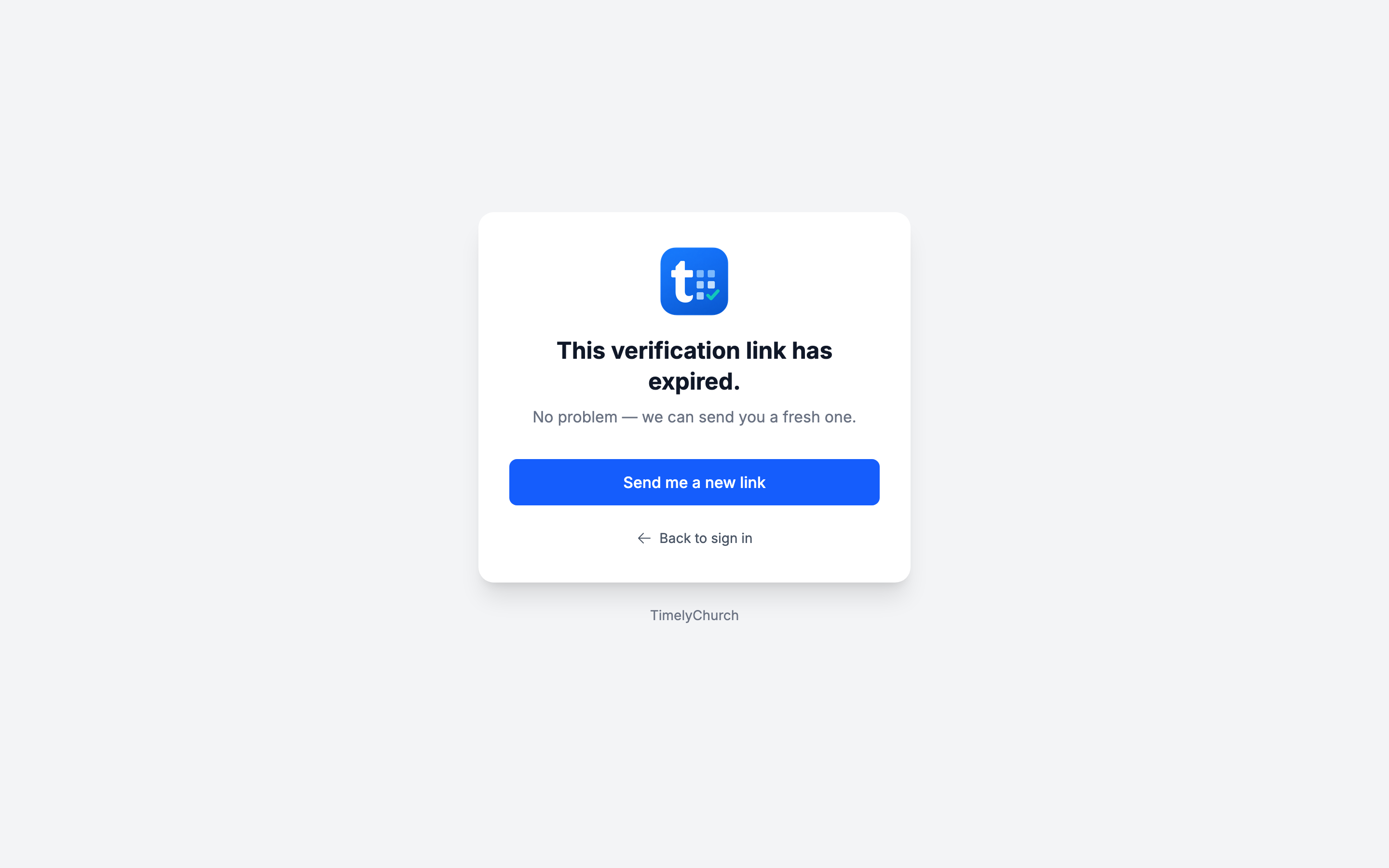
"This verification link has expired." The link was older than three days. The page that opens has a Send me a new link button -- press it and you'll see a confirmation ("If that account still needs verification, a fresh link is on its way."); a new link, good for another three days, is emailed to the same address.
"That verification link is not valid. Please request a new one." The link was changed on its way to you -- often from being forwarded, retyped, or wrapped onto two lines by a mail client. Go back to the original email and click the link directly, or contact support.
I picked the wrong timezone. Easy fix: go to Church Setting → Profile (at the bottom of the sidebar), choose the right one, and click Save Changes.
I belong to more than one church. One TimelyChurch account can belong to several churches, with a separate role in each. Once you are on more than one church's team, your account menu (your name at the bottom of the sidebar) shows a Switch Church list.