
Importing Songs from Documents — Word, PDF and Scanned Sheets
Most churches already own their songs. They're in a binder of photocopies, in a Word file somebody typed years ago, in PDFs that arrived by email over the course of a decade, in a folder of ChordPro charts or text files from a chord website. The only thing missing is a way to get them into your song library without retyping every chord by hand.
Import documents does that. Upload the files you already have — Word documents, PDFs, ChordPro charts, plain-text song files, or a photo or scan of a printed sheet — and TimelyChurch reads each one and proposes a song: the title, the sections it found, and the chords placed above the words they belong to. You review the proposal, correct anything that's wrong, and save.
Available on the Growth and Pro plans. On the Starter plan the menu entry doesn't appear at all.
This is assisted, not automatic. TimelyChurch proposes; you decide. Nothing is added to your song library until you save it yourself, and you should read each song before you do.
What You Can Upload
| File types | PDF, Word (.docx), ChordPro (.cho, .chordpro, .chopro, .crd), plain text (.txt), PNG, JPEG |
| How many | Up to 10 files at a time, of any mix of these types |
| How big | 20 MB per file; 1 MB for a ChordPro or text file |
A scan or a phone photo of a printed page is a supported input, not a fallback — though printed pages are harder to read than a document that was typed, and the review screen tells you when it's working from a scan.
ChordPro and text files are read exactly as they are written — no scanning and no guessing at the page — so they are usually the quickest to review. See ChordPro and Plain-Text Files below.
Importing Your First Songs
-
Go to Worship → Song Library.
-
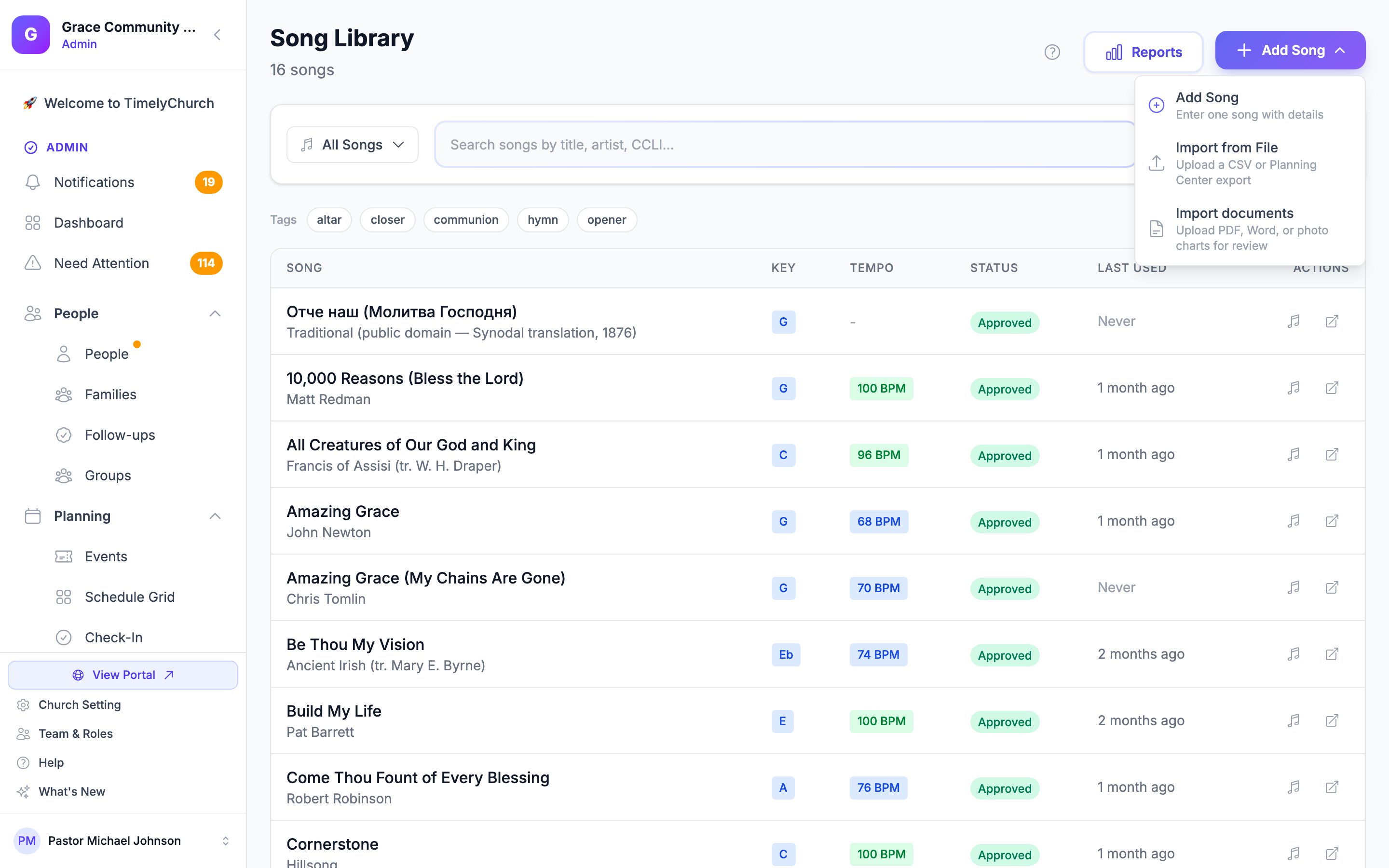
Click Add Song in the top-right corner to open its menu, then choose Import documents.
-
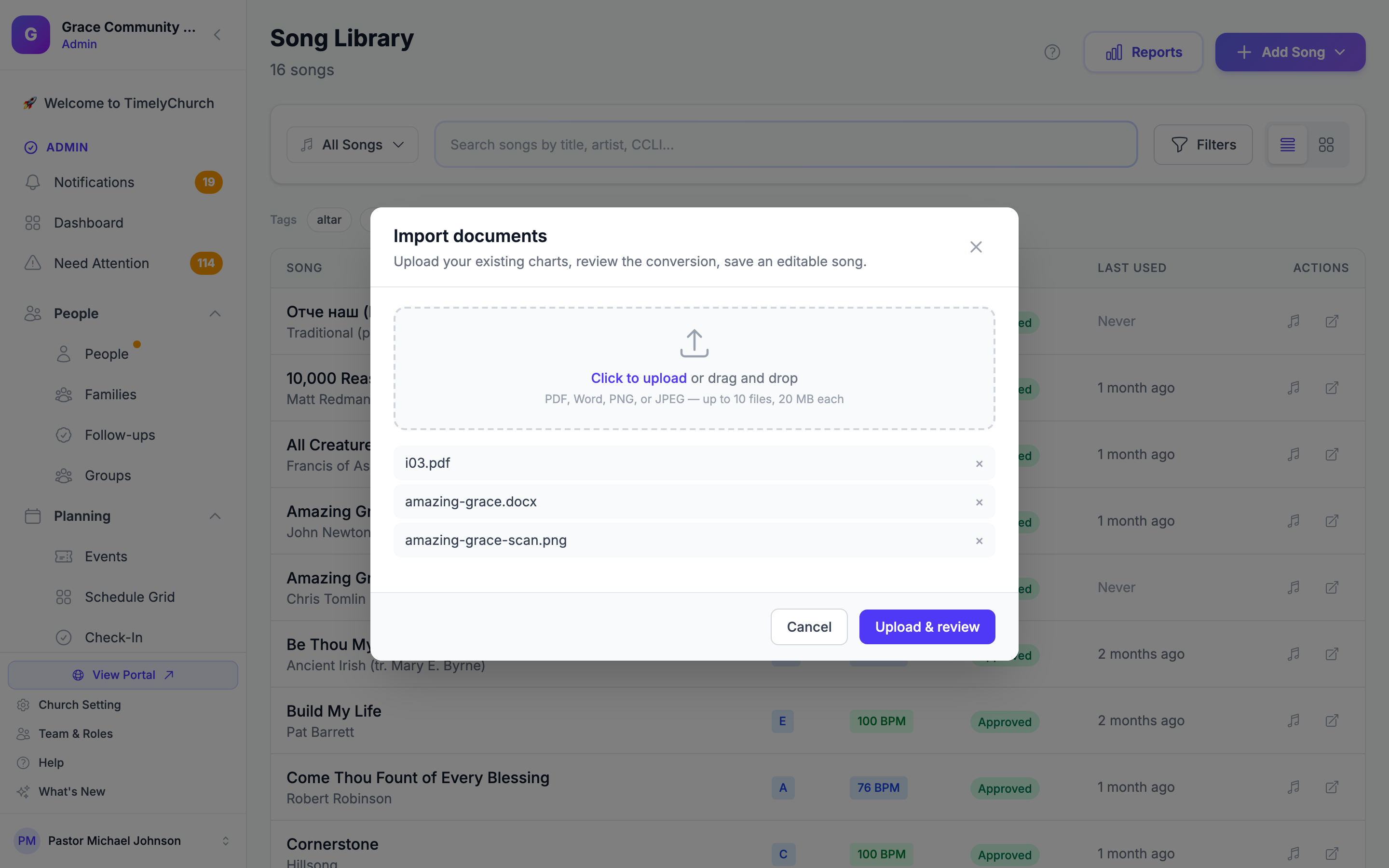
Drag your files onto the drop zone, or click it to pick them from your computer. The files you've chosen are listed underneath, and you can remove any of them with the × beside the name.
-
Click Upload & review.
-
Each file now shows its own state — Queued, then Extracting…, then Ready for review. This runs in the background, so you can leave the page and come back; you don't have to sit and watch it. A typical PDF is ready to look at in a few seconds, a Word file or a scan in a few more.
-
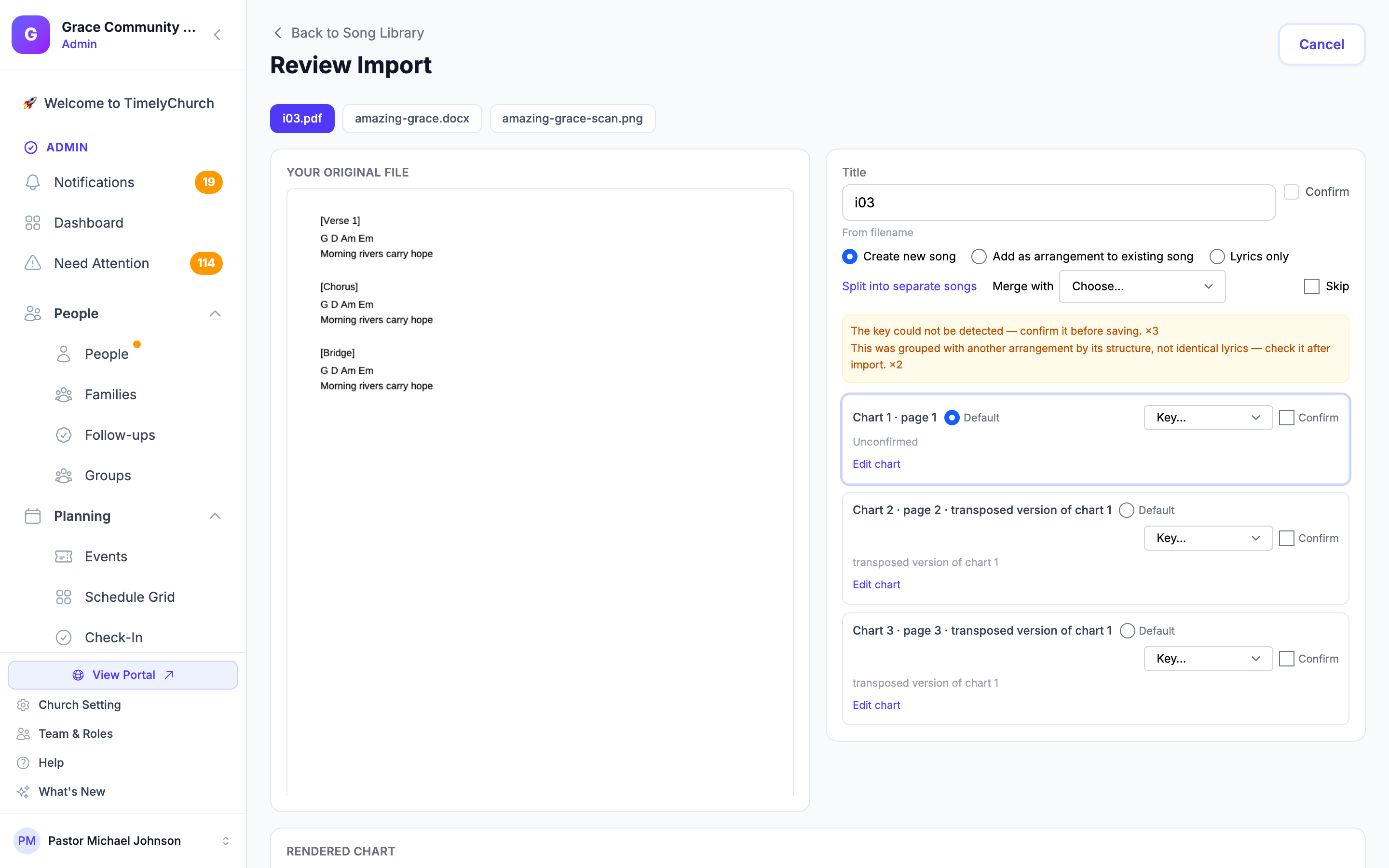
When a file is ready, the Review Import screen shows your original document on the left and the proposed song on the right. Read across, compare, and correct.
-
When everything looks right, click Save reviewed songs. This is the only action that adds anything to your library.
Reviewing a Proposed Song
Everything on the right-hand side is yours to change before you save.
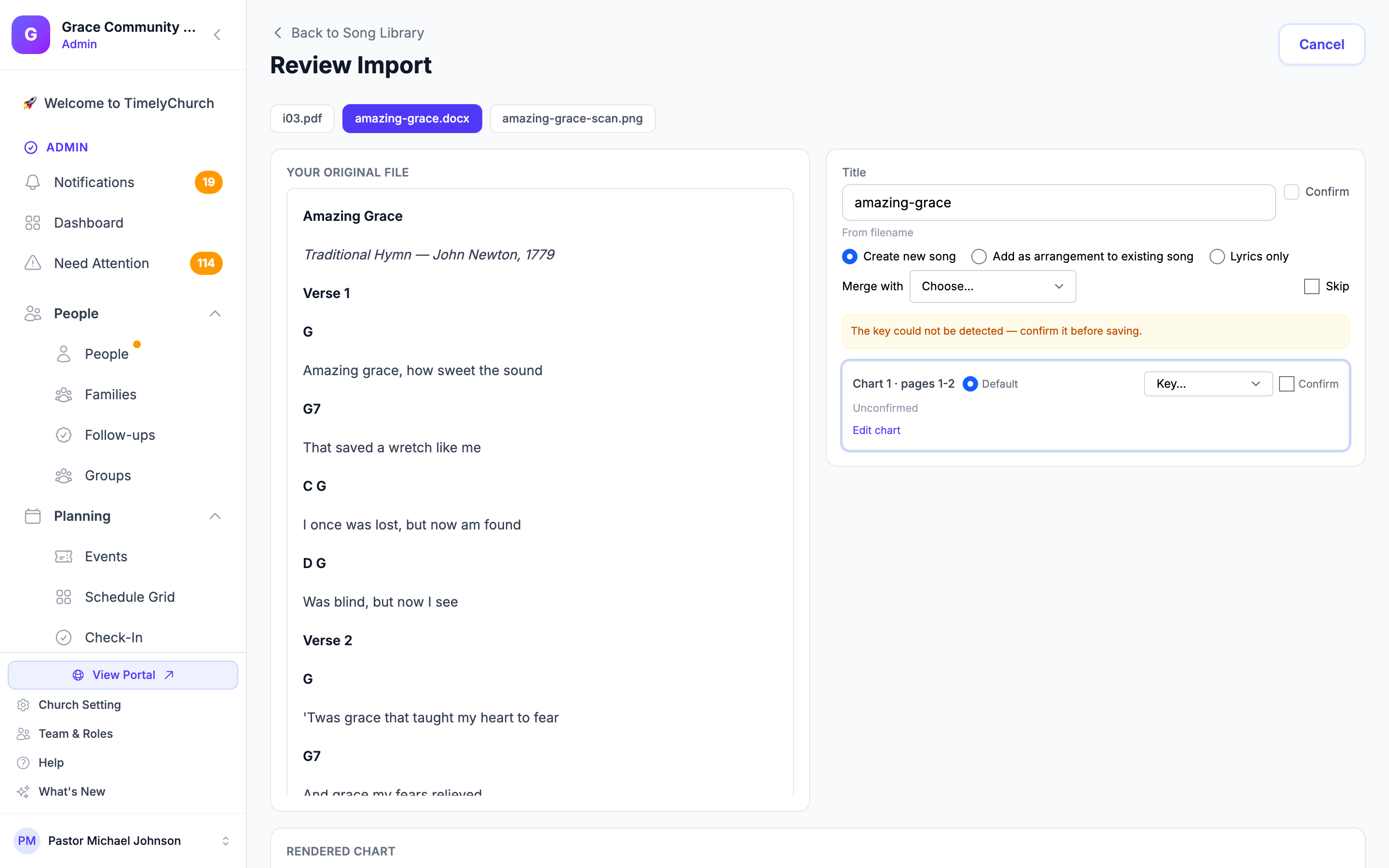
Title. Retype it if it's wrong, then tick Confirm. Underneath the field, a small line tells you where the title came from — written in the document (Explicit), taken from the file name (From filename), or not confirmed at all (Unconfirmed). For a ChordPro or text file it quotes the line the title was read from, for example line 1: {title: Amazing Grace}.
What this song should become. Choose one:
- Create new song — a song that isn't in your library yet.
- Add as arrangement to existing song — search your library, pick the song, and this becomes another arrangement of it. Useful when the document is the same song in a different key.
- Lyrics only — keep the words, drop the chords.
Split into separate songs. If one document turned out to contain two songs, this separates them.
Merge with. If two of your uploaded files turned out to be the same song, merge one into the other.
Skip. Leave this one out entirely. It won't be saved.
Include. Each proposed chart has its own Include box, ticked to start with. For a file with several pages, each chart's label shows which page it came from (for example "Chart 2 · page 2"), so you can tell the pages apart. Untick any page that isn't a usable chart -- a cover page, a blank page, a page of notes -- and only the ticked charts are saved. Untick every chart of a song and the song is skipped, exactly as if you had ticked Skip; tick one again and it's back in. If you untick the chart marked Default, the first chart that's still ticked becomes the default.
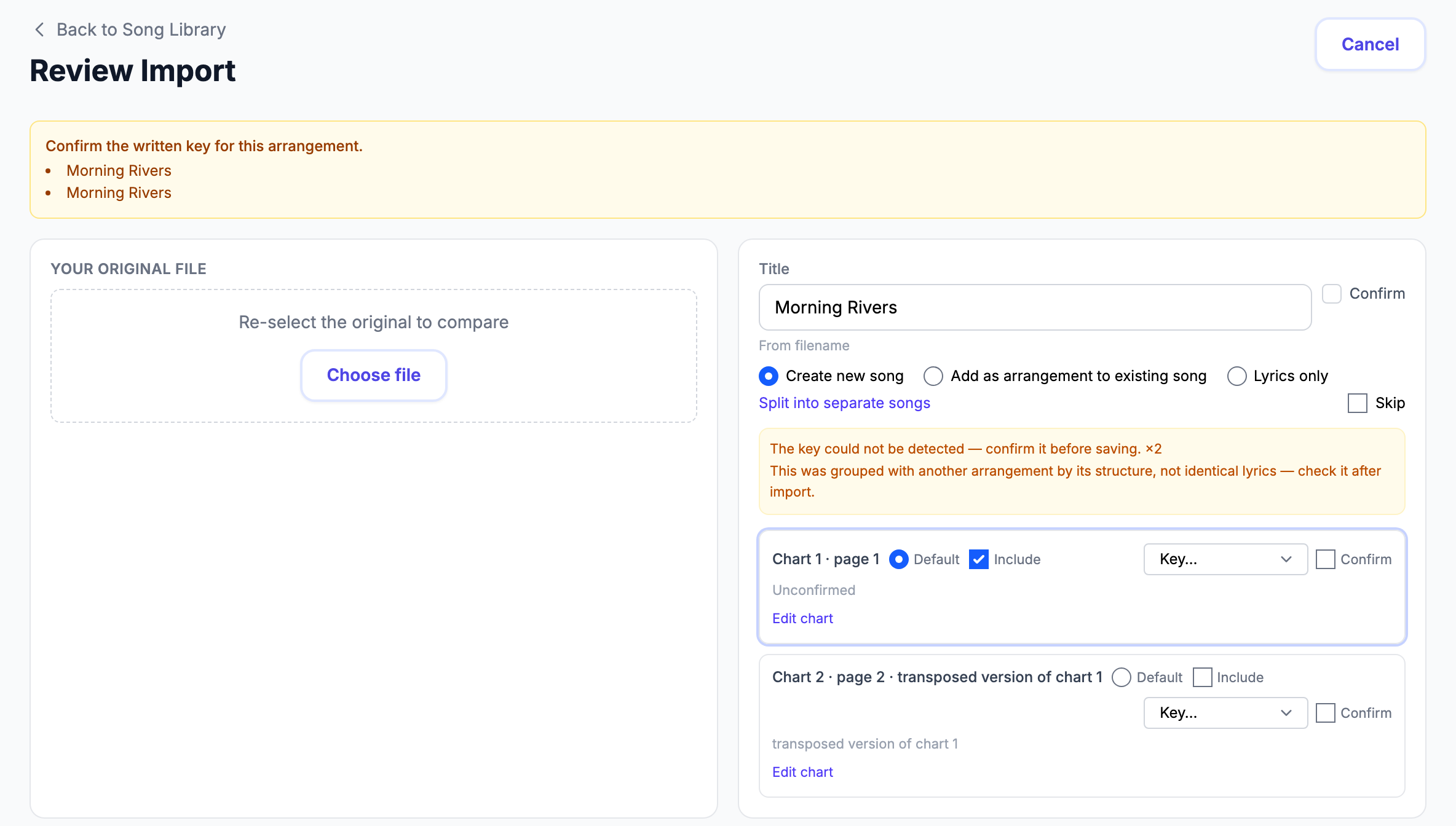
Key. Confirm the key for the arrangement. If the key couldn't be read from the document, that song is listed in a checklist near the top and Save reviewed songs stays disabled until you've confirmed it.
Edit chart. Opens the chart for editing so you can fix a chord, a section label or a line of lyrics by hand, right there. Click Done editing when you've finished.
When TimelyChurch Isn't Sure
Anything the reading was uncertain about is shown as a plain amber note on that song, in words you can act on. You'll see things like:
- This looks like a scanned document — accuracy may be lower.
- Scanned-text recognition had low confidence here — check it after import.
- This document contains a table — its content may not have imported as expected.
- A chord written as H (the German/Russian B) was read as B.
- The key could not be detected — confirm it before saving.
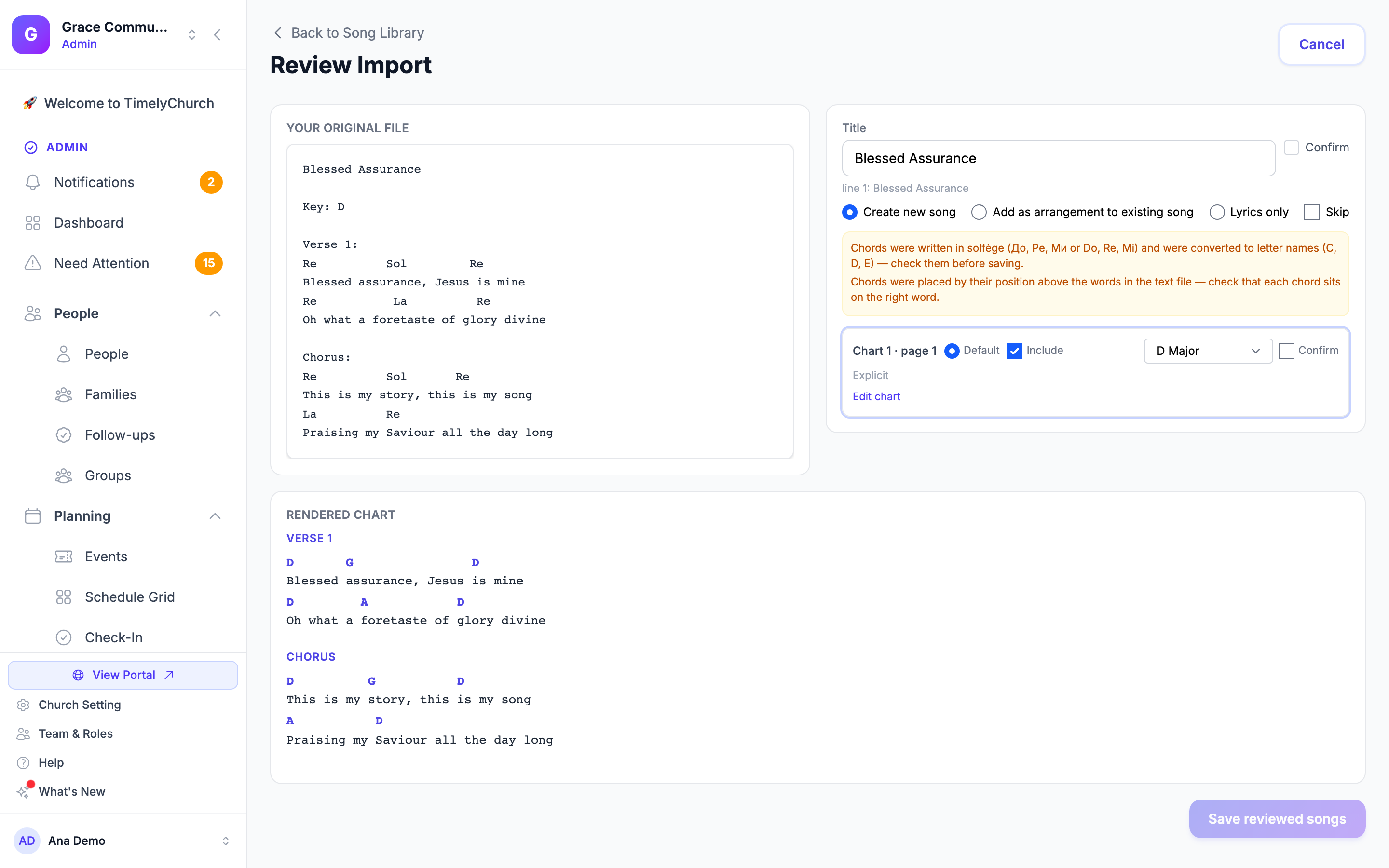
- Chords were placed by their position above the words in the text file — check that each chord sits on the right word.
- Chords were written in solfège (До, Ре, Ми or Do, Re, Mi) and were converted to letter names (C, D, E) — check them before saving.
When the same note applies several times, it appears once with a count beside it rather than repeating down the page.
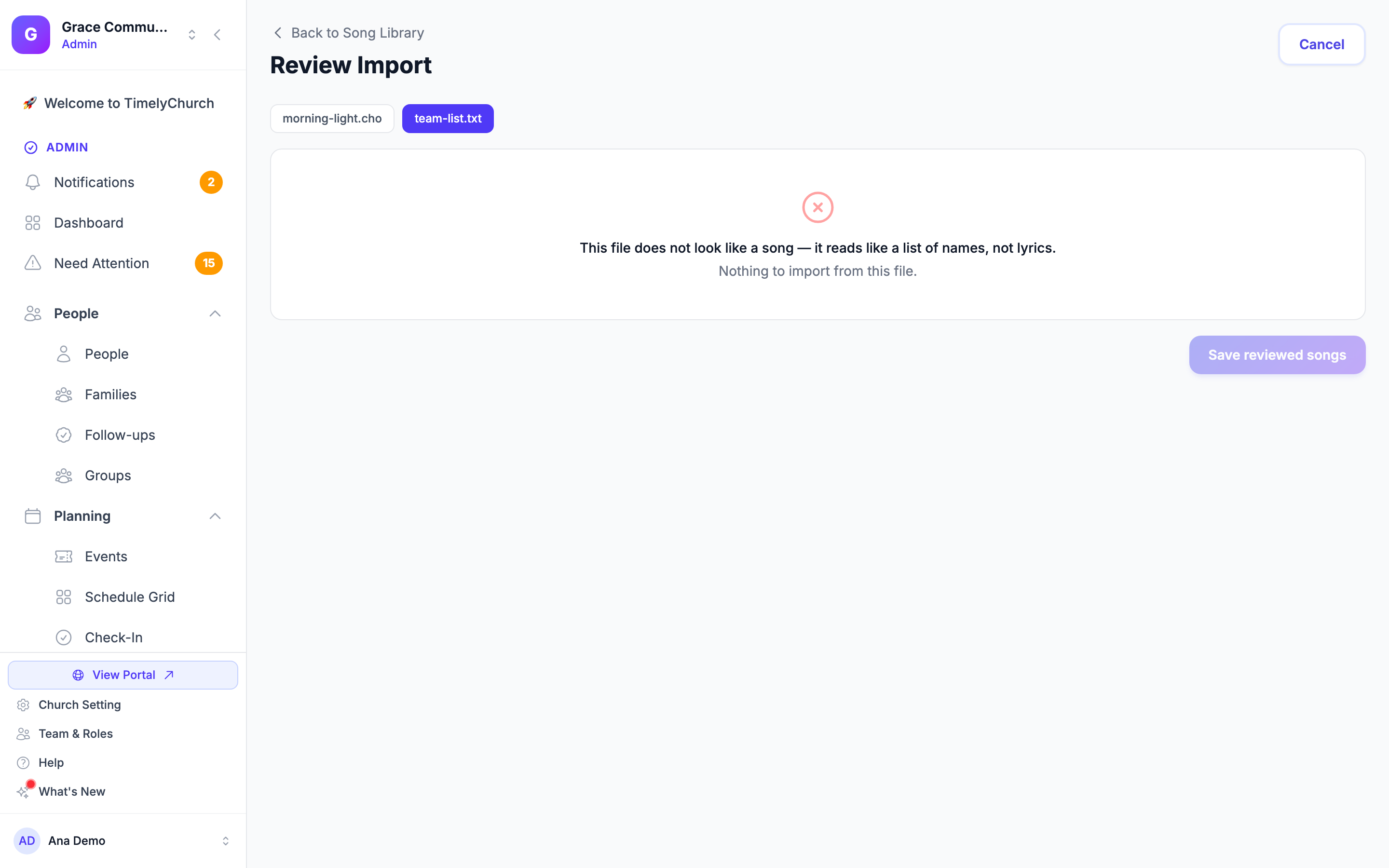
If one of your files couldn't be used at all, it's named at the top of the screen along with the reason, so you don't have to click through each file to find out what happened to it. Click that file's tab to see the reason on its own, with "Nothing to import from this file." If every file in the upload was refused, the page says "This import could not be processed." and lists each file with its reason.
ChordPro and Plain-Text Files
ChordPro charts
A ChordPro file (.cho, .chordpro, .chopro or .crd) already marks its chords, sections and details, so TimelyChurch converts it directly:
- Title, artist, key, CCLI number and copyright come from the file's own lines (
{title: …},{artist: …},{key: …}and so on). Composer, tempo and time signature are kept on a new song; a capo line goes into the arrangement's notes. A second key line later in the song becomes a note about the key change. - Sections (verse, chorus, bridge and custom ones) become your chart's section headings, and page and column breaks are kept.
- Several songs in one file (separated by
{new_song}) are proposed as separate songs, up to 50 per file. - Left out: chord diagrams, images and embedded notation — the review screen says so ("Chord diagrams, images or embedded notation in this ChordPro file were left out."). A transpose instruction in the file is not applied; change the key after saving if you need to.
On the review screen the left side shows the file's original text.
Plain-text (.txt) song files
A text file can hold anything, so TimelyChurch reads the content and decides what it is:
| The text is… | What you get |
|---|---|
ChordPro written into a .txt |
Read as ChordPro, as above. |
| Chords on their own line above the lyrics | A chord chart. Each chord is placed on the word it was typed above, and the review screen reminds you to check that every chord sits on the right word. |
| Lyrics only | A lyrics-only song: "No chords were found in this text file — it imports as lyrics only." |
| Not a song | The file is refused with a reason (see below) — never a garbage song. |
What it recognises in a text file:
- Section headings such as Verse, Chorus, Bridge, Pre-Chorus, Intro, Outro, Tag, Instrumental or Ending — in English, Russian, Ukrainian, Spanish, Portuguese, German and Lithuanian (Куплет, Припев, Estrofa, Coro, Refrão, Strophe, Posmas …), with or without brackets, a colon or a number. Repeat marks like (x2) or 2x are kept.
- Details lines such as Key:, Tempo:, Capo:, Time:, CCLI, Author:, Artist: and ©. The first line becomes the title when it stands on its own; otherwise the file name is used. Copy-and-paste footers from song services are not turned into lyrics.
- Chord-website headers — a title and artist followed by Tuning:, Strumming: or Difficulty: lines — become the song's title and artist; the tuning and strumming lines are left out. Guitar tab lines are skipped, with a note ("Guitar tab lines were skipped — add them back with Edit chart if you need them.").
- Double-spaced files, where a blank line sits between each chord line and its lyric, are read the same as single-spaced ones.
- German/Russian notation: when a file writes H, H is read as B and a plain B as B♭, with a note asking you to check the chords. A file without any H is never changed.
Solfège chords (Do, Re, Mi — До, Ре, Ми)
Chords written in solfège — in Latin (Do, Re, Mi, Fa, Sol, La, Si) or in Cyrillic (До, Ре, Ми, Фа, Соль, Ля, Си) — are converted to letter chords when you import a ChordPro or text file: Do = C, Re = D, Mi = E, Fa = F, Sol = G, La = A, Si = B. Minor and sharp/flat marks come along (Реm → Dm, Сольм → Gm, Си♭ → B♭, Fa# → F#), and a key written in solfège (Тональность: Ре минор) sets the key. Write each chord without a space inside it. Your chart is always stored with letter chords, and the review screen tells you the chords were converted so you can check them.
A chord TimelyChurch cannot read at all is kept as text in round brackets and listed on the song ("Chords not recognised (2): [Xyz], [Q7] — they were kept as text in ( ). Fix them with Edit chart, or save the song as it is."). Lyrics are never converted.
When a file is refused
A ChordPro or text file that isn't a song is refused, with a reason you can read on the review screen:
- "This file does not look like a song — it looks like a web page (HTML)." — likewise for program code, a spreadsheet (CSV), a log file or data (JSON).
- "This file does not look like a song — it reads like paragraphs of prose, not lyrics." or "… it reads like a list of names, not lyrics."
- "This file is too short to import as a song. A song needs at least three lines of lyrics, or chords or section headings." A short lyric of three to seven full lines is accepted, with a note asking you to check that it is a song.
- "This file is not a ChordPro text file." / "This file is not a plain-text file." — for example a picture or PDF renamed to
.choor.txt. - "This text file holds more songs than one import allows. Split it into smaller files."
A song file in the spreadsheet import
Add Song → Import from File is for spreadsheets (CSV). If you choose a ChordPro chart or a song saved as a .txt file there, nothing is imported: you see "This is a ChordPro chart, not a spreadsheet. Use Add Song → Import documents to bring it in." or "This text file is a song, not a spreadsheet. Use Add Song → Import documents to bring it in." A song list saved as .txt whose header row has a title column still imports as a spreadsheet.
After You Save
You'll see Import complete, with each result named — New draft song for a song that's new to your library, or Arrangement added for one attached to a song you already had — and a link back to the song library.
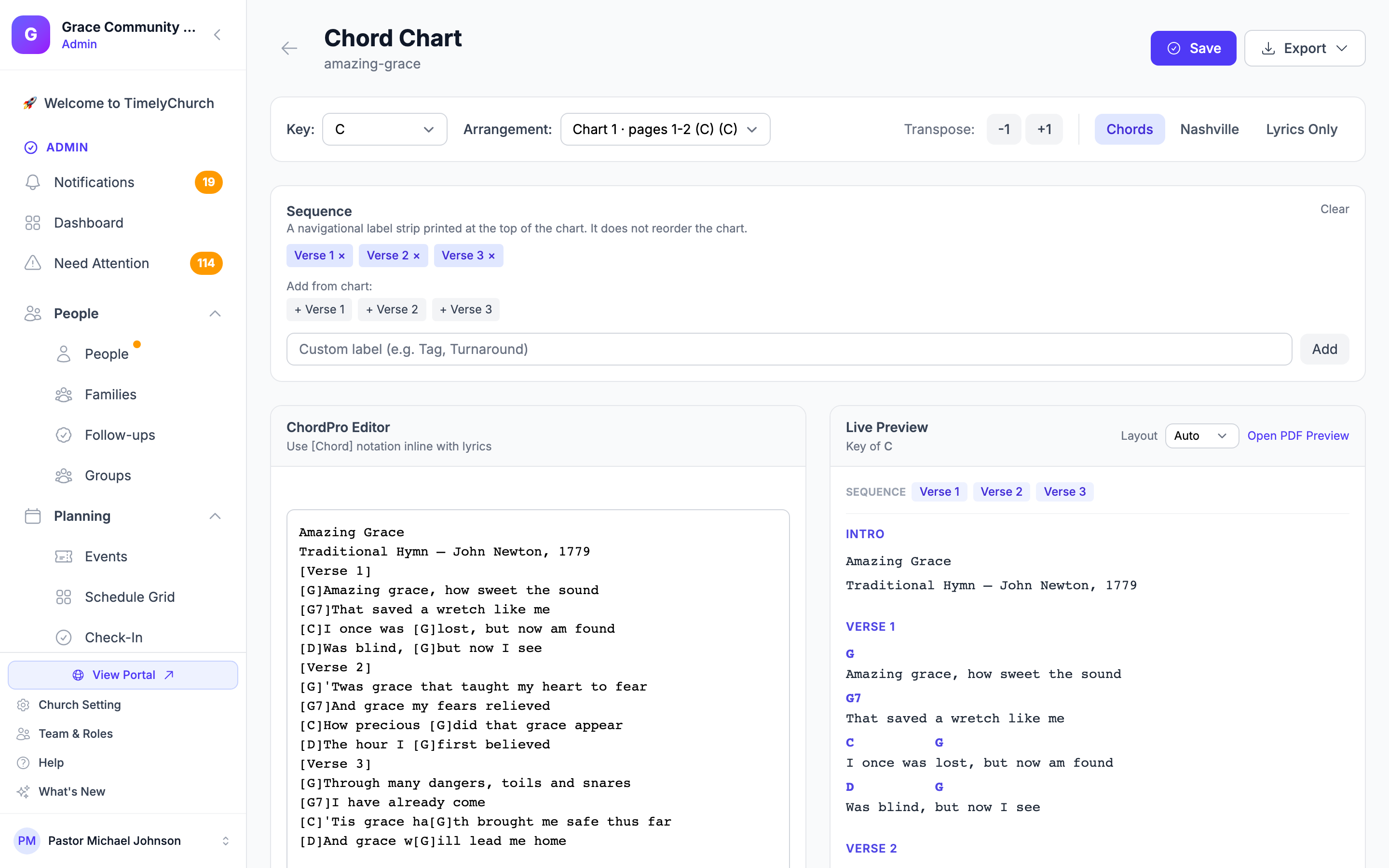
What you get is an ordinary TimelyChurch song. It transposes, it goes into setlists, it appears on My Stand, it can be translated, and it exports as a chart or as slides — exactly like a song you typed in yourself. A new song arrives as a draft, so review it and change its status when you're happy with it.
Tips
- Start small. Import five songs before you import fifty. You'll learn quickly how your particular documents read, and what you need to check.
- Read every song before saving. The side-by-side layout exists for exactly that. A clean Word file and a grey photocopy are not the same job, and no accuracy figure would tell you which one you're holding.
- Scans need the closest look. When the page tells you it's working from a scan, read that song twice — especially the chords.
- Don't stare at the progress screen. Extraction runs in the background. Start it, do something else, come back.
- Finish the review in one sitting. A review that's left alone eventually expires, and nothing is added. Your files are still on your computer, so you can simply upload them again.
- Ten files per batch. A large library comes across in several batches rather than one go.
- Have ChordPro or text versions? Use them. They import faster and more exactly than a PDF or a scan of the same song.
- Use "Add as arrangement" for the same song in another key. It keeps one song in your library with several arrangements, instead of several near-identical songs.
What Happens to Your Document
Your file is processed and the temporary copy is removed. What remains is the song you reviewed and saved, in your church's song library, exactly like every other song in it.
Related Articles
- Song Library — where imported songs land, and everything you can do with them afterwards
- Chord Charts and Key Transposition — editing the chart you just imported, and changing its key
- Writing a Chord Chart in the Editor — tidying an imported chart: sections, chords, band notes and breaks
- Song Arrangements — what "Add as arrangement to existing song" creates
- Adding a Translation to a Song — adding another language to an imported song
- Exporting Charts and Slides — getting the imported song back out again