
Simple vs. Advanced Accounting Mode
Overview
TimelyChurch's accounting can be viewed in one of two modes:
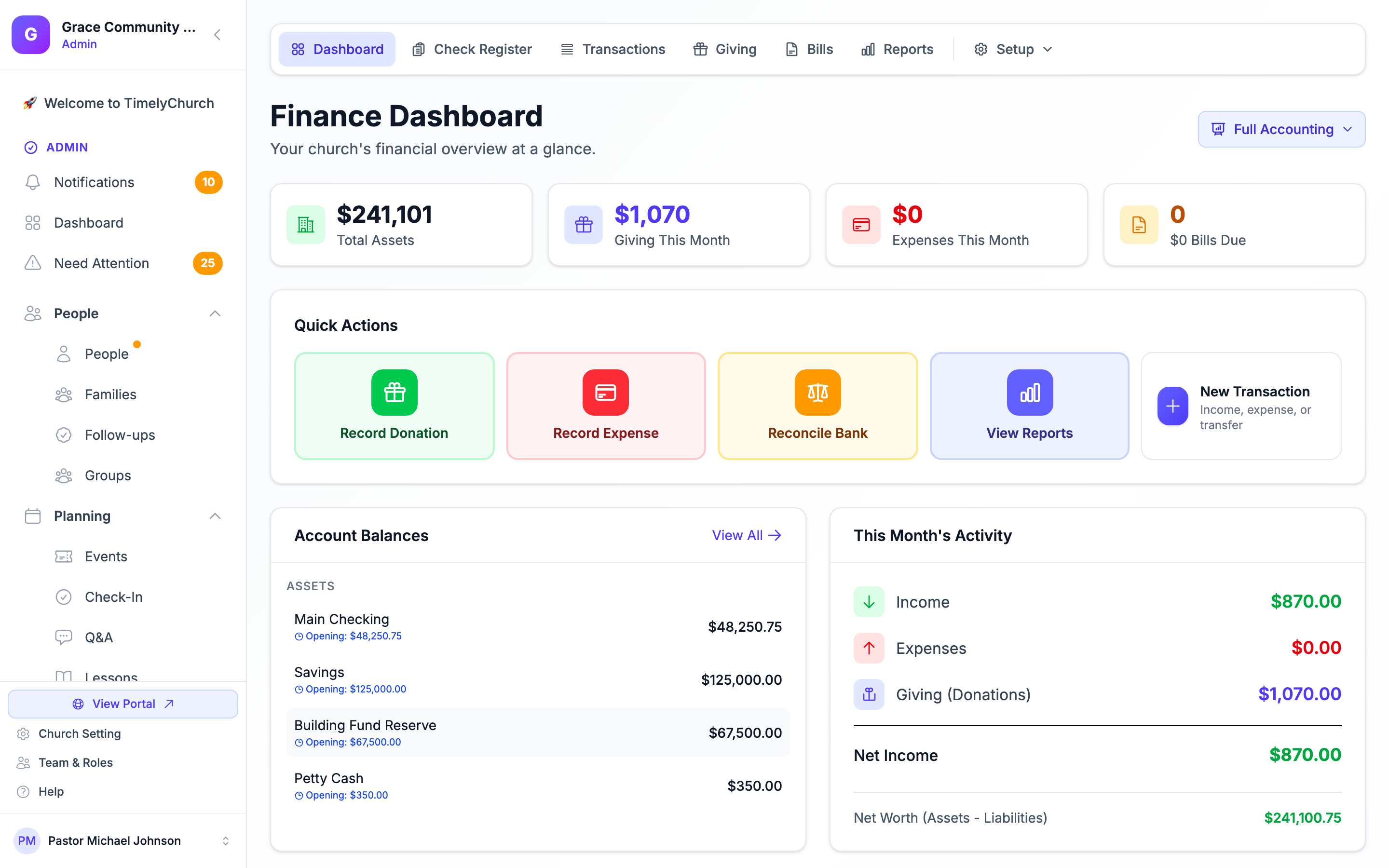
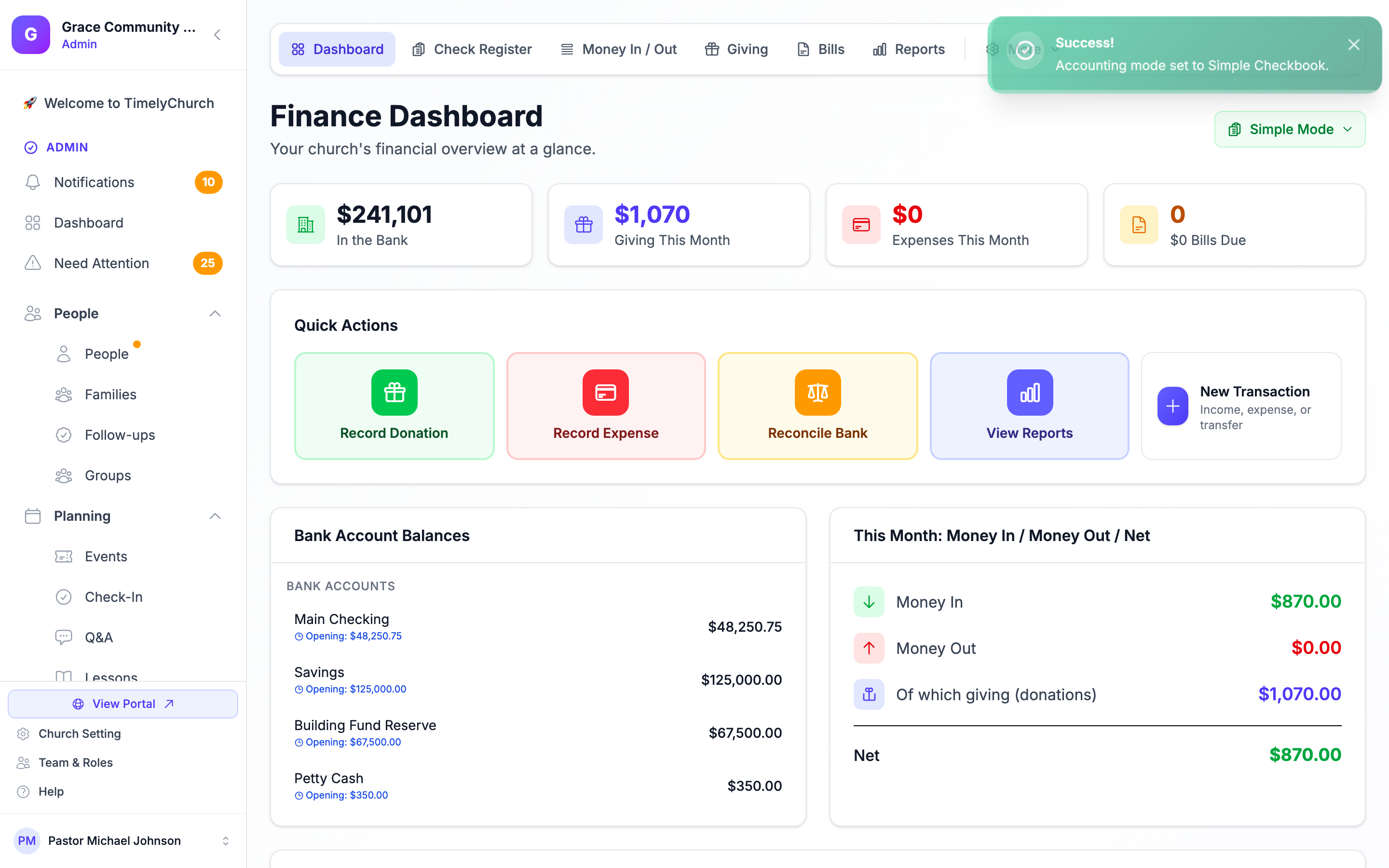
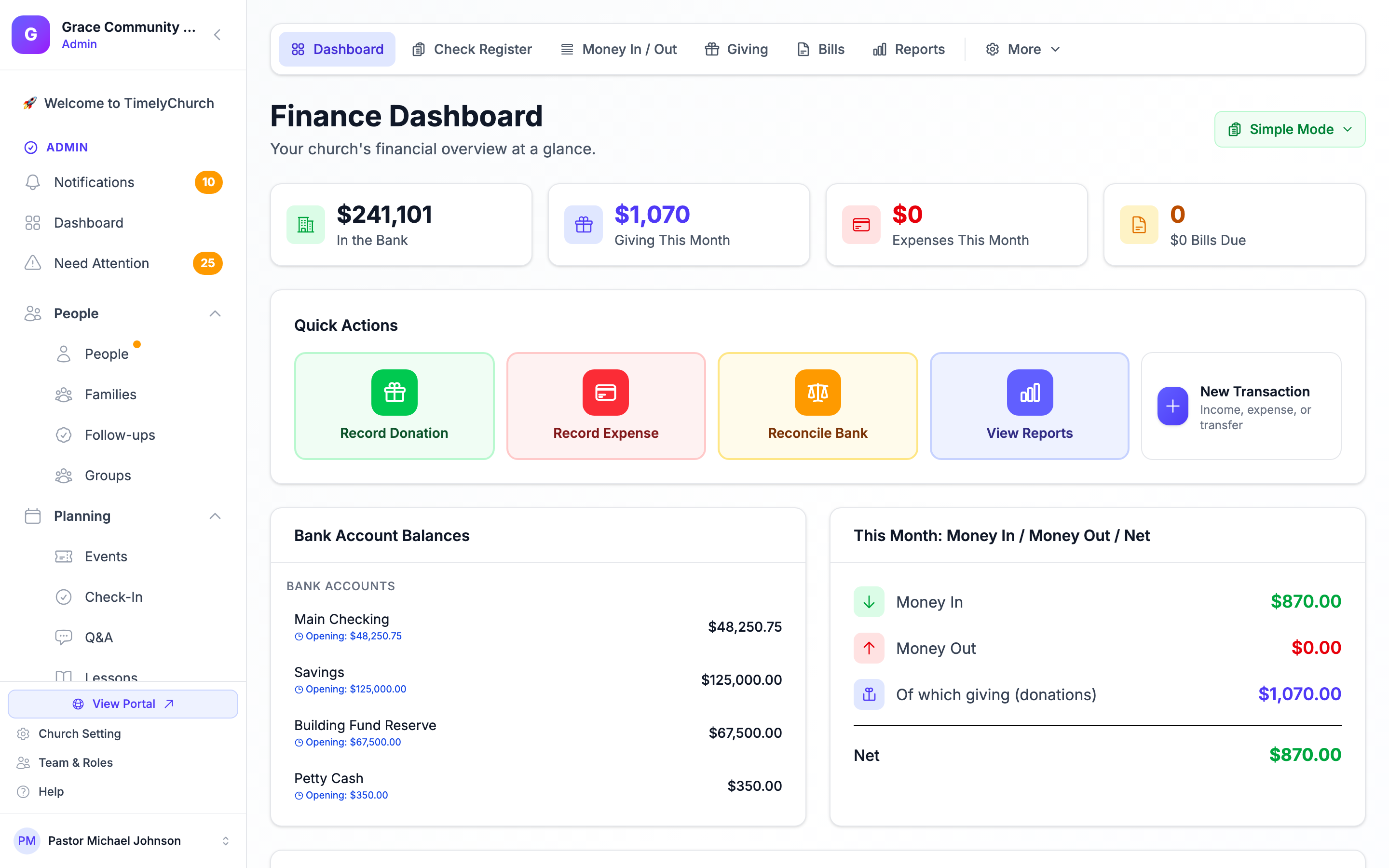
- Simple Checkbook -- A streamlined view designed for small churches and volunteer treasurers. The accounting tab bar shows the Dashboard, Check Register, Money In / Out, Giving, Bills, and Reports, and the everyday screens are relabeled in plain language (for example, Transactions becomes Money In / Out and Income / Expense become Money In / Money Out). A few power-user screens (Chart of Accounts, Journal Entries, and Budgets in the Setup menu) are hidden to reduce clutter.
- Full Accounting -- Every accounting feature is exposed, with standard accounting terminology: Chart of Accounts, Categories, Payees, Budgets, Reconciliation, Recurring, Journal Entries, Trial Balance, General Ledger, Audit Log, 1099 Report, Close Fiscal Year, and the full Reports suite.
Both modes operate on the same underlying data. Switching modes does not migrate, copy, or delete anything -- it only changes which screens are visible in the navigation and how some of them are labeled. A transaction recorded in Simple mode is the same transaction in Full Accounting; only the wording on the screen differs.
The mode is personal. Each person chooses their own view. When your treasurer switches to Simple Checkbook, only the treasurer's screens change -- your bookkeeper can stay in Full Accounting at the same time. The church sets a default that new members start with (see Finance Settings below).
Which Mode Should You Use?
| Use Simple Checkbook if... | Use Full Accounting if... |
|---|---|
| You have a single-person finance role (one treasurer) | You have a finance committee or multiple staff in the books |
| You think of finances as "the church checkbook" | You think in terms of debit/credit, asset/liability, accrual |
| You report cash-in / cash-out, not full statements | You produce Balance Sheets and Income Statements |
| Annual giving is below the threshold for an audit | Your bylaws or insurer require formal financial reports |
| You don't run formal annual budgets | You set, track, and report on a budget each year |
| You have fewer than ~5 bank-account-touching transactions per week | You have meaningful transaction volume across multiple accounts |
There is no "wrong" answer. Many treasurers start in Simple Checkbook for the first year or two, then switch to Full Accounting when the finance team grows or the board asks for more detailed reporting.
First-Time Setup
The first time someone opens Accounting on a new church, a short Welcome to Accounting screen asks "Who handles the books for your church?":
- Me -- "I'm a volunteer treasurer, pastor, or admin (not an accountant)" -- Use Simple.
- My bookkeeper or CPA -- "I want full GAAP accounting tools" -- Use Full Accounting.
Your answer sets the church's default mode. Choosing it needs permission to edit Settings. It is not permanent -- anyone can switch their own view afterward (see "Switching Modes" below).
What's Visible in Each Mode
In both modes the tab bar across the top of every accounting page shows the same core tabs:
- Dashboard
- Check Register (the page is titled Checkbook in Simple mode)
- Money In / Out (this tab is labeled Transactions in Full Accounting)
- Giving
- Bills
- Reports
The difference is the dropdown at the end of the tab bar:
- In Simple Checkbook it is labeled More ▾.
- In Full Accounting it is labeled Setup ▾.
Simple Checkbook
The More ▾ dropdown exposes the screens a volunteer treasurer is most likely to need:
- Categories
- Payees
- Reconciliation
- Recurring
- Trial Balance
- General Ledger
- Audit Log
- 1099 Report
- Close Fiscal Year
Hidden in Simple mode (these are Full Accounting concepts):
- Chart of Accounts
- Budgets (still available from Finances > Budgets in the sidebar)
- Journal Entries
- The Tracking Class field on transactions
Full Accounting
The Setup ▾ dropdown exposes the full set of accounting screens:
- Chart of Accounts -- Full account list across the five accounting types.
- Categories -- Income and expense categories with sub-categories.
- Payees -- Vendor directory with 1099 tracking.
- Budgets -- Annual / quarterly / monthly budgets with variance reporting.
- Reconciliation -- The bank reconciliation workflow.
- Recurring -- Income and expenses that repeat on a schedule. See Recurring Transactions.
- Journal Entries -- Manual double-entry postings for CPA-style adjustments.
- Trial Balance -- A balance snapshot across all accounts.
- General Ledger -- A per-account drill-down of every posting.
- Audit Log -- A record of who changed what, and when.
- 1099 Report -- Vendor payments for year-end tax filing.
- Close Fiscal Year -- Lock a finished year's transactions.
Full Accounting also shows the complete Reports suite, including the Balance Sheet and Budget vs Actual (see "Reports" below).
How Labels Change in Simple Mode
Simple mode keeps the same screens but relabels them in plainer language. The data is identical -- only the wording differs. A few examples:
| In Full Accounting | In Simple Checkbook |
|---|---|
| Transactions | Money In / Out |
| Income | Money In |
| Expense | Money Out |
| Income Statement | Money In vs Money Out |
| Opening Balances | Starting Balances |
| Check Register | Checkbook |
Reports
Reports run on the same data in both modes; Simple mode simply shows a focused set and renames a couple of them.
- Simple Checkbook highlights the Treasurer's Report (a one-page monthly summary), plus Money In vs Money Out (the Income Statement) and Giving Statements. The Balance Sheet, Trial Balance, General Ledger, and Budget vs Actual cards are hidden on the Reports hub, as they tend to confuse volunteer treasurers (Trial Balance and General Ledger stay in the More ▾ menu).
- Full Accounting adds the Balance Sheet, Trial Balance, General Ledger, and Budget vs Actual cards on top of everything above.
The 1099 Report is opened from the Setup ▾ / More ▾ menu in both modes. Switching modes does not change the data inside any report, and historical reports keep the same figures regardless of mode.
Switching Modes
You can switch your own view from two places.
From the Finance Dashboard:
- Go to Finances > Accounting.
- In the page header you'll see the Accounting Mode button, labeled either Simple Mode (green) or Full Accounting (indigo) depending on your current view.
- Click the button to open the menu. You'll see two options summarizing what each mode includes: Simple Checkbook ("Dashboard, Check Register, Giving, Bills, Reports") and Full Accounting ("Chart of Accounts, Categories, Payees, Budgets, Reconciliation").
- Click the mode you want. It takes effect immediately, and a message confirms "Your accounting view is now ...".
From the Check Register: the same control appears in the Check Register header, labeled Simple or Advanced.
Your choice is remembered for you across sessions and devices. It does not change anyone else's view.
Finance Settings
The Finance Settings page holds two church-wide settings:
- Default accounting mode for new members -- "This sets the starting view for new members. Each person can switch their own view anytime from the accounting dashboard — this only changes the default." Choose Simple Checkbook or Full Accounting and click Save Accounting Mode. Changing the default needs permission to edit Settings.
- Payment processor fees -- the Processing Fee Category and Processing Fee Account that processing fees post to. Click Save settings (needs the Edit permission on Accounting). See Stripe Fee Auto-Recording.
The Finance Settings page does not have its own item in the Accounting menus. It opens from the Open Finance Settings → link that the bank-import review queue shows when imported rows carry a processing fee and no fee category is set.
What Happens When You Switch
Switching modes is non-destructive. Specifically:
- No data is migrated, copied, deleted, or transformed. Every transaction, account, payee, budget, and reconciliation stays exactly where it was.
- Hidden screens still hold their data. Switching from Full Accounting to Simple hides the Chart of Accounts and Journal Entries from your menus but does not delete anything. Switching back makes them visible again, untouched.
- Automation keeps running. Donation posting, recurring bill generation, and Stripe fee recording all continue regardless of anyone's view.
- Reconciliation locks remain. A period reconciled while in one mode is still reconciled in the other.
You can switch back and forth as needed without consequence.
When to Switch From Simple to Full Accounting
Common signals it's time to upgrade your view:
- Your board asks for a Balance Sheet, an Income Statement, or category-level reports the Check Register can't produce.
- You start operating with multiple bank accounts and need formal monthly reconciliation.
- You set a formal annual budget for the first time.
- You hire a paid bookkeeper or treasurer who is used to standard accounting workflows.
- You acquire restricted funds (designated giving) that need to be tracked separately.
When to Switch From Full Accounting to Simple
Less common, but valid scenarios:
- A church plant is new and the volunteer treasurer is overwhelmed by the full feature set.
- You inherited a Full Accounting setup but the church has scaled down.
- You want to give a less-experienced volunteer treasurer a streamlined view -- they can switch their own view while others keep Full Accounting.
In all of these, remember that the data is preserved -- you can always switch back.
Best Practices
Set the default to match most of your team. New members start in the church's default mode; people who need the other view can switch their own.
Train on the mode each person uses. If a volunteer uses Simple Checkbook, don't worry about training them on the Chart of Accounts or Journal Entries -- they won't see those screens. If someone works in Full Accounting, walk them through the full workflow.
The reports in Simple mode are a subset, not a different format. Reports produced in Simple mode pull from the same data as the equivalent reports in Full Accounting. Switching modes changes some labels (for example, "Income Statement" becomes "Money In vs Money Out") but does not change the figures, and historical reports keep the same numbers.