
Stand Link — The Tablet That Lives on the Music Stand
Some churches keep a tablet clamped to a music stand permanently. It is nobody's personal device: the keyboard player uses it this week, a guest bassist uses it next week, and on Wednesday the youth band uses it. Asking each of those people to sign in — on a shared screen, in the dark, two minutes before the service — never really worked.
Stand Link is the answer to that specific problem. It is one bookmarkable web address for your whole church that opens straight to today's music. No login, no app, no password typed on a stage.
This is not a replacement for My Stand. My Stand is the full personal experience on your own phone or laptop — practice tools, personal marks, your own keys. Stand Link is for the shared tablet that belongs to the church rather than to a person.
Turning It On
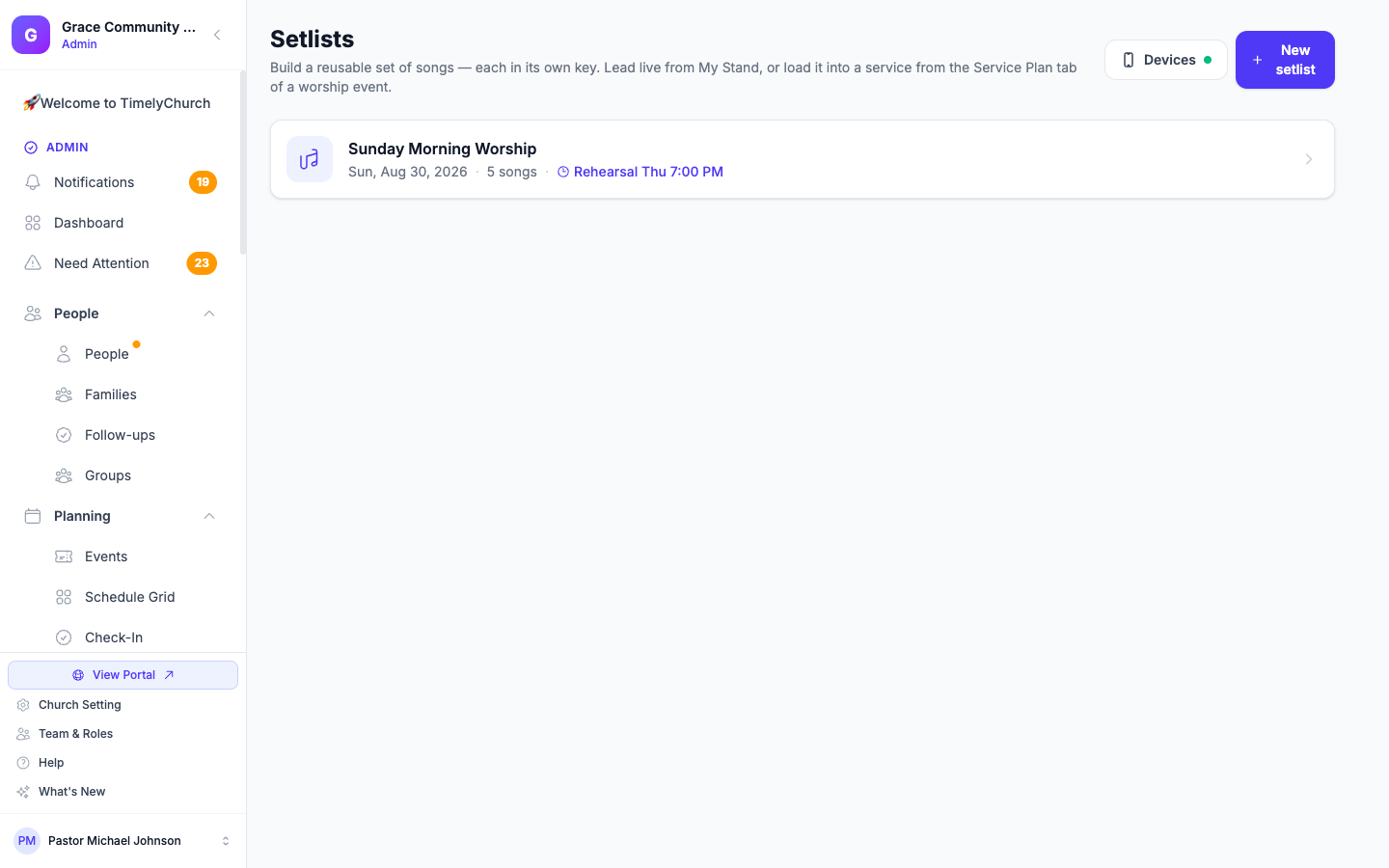
- Go to Worship → Setlists in the admin area, then click Devices (next to Add Setlist) to open the Devices page. A small dot on the button turns green once Stand Link is set up, so you can check status without opening anything.
- On the Stand Link tab, click Create Stand Link. (Once a link exists, that button is replaced by a Link active badge — the tab stays right there so you can copy the address or manage PINs whenever you need to.)
- Copy the address that appears and open it on the tablet.
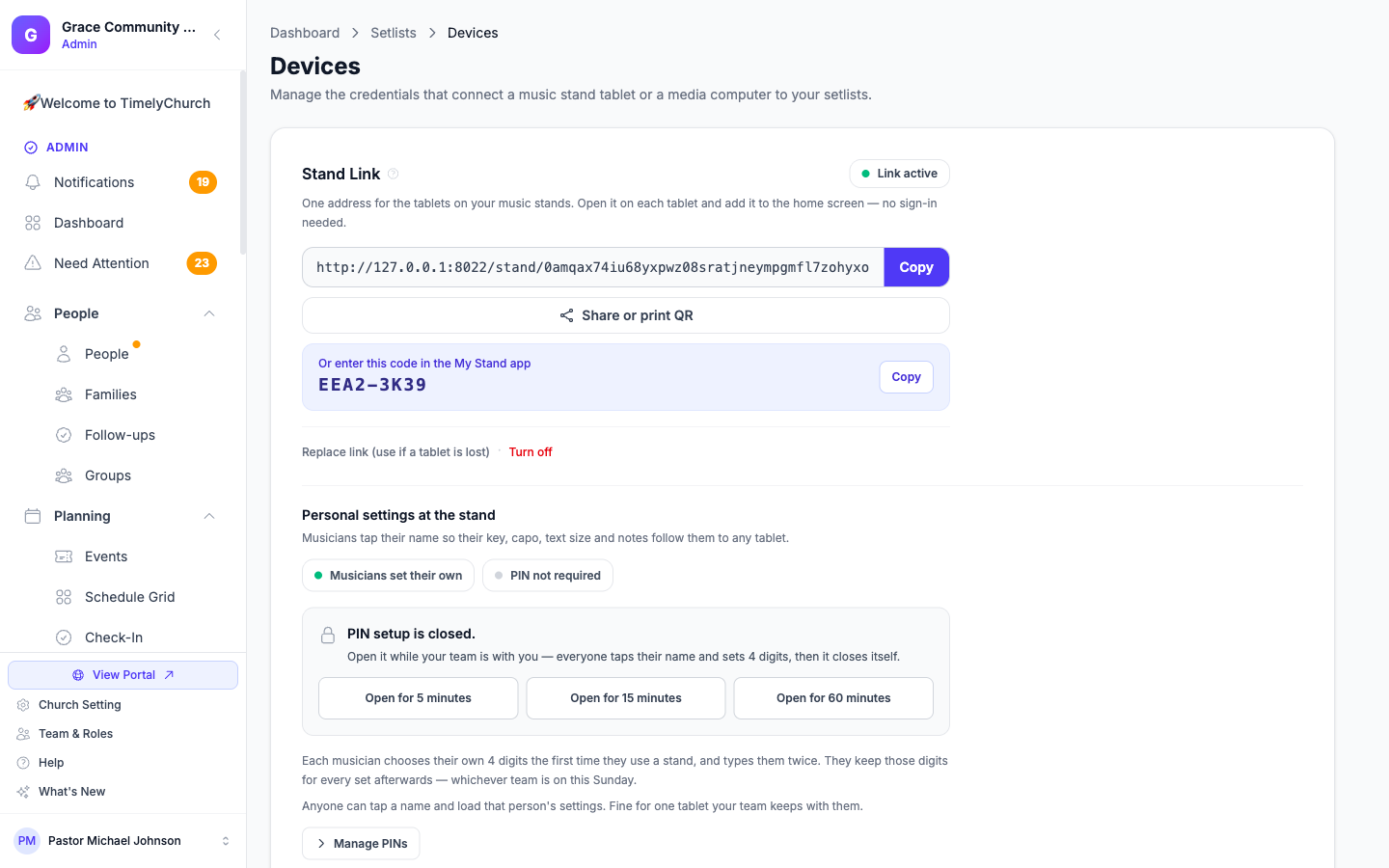
On an iPad, tap Share → Add to Home Screen so it launches full-screen like an app. On Android, use Menu → Add to Home screen in Chrome. That is the whole setup — the link keeps working week after week.
What a Musician Does at the Stand
- Tap the set you are playing — the stand shows everything from two days ago to three weeks ahead, so last month's sets have already cleaned themselves up.
- Tap your name in that set's team list. Only people on the current sets are shown, and only as a first name and last initial — a tablet left on a stand never becomes a church directory.
- Enter your PIN (or set one — see below). From that moment the stand is yours: your key, capo, text size, chords on or off, and your own notes follow you, not the tablet.
Beside every name there is a small padlock: a closed lock means that person already has a PIN; an open lock means they still need one.
Someone not on the team? The sound desk, a guest, a parent — below the names there is a "Not on this set? Just view the songs" link that opens the read-only set.
PINs: How Your Church Runs Them
Your church makes two choices on the Stand Link tab of the Devices page, and together they set the posture:
Who creates the PINs
- Musicians set their own — each person chooses 4 digits (typed twice to avoid a mistype) the first time they enrol. Nobody has to type forty PINs for forty people.
- You set the PINs — only a leader or admin creates and resets them, from Manage PINs. Nobody can enrol as somebody else.
Whether a PIN is required at all — with PIN required on, every claim takes the four digits, so a name on the screen actually proves who is standing there.
The stand is locked between sessions on purpose. When musicians set their own PINs, a name that has no PIN yet cannot be claimed — and no "set up my PIN" button appears — until a leader opens the window below. Anyone who already has a PIN can use it any time, on any set, whichever team is playing that week. A church that truly wants an always-open, tap-any-name stand chooses You set the PINs with PIN not required — that is a deliberate setting, not the default.
Onboarding a Team: The PIN Setup Window
Setting PINs happens while the leader is in the room, in a short window that closes itself:
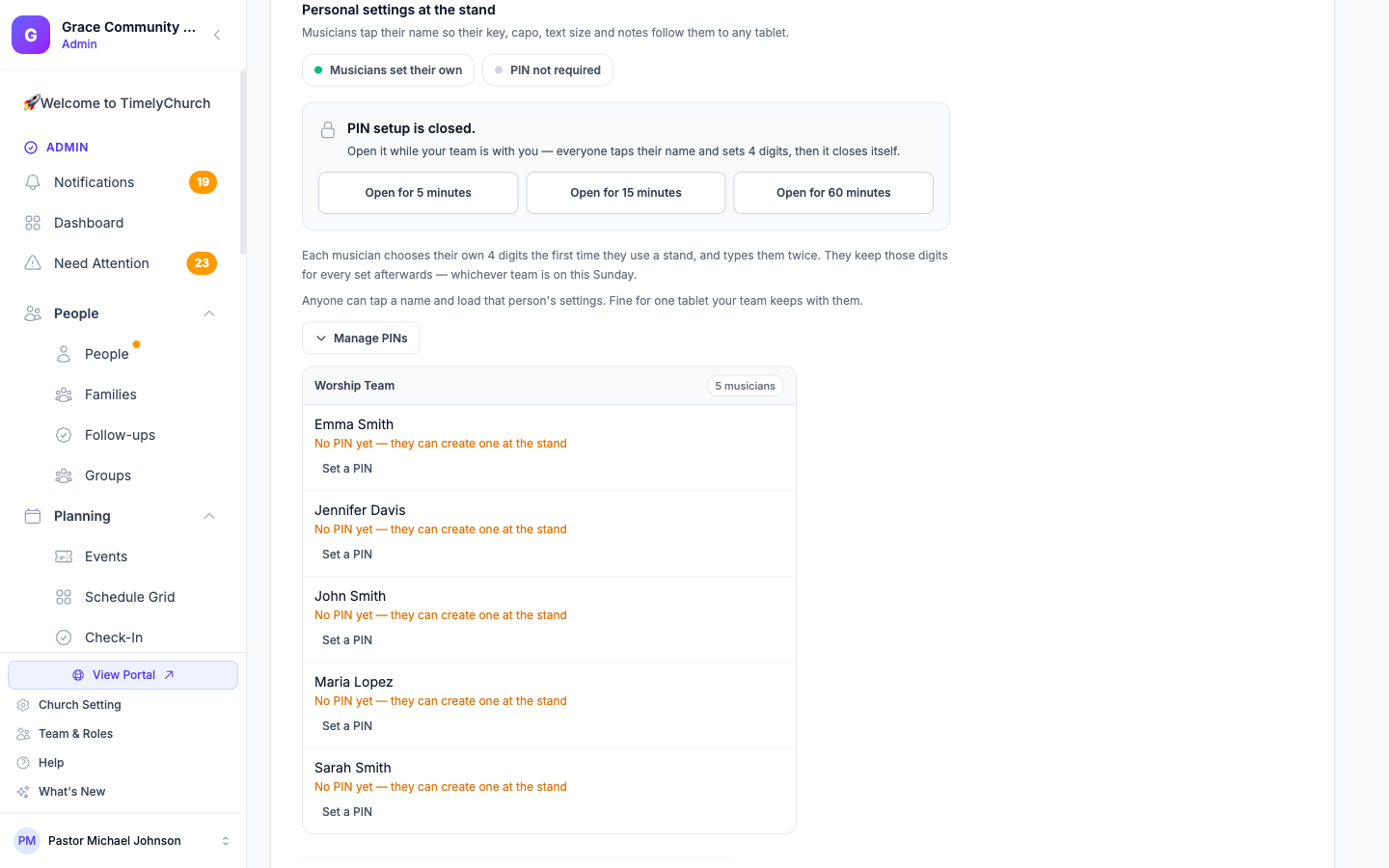
- On the Stand Link tab of the Devices page, under PIN setup, choose Open for 5 / 15 / 60 minutes.
- Tell the team: "everyone tap your name and choose your four digits." The stand shows a live countdown while the window is open, and each musician types their digits twice.
- The window closes on its own. Whoever missed it gets caught next rehearsal — Manage PINs always shows exactly who has no PIN yet.
Setting a PIN takes the stand immediately — no need to type it a third time. And whenever a PIN is set on someone's name at a stand, that person is notified (Telegram or email), so a PIN nobody asked for never goes unnoticed.
"I Forgot My PIN"
The Sunday-morning classic, handled in one tap:
- Open Manage PINs, find the person, and tap "Forgot it? Open a 15-min reset."
- Their old PIN dies immediately. For the next 15 minutes, tapping their name at any stand goes straight to choosing a new PIN — typed twice, then the stand is theirs.
- Nobody else's PIN is touched, and the panel shows "Setting a new PIN — window open until…" while it runs.
Leaders can also directly Set, Change, or Clear any PIN from the same screen.
When a Tablet Goes Missing
Click Replace Stand Link. A new address is generated and every old bookmark stops working instantly — including the one on the tablet that walked off. Turn off Stand Link disables the whole thing until you create a new link.
Good Habits
- Bookmark once per tablet, then leave it alone.
- Treat the address like a key — it belongs in the team's private chat, never on a public page or a printed handout.
- Open the PIN window only with the team in the room — that supervision is the whole point of it.
- Replace the link whenever a tablet is lost, sold, or leaves with a departing volunteer.
What a PIN protects — honestly. Claiming a stand is not a login. It never opens the Member Portal, giving, the directory, or anything in the admin area. The PIN guards your chord settings and your own written notes — so pick four digits your drummer can remember at 8:55 on a Sunday, and don't lose sleep over it.
How Far Ahead the Stand Looks
The stand shows the services your team is actually preparing for — by default, the next 3 weeks (plus a day or two of grace behind, so a stand doesn't empty itself at midnight mid-service). A setlist dated further out than the window simply isn't on the stand yet.
If your team plans a term at a time, raise the window: on the Stand Link tab of the Devices page (next to the PIN controls), choose how far ahead the stand looks — from 1 week to 6 months. The setting is per church, takes effect immediately, and undated setlists always show regardless. Song Sync uses the same window to decide which setlists reach your media computer.
A setlist "missing" from the stand? Check its service date against this window first — a set dated three months out is being held back by design, not lost.
Related Articles
- My Stand — The Big Picture — the full personal music stand
- Share With Your Band — sending a setlist to people on their own devices
- Go Live on Sunday — leader-controlled page turns during the service
- Building Setlists — getting a set onto the calendar in the first place
- Song Sync — The App That Keeps Your Media Computer Ready for Sunday — the Devices page's Song Sync tab (Pro plan), pairing a computer instead of a tablet