
SEO Settings
Website Studio includes built-in search engine optimization (SEO) tools to help your church website rank well in search results. You can configure default meta tags, connect analytics tracking, preview your automatic structured data, and submit your sitemap to search engines.
Accessing SEO Settings
- Click Website in the left sidebar to open Website Studio.
- Click the SEO & Analytics card on the dashboard.
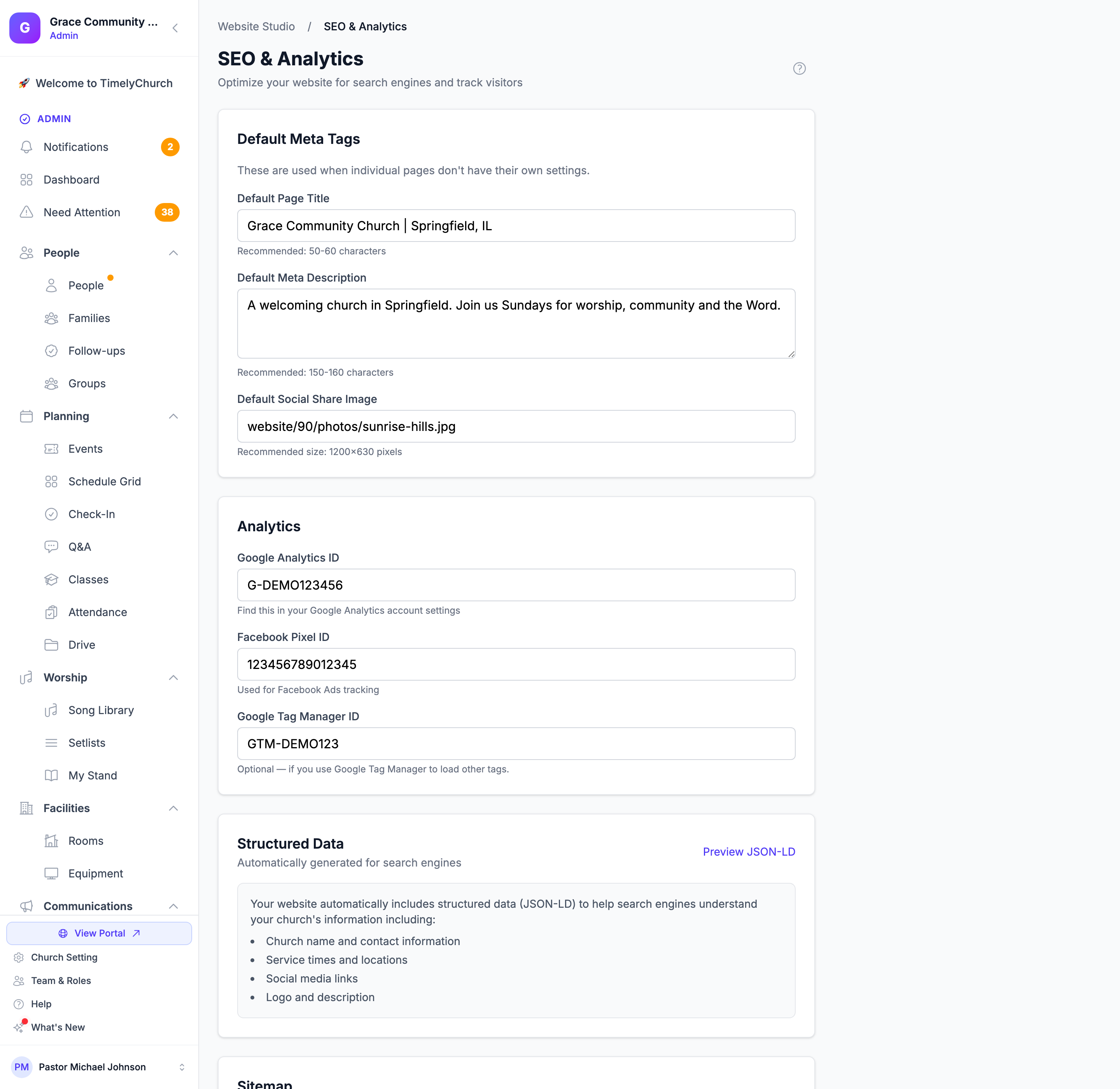
Default Meta Tags
Meta tags provide information about your website to search engines and social media platforms. The defaults you set here are used whenever an individual page does not have its own meta tags configured.
Default Page Title
The title that appears in browser tabs and search engine results.
- Recommended length: 50-60 characters
- Maximum length: 70 characters
- Example: "Grace Community Church - Welcome Home"
If left blank, your church name will be used as the default title.
Default Meta Description
A brief summary of your website that appears under the title in search engine results.
- Recommended length: 150-160 characters
- Maximum length: 160 characters
- Example: "Grace Community Church is a welcoming family of believers in Springfield. Join us Sundays at 9am and 11am for worship, community, and biblical teaching."
Tip: Write your meta description as a compelling invitation. This is often the first thing potential visitors read about your church in search results.
Default Social Share Image (Open Graph Image)
This is the image that appears when someone shares your website link on social media platforms like Facebook, Twitter/X, or LinkedIn.
- Recommended size: 1200 x 630 pixels
- Enter the full URL of the image (e.g.,
https://yoursite.com/images/share-image.jpg).
Tip: Use an image of your church building, your logo on a branded background, or a welcoming photo of your congregation. Avoid images with too much small text -- they are hard to read at thumbnail sizes.
Per-Page SEO Settings
In addition to the site-wide defaults above, each individual page can have its own SEO settings.
Per-Page Meta Title and Meta Description
- Go to Website Studio > Pages.
- Open the page you want to optimize.
- In the Page Settings sidebar on the right, find the Meta Title and Meta Description fields.
- Enter a title and description specific to that page.
When a page has its own meta title or meta description set, it overrides the site-wide default. If a field is left blank, the default is used instead (and meta title falls back to the page's name).
Tip: The site-wide default social share image (configured above) is used as the Open Graph image for every page. See Creating and Managing Pages for more on the page editor.
Analytics
Google Analytics
Connect Google Analytics to track visitor behavior on your website.
- In the SEO & Analytics page, find the Google Analytics ID field.
- Enter your Google Analytics measurement ID.
- For GA4: The ID starts with
G-(e.g.,G-XXXXXXXXXX) - For Universal Analytics (legacy): The ID starts with
UA-(e.g.,UA-XXXXXXX-X)
- For GA4: The ID starts with
- Click Save SEO Settings.
Tip: You can find your measurement ID in your Google Analytics account under Admin > Data Streams > your web stream.
Facebook Pixel
Connect a Facebook Pixel to track conversions and build audiences for Facebook Ads.
- In the SEO & Analytics page, find the Facebook Pixel ID field.
- Enter your pixel ID (a 15- or 16-digit number, e.g.,
1234567890123456). - Click Save SEO Settings.
Google Tag Manager
If you use Google Tag Manager to load other tracking tags through a single container, you can connect it here.
- In the SEO & Analytics page, find the Google Tag Manager ID field.
- Enter your container ID, which starts with
GTM-(e.g.,GTM-XXXXXXX). - Click Save SEO Settings.
Tip: Google Tag Manager is optional. Use it only if you already manage your tags through a GTM container.
Custom Code
For security, TimelyChurch does not let church admins paste free-form HTML or JavaScript into your website. The Analytics fields above (Google Analytics, Facebook Pixel, and Google Tag Manager) cover the most common tracking and integration needs and are added to your site automatically once you enter the IDs.
If you need a script or snippet that the Analytics fields don't cover, contact TimelyChurch support to ask about it.
Structured Data (JSON-LD)
Website Studio automatically generates structured data for your church in the JSON-LD format recommended by Google. This helps search engines understand your church's key information and can improve how your site appears in search results.
What Is Included Automatically
The structured data includes:
- Church name and description
- Contact information (phone, email)
- Address (from your church profile)
- Logo (from your church profile)
- Service times (opening hours derived from your service schedule)
- Social media links (from your footer settings)
Previewing Structured Data
- On the SEO & Analytics page, find the Structured Data section.
- Click Preview JSON-LD to see the generated structured data for your church.
This data is automatically added to every page on your website. No manual configuration is needed.
Tip: Make sure your church profile (Church Settings → Profile) has complete and accurate information, as this directly feeds into your structured data and affects how search engines display your church.
Sitemap
TimelyChurch automatically generates a sitemap.xml for your website, which lists your pages so search engines can find and index them.
- On the SEO & Analytics page, find the Sitemap section.
- Click Inspect sitemap.xml to open your live sitemap in a new tab.
- Submit that sitemap URL to Google Search Console to help Google discover your pages faster.
Tip: You do not need to build or maintain the sitemap yourself. It updates automatically as you add or change pages.
SEO Best Practices for Churches
- Complete your church profile. Your church name, address, phone, email, and description all contribute to search visibility.
- Write unique meta descriptions for key pages. At minimum, customize descriptions for your Home, About, and Contact pages.
- Use descriptive page titles. "About Us - Grace Community Church" is better than just "About."
- Add social share images. Pages shared on social media with a custom image get significantly more engagement.
- Keep your content fresh. Search engines favor websites with regularly updated content. Dynamic sections (events, sermons, announcements) help with this automatically.
- Ensure your service times are accurate. Google may display your service times directly in search results from your structured data.
Next Steps
- Custom Domains -- Connect your own domain name
- Publishing Your Website -- Manage what is live on your site