
iCalendar and Subscriptions
TimelyChurch can both publish your church calendar to the outside world (so your website visitors and members can subscribe in their personal calendar app) and import other calendars (so events from a denominational, partner, or community calendar appear inside TimelyChurch).
This article covers three closely related but distinct features:
- Public calendar embed: an iframe widget you drop into your church website.
- Outbound iCal feeds: live
.icsURLs that Apple Calendar, Google Calendar, and Outlook can subscribe to. - Linked calendars: pull events from external
.icsURLs into TimelyChurch on a schedule.
Tip: For one-time
.icsfiles of a series or of one event, see the Calendar Files (.ics) section. Those files are static snapshots. The subscription feeds in this article stay live and update as events change.
1. Public Calendar Embed
The public calendar is a self-contained widget you can embed on your church's website using an iframe. Visitors can browse all your public events without an account.
Embed URL
https://your-app-domain.com/c/{churchSlug}/calendarQuery Parameters
The embed accepts these optional query parameters to customize what visitors see:
| Parameter | Values | Default | Effect |
|---|---|---|---|
types |
Comma-separated list of worship, class, meeting, event |
worship,class,meeting,event |
Restrict which event types are shown. |
theme |
default or any custom theme name |
default |
Visual theme of the embed. |
view |
month, week, list |
month |
Initial calendar view. |
header |
true / false |
true |
Show or hide the header bar. |
Example Embed Code
<iframe
  src="https://your-app-domain.com/c/grace-community/calendar?types=worship,event&view=month"
  width="100%"
  height="700"
  frameborder="0"
  title="Grace Community Calendar">
</iframe>
What Visitors See
2. Outbound iCal Feeds (Subscribe From Outside)
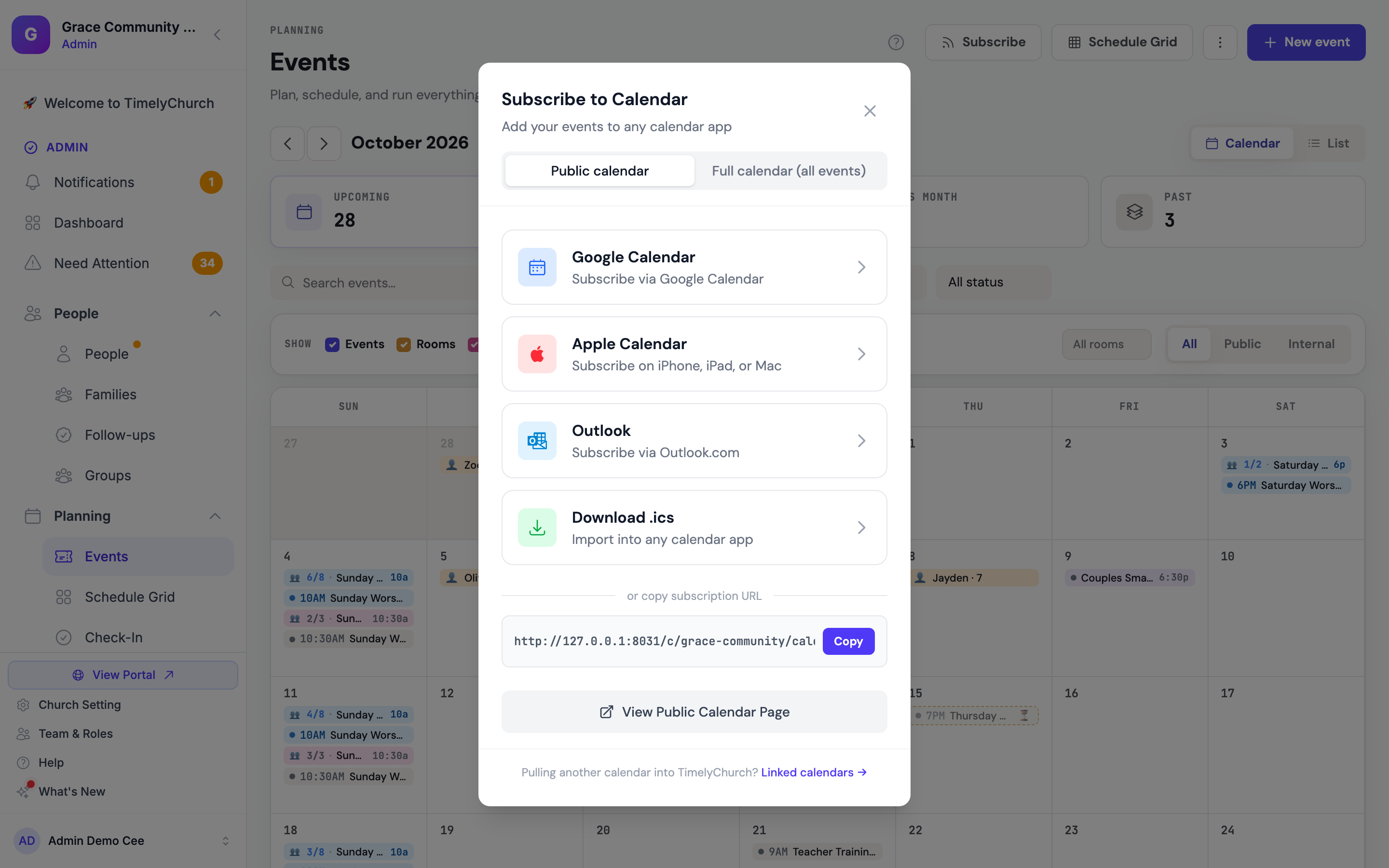
The easiest way to get the links is the Subscribe button at the top of the Events page. On a phone, open the ⋮ menu at the top of the Events page and choose Subscribe. The Subscribe to Calendar box ("Add your events to any calendar app") opens. For people whose role can edit events for the whole church, it has two tabs:
- Public calendar: your public, active events. Safe to share with anyone.
- Full calendar (all events): every event, including internal and private ones. See Private Full-Calendar Link below.
Everyone else, team leaders who are limited to their own teams and roles that can only view events, sees the box without tabs. It offers the public calendar only, and the private full-calendar link is not shown to them anywhere.
On either tab you can pick Google Calendar ("Subscribe via Google Calendar"), Apple Calendar ("Subscribe on iPhone, iPad, or Mac"), Outlook ("Subscribe via Outlook.com"), or Download .ics ("Import into any calendar app"). Below the options, or copy subscription URL shows the link with a Copy button. The Public calendar tab also has View Public Calendar Page.
Your public church calendar is exposed as a live iCalendar feed at two URLs:
| URL | Behavior |
|---|---|
https://your-app-domain.com/c/{churchSlug}/calendar.ics |
Designed for calendar subscriptions. Stays live and refreshes efficiently in subscribing apps. |
https://your-app-domain.com/c/{churchSlug}/calendar/download.ics |
Triggers a one-time download of the same .ics content as a file. |
Both feeds include events from one month ago through one year ahead, limited to public, active events only.
Subscribe in Apple Calendar (macOS / iOS)
- Copy your church's subscription URL:
https://your-app-domain.com/c/grace-community/calendar.ics - Mac: Open Calendar, then choose File > New Calendar Subscription.... Paste the URL and click Subscribe.
- iOS: Open Settings > Calendar > Accounts > Add Account > Other > Add Subscribed Calendar. Paste the URL and tap Next.
- Set the auto-refresh interval (Apple recommends every 1 hour or daily).
Subscribe in Google Calendar
- Open Google Calendar in a browser.
- In the left sidebar under Other calendars, click the + icon and choose From URL.
- Paste the subscription URL:
https://your-app-domain.com/c/grace-community/calendar.ics - Click Add calendar.
Note: Google Calendar only refreshes external
.icssubscriptions every several hours. Do not expect changes in TimelyChurch to appear in Google instantly.
Use a computer for this one. The Google Calendar app on Android and iPhone cannot add a calendar by URL at all. The option only exists in a browser. Add the subscription once on a computer and it then appears in the phone app automatically, on the same Google account. This is the most common reason someone thinks subscribing is broken: they tap the link on their phone, Google does nothing, and they end up downloading a one-time file instead.
Subscribe in Microsoft Outlook (desktop or web)
- Outlook on the web: Click Add calendar > Subscribe from web. Paste the subscription URL and click Import.
- Outlook desktop: Choose Add Calendar > From Internet, paste the URL, and click OK.
Filtering by Event Type -- Embed Only
The types parameter documented in section 1 applies to the embed page. It does not filter the .ics feeds: a subscription always contains every public, active event in the window. If you need a filtered feed, say so in a support request rather than adding ?types= to a subscription URL, which is silently ignored.
Private Full-Calendar Link (for a Wall Tablet)
The Full calendar (all events) tab gives you a private subscription link that includes internal and private events. It's great for a wall tablet or a staff calendar, never for the public.
Only people whose role can edit events for the whole church can see this tab, create the link, or regenerate it. If you do not see the tab, ask a church administrator to set up the device for you.
- On the Events page, click Subscribe.
- Choose the Full calendar (all events) tab.
- The first time, you'll see "No private link yet". Click Create private link.
- Use the Google Calendar, Apple Calendar, or Outlook option, or copy the link, on the device that should show the calendar.
Warning: Treat this link like a key. Anyone with it can see every event at your church, including internal and private ones. Only share it with people and devices you trust.
If the link has been shared too widely, click Regenerate (kills every old copy) and confirm Regenerate. The old link stops working immediately, and every calendar app already subscribed to it stops getting updates. Subscribe those devices again with the new link.
The full-calendar feed covers the same window as the public feed (one month back through one year ahead).
Helping Someone Subscribe
Anyone can subscribe to the public calendar. No TimelyChurch account or login is required. The feed is public, and the person you send it to does not need to be a member, sign in, or create anything.
If someone says "it only downloaded the events, it doesn't update", one of these is almost always why:
| What happened | Why | What to tell them |
|---|---|---|
| They tapped Download .ics | That is a one-time copy of today's events. It never updates. | Use one of the Subscribe options instead, or paste the link into their calendar app. |
| They used the Google Calendar phone app | The Google Calendar mobile app cannot add a calendar by URL. Only the website can. | Open calendar.google.com on a computer, then Other calendars > + > From URL. |
| They are on Android and tapped Apple Calendar | That option opens a webcal:// link, which only works where a calendar app is registered for it, on iPhone, iPad, or Mac. |
Use the Google Calendar option, on a computer. |
| Nothing happened at all | Their browser had no calendar app registered for the link. | Copy the link at the bottom of the Subscribe box and paste it into their calendar app under Add calendar > From URL (sometimes called Subscribe). |
The path that always works, on every device and every app: copy the subscription URL from the bottom of the Subscribe box and paste it into the calendar app's Add calendar / From URL / Subscribe field.
Changes you make in TimelyChurch reach subscribers on their app's refresh schedule, not instantly. Google in particular can take several hours. That is a Google behaviour, not a delay on our side.
3. Linked Calendars (Pull Into TimelyChurch)
You can also link TimelyChurch to an external calendar feed, whether Google Calendar, Outlook, or any iCal feed. This is useful when:
- A denominational body publishes a shared events calendar.
- A partner church wants to share their calendar with you.
- You want a community/civic events calendar to appear alongside your own.
External events are imported into TimelyChurch and shown to your staff in Events. They stay staff only unless you choose Public on your website for that calendar. See Who Can See Imported Events? below.
Where to Manage Linked Calendars
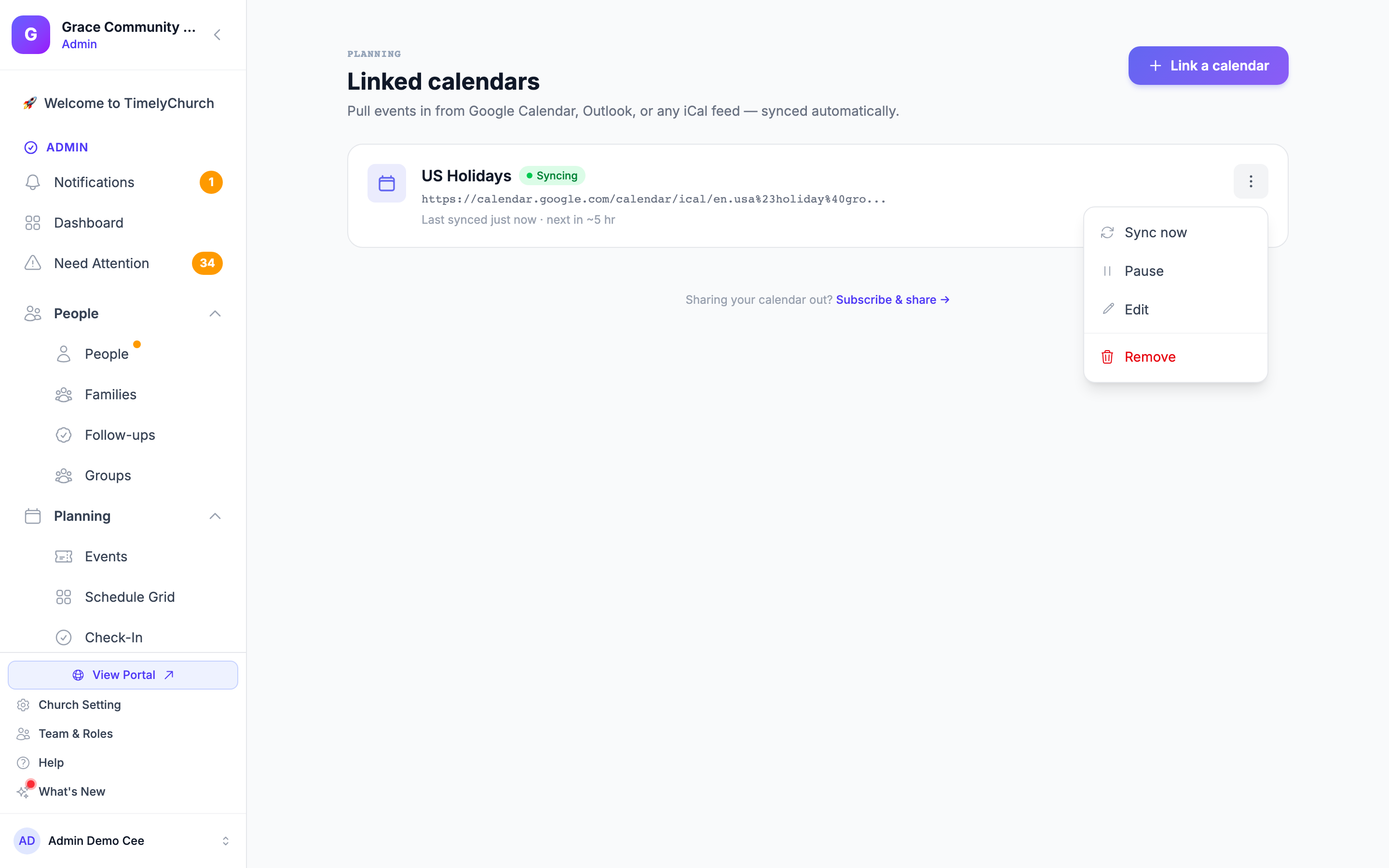
On the Events page, open the ⋮ More menu and click Linked calendars. On a phone it is in the same ⋮ menu at the top of the Events page. (When calendars are linked, the menu item shows how many are syncing.) You can also reach it from the Pulling another calendar into TimelyChurch? Linked calendars → link at the bottom of the Subscribe box.
Linking a Calendar
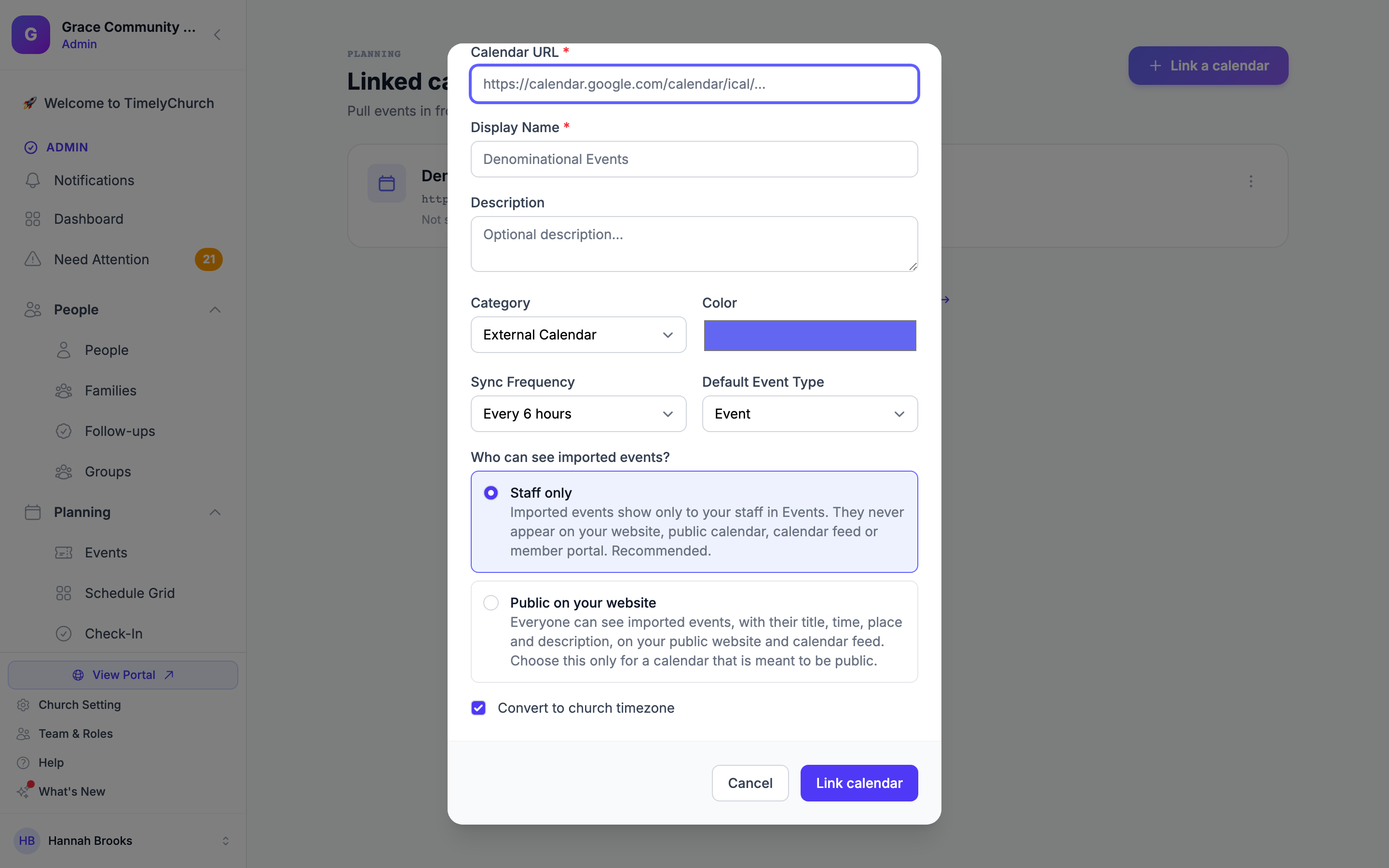
Click Link a calendar and fill in:
| Field | Description |
|---|---|
| Calendar URL | The external .ics URL. TimelyChurch checks it as you type and shows "Valid iCalendar feed" when it can read it. |
| Display Name | A label for this calendar (e.g., "Denominational Events"). |
| Description | Optional notes about what this calendar contains. |
| Category | External Calendar, Denominational, Community, or Partner Church. |
| Color | A display color for events from this calendar. |
| Sync Frequency | How often to pull updates: Every hour, Every 3 hours, Every 6 hours (the default), Every 12 hours, or Daily. |
| Default Event Type | Event, Worship, Class, or Meeting (used for the imported events). |
| Who can see imported events? | Staff only (selected for you) or Public on your website. See Who Can See Imported Events? below. |
| Convert to church timezone | When on, times from the source calendar are converted to your church's timezone. |
Click Link calendar. TimelyChurch checks that the feed can be read, then runs a first sync right away.
Who Can See Imported Events?
Every linked calendar has its own answer to Who can see imported events? You choose it when you link the calendar and can change it later in Edit.
| Choice | What it means |
|---|---|
| Staff only | "Imported events show only to your staff in Events. They never appear on your website, public calendar, calendar feed or member portal. Recommended." This is selected when you link a new calendar. |
| Public on your website | "Everyone can see imported events, with their title, time, place and description, on your public website and calendar feed. Choose this only for a calendar that is meant to be public." |
Choose Staff only for anything personal or internal, such as a pastor's own calendar or a staff calendar. A staff-only imported event cannot be opened by visitors or members, even by someone who has a link to it. Choose Public on your website only for a calendar you would be happy to print in the bulletin, such as your denomination's public events.
To change the choice for a calendar you already linked:
- On the Linked calendars page, open the calendar's More actions menu and click Edit.
- Under Who can see imported events?, pick Staff only or Public on your website.
- Click Save Changes. Saving only affects events imported from now on. Events that were already imported keep the visibility they had; to change one of them, open the event, click Edit event and use the Public / Private switch.
How Sync Works
- Each linked calendar card shows its status (Syncing, Paused, or Error), when it was last synced, and when the next sync is due.
- During a sync, new events from the external feed are added, changed events are updated, and events that disappear from the source are removed.
- Imported events stay tied to their linked calendar, so you can always tell which are local and which came from outside.
- Each newly imported event follows that calendar's Who can see imported events? choice.
- Open a card's More actions menu for Sync now (refresh immediately), Pause / Resume, Edit, and Remove.
- In Edit Subscription, the Active (sync enabled) checkbox turns syncing on or off.
Removing a Linked Calendar
When you remove a linked calendar that has imported events, TimelyChurch asks what to do with them:
- Keep events: the events become regular local events, no longer linked to the calendar.
- Delete all imported events: permanently remove every event that came from this calendar.
Then click Delete Subscription.
Who Can Manage Linked Calendars
Only people whose role includes access to the calendar settings see Linked calendars in the More menu and can link, edit, or remove calendars.
Choosing the Right Tool
| Goal | Use |
|---|---|
| Show your calendar on your church website | Public Calendar Embed (iframe) |
| Let visitors add your calendar to their phone | Subscribe → Public calendar |
| Show every event on a staff wall tablet | Subscribe → Full calendar (all events) private link |
| Send someone one event for their calendar | The public event page's Add to calendar button (Calendar Files (.ics)) |
| Show external denomination/partner events inside TimelyChurch | Events → More → Linked calendars |
Calendar File Updates
Admins can download the calendar file of a private series. An event that ends before it starts now ends the next day, including in calendar feeds. (8.205.303)
Last updated: 2026-10-21 (8.205.306).