
Association HQ Team and Roles
Audience: Association administrators who add colleagues to Association HQ, and the colleagues who receive an invitation.
Your HQ team is everyone who can sign in to your association's Association HQ. Each teammate has one role — Admin, Viewer, or Billing — that decides which HQ pages they can open. This article covers what each role can do, how to invite a colleague, and what the colleague sees when they accept.
The three roles
| Role | Dashboard, Churches, church details | Reports and CSV exports | Settings (Association Profile, HQ Team) | Church Invites |
|---|---|---|---|---|
| Admin | ✓ | ✓ | ✓ | ✓ |
| Viewer | ✓ | ✓ | — | — |
| Billing | ✓ | ✓ | — | — |
- Admin — runs the association: edits the Association Profile, invites HQ teammates, and invites member churches.
- Viewer — a read-only seat for leaders who need the numbers: the Dashboard, the Member Churches list and each church's details, and every report, including both CSV downloads.
- Billing — currently opens the same pages as Viewer. Association HQ has no separate billing screen.
For Viewer and Billing members, the Settings link is hidden from the top navigation. If they open Settings or the Church Invites page another way, they see "You do not have permission to access this area."
None of the roles can open a member church's admin panel or change anything inside a member church.
Inviting a teammate (Admins)
- In the top navigation, click Settings.
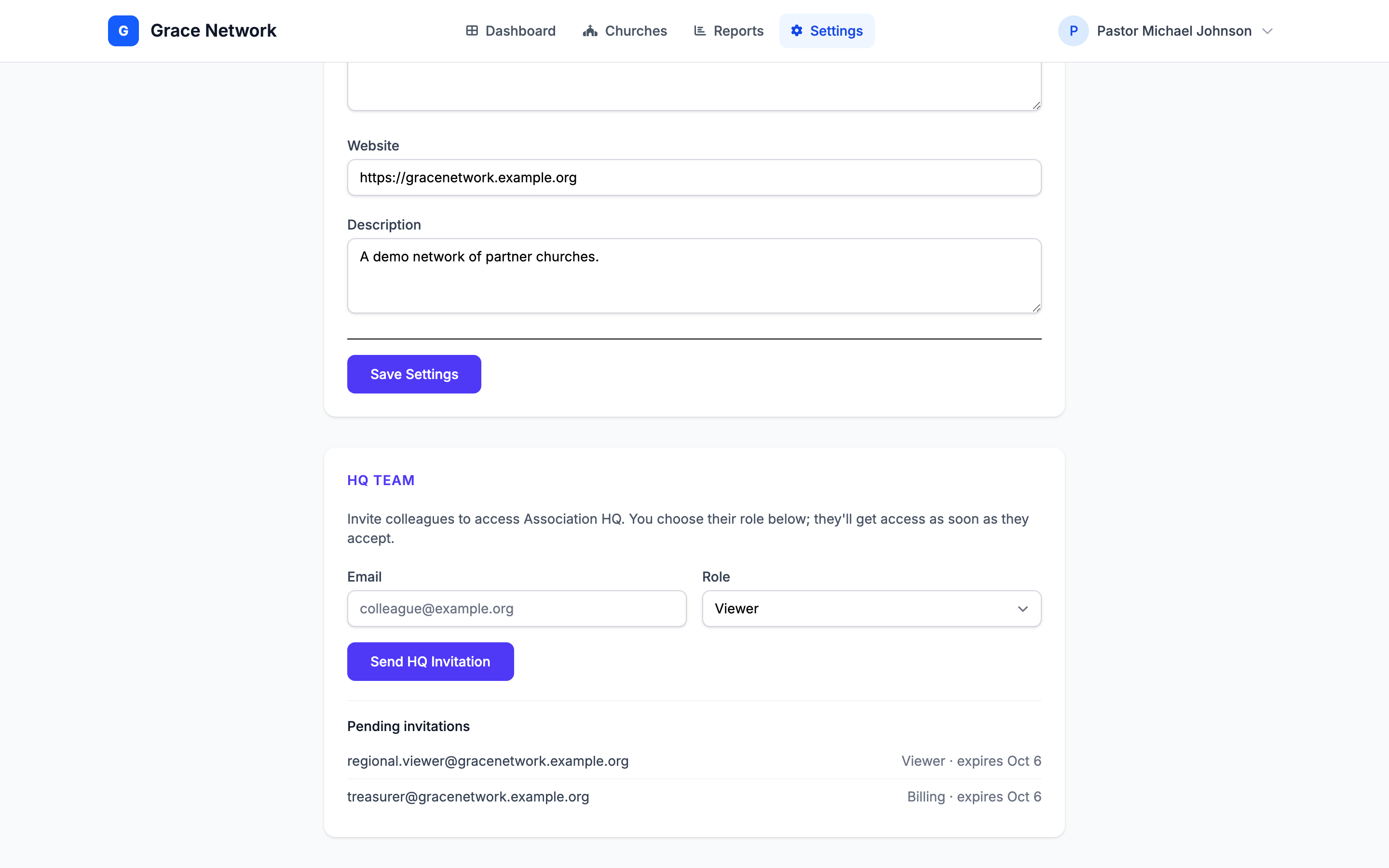
- Scroll to the HQ Team card: "Invite colleagues to access Association HQ. You choose their role below; they'll get access as soon as they accept."
- Enter the colleague's Email and choose a Role (Admin is selected by default).
- Click Send HQ Invitation. You see "HQ team invitation sent successfully."
The invitation appears under Pending invitations in the same card, showing the email address, the role, and the date it expires. Invitations expire after 7 days; once accepted or expired, they leave the list.
Note: If you see "Invitation created but the email could not be sent.", the invitation exists but your colleague did not receive the email. Send the invitation again.
Tip: To change a teammate's role, send them a new invitation with the new role. When they accept it, their role is updated. To remove someone's access to Association HQ, contact TimelyChurch.
Accepting an HQ invitation (for the invited colleague)
- Open the email "You've been invited to manage [association]" and click Accept Invitation.
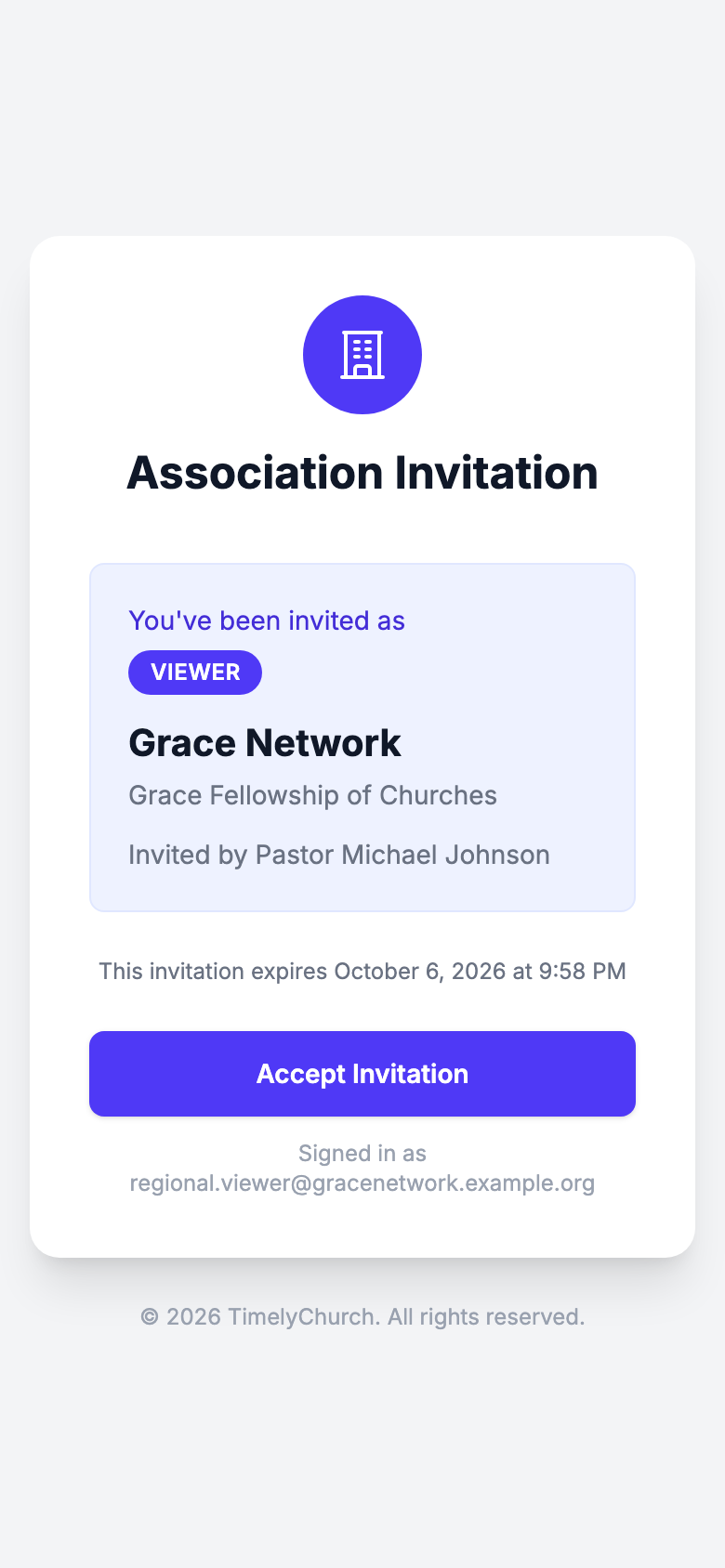
- The Association Invitation page shows the role you've been invited as, the association's name (and denomination), who invited you, and when the invitation expires.
- Accept it:
- Already signed in? Check the "Signed in as" line under the button, then click Accept Invitation.
- Not signed in? Click Login to Accept and sign in with the email address the invitation was sent to. If you don't have a TimelyChurch account yet, click Register to Accept and create one with that same email address. Once you are signed in, open the invitation link from your email again and click Accept Invitation.
- You land on the association's Dashboard in Association HQ. From then on, signing in takes you straight to Association HQ — unless you also work in a church's admin panel, in which case you land there first and reach Association HQ from the link with your association's name in the sidebar or account menu.
If something goes wrong
- "This invitation was sent to a different email address. Sign in with that account to accept it." You are signed in with a different email address. Sign out, then sign in (or register) with the address the invitation was sent to.
- "Invitation Expired" — the 7 days have passed. Ask an Admin of the association to send you a new invitation.
Related articles
- Association HQ Overview — everything the HQ team works with.
- Association Reports — the reports every role can open.
- Joining an Association (for Member Churches) — how member churches join, which is a separate invitation from the HQ team invitation.