
QR Code and Link-Based Group Join
TimelyChurch makes it easy for people to join your groups by scanning a QR code or clicking a shareable link. This article explains how to turn on a group's public link, share it, and turn it off again.
Overview
A group can have a public page -- a signup page anyone with the link can open. The share link, the short link, the QR code, and the website embed all point to that page. When someone scans the QR code or opens the link, they see the group's details and a button to join.
A group can have a public page when all of these are true:
- It is a Public group, Private group, or Team. Classes use check-in rather than public signup, so they have no public page.
- It is active.
- Its Enrollment is Open (on the Group details tab).
- Sharing is turned on for the group (see below).
Only Public groups are also listed in the public Group Finder. A Private group or Team with sharing on can be joined by anyone who has the link, but it is not listed (see Public Group Finder).
Turning On Sharing
Sharing is off until you turn it on for each group.
- Open the group page.
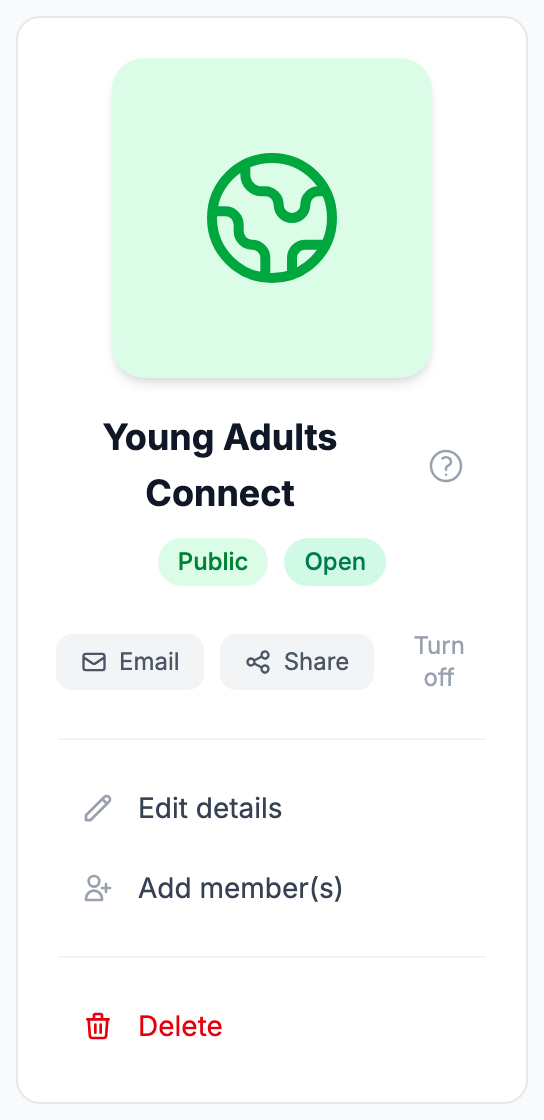
- In the left-hand panel, next to Email, click Enable sharing.
The group now has a public page, and the button is replaced by Share and Turn off.
If the group can't be shared yet, you'll see a grey Not shareable label instead. Hover over it to see why -- for example "Set Enrollment to “Open” in this group’s settings to get a shareable signup link.", "This group is inactive. Reactivate it to share a signup link.", or, for a class, "Classes use check-in rather than public signup, so they have no public page."
Sharing the Link and QR Code
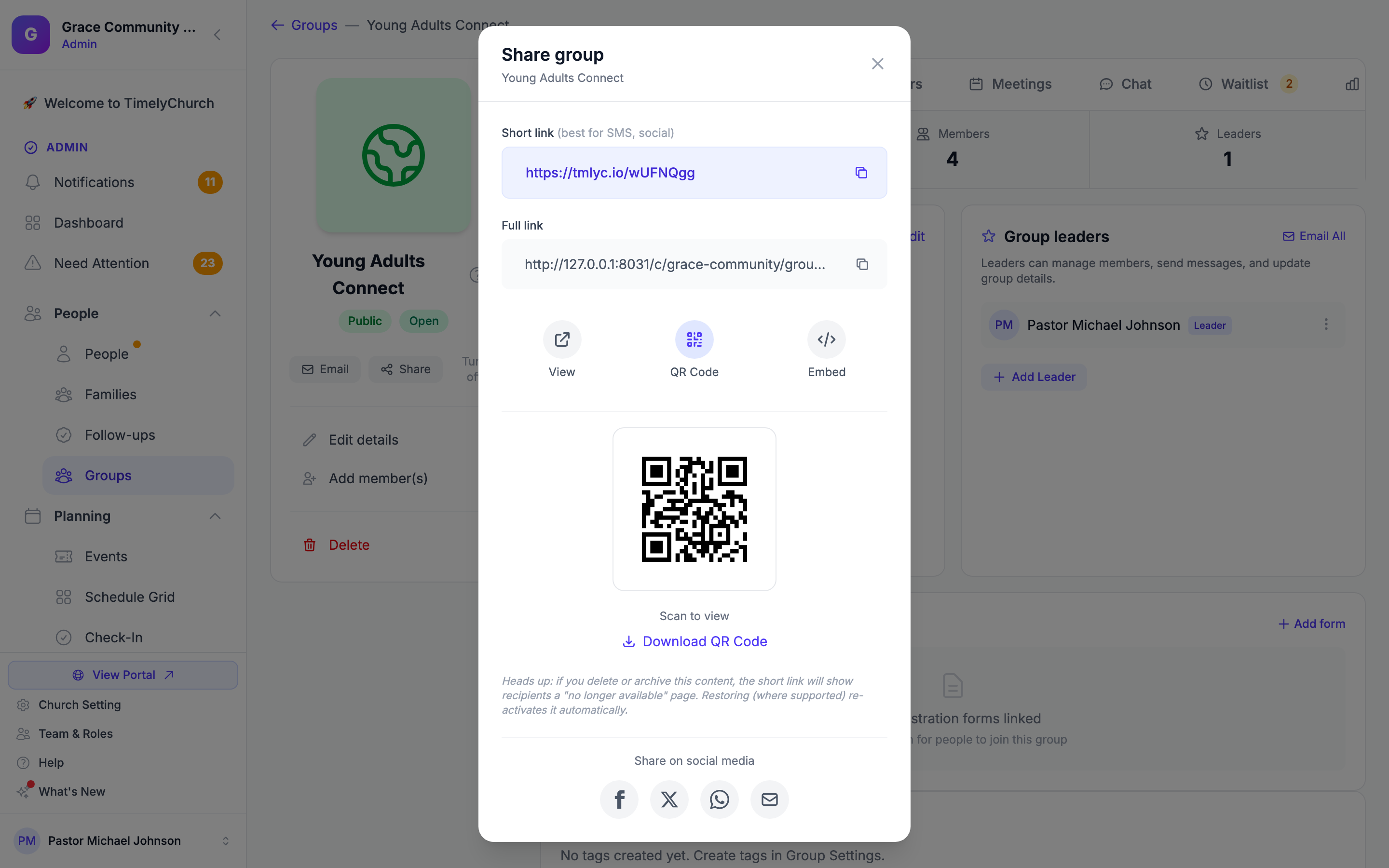
Click Share. The Share group window opens with several options.
Short Link
At the top you'll find a Short link field, labeled "best for SMS, social." This is a compact, branded address that's much easier to type, text, or post than the full address. It is created the first time you open the window.
- Copy the short link by clicking the copy icon next to the field.
Heads up: If you later turn off sharing, close enrollment, or delete the group, the link and QR code stop working.
Full Link
Below the short link, the window also shows the Full link -- the complete address of your group's public page.
You can:
- Copy the full link by clicking the copy icon next to it.
- View the public group page by clicking View, which opens it in a new tab.
QR Code
- Click QR Code.
- A QR code appears, labeled "Scan to view".
- Click Download QR Code to save it as an SVG image file.
Because the QR code is a vector (SVG) image, it stays crisp at any size -- so it prints sharply whether you scale it down for a bulletin insert or blow it up for a banner.
The QR code opens the group's public page directly when scanned with any smartphone camera.
Embed Code
If you want to add the group's signup page to your church website:
- Click Embed.
- The code snippet is displayed with the note "Copy and paste this code into your website".
- Click Copy.
- Paste the code into your website's HTML.
The embedded page fills the available width and is 500 pixels tall, with rounded corners.
Social Media Sharing
The window also provides one-click sharing to:
- Facebook -- Opens Facebook's share dialog with the group link.
- X (Twitter) -- Composes a post with the group name and link.
- WhatsApp -- Opens WhatsApp with a pre-filled message containing the group link.
- Email -- Opens your email app with a pre-filled subject and body.
What Happens When Someone Joins
When a person scans the QR code or opens the link, they land on the group's public page. The join button adapts to the group's settings: Join This Group, Request to Join (if approval is required), or Join Waitlist (if the group is full). If the group has an Online signup form, the button (Sign Up or Request to Join) opens that form instead.
For Signed-In Members
If the visitor is signed in and is in your church directory:
- If they're already a member, the page says "You are already a member of this group."
- Otherwise, they click the join button, can add an optional Message to Leaders, and click the confirm button.
- They are added to the group immediately, unless approval is required or the group is full (see below).
For New Visitors
If the visitor is not signed in:
- If the group does not allow guest registration, the page shows Sign in to join -- "This group asks you to sign in to your church portal before joining."
- Otherwise, the New Here? form asks for Your Name (required), Email (required), Phone (optional), and an optional Message to Leaders.
- When they submit, TimelyChurch checks if someone with that email already exists in your church directory.
- If yes, nothing is joined yet: TimelyChurch emails that person's own address a link to Confirm and join, and the join goes ahead (subject to approval and capacity, as described below) only after they confirm. The link is valid for 7 days.
- If no, a new person record is created automatically and the person is added to the group (subject to approval and capacity, as described below).
- Whatever the outcome, the visitor sees the same message: "Thanks! Check your email for next steps." The details -- joined, waiting for approval, or on the waitlist with their position -- arrive by email. See Public Group Finder.
Approval Required
If the group has Require approval turned on (on the group's Group details tab):
- The person is added as a pending join request.
- Group leaders receive a notification about the join request.
- The person is emailed that their request was received.
- A leader approves it from the group's Requests tab (or the Requests tab of the group in the member portal) -- see Managing Group Members.
Group Full
If the group has reached its Max Members:
- The person is added to the waitlist instead of being added as a member.
- Their confirmation email includes their waitlist position number.
- Group leaders are notified about the new waitlist entry.
See Group Waitlist.
Guest Registration
Allow guest registration on the group's Group details tab controls whether visitors can join without signing in ("Visitors can join without creating an account"). It is on by default for Public groups. When it is off, visitors who are not signed in are asked to sign in before they can join.
Turning Off the Link
If a link or QR code was shared with an unintended audience, or the group no longer takes new people:
- Open the group page.
- Click Turn off next to Share.
- Confirm Turn off sharing? -- "Turn off the public link? Anyone who already has this group’s link will get a “not found” page."
The public link and QR code stop working immediately. If you turn sharing on again later, the same link works again, so reprint nothing unless you want to.
Best Practices
Tip: Print QR codes on connection cards, bulletin inserts, or table displays at group meetups. This makes it effortless for newcomers to sign up on the spot.
Tip: Use the Require approval setting along with QR codes for private or sensitive groups. This way, anyone can express interest by scanning the code, but leadership retains control over who is admitted.
Tip: Before you print, open the link with View to check the page looks the way you want.