
Song Arrangements
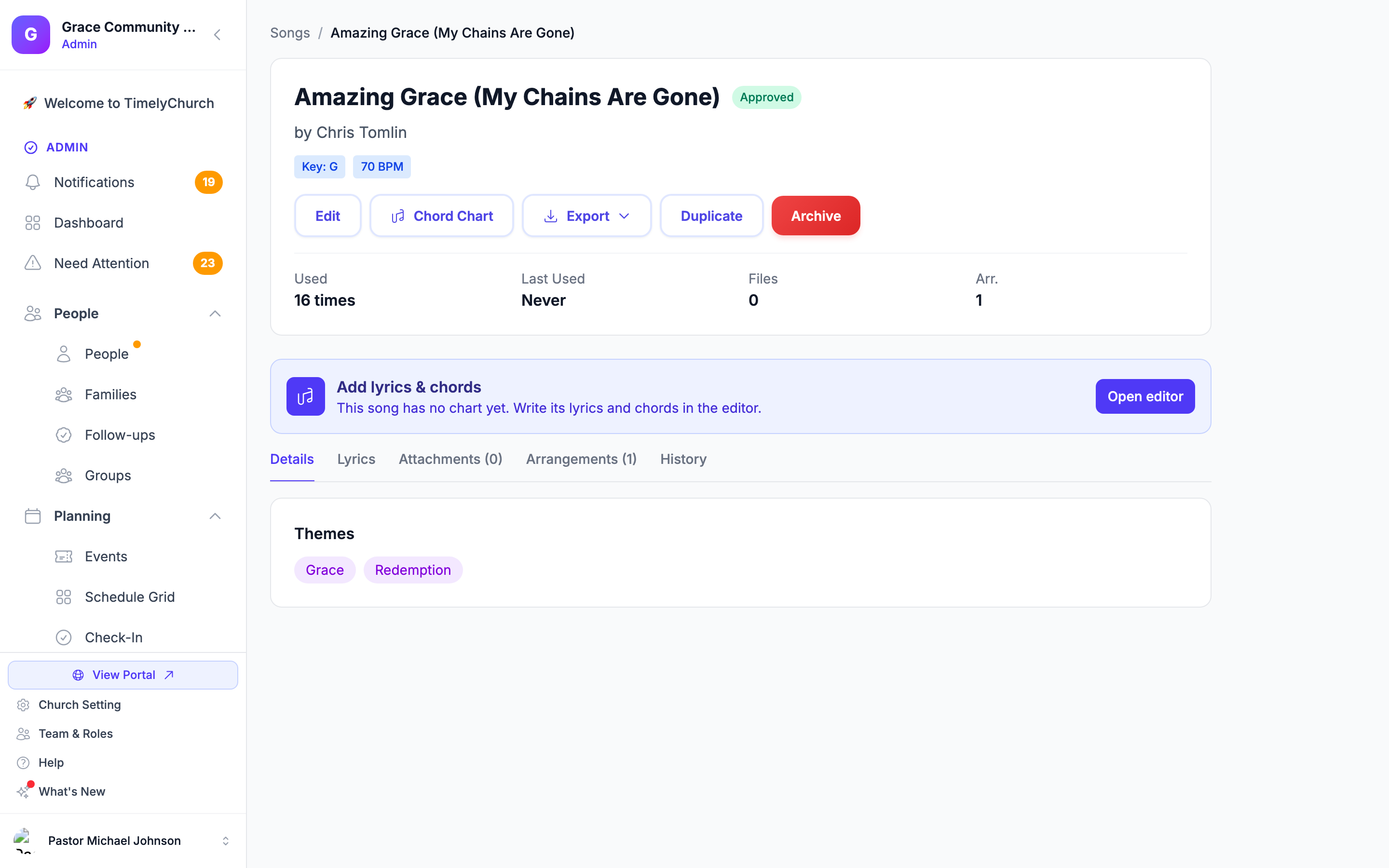
A Song Arrangement is a named variation of a song with its own key, tempo, sequence, and chord chart. Arrangements let you keep a single song record while still tracking that "Acoustic" is in G at 72 BPM, "Full Band" is in A at 88 BPM, and "Christmas Version" replaces the bridge with an instrumental. This article covers when to use arrangements, how to manage them, and how arrangements interact with chord charts, setlists, and service plans.
When to Use an Arrangement
Add an arrangement when the same song is performed in noticeably different ways and you want to preserve those variations as their own records. Common uses:
- Different keys for different vocalists: a male leader sings "Amazing Grace" in G; a female leader sings it in C. Two arrangements, same song.
- Acoustic vs. full band: stripped-down rehearsal vs. Sunday morning.
- Seasonal versions: the standard arrangement during the year, and a holiday remix in December.
- Different versions of the same hymn: same words, two distinct band charts (for example, a modern setting vs. the traditional melody).
If the difference is just a one-time note ("we are going to skip verse 2 this Sunday"), prefer the notes field on the song in your setlist (or on the service plan item) instead of creating a permanent arrangement.
Anatomy of an Arrangement
Every song is created with one arrangement already in place, called "Default Arrangement" (shown in your own language). Each arrangement carries these fields:
| Field | Description |
|---|---|
| Name | Required label, e.g., "Acoustic", "Full Band", "Christmas". |
| Key | Musical key used for this arrangement, or Same as song. |
| BPM | Tempo in beats per minute (20-300). |
| Duration | Length as mm:ss (for example 3:45). |
| Sequence | The order the sections are played in, comma-separated (for example "Verse 1, Chorus, Verse 2, Chorus, Bridge, Chorus"). |
| Notes | Internal notes for the worship team. |
| Set as default arrangement | Whether this is the song's default arrangement. |
| Chord Chart | The lyrics and chords of this arrangement, written in the Chord Chart Editor. |
When you mark an arrangement as default, the previous default is unset at the same time.
Adding an Arrangement
- Open a song from the Song Library.
- Click the Arrangements tab.
- Click Add Arrangement.
- Fill in the form:
- Name (required)
- Start from: Blank (no chart), or Copy of an existing arrangement. A copy brings over the chart, key, tempo and tags, and you can tweak them after.
- Key (optional, or Same as song)
- BPM (optional)
- Duration as mm:ss (optional)
- Sequence (optional)
- Notes (optional)
- Set as default arrangement (checkbox)
- Click Add.
TimelyChurch creates the arrangement and opens it straight in the Chord Chart Editor ("Arrangement added — add its lyrics & chords.").
Working with Arrangements
Each row on the Arrangements tab shows the arrangement's name, a Default badge on the default one, its key and BPM, and these actions:
- Click the row to open a quick Preview of its chart, with Prev / Next to step through the song's arrangements, Open full editor, and Download PDF.
- Edit chart: opens the Chord Chart Editor on this arrangement.
- Edit arrangement (pencil): change the name, key, BPM, duration, sequence, notes, or default setting, then click Save.
- Duplicate arrangement: makes a "(Copy)" of the arrangement, never the default, and opens it in the editor so you can change it.
- Delete (trash): deletes the arrangement after you confirm.
Deleting an Arrangement
Deleting an arrangement removes it together with its chord chart. If the deleted arrangement was the default, the song's first remaining arrangement becomes the default automatically.
The action cannot be undone, so confirm carefully. Deleting arrangements needs the highest level of access to songs (see "Permissions" below).
Arrangement-Specific Chord Charts
Every arrangement has its own chord chart, independent of the song's other arrangements. In the Chord Chart Editor, the Arrangement menu in the command bar (shown when a song has more than one arrangement) switches between them. When an arrangement is open:
- Publishing writes to that arrangement's chart.
- Written in and the chart's key belong to that arrangement.
- Nashville numbers are worked out from the arrangement's key.
- PDF export uses the arrangement's chart and key.
This lets you keep very different chord charts for the same song (a simple four-chord version on one arrangement, a complex reharmonization on another) without conflict. The song's Lyrics tab shows the words of whichever arrangement you pick in its Arrangement: dropdown.
Using an Arrangement in a Setlist or Service Plan
In the setlist builder, open a song's options and choose its Arrangement, or leave Default (song). When the setlist is loaded into a service plan with Load setlist, each song keeps the arrangement you chose, along with its key and capo. Your team sees that arrangement's chart in My Stand, and a shared service plan link shows it too.
If you later change a song's arrangement in the setlist, your team sees the new arrangement in My Stand right away. A service plan keeps the songs exactly as they were when you loaded the setlist. See Building Setlists.
Duplicating Arrangements
When you duplicate a whole song (Song detail page → Duplicate), TimelyChurch copies every arrangement, with its chord chart, onto the new song. This is an easy way to make a customized version of a song while keeping every variation you have built up. The duplicate's status is reset to Draft and its usage history is cleared.
To copy just one arrangement within the same song, use Duplicate arrangement on its row (see above).
Permissions
Arrangements follow the Songs & Music module in a role's settings. Anyone who can edit a song can add, edit and duplicate its arrangements. Deleting an arrangement needs the highest level of access to songs (Delete), so the trash icon only appears for roles that have it.
Related Articles
- Song Library
- Chord Charts and Key Transposition
- Service Orders (Service Plans)
- Building Setlists
- Worship Team View
- Worship Overview
- Analyze a Song's Key, BPM & Time Signature
Last updated: September 30, 2026