
Share a Service Plan with Your Band
Once you have planned a service or built a setlist, the last step is getting it in front of your musicians. TimelyChurch does this with My Stand -- a live, zero-upload music stand that every team member opens on their own device. This article explains how to share a plan and what your band experiences when they open it.
How Sharing Works
You do not upload PDFs or email attachments. There are two ways to put the music in front of your band, and most churches use both:
1. Your worship team, in My Stand. Build the songs as a Setlist (from Worship → Setlists) and pick the Worship team it belongs to. Everyone on that team sees the set in My Stand as soon as it has songs. Click Notify team in the setlist builder to tell them it is ready -- each person gets a link straight to their stand. See Building Setlists and Your Worship Team on a Setlist.
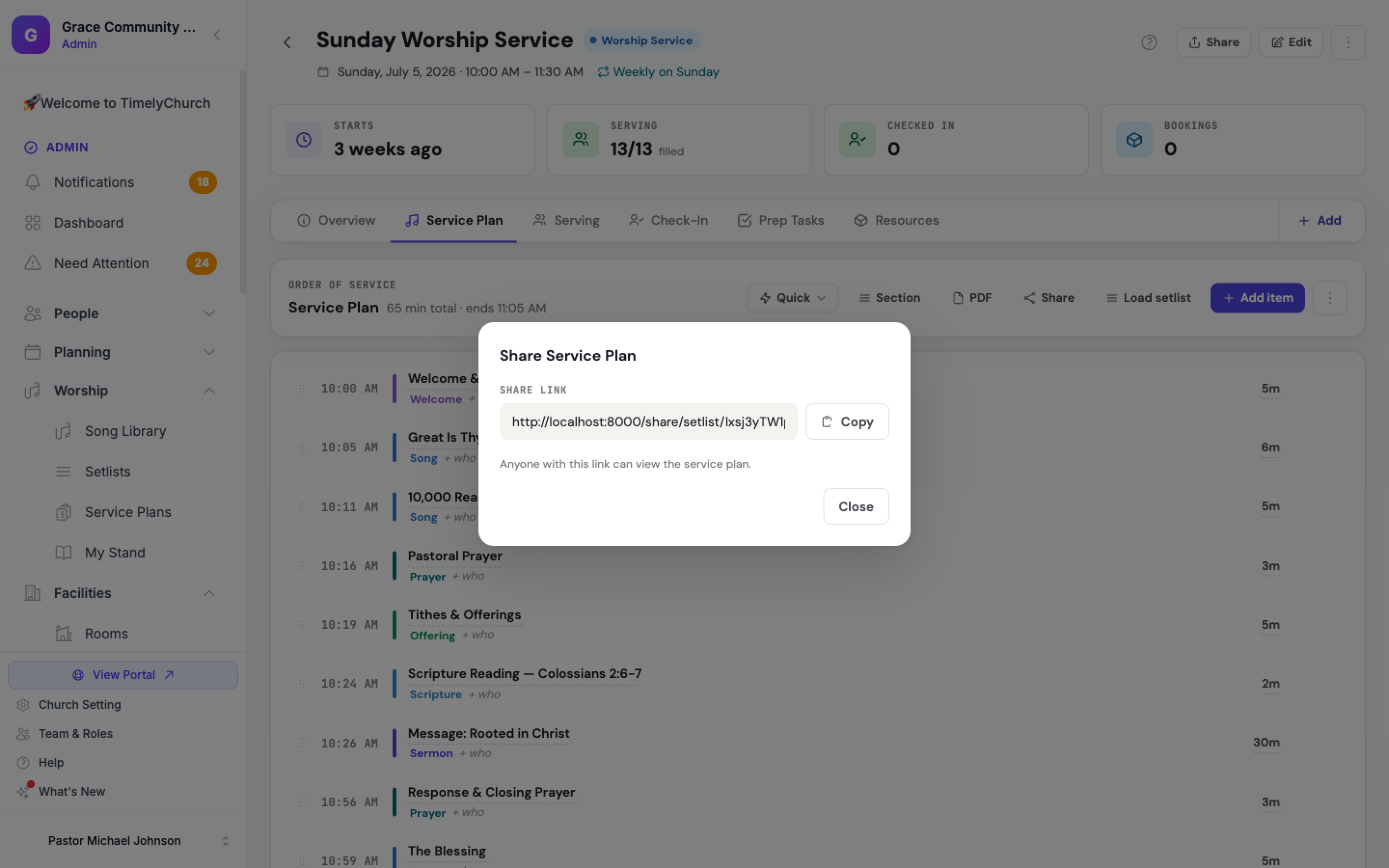
2. Anyone, with a link. On a worship event's Service Plan tab, click Share. The Share Service Plan window gives you a short link, a full link, a QR code, and buttons for Facebook, WhatsApp and email. Anyone who opens the link sees a read-only page of the order of service and the songs, without signing in -- ideal for a guest musician, the sound desk, or a volunteer who has no account. See Worship Team View for what that page shows.
Edits Sync Automatically
The most important thing to know: your edits reach the band automatically. Change a setlist -- add, remove, or reorder songs, change a key, arrangement, or capo -- and your team's My Stand shows the new set. Change a shared service plan and the shared page updates within seconds. The link stays the same, so nobody needs a new URL, and you never have to share again to publish a change.
Why it matters: the single most-feared failure for a worship team is showing up to a set that does not match what the leader planned. Automatic sync means the band's stand and your plan are always the same set.
What Your Musicians See in My Stand
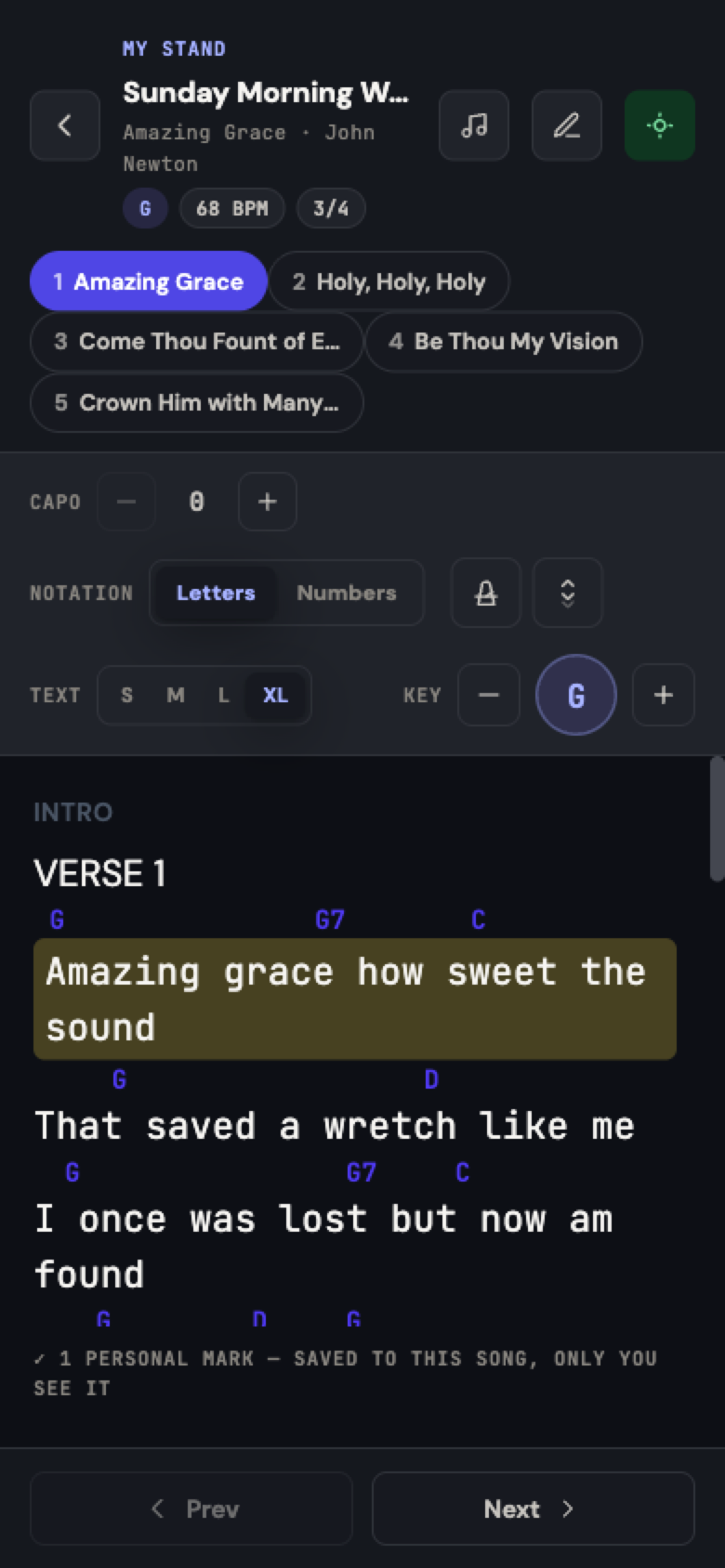
When a signed-in team member opens My Stand, they see:
- Their sets list -- the sets for the teams they serve on, upcoming sets first, so this Sunday is at the top.
- The reader -- the chord chart for each song, in the key the leader set.
- Personal controls -- each musician can set their own notation (chords / Nashville / lyrics-only) and text size, and -- when the setlist has Let each player pick their own key switched on -- their own key and capo, without changing anyone else's screen.
- Song chips -- key · BPM · meter shown for the current song.
- Listen buttons -- YouTube/Spotify when the song has them.
Everything is per-person: your bass player can read in one key with large text while your vocalist reads lyrics-only, all from the same shared set.
Leading Live with Go Live
When you tap Lead live in My Stand, everyone following turns to the song you are on as you move through the set -- like a shared, leader-controlled page turn. Musicians see a "following" state and can drop out to browse on their own at any time. Go Live is ideal for rehearsals and for keeping a large team together during the service.
Who can start it: a church/worship admin, the setlist's creator, or a leader/co-leader of the team the setlist is assigned to -- not every team member can lead live, on purpose, so only one person is ever driving. See Go Live on Sunday for the full walkthrough of what "live" means, starting/ending a session, and what happens if the leader's phone dies mid-service.
Getting Your Team In
My Stand lives inside the Member Portal, so team members sign in the usual way (magic link or password) and tap My Stand in the portal, or open the link in their Notify team message. Access is granted automatically to anyone who serves on a worship team; church admins can always open it too.
If the setlist has a worship team assigned, only members of that team (plus admins and the team's leadership) see it -- see Your Worship Team on a Setlist.
Tip: If you share a service plan link, send it once and pin it in your team chat. Because the page stays in sync, that one link is good for the whole week -- including any last-minute changes.
Related Articles
- Worship & Songs Overview
- Building Setlists
- Service Orders (Service Plans)
- Worship Team View
- Practice Tools: Metronome, Autoscroll & Foot Pedals
- Personal Marks and Sharing Them with Your Team
- Rehearsal Readiness and Reminders
- My Stand — The Big Picture
- Your Worship Team on a Setlist
- Go Live on Sunday
Last updated: September 30, 2026