
Podcast Feed
TimelyChurch automatically generates a podcast RSS feed from your published sermons so anyone can subscribe to your church's audio messages in their podcast app of choice. This article covers configuring the feed, deciding which sermons appear in it, and submitting the feed URL to the major podcast directories.
How the Feed Works
Your podcast feed has its own web address, shown on the Podcast Settings page. Whenever a podcast app asks for it, TimelyChurch builds the feed from your current sermons. It contains:
- Channel-level details about the podcast (title, description, cover image, language, author).
- Up to 300 of your most-recent sermons that meet all three of these conditions:
- The sermon is published.
- "Include in Podcast" is turned on (on by default for new sermons).
- An audio file is uploaded.
Sermons are listed newest-first, one entry per episode. Each entry includes the sermon's title, description, sermon date, audio file, duration, speaker (as the podcast author), and an episode-level cover image (the sermon thumbnail if set).
The feed is open to anyone. Podcast apps need to be able to fetch it without signing in.
Finish setup first: the Contact Email. The feed only starts working once a Contact Email is saved on the Podcast Settings page. Podcast directories require an owner email, and TimelyChurch never fills one in for you, so your church's own address is never published by accident. Until you save one, anyone opening the feed address sees "This podcast feed isn't available yet — the church needs to finish setting it up."
Accessing Podcast Settings
- From the admin sidebar, expand Communications and click Sermons.
- At the top of the sermons page, click the Podcast button.
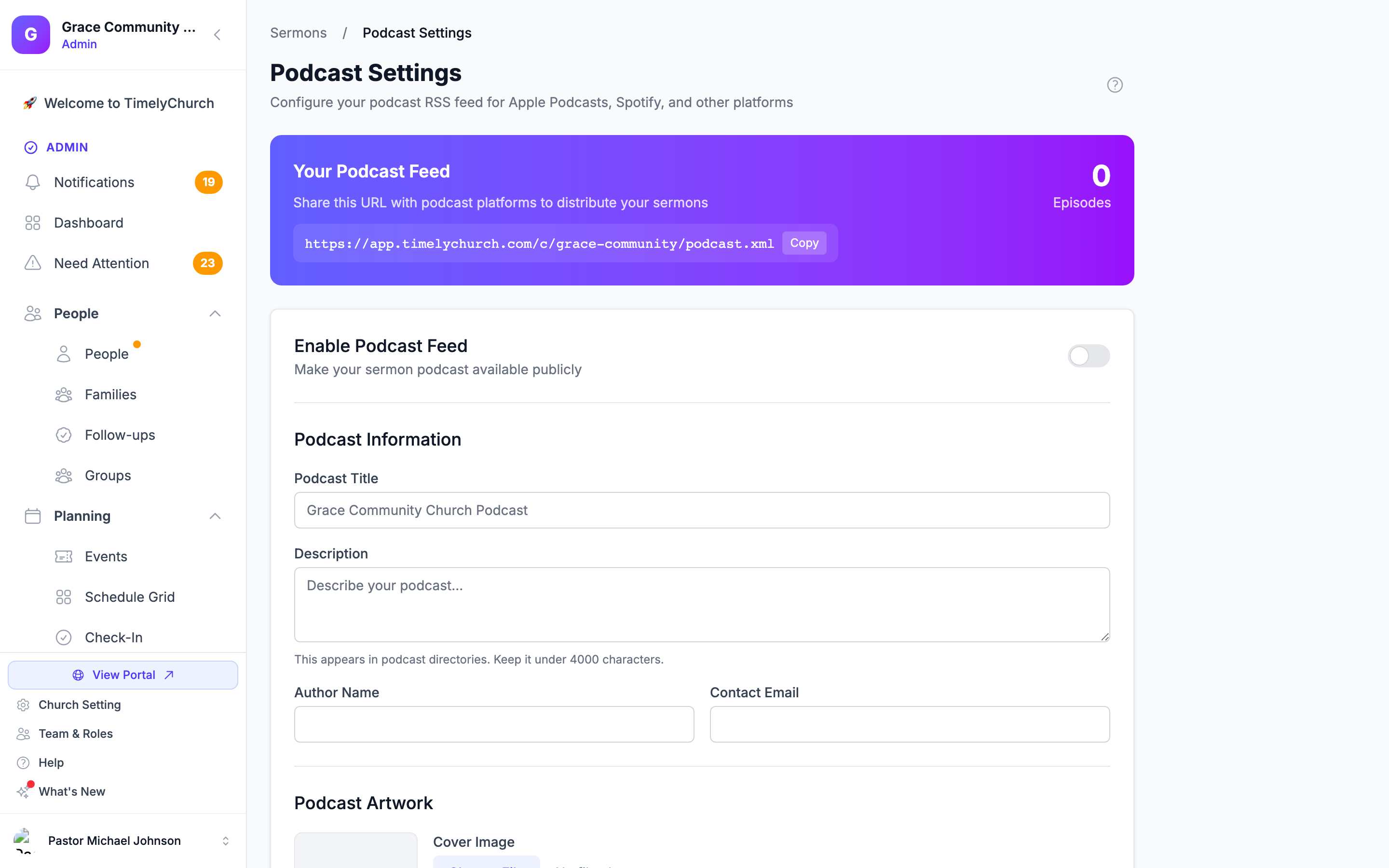
You will see the Podcast Settings page, which displays:
- Your Podcast Feed: the feed address with a Copy button, ready to paste into Apple Podcasts, Spotify, and other directories.
- Episodes: the number of sermons that currently meet all three conditions above.
- A form to edit the feed details. Click Save Settings when you are done.
Changing these settings needs edit access to Sermons; everyone else sees the form read-only.
Configurable Settings
| Setting | Description | Default |
|---|---|---|
| Enable Podcast Feed | Marks your podcast as switched on. The feed address answers as soon as a Contact Email is saved; to keep a sermon out of podcast apps, uncheck Include in Podcast on that sermon. | Off |
| Podcast Title | Name shown in podcast apps. | Your church name + " Podcast" |
| Description | Description for podcast directories. Up to 2,000 characters. | Empty |
| Author Name | Podcast author. | Your church name |
| Contact Email | The podcast owner email that directories require. The feed does not work until this is set. | None (you must enter one) |
| Cover Image | Required size: a square JPG or PNG between 1400x1400 and 3000x3000 pixels, up to 10 MB. Anything else is rejected when you save. Remove current image clears it. | Your church logo if no podcast image is set |
| Primary Category | Directory category. | "Religion & Spirituality" |
| Subcategory | Directory subcategory. | "Christianity" |
| Language | English, Spanish, Portuguese, French, German, Korean, or Chinese. | English |
| Explicit Content | No, Clean, or Yes. | No |
Choosing Which Sermons Appear
For a sermon to appear in the feed:
- Publish it. Toggle the Published checkbox on the sermon edit form.
- Upload an audio file. Video-only sermons cannot be in a podcast, because podcast apps play audio.
- Leave "Include in Podcast" checked. This option defaults to true on new sermons but can be unchecked on a per-sermon basis to keep some published sermons out of the feed (e.g., a video-only kids' message you would rather not have in the audio podcast).
If any one of those conditions is missing, the sermon is silently excluded from the feed without affecting its appearance on the public sermon archive.
The feed shows a maximum of 300 episodes. Older sermons remain on your public website but drop off the RSS feed; podcast apps typically cache older episodes locally so subscribers do not lose access.
Submitting to Podcast Platforms
Once your podcast settings look good (including the Contact Email) and you have at least one valid episode, copy the feed address from the Podcast Settings page and submit it to the major directories. The Submit to Podcast Platforms section at the bottom of the page links to each submission site:
- Apple Podcasts
- Spotify
- Amazon (Amazon Music and Audible)
Each platform will fetch your feed, check it, and usually within a few days your podcast will appear in their directory. You only have to submit once. After that, every time you publish a new sermon with audio, the feed updates automatically and the platforms pull it in on their normal refresh schedule.
Validating the Feed
If a directory rejects your feed, paste the address into any online podcast feed validator to see what it complains about. Common issues:
- The feed says it isn't available yet: save a Contact Email on the Podcast Settings page.
- Cover image: directories need a square image of at least 1400x1400 pixels. TimelyChurch only accepts images that meet that rule, so if your church logo is being used instead, upload a proper cover image.
- Episode duration is "0:00": make sure your sermons have a duration set (in the sermon edit form). Without it, some apps treat the episode as invalid.
- An episode won't play: open that sermon, check that its audio file plays in the form, and upload it again if needed.
Related Articles
Last updated: September 30, 2026