
Audit Log
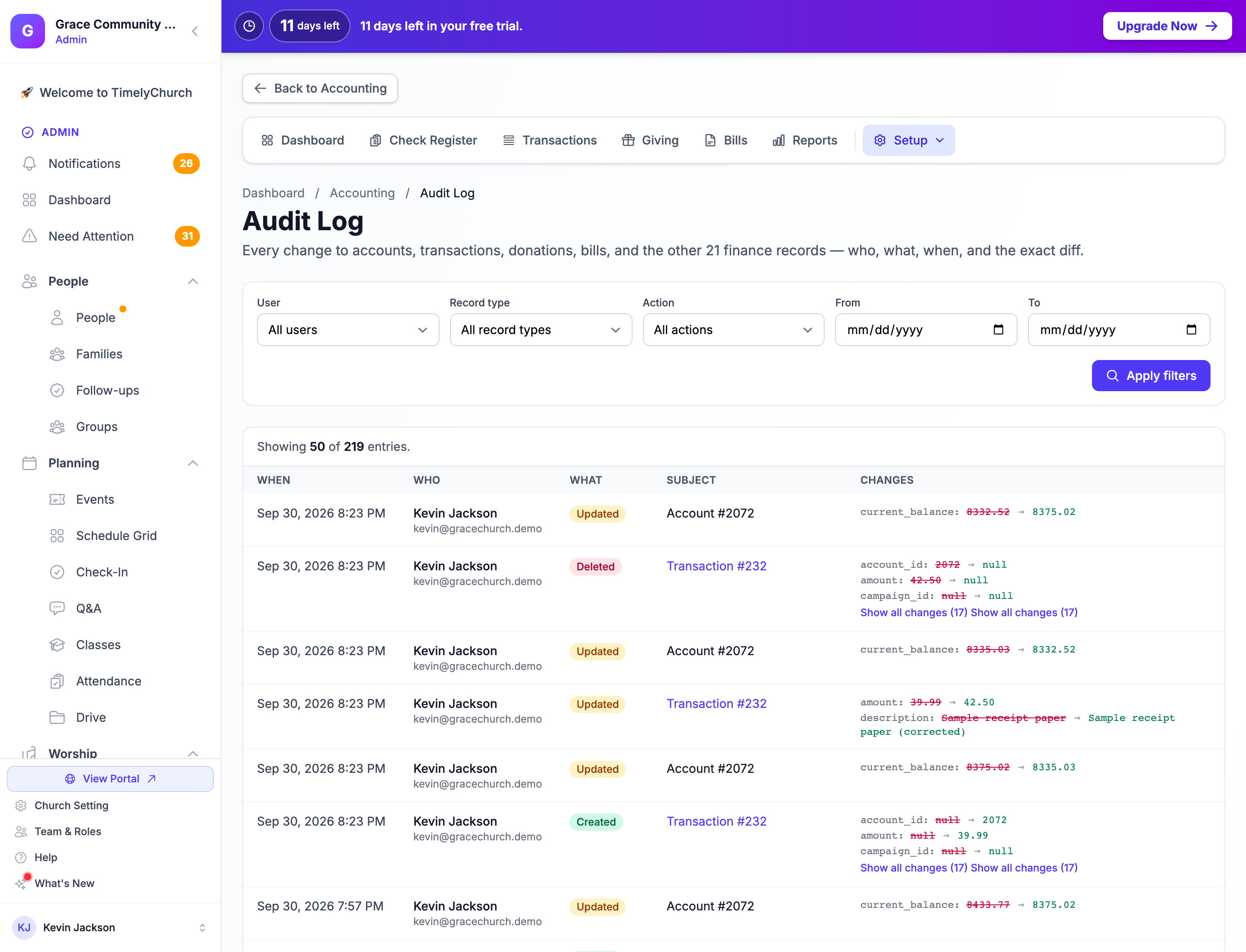
The Audit Log shows every change to your church's finance records -- who made it, what they did, when, and exactly which values changed. Use it to answer questions like "who edited this transaction?", "when was this bill deleted?", or "what did this donation look like before it was changed?" It is the page to hand your auditor or finance committee when they want to see the trail behind the numbers.
Opening the Audit Log
- Go to Finances > Accounting.
- Open the Setup ▾ menu at the end of the accounting tab bar (More ▾ in Simple Checkbook) and choose Audit Log.
The Audit Log is available in both accounting views. Viewing it needs the View permission on the Accounting row of your role.
What It Covers
The Audit Log records every change to your finance records -- who, what, when, and the exact before-and-after values. That includes accounts, transactions and their split lines, categories, payees, tracking classes, bills, budgets and budget items, reconciliations, bank imports and import rules, donations and their fund allocations, funds, pledges, pledge campaigns and campaign updates, deposit batches, and the church's accounting settings.
Filtering
Narrow the list with the filters at the top, then click Apply filters (or Clear filters to start over):
| Filter | What it does |
|---|---|
| User | Only changes made by one person (All users by default). |
| Record type | Only one kind of record -- for example Transaction, Donation, Bill, or Account (All record types by default). |
| Action | Created, Updated, Deleted, or Restored (All actions by default). |
| From / To | A date range, using your church's time zone. |
If nothing matches, the page says No matching activity -- try clearing some filters or widening the date range.
Reading an Entry
The newest changes are listed first, 50 per page. Each entry shows:
- When -- the date and time of the change.
- Who -- the person who made it, or System for automatic changes (for example, a donation posted to the ledger).
- What -- Created, Updated, Deleted, or Restored.
- Subject -- the record that changed.
- Changes -- the values before and after. Longer lists collapse behind Show all changes (N); Show context reveals extra details recorded with the change.
Donor names follow your Giving level: if your role is below the Bookkeeper Giving level, the names in donation descriptions read "Donor" here too. See Who Can See Giving and Donations.
Good to know: The Audit Log is a record, not an undo button. To bring back a deleted transaction, use Deleted Transactions (see Recording Transactions); to bring back a deleted gift, use Recently Deleted on the Giving page.
Tips
- Check it after month-end. A quick look at Deleted and Updated actions for the past month catches surprises before they reach a board report.
- Filter by Record type = Transaction and Action = Updated to see which entries were changed after they were first recorded.
- Use it with reconciliation. If a reconciled period suddenly doesn't balance, filter to the account's transactions and the dates in question to see what changed.