
Deposit Batches
Deposit batches help you group cash and check donations that you deposit together at the bank. By organizing donations into batches, you can verify that the amounts recorded in TimelyChurch match your physical bank deposit, maintain an audit trail, and -- when the deposit is made -- move the gifts into the bank account in your books.
Accessing Deposit Batches
- On the Giving page, click the More actions menu (three-dot icon).
- Select Deposit batches.
The Deposit Batches page lists every batch with its Batch #, Deposit Date, Items, Expected and Actual totals, and Status. Use the status filter (All Statuses, Open, Closed, Deposited) to narrow the list.
Who can do what with batches: A Counter sees only the batches they opened, can work in them while they are open, and sees by name only the gifts they entered themselves (other lines read "Donor"). A Bookkeeper sees every batch and can Close Batch and print the deposit slip. Mark Deposited and Reopen need the Administrator Giving level. See Who Can See Giving and Donations.
One Open Batch at a Time
Your church works in one open batch at a time -- "Only one batch can be open at a time for accountability." While a batch is open, the Deposit Batches page shows a Continue Open Batch button instead of New Batch. Close (or finish) the open batch before you start the next one.
Creating a Deposit Batch
- On the Deposit Batches page, click New Batch. (If the page shows Continue Open Batch, a batch is already open -- continue that one instead.)
- In the Create New Deposit Batch window, fill in:
| Field | Required | Description |
|---|---|---|
| Deposit Date | Yes | The date you plan to make the bank deposit. |
| Expected Total | No | "Optional. Enter the expected deposit total to verify against actual." |
| Notes | No | Any notes about this batch (up to 500 characters). |
- Click Create Batch.
The batch is assigned an auto-generated batch number in the format DEP-NNNNN (e.g., DEP-00001). Batch numbers are sequential per church.
While a batch is open you can change it: open the batch and click Edit to change the deposit date, expected total or notes. An open batch with no donations in it can be deleted with Delete.
Batch Statuses
| Status | Color | Description |
|---|---|---|
| Open | Yellow | Batch is being assembled. You can add or remove donations. |
| Closed | Blue | Batch is finalized. Donations cannot be added or removed. |
| Deposited | Green | The money is in the bank. The batch's gifts were moved onto the bank account you chose. |
Adding Donations to a Batch
- Open the batch (click View, or Continue Open Batch).
- The batch page shows:
- Donations in Batch -- the gifts already in it.
- Available Donations -- unbatched gifts you can add (up to the 50 most recent).
- Click + Add next to any available donation to include it in the batch.
Note: The Available Donations list shows unbatched gifts that were not recorded with the Online payment method. Gifts made on your online giving page reach your bank through Stripe payouts, not your deposit, so leave them out of a cash-and-check batch. A Counter sees only the gifts they entered. If nothing is available, the list offers Record a new donation.
Gifts already in a bank account are left out. A gift that was recorded straight into a bank account -- for example with the Deposit to account on the Finance Dashboard's Record Donation form -- is already deposited in your books. It is not offered under Available Donations, and it cannot be added to a batch: "This gift is already deposited to [account], so it does not belong in a deposit batch."
Batching More Than 50 Unbatched Donations
The Available Donations list is capped at the 50 most recent unbatched donations to keep the page fast. If you have a backlog larger than that (for example, after catching up on data entry):
- Process in waves -- Add the donations you can see, then refresh the batch page. The next most recent unbatched donations appear. Repeat until cleared.
- Reduce the backlog at the source -- If you frequently see this, batch weekly instead of monthly so the unbatched pool stays small.
Removing Donations from a Batch
- Open the batch.
- Click Remove next to any donation in the batch and confirm. The donation itself is not deleted.
- The donation returns to the unbatched pool.
Donations can only be added or removed while the batch is in Open status.
Batch Totals and Reconciliation
The batch page shows:
| Field | Description |
|---|---|
| Items | The number of donations in the batch. |
| Expected | The amount you entered when creating the batch (what you counted). |
| Actual | The sum of all donations in the batch (calculated automatically). |
| Difference | Actual minus Expected. |
When the actual total matches the expected total (within one cent), the batch is balanced. If there is a discrepancy, the difference is displayed so you can investigate before closing.
Closing a Batch
- Open the batch.
- Click Close Batch and confirm ("Closed batches can be reopened if needed.").
- The batch status changes to Closed.
Requirements for closing:
- The batch must be in Open status.
- The batch must contain at least one donation -- the Close Batch button appears only then.
- You need the Bookkeeper Giving level or higher.
When a batch is closed:
- Totals are recalculated from all donations in the batch.
- The closing user and timestamp are recorded.
- No further additions or removals are allowed.
Reopening a Batch
If you need to make changes after closing:
- Open the closed batch.
- Click Reopen and confirm in the Reopen Batch dialog ("Reopen this batch so donations can be added or removed?").
- The batch returns to Open status and you can add or remove donations.
A Deposited batch can be reopened too -- see Undoing a deposit below. Reopening always goes one step back: Deposited → Closed → Open.
Marking a Batch as Deposited
Every gift in a batch already counts as income from the moment it was recorded. Marking the batch deposited does not add income a second time: it moves the batch's gifts onto the bank account the money went into, so that account's balance goes up by the batch total and your income stays the same.
Once you have physically deposited the funds at your bank:
- Open the closed batch.
- Click Mark Deposited.
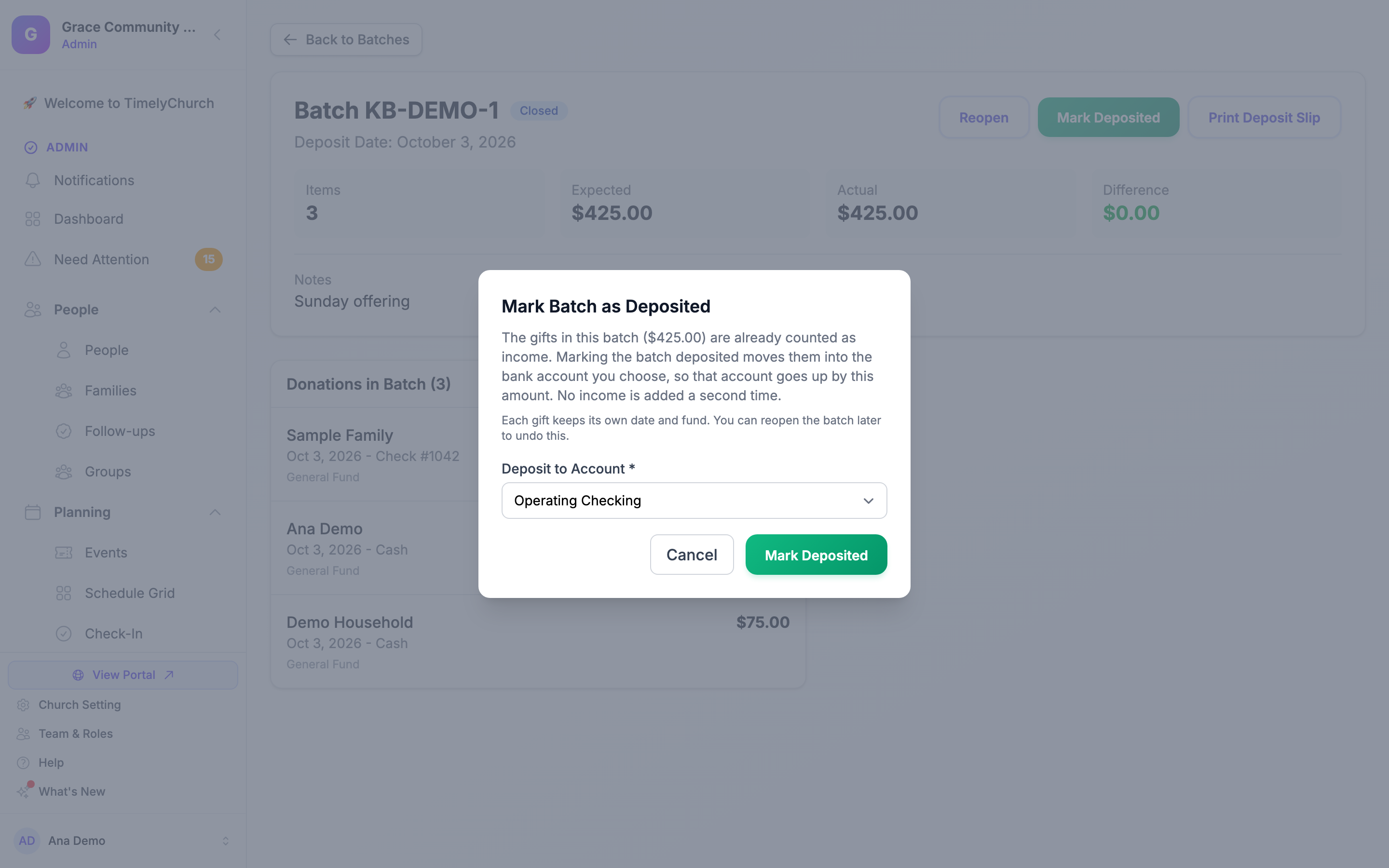
- The Mark Batch as Deposited window explains what happens: "The gifts in this batch ($…) are already counted as income. Marking the batch deposited moves them into the bank account you choose, so that account goes up by this amount. No income is added a second time." and "Each gift keeps its own date and fund. You can reopen the batch later to undo this."
- Choose the Deposit to Account -- the bank account where the deposit was made. Only active bank (asset) accounts are listed.
- Click Mark Deposited.
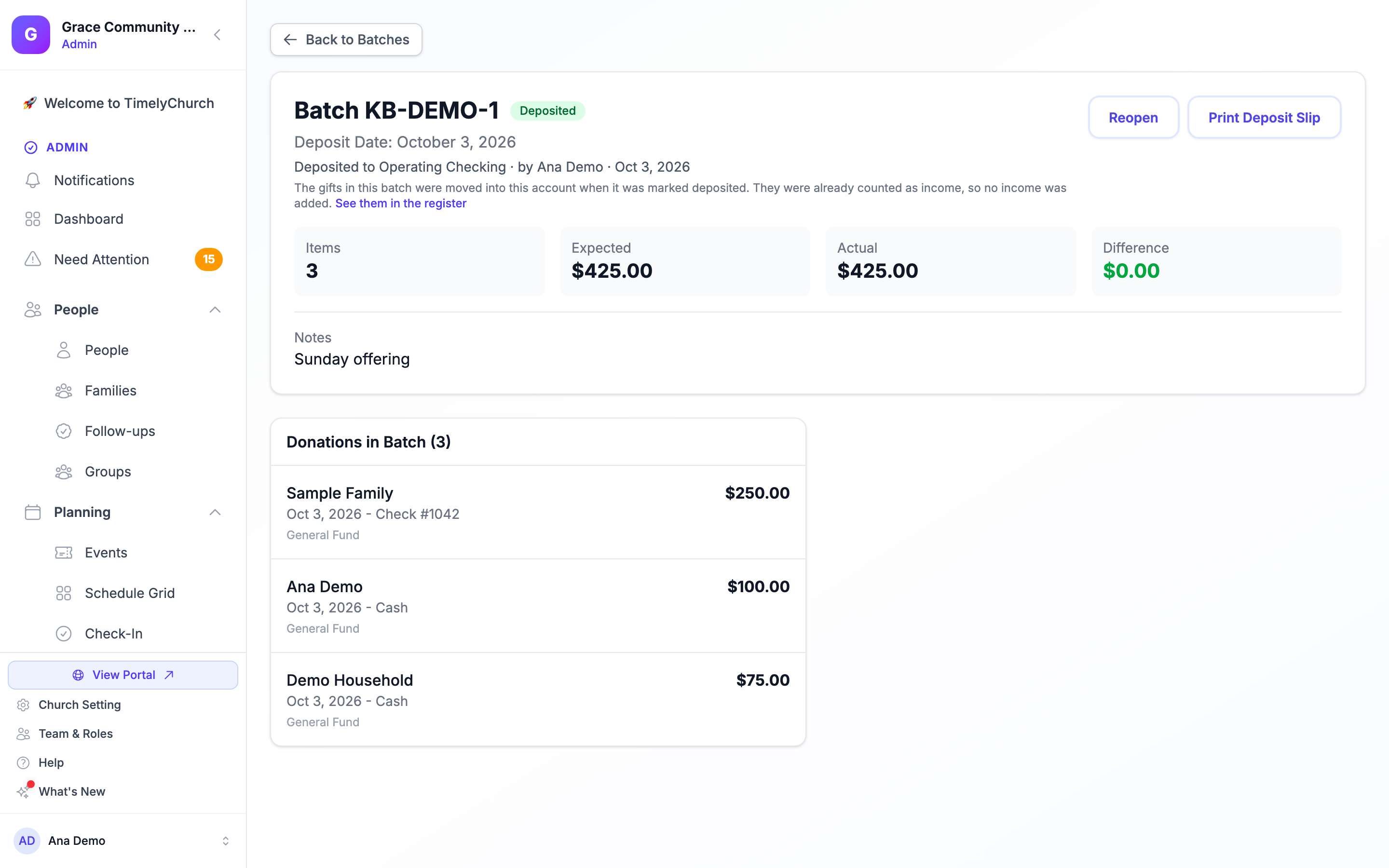
The page confirms "Batch DEP-… marked as deposited. Its gifts ($…) are now in [account]." When a batch is deposited:
- Each gift in the batch moves onto the bank account. Nothing new is created and nothing is deleted: your income statement and fund totals do not change, and the bank account goes up by the batch total.
- Each gift keeps its own date, fund and giving reference, and shows in the bank account's register on its own date. In Accounting → Transactions, the gifts carry the batch number (for example DEP-00012) next to their reference, a gift's details show a Deposit batch row, and searching for the batch number lists every gift in that deposit.
- A refund recorded on a gift moves with it, so the bank account goes up by the gift minus what was refunded. A processing fee recorded on a gift stays a separate expense and does not move.
- The batch status changes to Deposited, and the batch page shows Deposited to [account] · by [name] · [date] with a See them in the register link (for people who can view Accounting).
The deposit account list offers only bank and cash accounts.
When Mark Deposited is refused
The whole deposit is refused -- nothing moves -- and the message names the gift by its giving reference (never the donor) when:
| The message says | What to do |
|---|---|
| "Gift … is already deposited to [account]. Reopen the batch and remove that gift, or deposit the batch to [account]." | The gift was recorded straight into a different bank account. Reopen the batch, remove the gift, close it again -- or choose that account. |
| "Gift … is not in the ledger yet, so there is nothing to deposit for it. Open the gift in Giving and save it again, then mark the batch deposited." | Open the gift, save it, and try again. |
| "Gift … is dated …, in fiscal year …, which is closed. A closed year cannot be changed." | A gift in a closed fiscal year cannot be moved. |
| "Gift … is already reconciled, so it cannot be moved to another account." | The gift is part of a completed reconciliation. |
| "Gift … is ticked in a bank reconciliation that is still in progress. Untick it there first." | Uncheck it in the reconciliation in progress, then mark the batch deposited. |
| "Gift … is dated …, inside a completed bank reconciliation of [account]. Moving it would change that reconciliation." | A completed reconciliation of the bank account (or of the account the gift sits on) already covers that date. Deposit batches before you reconcile that period. |
| "[account] already has a transaction with reference number … (gift …). One account cannot hold two transactions with the same reference number." | Change one of the two reference numbers first. |
Undoing a deposit
If a batch was marked deposited by mistake, or into the wrong account:
- Open the deposited batch.
- Click Reopen and confirm in the Reopen Deposited Batch dialog: "Its gifts move out of [account] and back to where they were before the deposit, so the balance of [account] goes down by the same amount. The batch becomes Closed again. No gift is deleted."
- The batch is Closed again, and Mark Deposited is offered again.
Reopening undoes the deposit exactly. It is refused, with the reason, in the same situations as above -- for example once a gift has been reconciled in the bank account or its year has been closed.
Mark Deposited and Reopen need the Administrator Giving level.
Your bank's line for the same deposit
Your bank statement or bank file shows the whole deposit as one line. If you import bank files (see Bank CSV Import), that line appears in the review queue as new money in, but the batch's gifts are already in the bank account. Exclude that row -- do not accept it, or the deposit would be counted as income twice. TimelyChurch does not match it to the batch for you yet.
When you reconcile the bank account, check off the batch's gifts one by one; together they add up to the deposit on your statement. Searching Transactions for the batch number lists them.
Using an AI assistant
If your church has connected an AI assistant, it can close an open batch (for someone at the Bookkeeper Giving level or higher) and mark a closed batch deposited (Administrator level only) -- always as a proposal that is approved first. Reopening a deposited batch is done here on the website. See What Your AI Assistant Can Read and Change.
Printing a Deposit Slip
- Open any batch (any status).
- Click Print Deposit Slip.
- A PDF is generated with the batch details and all donations listed, ready for your bank deposit.
The deposit slip lists donors by name, so the button appears only for people at the Bookkeeper Giving level or higher. The file is named deposit-slip-DEP-XXXXX.pdf.
Best Practices
Weekly Deposit Workflow
- After each service: Record all cash and check donations in TimelyChurch.
- Before going to the bank: Create a deposit batch with the expected total from your count.
- Add donations: Add all the donations for this deposit to the batch.
- Verify: Compare the expected total with the actual total. Investigate any differences.
- Close the batch: Once verified, close the batch.
- After depositing at the bank: Mark the batch as deposited, selecting the bank account.
- Print a deposit slip: Keep a copy for your records.
- When your bank file arrives: Exclude the bank's line for this deposit in the import review queue -- the gifts are already in the bank account.
Tips
- Finish each batch (close it and mark it deposited) before you start the next one -- only one batch can be open at a time.
- Mark batches deposited before you reconcile the bank account for that period, and before you close the fiscal year. Once a completed reconciliation or a closed year covers a gift's date, that batch can no longer be marked deposited.
- Use the expected total field to catch data entry errors before going to the bank.
- Keep notes on batches for any unusual items or explanations.
- Have two people count offerings together for accountability.
- Closed batches serve as an audit trail -- they record who closed the batch and when.
Related Articles
- Recording Donations
- Who Can See Giving and Donations
- Bank Reconciliation
- Bank CSV Import
- Year-End Close
- What Your AI Assistant Can Read and Change
Last updated: 2026-10-21 (8.205.306).