
Follow-Ups
Follow-ups are tasks that help your team stay on top of pastoral care, visitor outreach, and other important action items. You can create follow-ups for individual people, assign them to team members, set priorities and due dates, and track them to completion.
Why Use Follow-Ups?
Without a system, it is easy for well-intentioned plans to fall through the cracks. Follow-ups ensure that:
- Visitors get a welcome call within the first week
- Hospital visits are scheduled and completed
- Prayer requests are acted on
- Membership inquiries receive a timely response
- No one is forgotten -- every task has an owner and a due date
The Follow-ups Page
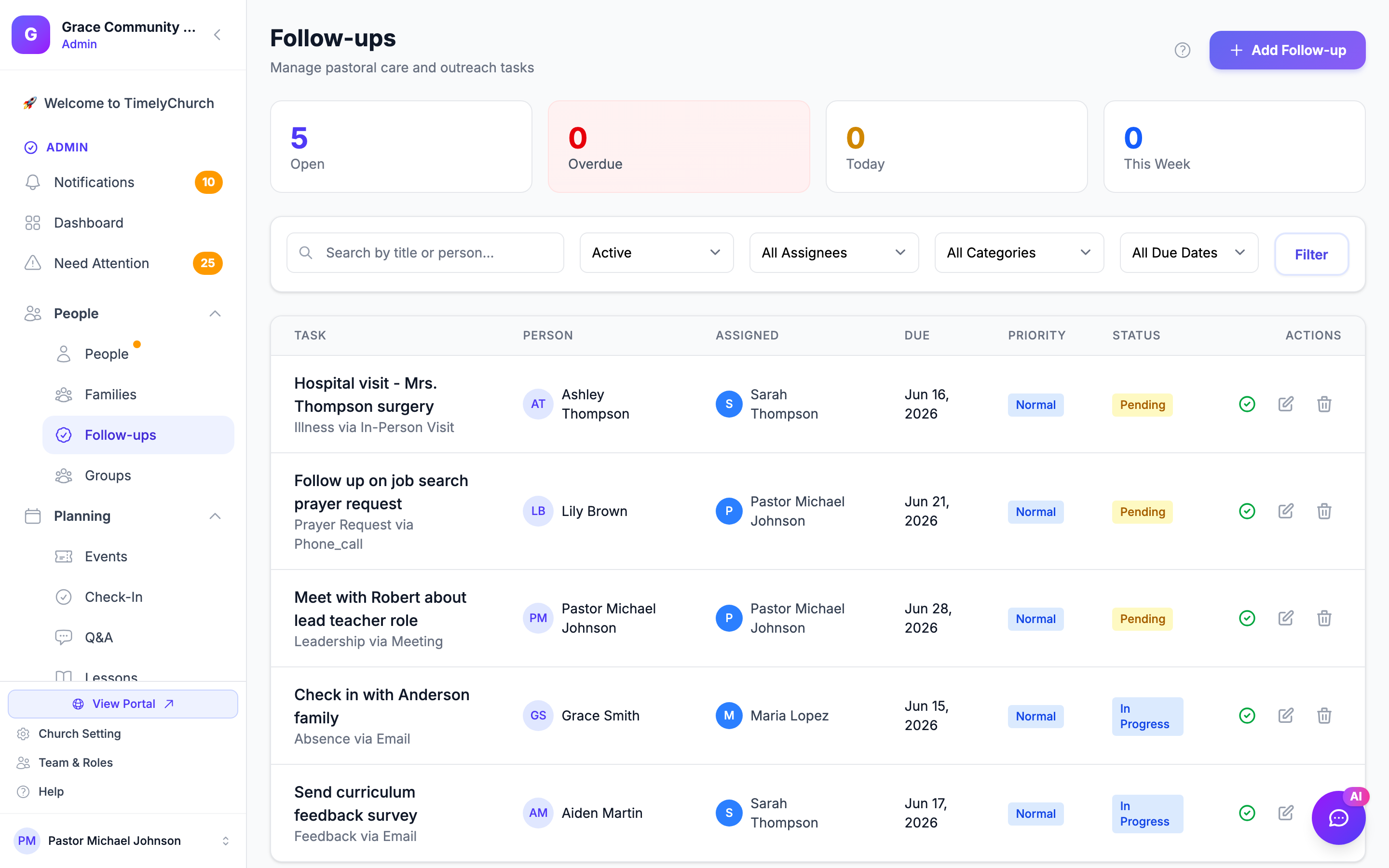
TimelyChurch provides a dedicated Follow-ups page where you can see and manage all follow-up tasks across your church.
- In the left sidebar, open People and click Follow-ups.
- You will see a list of all active follow-ups, with overdue items at the top, then pending and in-progress items by due date.
Summary Tiles
At the top of the page, you will see four tiles:
- Open -- All pending and in-progress follow-ups
- Overdue -- Tasks past their due date that have not been completed
- Today -- Tasks due today
- This Week -- Tasks due within the current week
Filtering Follow-Ups
Use the filter options to narrow down the list:
| Filter | Options |
|---|---|
| Status | Active (pending + in progress), Pending, In Progress, Completed, All |
| Assignee | Any team member, or Unassigned |
| Category | Any of the categories listed below |
| Due Date | Overdue, Due Today, This Week, Next Week |
| Search | Search by title or person name |
Click Filter to apply your choices, or Clear to reset. (On a phone, open the filter panel and tap Apply Filters.)
Creating a Follow-Up
From the Follow-ups Page
- On the Follow-ups page, click Add Follow-up (Add on a phone).
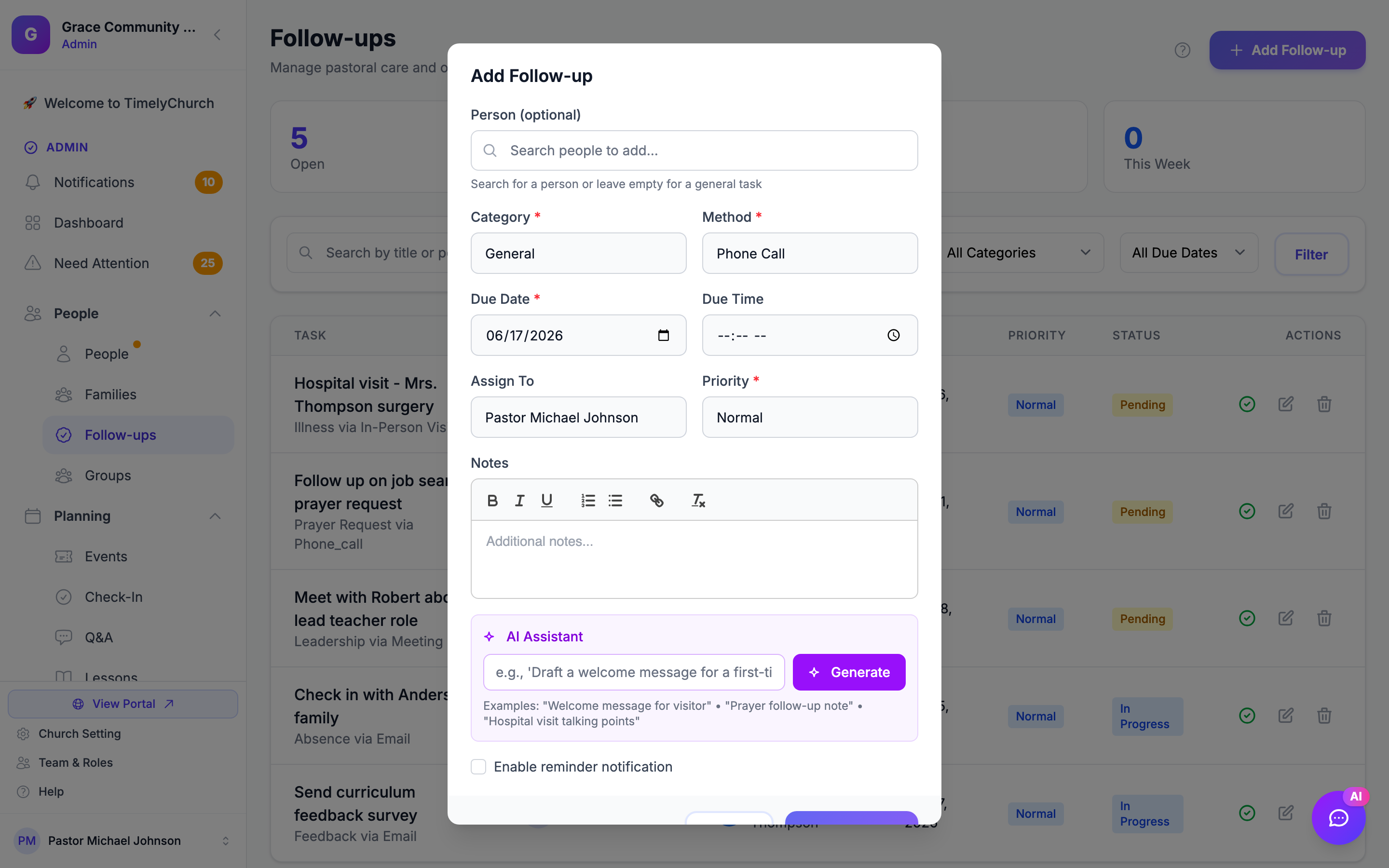
- Fill in the form:
- Person (optional) -- Search for and select the person this follow-up is about. Leave it empty for a general task.
- Category (required) -- Choose the type of follow-up:
- General
- Pastoral Care
- Home Visit
- Hospital Visit
- First-Time Visitor
- Baptism Preparation
- Prayer Request
- Event Invitation
- Volunteer Opportunity
- Membership Update
- Meeting
- Phone Call
- Equipment Repair
- Equipment Maintenance
- Equipment Issue
- Facility Maintenance
- Facility Repair
- Facility Issue
- Method (required) -- How should this follow-up be done?
- Phone Call
- In-Person Visit
- Message/Email
- Meeting
- Due Date (required) -- When should this be completed?
- Due Time (optional) -- A specific time, if applicable.
- Assign To (optional) -- Who is responsible? Choose Staff to pick someone with a TimelyChurch login (you are pre-selected; choose Unassigned to leave it open), or choose Person to search your whole directory. A person without a member login can be assigned too: an amber note says "[Name] has no member login yet — they will see this task as soon as one is linked."
- Priority (required) -- How urgent is this?
- Low
- Normal
- High
- Urgent
- Notes (optional) -- Additional notes or context about what needs to be done.
- Enable reminder notification (optional) -- Sends the assignee a reminder before the due date (assignees with a login only).
- Click Add Follow-up.
Tip: The title is generated automatically based on the category and person name. For example, selecting "First-Time Visitor" for "Sarah Johnson" will create a follow-up titled "First-Time Visitor - Sarah Johnson."
From a Person's Profile
- Open the person's profile.
- Go to the Notes & Tasks tab.
- In the Follow-ups section, click Add Follow-up.
- Fill in the same fields as above (the person is pre-selected).
- Save the follow-up.
You can also add a follow-up date while writing a note -- see Person Profile Overview.
Automatically, for First-Time Visitors
When someone whose membership status is Visitor is checked in for the first time, TimelyChurch creates a First-Time Visitor follow-up for them so someone reaches out during the week (unless they already have an open one). To decide who gets it:
- In the left sidebar, open Planning and click Check-In, then click the gear icon (Check-In Settings) and open the Options tab.
- Find the New visitor follow-ups go to card.
- Search your people and pick the person who should own the first outreach (a greeter, your visitor pastor, anyone). They do not need a member login.
- Click Save Options.
Leave it empty to keep new visitor follow-ups unassigned. The setting only affects new visitor follow-ups from then on.
Managing Follow-Ups
Updating a Follow-Up
- Find the follow-up on the Follow-ups page or on a person's profile.
- Click its Edit button. The Edit Follow-up panel opens.
- Edit any of the fields: person, category, method, due date, assignee, priority, notes, or status.
- Click Update Follow-up.
Changing the Status
Follow-ups move through these statuses:
| Status | Meaning |
|---|---|
| Pending | The task has been created but not started |
| In Progress | Someone is actively working on it |
| Completed | The task has been finished |
| Cancelled | The task is no longer needed |
To change the status, either:
- Edit the follow-up and select a new Status, or
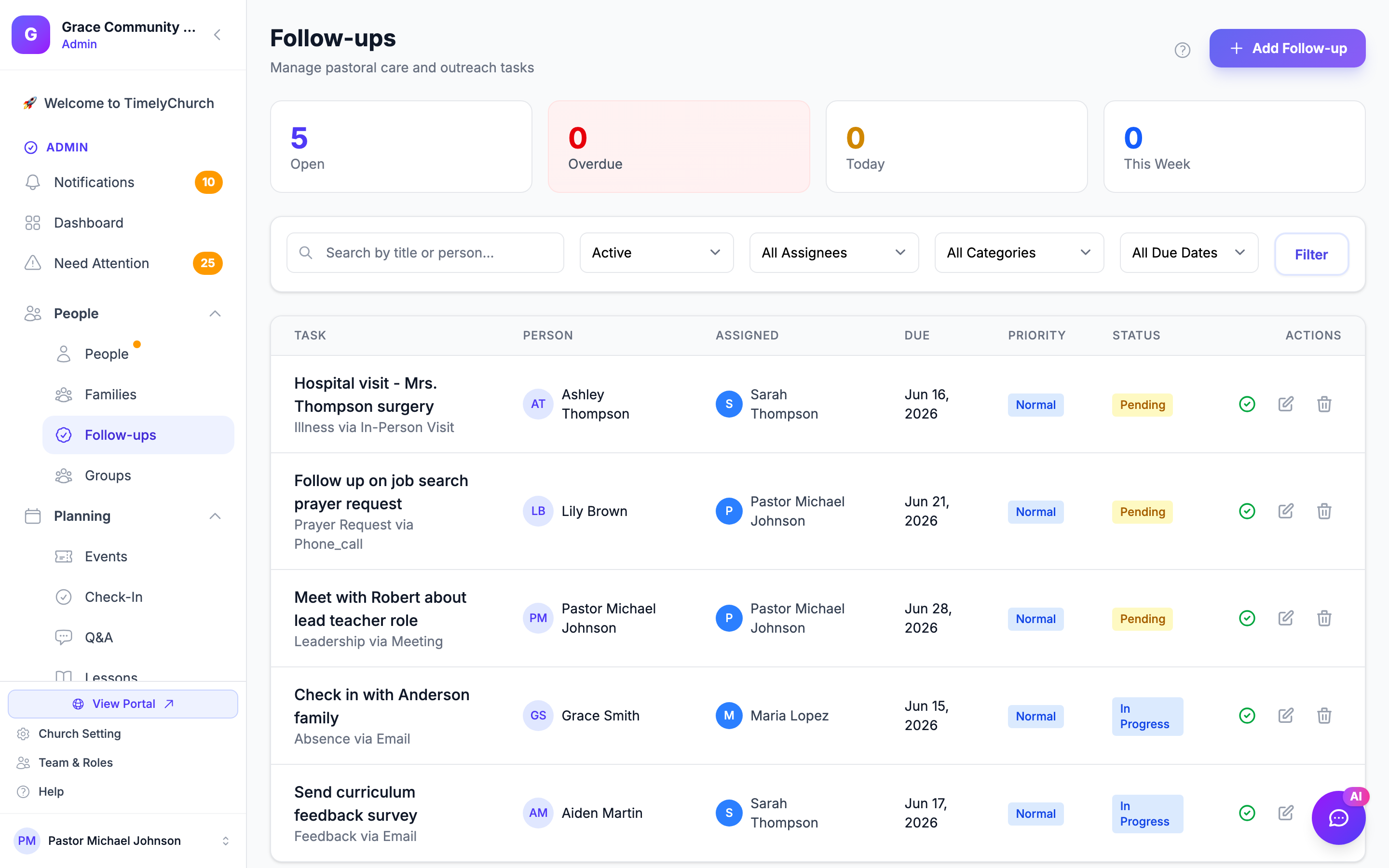
- Click the green Complete check mark on the follow-up's row for a quick completion.
Completing a Follow-Up
- Quick: click the green Complete check mark on the follow-up's row. It is marked Completed straight away.
- With notes: click Edit, set Status to Completed, and fill in Completion Notes (e.g., "Called and left a voicemail. Will try again Thursday."). Then click Update Follow-up.
The completion date and the person who marked it complete are recorded automatically.
Assignees can also complete their follow-ups from My Tasks in the member portal, or from Telegram if they have linked it.
Deleting a Follow-Up
- Find the follow-up.
- Click its delete (trash) button.
- Confirm the deletion.
Tip: Instead of deleting, consider editing the follow-up and setting its status to "Cancelled" if it is no longer needed. This preserves a record of what was planned, which can be useful for accountability and reporting.
Follow-Up Priority Levels
Priority helps your team focus on what matters most:
| Priority | When to Use |
|---|---|
| Urgent | Needs immediate attention (e.g., hospital visit, crisis situation) |
| High | Important and time-sensitive (e.g., first-time visitor follow-up within 48 hours) |
| Normal | Standard tasks (e.g., regular pastoral check-in, volunteer onboarding) |
| Low | Not time-sensitive (e.g., updating membership records, general welcome) |
Overdue items appear at the top of the Follow-ups page.
Who Can Work on a Follow-Up
The Complete, Edit, and delete buttons appear only on follow-ups you are allowed to change. You can change a follow-up when:
- it is assigned to you,
- you created it,
- it is assigned to a team you lead, or
- you are a church administrator.
If your role's reach is set to Their teams, the Follow-ups page lists only follow-ups connected to the people in the teams you lead, and you can work on those. See What Team Leaders See in People and Families.
Follow-Up Categories Explained
| Category | Typical Use |
|---|---|
| General | Any follow-up that does not fit a specific category |
| Pastoral Care | Check-ins for people going through life events, counseling needs |
| Home Visit | Scheduled visits to a person or family's home |
| Hospital Visit | Visiting someone in the hospital or recovering |
| First-Time Visitor | Welcoming and connecting with someone who attended for the first time |
| Baptism Preparation | Guiding someone through baptism preparation steps |
| Prayer Request | Following up on a prayer need someone shared |
| Event Invitation | Inviting someone to an upcoming event |
| Volunteer Opportunity | Reaching out about serving opportunities |
| Membership Update | Following up on membership-related matters (transfers, status changes) |
| Meeting | Scheduling or confirming a meeting |
| Phone Call | A specific phone call that needs to be made |
| Equipment Repair | A repair task for a piece of church equipment (often auto-created from Resource Notes) |
| Equipment Maintenance | Routine maintenance of equipment (sound board, projector, vehicle, etc.) |
| Equipment Issue | A reported issue with equipment that needs investigation |
| Facility Maintenance | Maintenance work on a building, room, or grounds |
| Facility Repair | A repair needed in a room or building (often auto-created from a room note) |
| Facility Issue | A reported problem in a room or building |
Tip: The equipment and facility categories are typically created automatically when staff log a repair or issue note on a resource (such as a sound board or van) or a room. They can also be chosen manually for ad-hoc maintenance tasks.
Best Practices
- Create follow-ups for every first-time visitor -- A timely phone call or email within the first week dramatically increases the chance they will return.
- Assign a specific person -- Tasks without an owner tend to be forgotten. Always assign someone.
- Set realistic due dates -- Do not set everything as urgent. Reserve urgent priority for truly time-critical situations.
- Add completion notes -- When marking a follow-up as complete, briefly note what happened. This creates a valuable record for the team.
- Review overdue items weekly -- Make it a habit to check the Follow-ups page at the start of each week and address anything overdue.