
Leading Your Group in the Portal
If you are a leader or co-leader of a group, class, or serving team, you can look after it right from the portal: approve people who want to join, manage the roster and waitlist, keep the group's prayer requests, tasks, and files, and — for serving teams — keep an eye on who is scheduled.
Finding Your Groups
- In the sidebar, click My Groups (under Team if you serve on a team).
- The page lists your Serving teams and your Groups & classes, with any Upcoming Events your groups host (and how many are registered). Find a group helps you browse other groups to join.
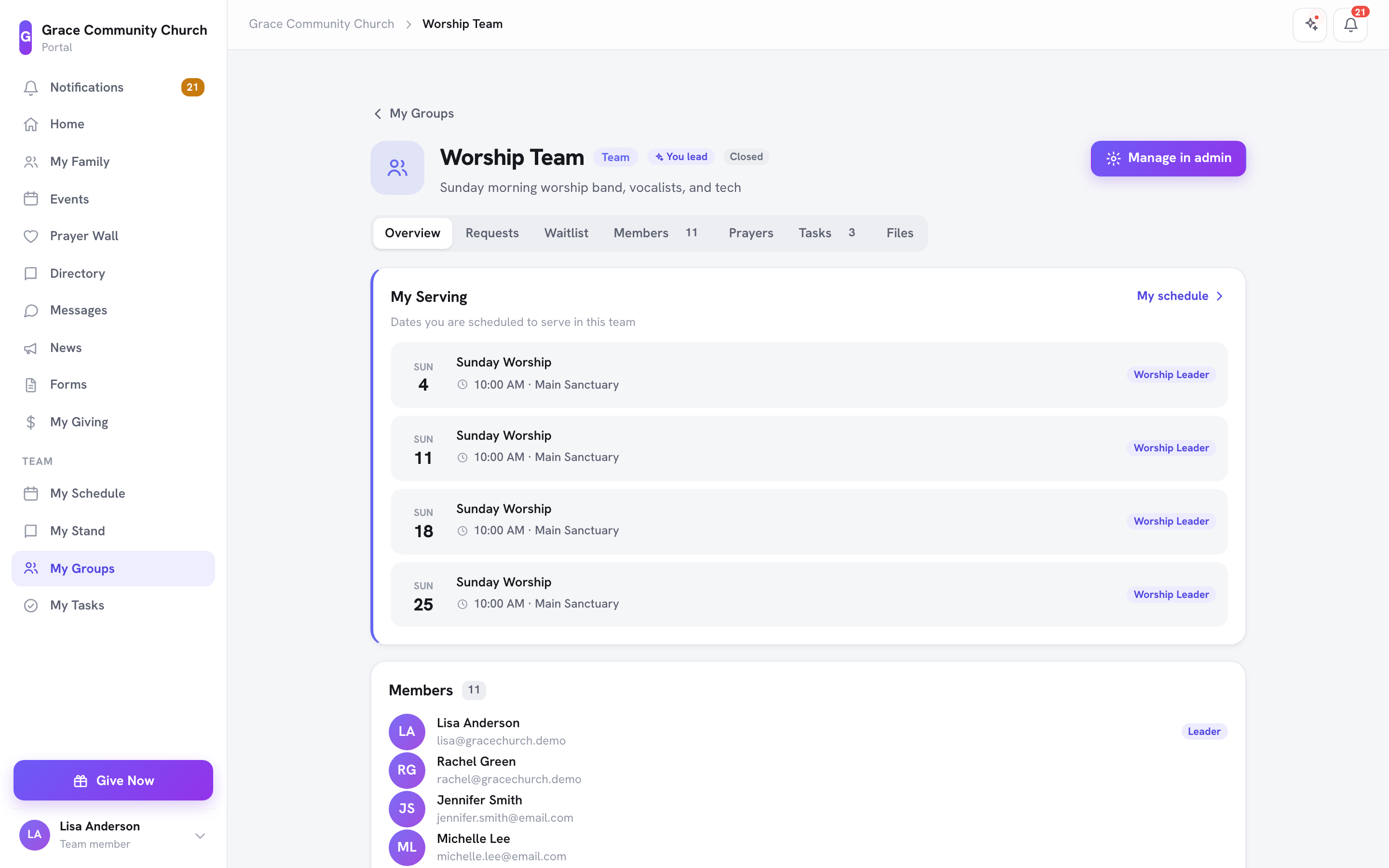
- Click a group to open it. Groups you lead show a You lead badge.
Tip: On some portal pages the sidebar also shows a Leadership section with a Manage [group name] link for each group you lead. It opens the group's full management page, where your church lets you manage it.
The Group Page for Leaders
As a leader you see these tabs (members see only Overview, Tasks, and Files):
| Tab | What you can do |
|---|---|
| Overview | See the group's details, next meeting, upcoming meetings, and your membership. |
| Requests | Review Pending requests — people waiting for your approval to join. Click Approve or Deny. |
| Waitlist | See who is waiting for a spot once the group is full. Click Add to Group to bring someone in, or Remove them from the waitlist. |
| Members | Add and remove members, and invite new people (see below). |
| Prayers | Post a prayer request (optionally Submit anonymously), Mark answered, or Remove one. |
| Tasks | Add tasks for the group, assign them, and set a due date and priority. |
| Files | Upload sheet music, handouts, or other documents for the group. |
If you can also manage the group in the admin area, a Manage in admin button appears at the top of the page.
Managing Members
On the Members tab:
- Add a member — choose someone from your church under Person and click Add member.
- Invite to group — invite someone by email (with an optional name) and click Send invitation. They join once they accept the invitation and a leader approves it. You can also share the group's link.
- Make member — change a co-leader back to a regular member. (A church admin appoints leaders; roles are otherwise set by a church admin.)
- Remove — take someone out of the group.
Tasks and Files
- On Tasks, fill in Add a task (for example, "Acquire sheet music for Sunday"), choose who to Assign to, a Due date, and a Priority, then click Add task. Tick Complete when it's done. Under Who can create tasks? choose Leaders only or All members.
- On Files, use Upload a file. Under Who can upload files? choose Leaders only or All members. Anyone in the group can Download a file; Move to Trash removes one (it can be restored later).
Leading a Serving Team
Serving-team leaders also schedule their team:
- Schedule Grid — team leaders can open the Schedule Grid and invite, remind, and auto-fill for the teams they lead. See Schedule Grid — Visual Volunteer Scheduling.
- From Telegram —
/schedule_people,/openslots,/myteam, and/nudgelet you fill spots and chase replies from your phone. See Schedule Your Team from Telegram. - Team Leader Dashboard — in the TimelyChurch app inside Telegram, the Team schedule tile opens the Team Leader Dashboard: counts of Team Members, Upcoming Events, Pending, and Confirmed; Your Teams (with Manage Templates); and the Upcoming Team Schedule for the next 8 weeks, showing each position's filled count and who is assigned. Click Confirm to confirm a pending volunteer on their behalf, or Remove to take someone off a position.
Best Practices for Group Leaders
- Check Requests and Waitlist weekly so nobody waits long to join.
- Use Tasks and Files so everyone in the group knows what's needed and has the latest handouts.
- Follow up on pending assignments if you lead a serving team. A quick message to volunteers helps confirm availability early.