
Duplicate Detection and Merge
Over time, duplicate person records can appear in your directory -- from importing data, different staff members adding the same person, or someone filling out a form with a slightly different name. TimelyChurch helps you find these duplicates, compare them side by side, and merge them into a single clean record without losing any data.
Why Duplicates Happen
- Multiple imports -- The same person appears in CSV files from different sources.
- Variant names -- "Bob Smith" and "Robert Smith" are entered as separate records.
- Typos -- "Jonh" vs. "John" or different email addresses for the same person.
- Form submissions -- A visitor fills out a connection card, and a staff member also adds them manually.
Duplicates cause confusion -- the same person shows up twice in reports, gets contacted by multiple people, and their attendance and giving records are split across two profiles.
Automatic Duplicate Detection
TimelyChurch looks for potential duplicates and assigns each match a confidence score from 0 to 100. The score is based on which fields matched and how strong each match is.
- Every day, TimelyChurch checks your active people and adds any pair that scores 80 or higher to the review list.
- When a member adds a family member in the member portal and a similar person already exists, they are asked whether it is the same person. If they say it is someone different, the pair is still added to the review list so staff can double-check it -- this is how lower-scoring pairs (below 80) can appear.
Confidence Tiers
| Score | What It Means | Triggered By |
|---|---|---|
| 100 (Exact) | Almost certainly the same person -- safe to merge after a quick visual check. | Identical email address (case-insensitive). When an email match is found, no further checks are run on that pair. |
| 90 (High) | Very likely the same person. Worth reviewing the side-by-side comparison before merging. | Same phone number on either Mobile or Home, normalized (digits only, last 10 digits compared so country codes do not interfere). |
| 80 (High) | Same first and last name (case-insensitive, trimmed). Often a duplicate, but always verify -- a father and son with identical names will land here. | Exact first-name and last-name match. |
| 70 (Medium) | Possible duplicate. Review carefully. | Nickname variant on the first name with the same last name -- for example, Mike Smith and Michael Smith, or Liz Jones and Elizabeth Jones. |
| 60 (Medium) | Possible duplicate, lower certainty. | First-name initial match -- for example, J. Smith and John Smith. |
| 55 (Low) | Could be a typo, but could also be different people. Verify before merging. | Similar spelling on the first name with the same last name -- catches things like Jonh vs. John. |
In the review list, the highest-confidence pair appears first. Tick High Confidence (80%+) at the top of the page to show only pairs at 80 or above -- start there for quick wins.
What Each Tier Means in Practice
- 100 and 90 are normally safe to merge after confirming the names roughly match.
- 80 needs a glance at addresses, ages, or family memberships to rule out lookalikes (especially common with father/son or grandmother/granddaughter pairs).
- 70 and 60 should be opened, compared, and then either merged or marked Not a Duplicate so the system stops surfacing them.
- 55 is the lowest score TimelyChurch assigns. These are most often typos, but treat them as candidates for review, not auto-merge.
Potential duplicates are collected for your review on the Duplicate Review page.
The Duplicate Review Page
Duplicate Review has no item of its own in the sidebar. You reach it from the People page:
- When there are pairs waiting, a small amber dot appears next to People in the left sidebar.
- Open People. An amber Duplicates Found banner at the top of the page shows how many pairs need review (for example, "3 potential duplicates need review").
- Click the banner. The Duplicate Review page opens with the pending pairs, sorted by confidence score (highest first).
The banner appears only while pairs are waiting, and only for roles that reach the whole church -- a role set to Their teams does not see it.
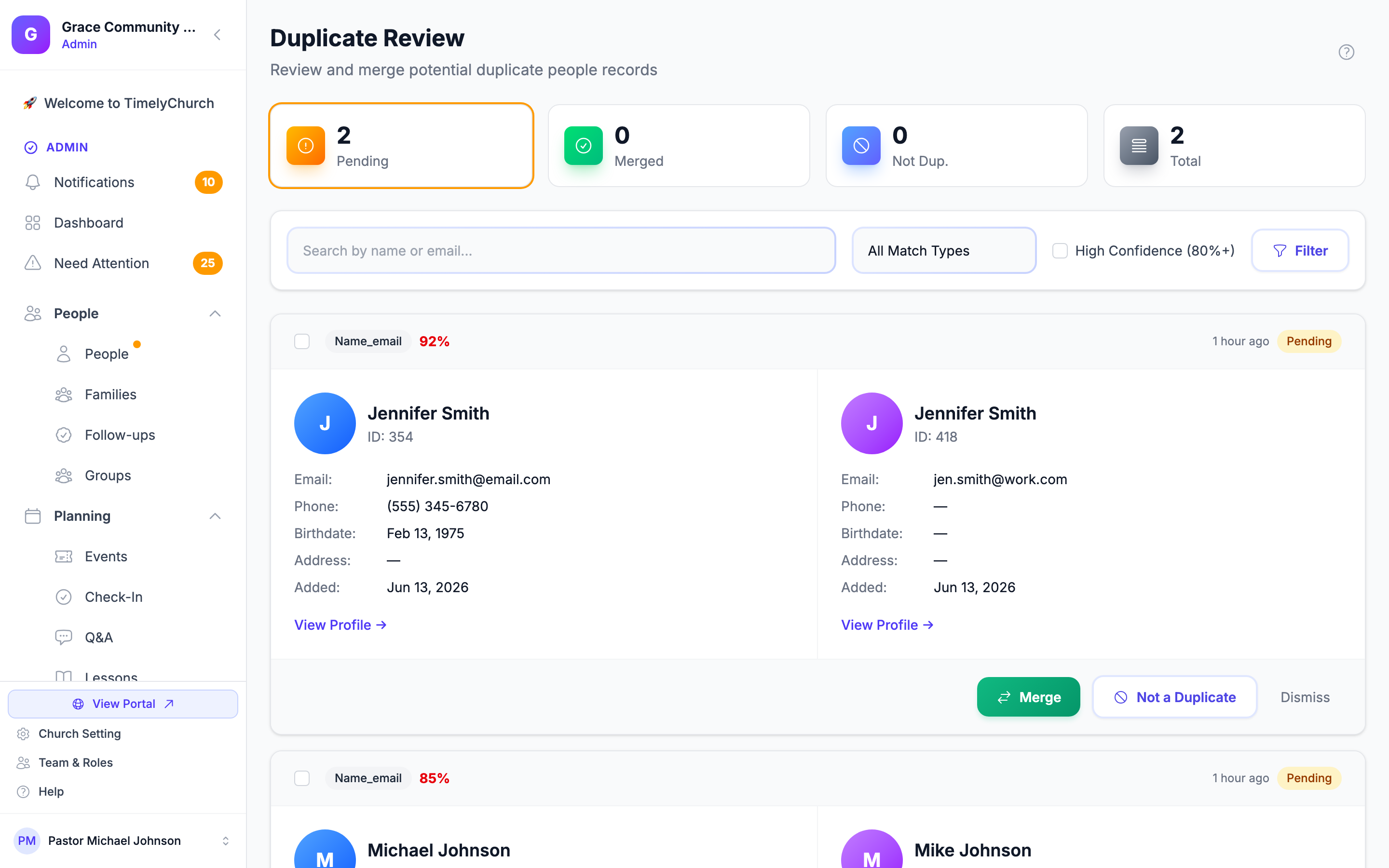
Summary Tiles
At the top of the page, you will see counts for:
- Pending -- Duplicate pairs waiting for your review
- Merged -- Pairs that have been merged
- Not Dup. -- Pairs you confirmed are separate people
- Total -- All pairs found so far
Filtering Duplicates
You can filter the duplicate list by:
- Search -- Search by name or email
- Match Type -- Email Match, Name Match, Phone Match, or Auto-Detected
- High Confidence (80%+) -- Show only pairs with a confidence score of 80% or above
Click Filter to apply, or Clear filters to reset.
Reviewing a Duplicate Pair
For each potential duplicate, you will see both records displayed side by side, including:
- Names
- Email, Phone, Birthdate, and Address
- Added -- when each record was created
- A View Profile link for each person
You have three options for each pair:
Option 1: Merge
If the two records are the same person, merge them into one:
- Click Merge. The Merge Records dialog opens.
- Choose which record to keep -- click the person marked Keep this record.
- Optionally add Notes (optional) explaining the merge.
- Click Merge Records.
When you merge:
- The record you keep becomes the primary profile.
- Missing details from the other record fill in any blank fields on the primary (email, phone, address, birthdate, gender, etc.).
- The other record's donations, pledges, attendance and check-ins, group memberships, volunteer roles, notes, follow-ups, form submissions, family links, and custom field values are moved to the primary profile. If both people are in the same class or group, the kept person keeps the more active status (active over pending, on leave or inactive) with its join and leave dates, and the attendance, RSVPs, positions and prayer requests move to that membership, so nothing is lost. (8.205.307)
- The other record is deactivated and archived.
Merging needs the People & Families Delete permission.
Option 2: Not a Duplicate
If the two records are genuinely different people (for example, a father and son with the same name):
- Click Not a Duplicate. The Mark as Not a Duplicate dialog opens.
- Optionally add a note explaining why.
- Click Confirm Not Duplicate.
This removes the pair from your pending list and prevents it from being flagged again.
Option 3: Dismiss
If you are unsure or want to deal with it later:
- Click Dismiss.
- Confirm when asked "Dismiss this duplicate warning? It will not appear again."
Dismissed pairs are moved out of the pending list.
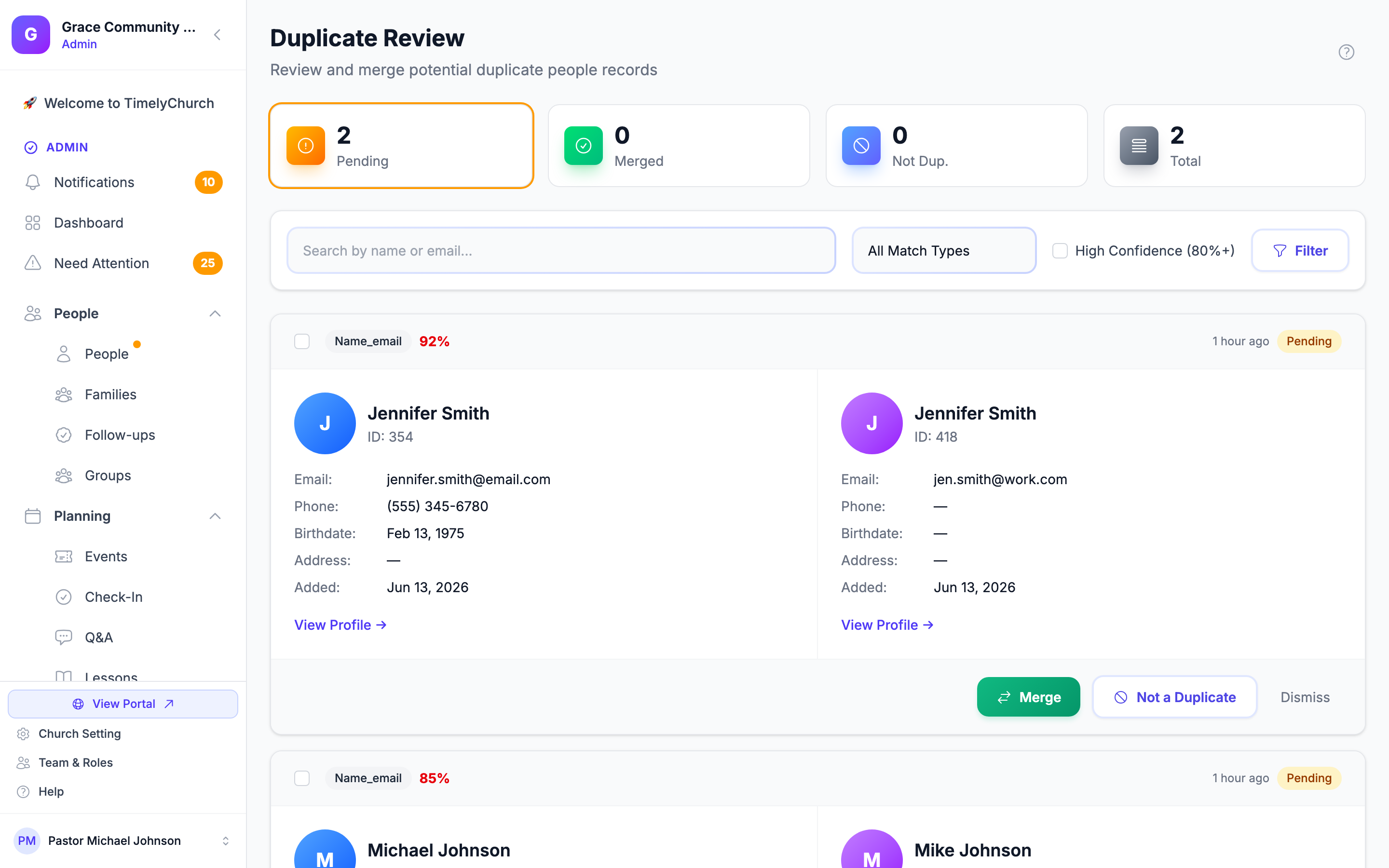
Tip: Start with high-confidence duplicates (80%+). These are almost always actual duplicates and can be resolved quickly.
When two people are merged, a household role that is not allowed (for example Guardian for someone under 18) is not copied over. It is saved as Other, and the family membership still moves to the kept record.
Advanced Merge from a Person's Profile
You can also initiate a merge directly from any person's profile for situations where you know who the duplicate is:
Step 1: Find the Duplicate
- Open the person's profile.
- From the Actions menu, select Merge Profiles. (You need the People & Families Delete permission, and a role set to Their teams does not see this item.)
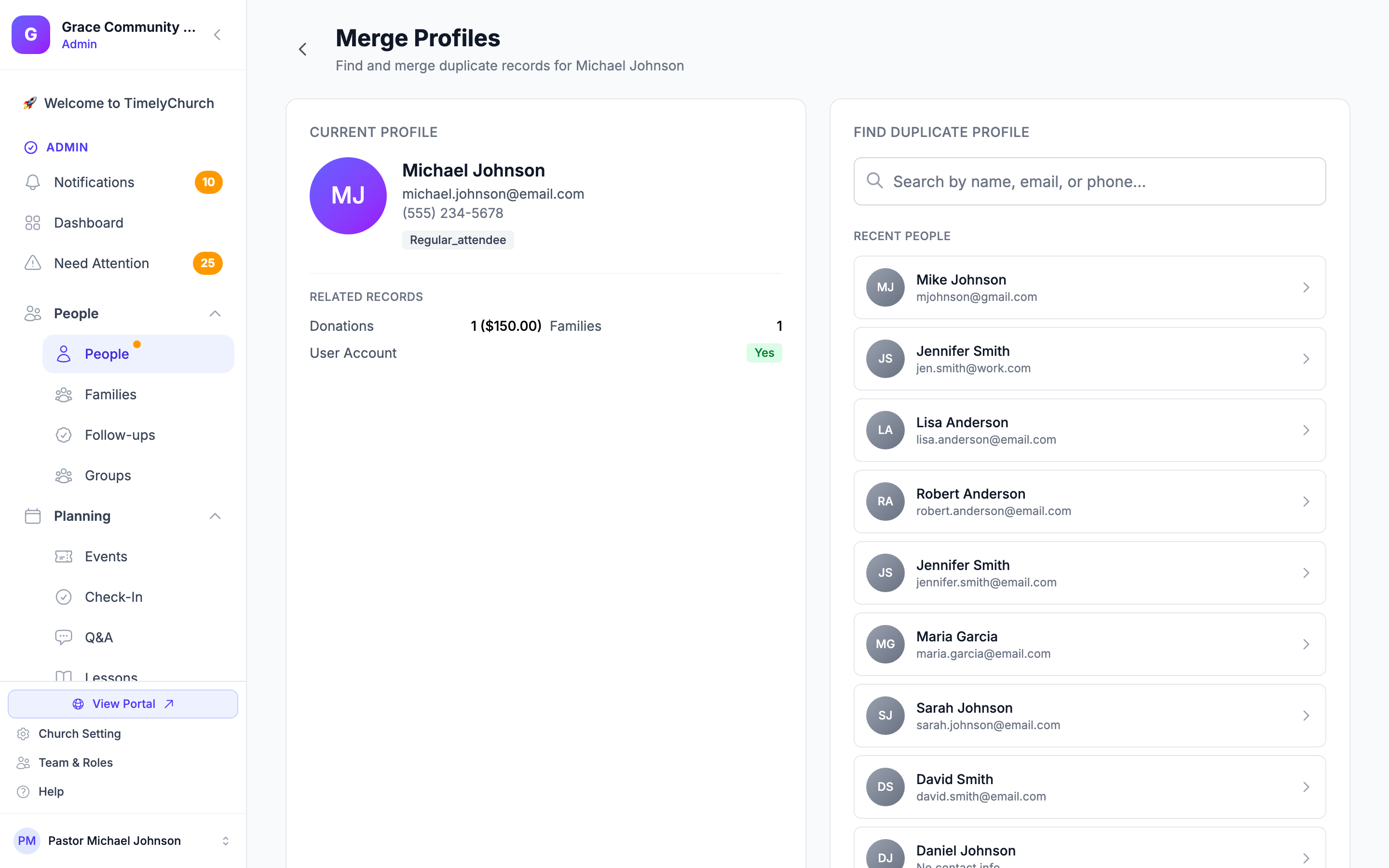
- The Merge Profiles page shows the Current Profile with its related records. Under Find Duplicate Profile, type a name, email, or phone number, or pick from Recent People.
- Select the matching record from the Search Results.
Step 2: Compare and Merge
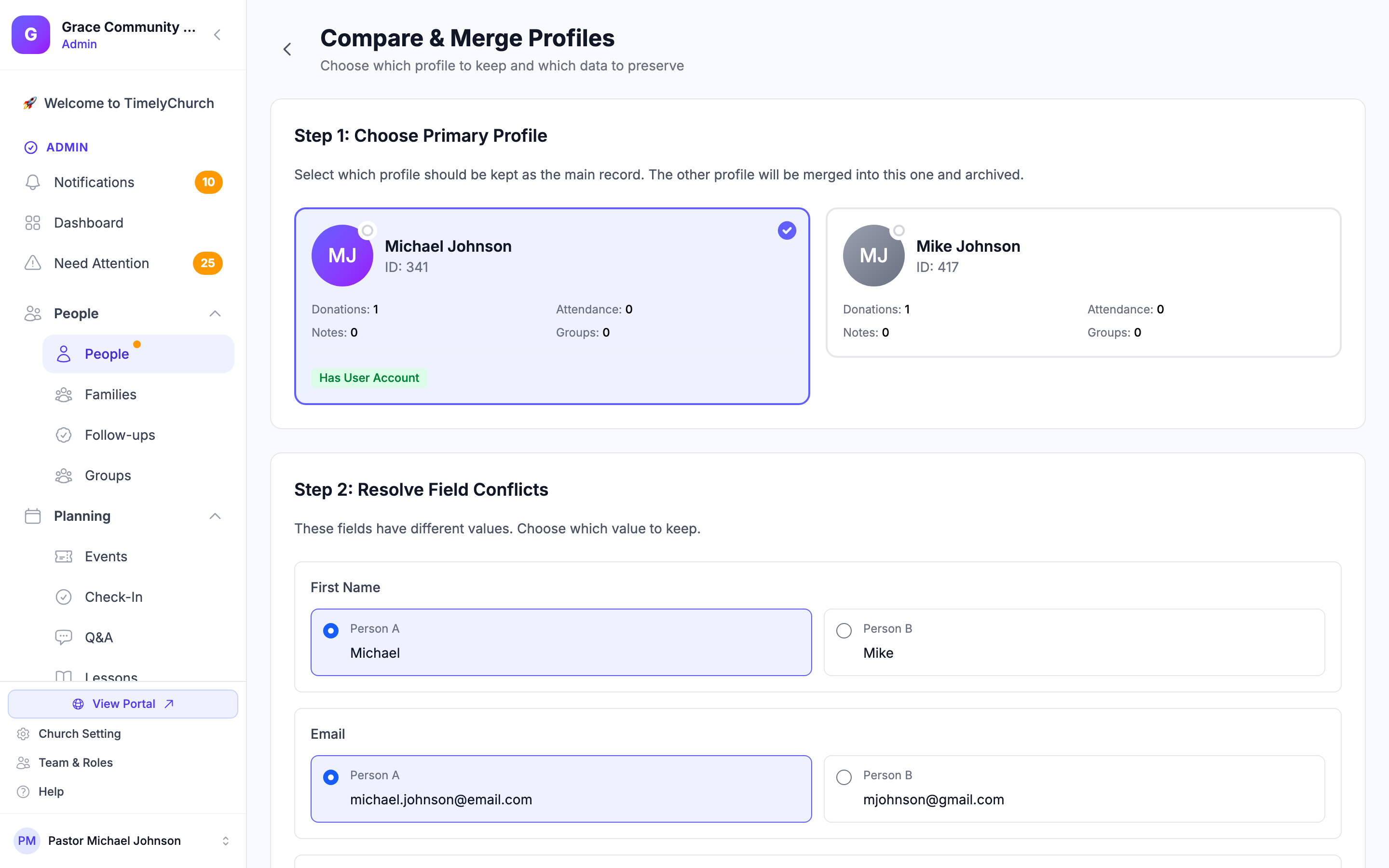
After selecting the second person, the Compare & Merge Profiles page opens. It walks you through five steps:
- Step 1: Choose Primary Profile -- Pick the profile to keep. Each card shows how many donations, attendance records, notes, and groups it has, and whether it has a user account.
- Step 2: Resolve Field Conflicts -- For each field where the two records differ (name, email, phone, address, etc.), choose which value to keep. If custom field values differ, a Custom Field Conflicts section lets you choose those too.
- Step 3: Review Related Data Transfer -- See the donations, attendance, check-ins, groups, notes, follow-ups, form submissions, and family links that will move to the primary profile.
- Step 4: Add Notes (optional) -- Say why these profiles are being merged.
- Step 5: Confirm Merge -- Type the secondary person's name (the one that will be archived) to confirm, then click Merge Profiles.
After the merge:
- You will be redirected to the primary person's profile.
- A success message will show what was transferred (notes, follow-ups, family memberships, etc.).
- The secondary person is archived.
Tip: The confirmation step (typing the secondary person's name) is a safety measure to prevent accidental merges. Take a moment to double-check before confirming.
Merge History
TimelyChurch keeps a log of every merge -- who was merged into whom, who did it, when, and which records moved. See Merge History for how to open it and read it.
Bulk Actions for Duplicates
When you have many potential duplicates to review, you can use bulk actions to speed up the process:
- Not Duplicates -- Mark all the selected pairs as not duplicates at once.
- Dismiss All -- Dismiss all the selected pairs at once.
- On the Duplicate Review page, select the checkboxes next to the pairs you want to act on.
- Click Not Duplicates or Dismiss All in the bar that appears.
Preventing Duplicates
The best strategy is to prevent duplicates from being created in the first place:
- Use the Skip Duplicates option when importing -- This is enabled by default and checks for matching names and emails before creating new records.
- Search before adding -- When manually adding someone, TimelyChurch will warn you if a similar record already exists.
- Standardize data entry -- Encourage staff to use full legal names (not nicknames) as the first name, and use the nickname field for informal names.
- Review duplicates regularly -- Check the Duplicate Review page weekly or monthly to catch any that slip through.
Related Articles
- Managing Your People Directory
- Person Profile Overview
- Adding People
- Importing and Exporting Data
- Merge History
Last updated: 2026-10-22 (8.205.307).