
Dashboard Overview
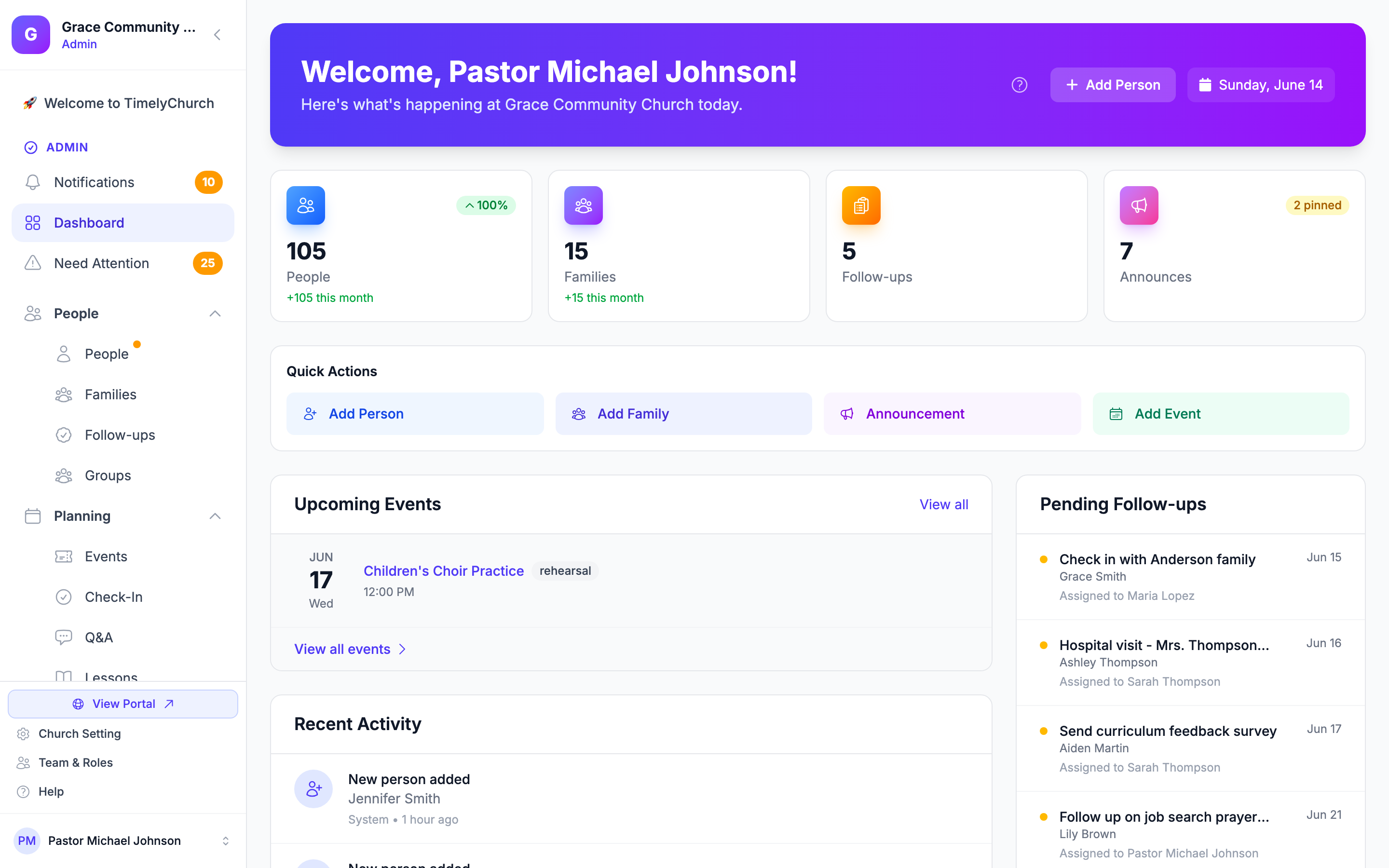
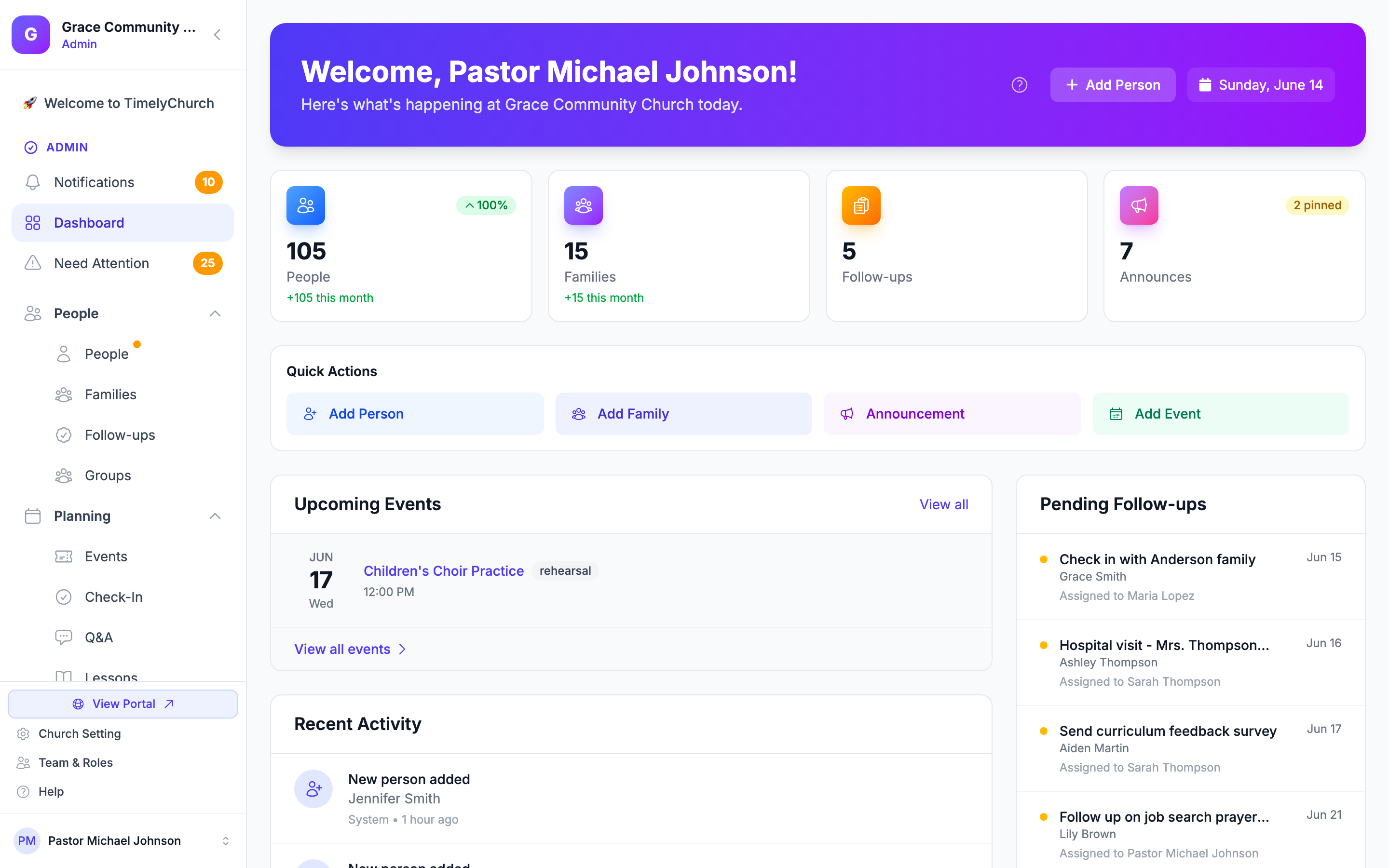
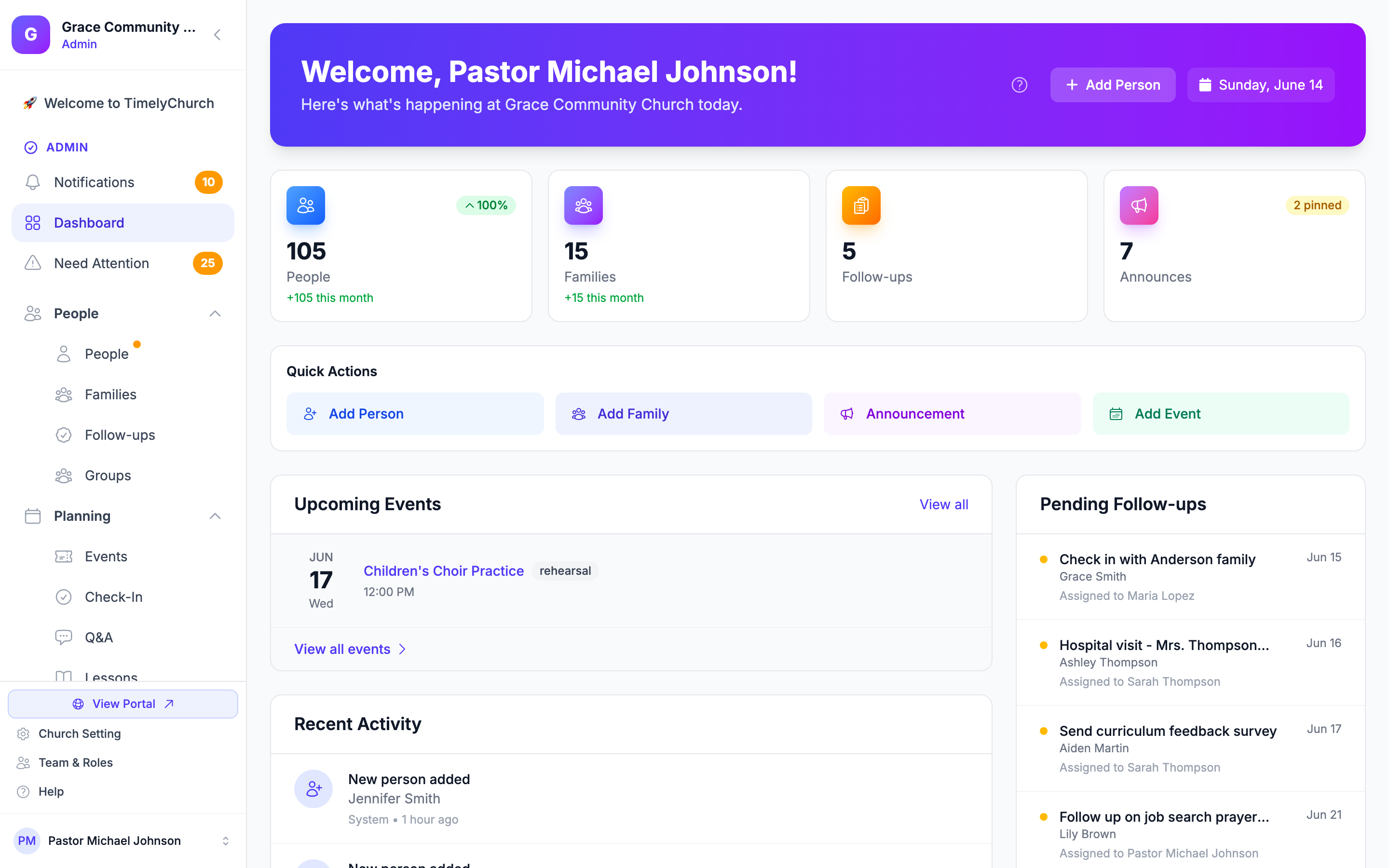
The Dashboard is the first thing you see when you log in to TimelyChurch. It gives you a snapshot of everything happening at your church right now -- from membership stats to upcoming events and pending tasks.
What you see depends on your role: each card and panel appears only if your role includes that area (people, families, follow-ups, announcements, events, schedules). If your role includes none of them, the Dashboard simply says Your areas are in the menu -- use the sidebar to open the areas you work in.
The Welcome Banner
At the top of your Dashboard, you will see a personalized welcome banner that greets you by name -- "Welcome, [Your Name]!" -- followed by a friendly line: "Here's what's happening at [Your Church] today." If you have overdue follow-ups, a small badge appears next to that line (for example, "3 overdue follow-ups") to remind you.
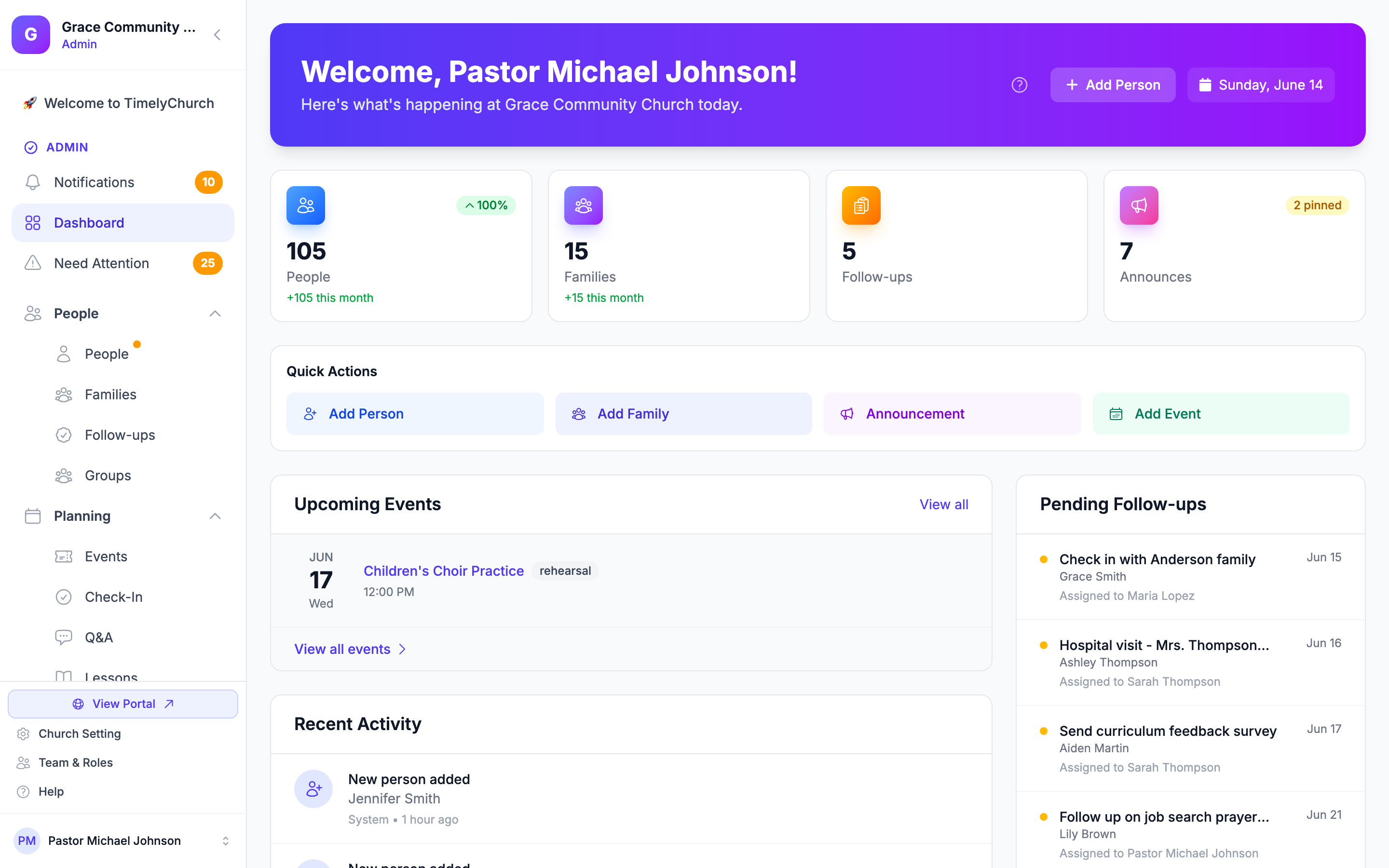
On the right side of the banner (on larger screens), you will find:
- Help (?) button -- Opens a quick "About Your Dashboard" panel that explains the stats cards, Quick Actions, and other dashboard sections, along with a few tips.
- Add Person button -- Quickly jump to your directory to add a new person.
- Date chip -- A small chip with a calendar icon showing the current day of the week, month, and date (e.g., "Tuesday, May 7"). It's not clickable -- just a friendly reminder of the date.
Your church web address (new churches)
For the first 30 days after your church is created, the banner also shows a line with Your church web address -- the link to your church on TimelyChurch -- with a Copy button and, if your role can edit settings, a Change button that opens the web address card in Church Settings. If TimelyChurch could not build an address from your church name, the line says Choose your church web address. See Your Church Web Address.
When your subscription is inactive
If your church's subscription has ended -- for example it was cancelled, or a payment problem was not fixed in time -- a red Your subscription is inactive banner appears above the welcome banner: "Reactivate to restore full access to your church account." Administrators see a Reactivate subscription button that opens the Billing & Plans tab. See Trial and Plan Selection.
Stats Cards
Just below the welcome banner, up to four stat cards give you an at-a-glance view of key numbers (one for each of these areas your role can open):
- People -- The total number of people in your church directory. A green percentage shows growth compared to the previous period, and you can see how many new people were added this month.
- Families -- The total number of families in your directory, with new additions for the month.
- Follow-ups -- The number of pending follow-up tasks. A red badge appears if any are overdue.
- Announcements -- The count of currently active announcements, with a badge showing how many are pinned.
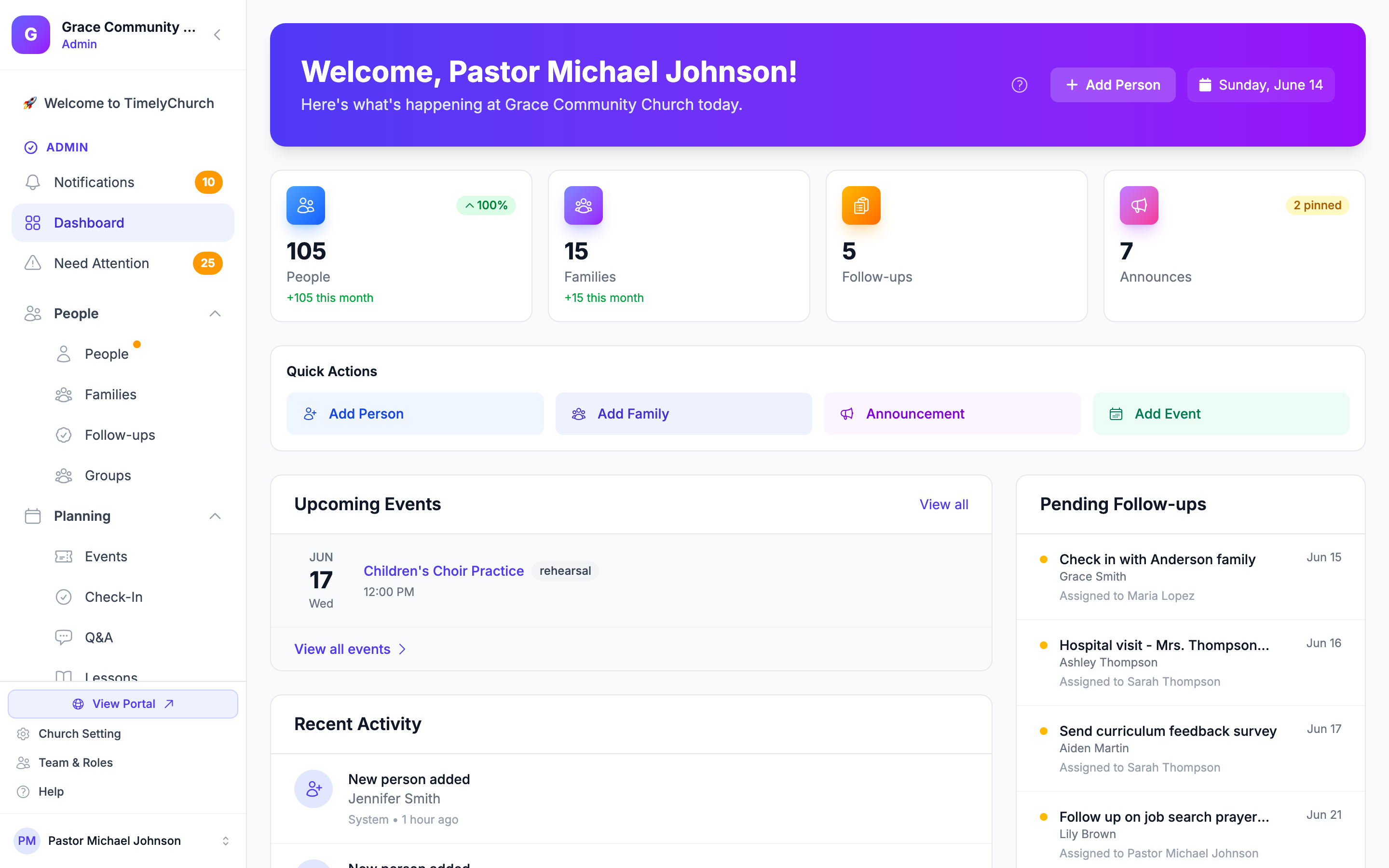
Tip: Click on any stat card to jump directly to that section. For example, clicking the People card takes you straight to your people directory.
Quick Actions
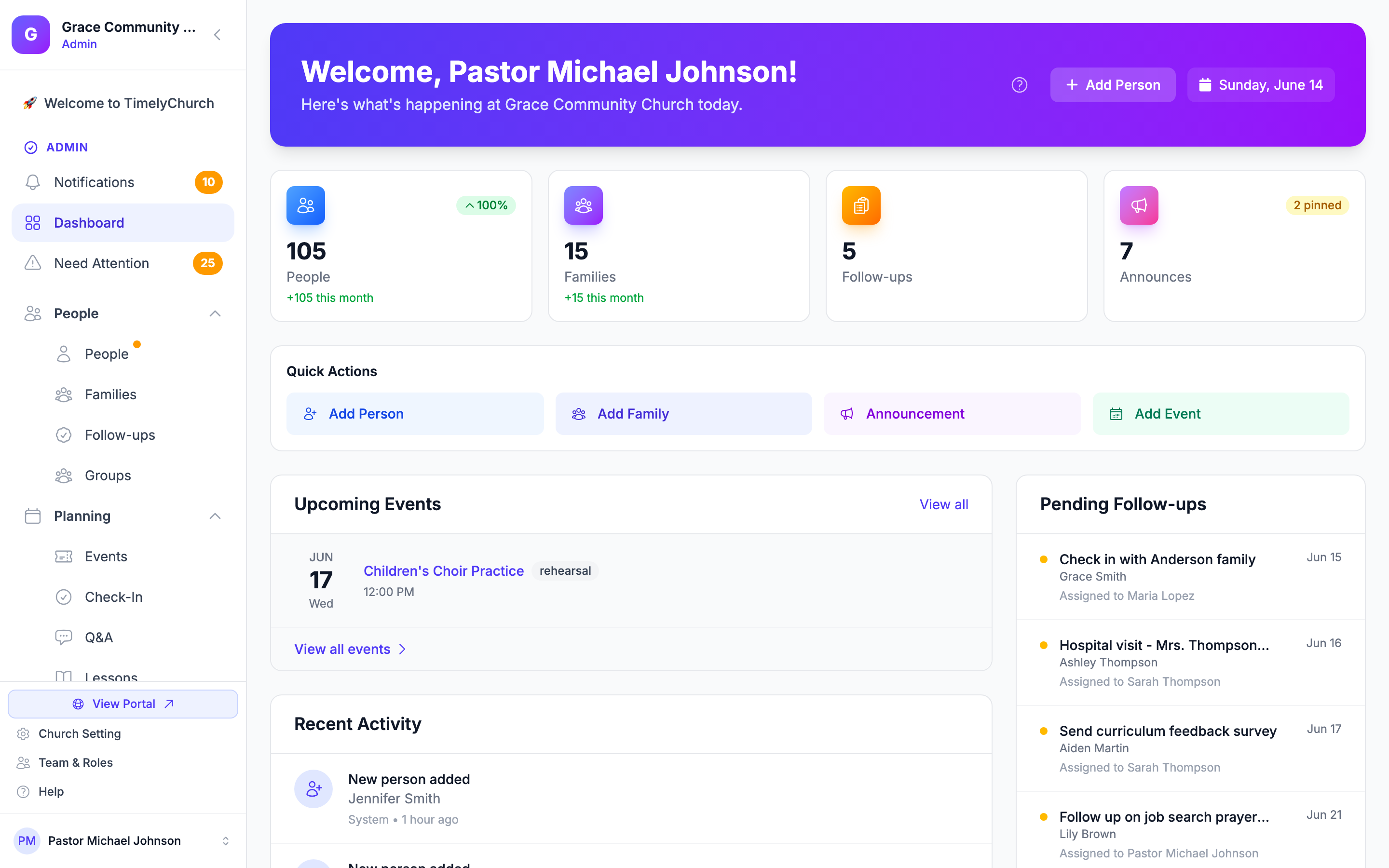
Below the stats, you will find a row of Quick Action buttons that let you perform common tasks with one click:
- Add Person -- Add a new individual to your directory.
- Add Family -- Create a new family record.
- Announcement -- Create a new announcement for your congregation.
- Add Event -- Set up a new church event.
Upcoming Events
This section shows your church's upcoming events for the next several days. Each event displays:
- The date with a colored badge (green for today, blue for tomorrow).
- The event title and type (service, meeting, social, outreach, etc.).
- The time and room where it takes place.
- A volunteer count showing how many volunteer spots are filled versus needed.
Click on any event to view its full details.
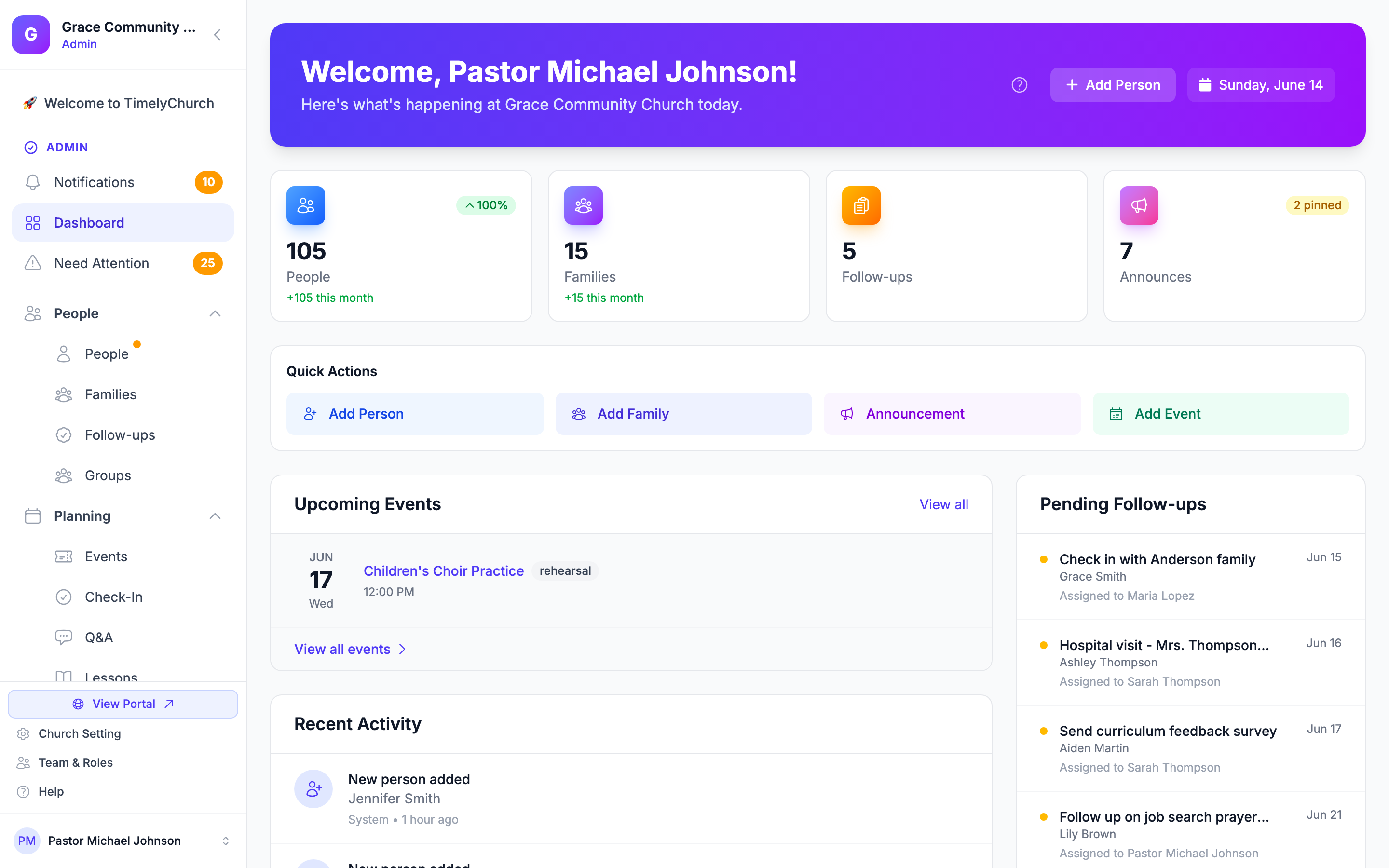
Tip: If an event is listed as needing volunteers, a small numbered badge appears next to the "Upcoming Events" heading so you know at a glance how many events still need help.
Recent Activity
The Recent Activity feed shows a timeline of what your team has been doing -- new people added, follow-ups completed, announcements created, and more. Each entry shows:
- An icon indicating the type of activity.
- A brief description of what happened.
- Who performed the action and how long ago.
Click any activity item to go to the related record.
Upcoming Schedules
If your church uses the scheduling feature for classes or Sunday School, this section shows the next two weeks of teaching schedules. You can see:
- The date and class name.
- The assigned teacher (or a warning if no teacher is assigned yet).
- The lesson title being taught.
A badge at the top warns you if any schedules still need a teacher assigned.
Right Sidebar Panels
On the right side of the Dashboard (or below on mobile), you will find a few additional panels:
Pending Follow-ups
Shows your most urgent follow-up tasks. Each follow-up displays:
- A colored dot (red for overdue, amber for upcoming).
- The follow-up title and the person it relates to.
- The due date and who it is assigned to.
When all follow-ups are complete, you will see a friendly "All caught up!" message.
Recent People
A quick list of the most recently added people in your directory, showing their name, initials or photo, and when they were added.
Active Announcements
When you have active announcements, this panel lists them so you can review them at a glance. Pinned announcements appear with a bookmark icon so you can spot them quickly. (If there are no active announcements, this panel is hidden.)
Mobile-Friendly Design
The Dashboard is fully responsive. On phones and tablets, the layout automatically adjusts:
- Stats cards display in a compact grid.
- Events and schedules show a mobile-optimized layout with date badges.
- The sidebar panels stack vertically for easy scrolling.
Tip: You can access TimelyChurch from any device -- phone, tablet, or computer -- right in your browser. You can also add it to your home screen so it opens like an app; see Install TimelyChurch on Your Phone or Tablet.