
Email Campaigns
Email Campaigns let you compose and send rich-format email blasts to the people in your church: everyone, one or more groups or teams, a hand-picked list of people, a filtered slice (e.g., "all visitors, female"), or the people who signed up for your newsletter. You can send right away, schedule for later, save as a draft, send yourself a test, or save the email as a reusable template. Open and click rates are tracked automatically.
Accessing Email Campaigns
- Log in to the Admin panel.
- In the sidebar, click Communications to expand it, then click Email Campaigns.
The page shows four headline stats (Total Sent, Avg Open Rate, Avg Click Rate, and Campaigns) and a list of all your campaigns with their Recipients, Opened and Clicked counts. Buttons at the top take you to Templates, Automations, Export CSV (download the campaign list as a CSV file), and Compose Email.
You can search campaigns by name or subject, and filter by status: Draft, Scheduled, Sending, Sent, Failed, In review, or Not approved (see Messages held for a quick review). Click Clear to reset.
Composing a Campaign
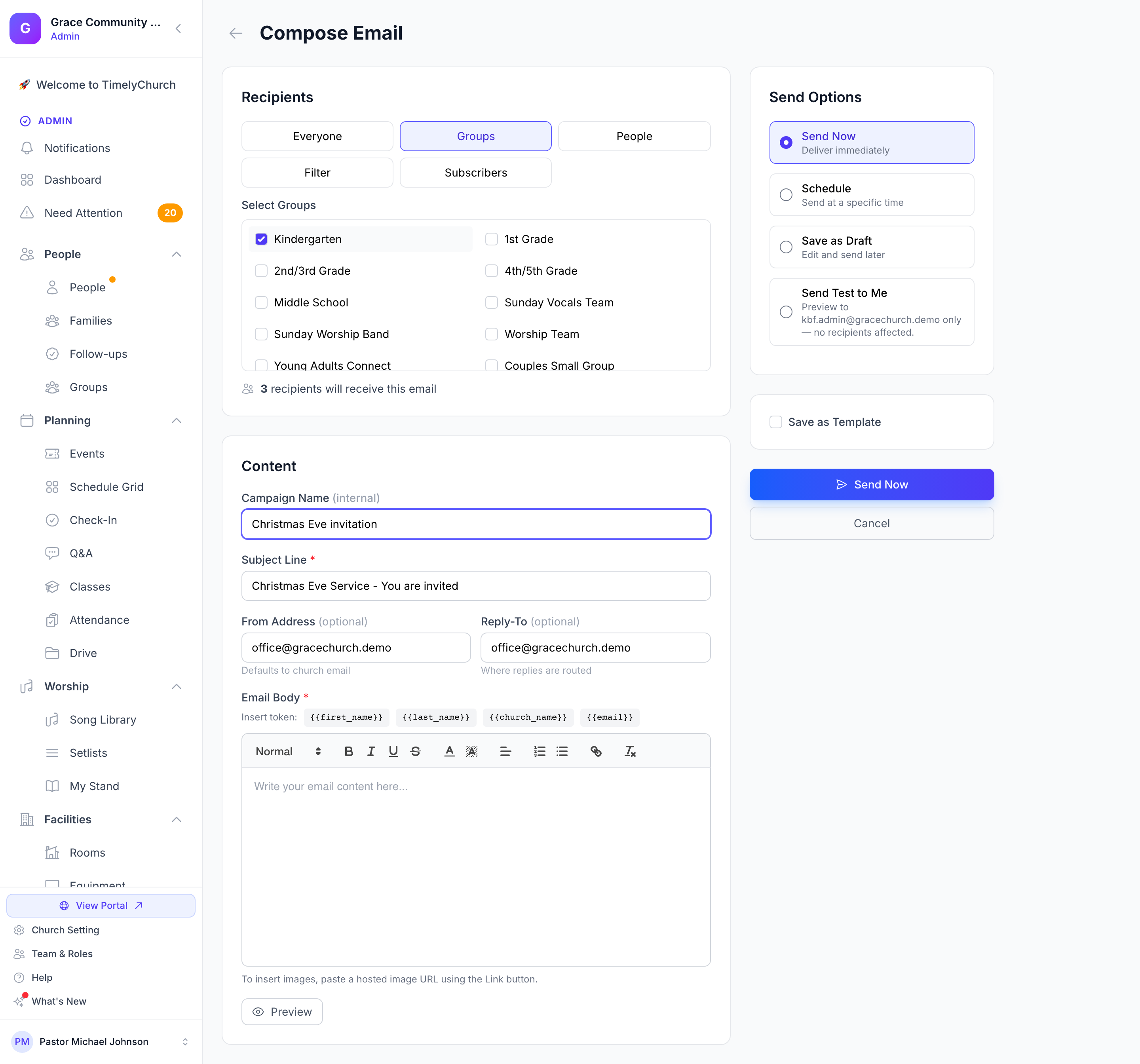
Click Compose Email to open the campaign editor. The form has three sections.
1. Recipients
Pick one of the following recipient modes:
| Mode | What it does |
|---|---|
| Everyone | Sends to everyone in your People directory who has an email address |
| Groups | Pick one or more groups or teams under Select Groups; sends to their members |
| People | Hand-pick individual people. Type in Search People and click each name |
| Filter | Filter by Membership Status (Member, Regular Attendee, Visitor, Inactive) and/or Gender |
| Subscribers | Sends to the people who have agreed to receive your church's news. For example, everyone who signed up through a newsletter sign-up on your church website |
The form shows a live count, "… recipients will receive this email", so you know how many emails you're about to send.
Important: People who have unsubscribed from your church's emails are automatically excluded from every campaign, regardless of the recipient mode you choose. See Unsubscribe and Email Preferences for how members manage this.
2. Content
- Load Template...: Pick one of your saved campaign templates to fill in the subject and body (shown once you have saved a template).
- Campaign Name (internal): A short label only your team sees (e.g., "February Newsletter").
- Subject Line: The subject line that recipients see in their inbox. Required.
- From Address and Reply-To (optional): Both are pre-filled with your church email. See Best Practices for how replies are handled.
- Email Body: Full rich-text email content with formatting and links. To add an image, paste a link to an image that is already online using the Link button.
- Insert token: Click a token button (first name, last name, church name or email) to drop a personal detail into the message. Each recipient's own details are filled in when the email is sent, so you can greet everyone by name.
- Preview: See how the email will look before you send it.
3. Send Options
Choose one of these options, then click the matching button at the bottom of the form:
- Send Now: "Deliver immediately". The status moves from Sending to Sent as TimelyChurch works through the list.
- Schedule: "Send at a specific time". Pick a Send Date & Time; the campaign shows as Scheduled and is sent automatically when the time arrives.
- Save as Draft: "Edit and send later". No email is sent.
- Send Test to Me: Sends a preview to your own email address only. No recipients affected.
Send Now and Schedule are only offered if your role can send email campaigns. You can also tick Save as Template and give it a template name to keep the subject and body for future reuse. Click Cancel to leave without saving.
The template picker shows the template you chose, and the subject and body come from that template, not from the last one in the list.
Starting From Other Pages
- From the People list: The actions menu on the People page has an Email People item that opens Compose Email. Choose your recipients there.
- From an Announcement: Use More actions > Email This Announcement on the announcement's page to email it straight to your members. See Emailing an Announcement.
Campaign Detail Page
Click any campaign in the list to see its detail page. It shows:
- Status with a colored badge, and who created the campaign and when
- Headline counts once the campaign has gone out: Recipients, Sent, Opened, Clicked, and Failed
- The date and time a scheduled campaign will go out ("Scheduled to send on …")
- A Details tab with the subject and body, and a Campaign Info card (type, audience, sent at, created)
- An Activity tab listing edits, sends, and status changes
- A Recipients tab with one row per recipient: name, email, status, when they opened and clicked, and when it was sent
Tracking
Every email is sent with two tracking mechanisms:
- Open tracking: A tiny invisible image is included in the email. The first time a recipient's mail program loads images, the open is recorded.
- Click tracking: Links in the email are routed through TimelyChurch, which records the click and sends the reader on to the original page.
Note: Open tracking only works when the recipient's mail program loads images. Some people turn image loading off for privacy, so the actual read rate is typically higher than what's shown.
Editing, Rescheduling, Duplicating, and Cancelling
| Action | When available | Effect |
|---|---|---|
| Edit | Draft | Change the recipients, content, or send options |
| Send Now | Draft | Sends immediately (you confirm on a Send Campaign Now window first); recipients are worked out again at send time |
| Reschedule | Scheduled | Pick a new Send Date & Time in the Reschedule Campaign window |
| Send Now Instead | Scheduled | Sends straight away instead of waiting for the scheduled time |
| Cancel Schedule | Scheduled | The campaign is cancelled; nothing is sent |
| Withdraw this message | In review | The campaign is cancelled; nothing is sent |
| Duplicate | Any status | Creates a new draft copy with " (Copy)" added to the name |
| Delete Campaign | Any status | Permanently removes the campaign and its recipient list |
Once a campaign has started sending, the content and recipient list are locked. You cannot edit a sent or sending campaign.
Saved Campaign Templates
Templates are saved subject lines and bodies that you can reuse across campaigns. Manage them under Email Campaigns > Templates (the page is titled Email Templates, "Reusable templates for your email campaigns"):
- Click New Template, fill in Template Name, Subject Line and Body, then click Save Template
- Save a campaign as a template while you compose it (the Save as Template checkbox)
- On each template, click Use Template to start a new email from it, or Edit or Delete it
Templates are private to your church. They are different from the automatic system emails described in Email Templates.
Who can send, and how much
Sending bulk email requires an active paid plan. On a free trial you can do everything except send: write campaigns, design them, save them, build templates, set up automations and choose recipients. The campaigns screen shows an amber notice, "Sending requires a paid plan", and the send buttons are unavailable until the church upgrades. Nothing you have saved is lost. Upgrade and your campaigns send exactly as you left them.
Each plan also has a daily sending limit:
| Plan | Emails per day |
|---|---|
| Starter | — (no bulk email) |
| Growth | 500 |
| Pro | 1,500 |
| Multi-Campus | 1,500 |
Email Campaigns itself is included on the Pro plan and above. On the Growth plan, the daily limit applies to the bulk email you can send there: emailing an announcement, and emailing a group, an event's people or your volunteers.
The limit counts recipients, not campaigns: one email to 400 members uses 400 of the day's allowance. Deleting a campaign after sending does not give the allowance back. If a send would go over, it is refused before anything is delivered and the campaign stays a draft, so you can send it the next day or upgrade. Your plan also sets a monthly email limit; a send that would pass it is refused the same way, with the message "This send would pass your plan's monthly email limit of …".
Scheduled campaigns follow the same rules: if the church cannot send when the schedule comes due, the campaign is held as a draft rather than failed.
These limits protect email delivery for every church. If a limit blocks something legitimate, contact support.
Messages held for a quick review
A few sends wait for a quick look from our team before they go out:
- A new account's first large send. For the first 30 days after your church starts a paid plan, you can reach up to 50 people in total without a review. The total counts everything that goes out in bulk: campaigns, announcements sent as email, email automations, and email you send to a group, an event's people or your volunteers. Splitting a big mailing into several small sends does not get around it. The small sends all add up to the same 50. A send that would take you past 50 waits for review. Once our team approves that send, or once the 30 days are over, your sends go out normally (your daily limit still applies).
- Content that needs a second look. A message that looks like it could be phishing waits for review, whichever church sends it.
- Messages from an account under review. If an earlier message from your church was not approved, your next messages are reviewed before they go out.
While a message waits, nothing has been sent:
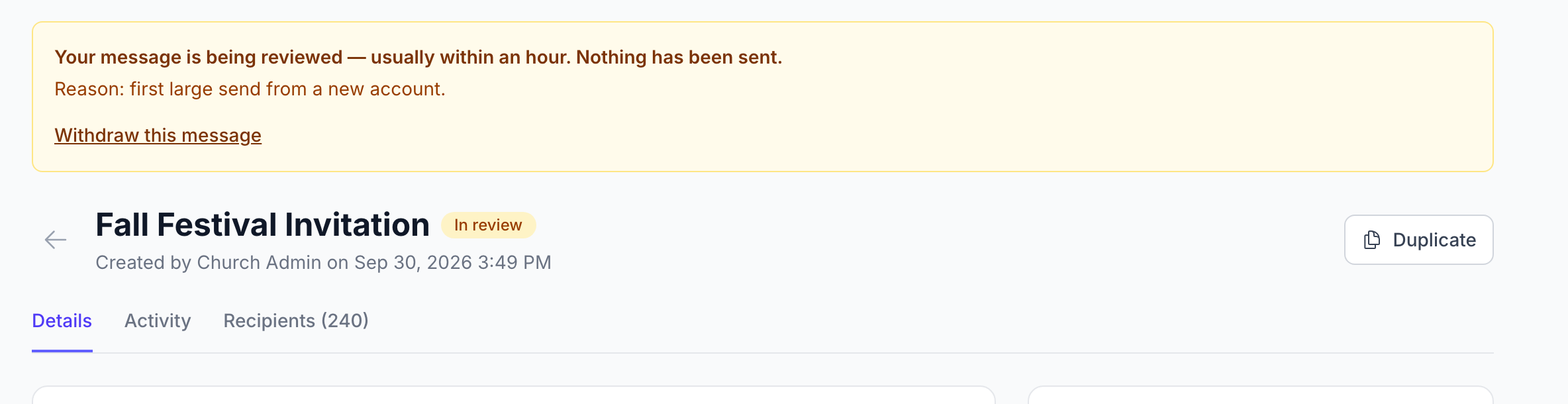
- The campaign shows the status In review. Its page has an amber notice, "Your message is being reviewed — usually within an hour. Nothing has been sent.", and one line with the reason, such as "Reason: first large send from a new account."
- An email you send from a group's page shows Your message is in review instead of "Email Sent!". Email to a group, an event's people or your volunteers is held the same way and appears in your Email Campaigns list with the status In review.
- To cancel it, open the campaign and click Withdraw this message. It is cancelled and never sent.
When our team approves it, the message goes out by itself: right away, or at the time you scheduled. If your daily limit is already used up that day, it goes out the next day. If it is not approved, the status changes to Not approved and the page says "This message was not approved for sending. Contact support."
Email automations follow the same rules: turning on an automation, or enrolling people in one, can be refused until our team has had a look. See Email Automations: Enrollment, Conditions & Safe Editing.
When a first send is held for review, the message now says that your new-account sending allowance was reached.
Permissions
Email campaigns are controlled by the Email Campaigns permission, with the actions View, Create, Edit, Delete and Send. Church admins have all of them by default. Send Now, Schedule, Reschedule and Send Now Instead need the Send action. Other roles can be granted access under Roles & Permissions. See Permissions and Broadcast Roles.
This feature is also gated by the church's plan: Email Campaigns is included on the Pro plan and above.
Best Practices
- Know where replies go: Campaigns are sent in your church's name, and when someone clicks Reply, the reply goes to the church email address in your church profile. The From Address and Reply-To boxes on the compose form are pre-filled with that address; typing a different address there does not change where replies go.
- Send a test first: Use Send Test to Me to see the email in your own inbox before sending it to the whole church.
- Mind the schedule: Avoid sending during dinner hours (5-7 PM). Mid-morning (9-11 AM) generally has the best open rates.
- Watch for unsubscribes: High unsubscribe rates after a campaign signal that the content or frequency isn't matching your audience's expectations.
Related Articles
- Communication Overview
- Announcements
- Email Templates: For automated, system-triggered emails
- Sending Emails: Underlying delivery mechanics
- Unsubscribe and Email Preferences
- Permissions and Broadcast Roles
- Building an Email Automation
Last updated: 2026-10-21 (8.205.306).