
Joining an Association (for Member Churches)
Audience: Church administrators whose church has been invited to join a denomination, network, or other association on TimelyChurch.
When an association invites your church, your church stays exactly as it is — same admin panel, same people, same settings. Joining simply lets the association's HQ team see your church's totals (member counts, attendance, giving) alongside the other churches in the association. This article walks through the emails you receive, how to accept, and what the association can and cannot see afterwards.
Step 1: The invitation email
When an association invites your church, TimelyChurch sends an email to the address the association entered, with the subject "You're invited to join [association] on TimelyChurch". It names the association (and its denomination, if set), who invited you, and carries a Pending Approval badge.
There is nothing to do yet. As the email explains, the invitation is first reviewed by the TimelyChurch team.
Step 2: The approval email
Once the invitation is approved, a second email arrives: "Your invitation to join [association] has been approved". It contains an Accept Invitation button (and the same link written out, in case the button doesn't work).
The link only works after approval, and only once.
Step 3: Accept and link your church
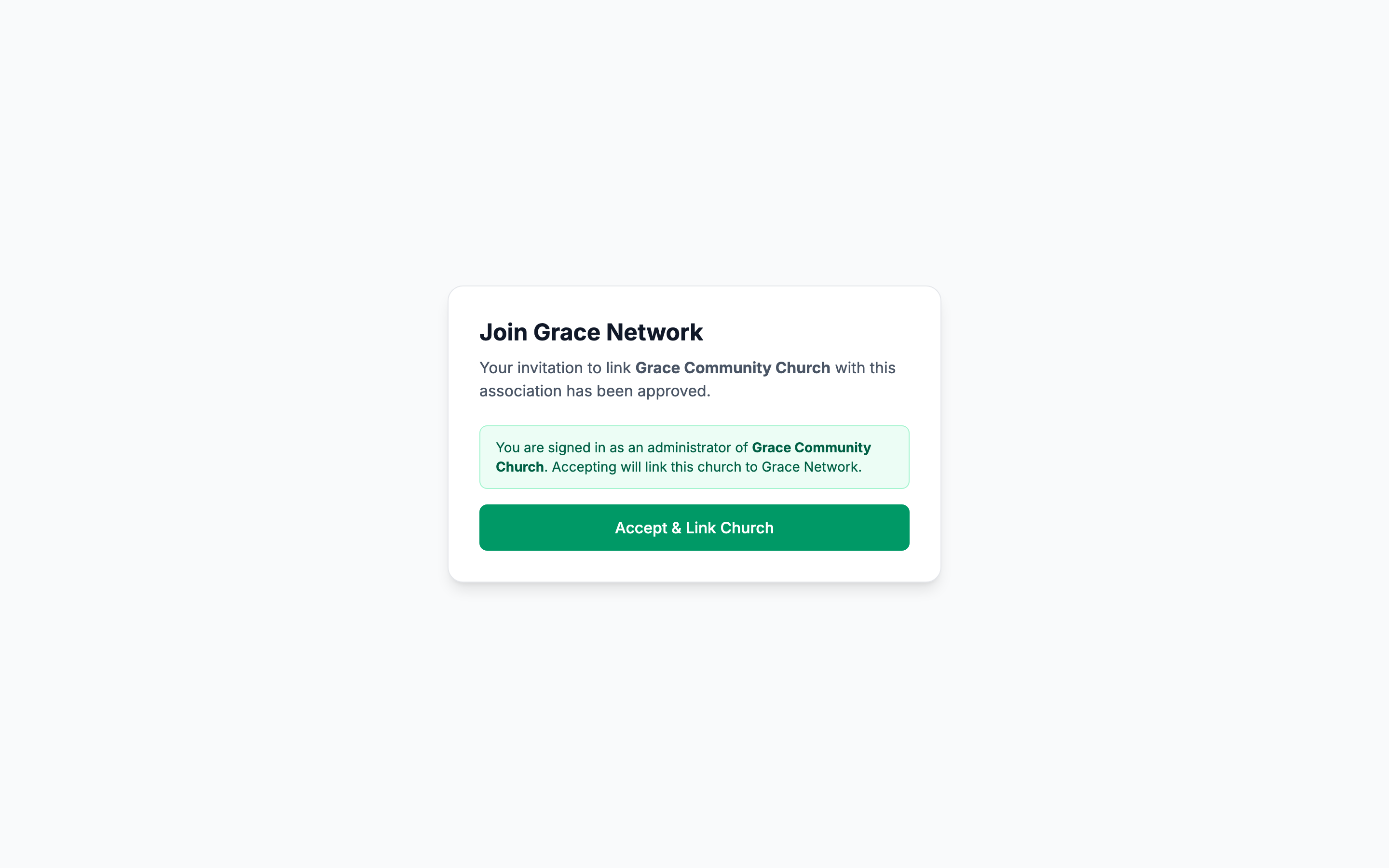
- Click Accept Invitation in the approval email. A page titled Join [association] opens.
- If you are not signed in, the page says "Sign in as a church administrator to complete the link." Click Sign In to Accept and sign in with your TimelyChurch admin account, then open the Accept Invitation link from the email again.
- The page checks which church you administer:
- The invitation matches your church. If the invitation was sent to your church's email address (the one in your church profile), you see "You are signed in as an administrator of [church]. Accepting will link this church to [association]." Click Accept & Link Church.
- The invitation went to a different address, and you administer one church. If you are an administrator of exactly one church that is not already in an association, the page explains that the invitation was sent to a different email address and asks you to confirm. Click Confirm & Link [church].
- Otherwise you see a note: "You must be a church administrator for [email] and that church must not already belong to another association." Sign in with the right admin account, or ask the association to send the invitation to your church's email address.
- After you accept, you are taken to your church's portal with the message "Your church has been linked to [association]."
Note: A church can belong to only one association at a time. If your church is already linked to another association, the invitation can't be accepted.
If something goes wrong
- "Invitation Unavailable — This invitation link is invalid, expired, or has already been used." The link has already been used, or the invitation is no longer active. Ask the association to send a new invitation.
- "Plan limit reached — your Multi-Campus plan does not allow more member churches. Contact TimelyChurch to upgrade." The association already has as many member churches as its plan allows. Let the association know — they need to raise their limit before you can join.
- "We were unable to accept this invitation. Please contact support if the problem persists." Try again in a moment; if it keeps happening, contact TimelyChurch support.
What the association can see
The association's HQ team works only from totals. For your church they can see:
- Your church's name, email address, phone number, address, timezone, plan, the date it joined TimelyChurch, and whether it is active.
- How many people are in your directory, how many groups you have, and how many people were added this month.
- Attendance: how many people checked in (marked present) this month, plus weekly and monthly check-in totals.
- Giving totals: this month, month by month for the last 12 months, and per fund — amounts only.
What the association cannot see or do
- They cannot open your admin panel or change anything in your church.
- They do not see individual people, families, or donors — no names, contact details, or giving records. Their report downloads contain totals only.
Your church remains the owner of its own data. To remove your church from an association, contact TimelyChurch.
Related articles
- Association HQ Overview — what the association's HQ team works with.
- Association Reports — exactly which totals appear in the association's reports.
- Church Profile Setup — where your church's email address is set.