
Song Library
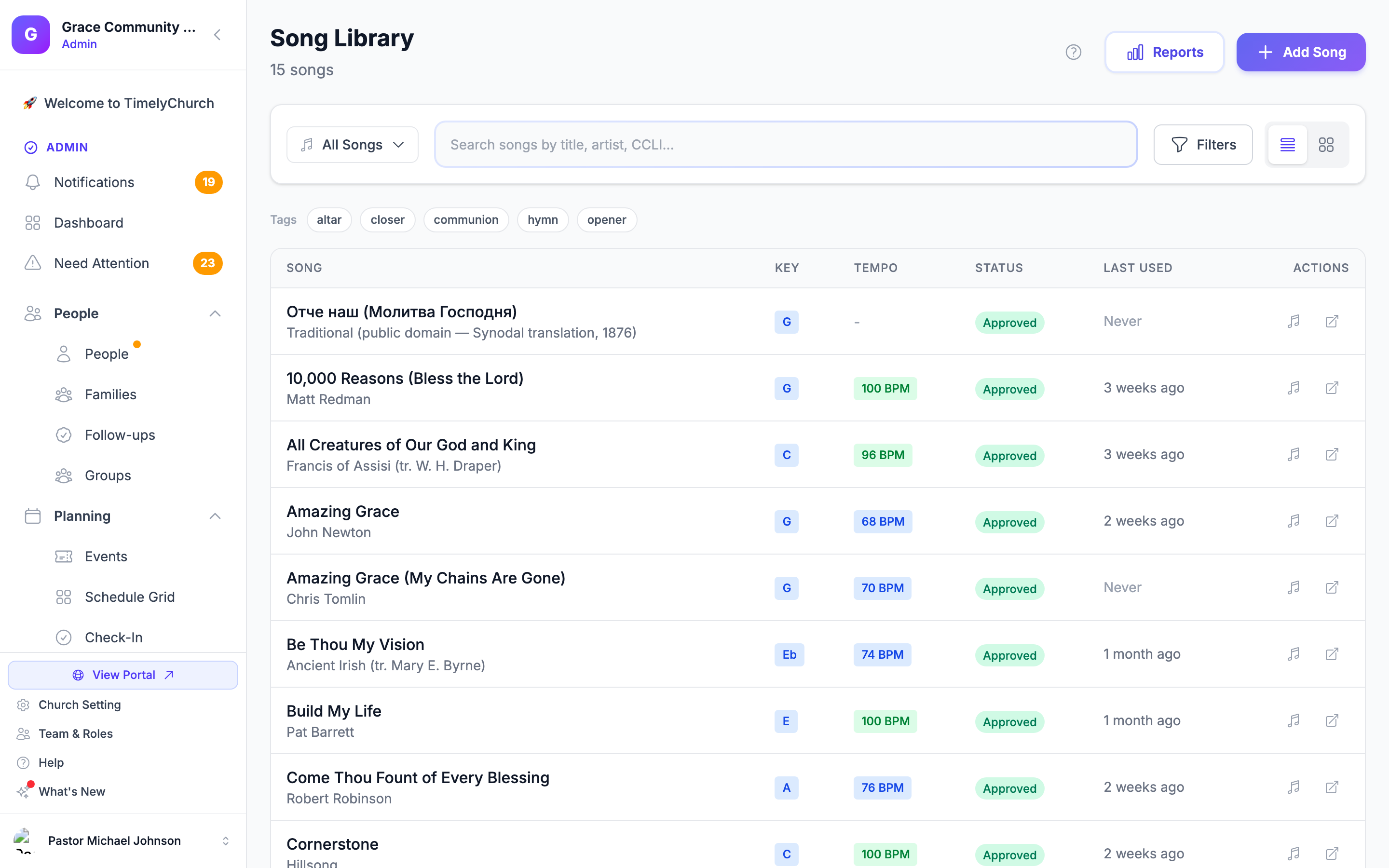
The Song Library is your central catalog for every worship song your church performs. From here you can add or import songs, manage metadata, upload attachments, create arrangements, and track usage. Your team reaches the songs through setlists and My Stand.
Accessing the Song Library
- Log in to your TimelyChurch admin dashboard.
- In the sidebar, expand the Worship category and click Song Library.
You will see the Song Library page with the number of songs under the title, and a Reports button and an Add Song menu in the header.
Note: The Song Library used to be the standalone Songs sidebar item. It now lives inside the dedicated Worship category alongside Setlists and My Stand.
Browsing and Searching
Search
Use the search bar at the top to find songs by title, artist, composer, or words from the lyrics. Results update as you type, and the search box keeps your cursor, so you can keep typing. If nothing matches, the list reads "No songs match your search".
The View Menu
Click the dropdown on the left side of the toolbar (it reads All Songs until you pick something else). It shows a count next to each view:
- All Songs -- Every song in your library.
- By Status -- Approved (ready for use in services) or Drafts (still being prepared).
- Quick Filters -- Not Used (30 days), Never Used, With Attachments, and Archived (songs that have been archived and are hidden from the main library).
Filters Panel
Click Filters to reveal four more filters. They can be combined with the search and with each other:
- Status -- Approved, Draft, or Archived.
- Key -- Filter by the song's default musical key (all 12 major and 12 minor keys are supported).
- Tempo -- Slow, Medium, Fast, or Varied.
- Theme -- Choose from over 30 built-in worship themes including Praise, Worship, Communion, Christmas, Easter, Advent, Gospel, Contemporary, and more.
Click Apply to run the filters or Clear to reset. Songs are listed alphabetically by title.
Saved Filters and Tags
When any filter or search is active, a Save this filter button appears under the toolbar. Give the filter a name and it becomes a pill you can tap to re-apply it later; the x on a pill removes it. Saved filters are kept in your browser, so they are personal to you and to that device.
If your songs have tags (for example from a spreadsheet import), a row of Tags pills appears as well. Tap a tag to show only songs with it; tap it again to clear it.
View Modes
Toggle between Table view and Card view using the icons in the toolbar. On mobile devices, the card view is always used.
Adding a New Song
- Click the Add Song menu in the top-right corner and choose Add Song ("Enter one song with details").
- The Add New Song window appears with the following fields:
| Field | Required | Description |
|---|---|---|
| Title | Yes | The name of the song. |
| Artist | No | The performing artist or band. |
| CCLI # | No | The CCLI song number for licensing tracking. |
| Key | No | The default musical key (e.g., G, C, Em, Bb). |
| Tempo (BPM) | No | The song's tempo in beats per minute (20-300). |
| Themes | No | Select one or more themes from the checklist. |
- Click Add Song. The quick-add modal submits the new song with status Approved so it is immediately available to add to setlists and service plans. (You can change the status later from the song's edit form -- see "Editing a Song" below.)
You land straight in the Chord Chart Editor for the new song, ready for its lyrics and chords (paste them, upload a document, or start from a template). Every new song already has one arrangement, called "Default Arrangement". The Back to song arrow takes you to the song's detail page, where you can add more information.
If your plan limits how many songs the library can hold, you will see "You've reached the maximum of … songs on your current plan" when the limit is reached.
Import a spreadsheet of songs
To bring in many songs at once -- for example, a songs export from another worship planning app, or a list you keep in a spreadsheet:
- Click Add Song → Import from File.
- In the Import Songs window, upload a CSV file (up to 5 MB). No column mapping is needed: TimelyChurch recognises common column names such as Title, Artist, CCLI Number, Default Key, BPM, Themes, Tags, Lyrics and Chord Chart. If you are starting from scratch, click Download template for a ready-made file.
- Click Review Songs. The Review Import page shows how many songs were found, which ones look like Possible duplicates of songs already in your library, and which rows will be skipped. Duplicates start unchecked -- leave them unchecked to skip them, or check them to import anyway.
- Use Select all / Deselect all or the individual checkboxes, then click Import.
A file can hold up to 2,000 songs at a time; if yours has more, import the first batch and then upload the rest. Unknown columns are simply ignored.
This import reads spreadsheets only. If you choose a ChordPro chart or a song saved as a .txt file here, nothing is imported and you are pointed to Import documents instead.
Import songs from documents
If the song already exists as a Word document, a PDF, a ChordPro chart, a plain-text file, or a printed sheet you can photograph or scan, you don't have to type it in at all. Add Song → Import documents reads the files you upload and proposes a song — title, sections and chords — for you to review, correct and save. It's on the Growth and Pro plans.
See Importing Songs from Documents — Word, PDF and Scanned Sheets for the full walkthrough.
Editing a Song
- From the Song Library, click on a song to open its detail page.
- Click the Edit button. The edit form opens right on the page (click Cancel to close it without saving).
- The edit form provides all fields available for a song:
Basic Information
- Title (required)
- Artist
- Composer
- CCLI Number
- Default Key -- Select from all major and minor keys.
- Tempo (BPM) -- The song's tempo in beats per minute (20-300).
- Time Signature -- For example, "4/4" or "3/4".
- Status -- Draft, Approved, or Archived.
Content
- Scripture Reference -- A related Bible passage (e.g., "Psalm 23:1").
- YouTube Link -- A URL to a YouTube performance or tutorial.
- Spotify Link -- A URL to the song on Spotify.
- Notes -- Internal notes for your team.
Lyrics are not typed here: they are written together with the chords, per arrangement, in the Chord Chart Editor. The Lyrics tab shows them.
Themes
Select from the full list of built-in themes (use Select all or Clear all to speed things up):
Praise, Worship, Adoration, Thanksgiving, Confession, Communion, Baptism, Prayer, Invitation/Altar Call, Christmas, Easter, Good Friday, Pentecost, Advent, Missions, Healing, Peace, Hope, Faith, Love, Grace, Salvation, Revival, Children, Youth, Opening, Closing, Traditional Hymn, Contemporary, Gospel.
- Click Save Changes.
Changing the status to Archived here needs the same access as the Archive button (see "Who Can Manage the Song Library" below).
Song Detail Page
Header
Displays the song title, artist, status badge, key, tempo, duration, and CCLI number. The buttons let you Edit the song, open the Chord Chart editor, Export it, Duplicate it, or Archive it. On a phone, the less-used actions sit in an overflow menu.
If the song has no chart yet, a banner reads Add lyrics & chords with an Open editor button.
Stats Row
Shows four metrics:
- Used -- How many times the song has been used in services.
- Last Used -- The date it was last used.
- Files -- Number of attachments.
- Arr. -- Number of arrangements.
Tabs
- Details -- The song's themes and its external links (YouTube and Spotify) as buttons.
- Lyrics -- The lyrics of the arrangement you pick in the Arrangement: dropdown, taken from its chord chart. If an arrangement has no lyrics yet, an Add lyrics & chords button takes you to the editor.
- Translations -- Translations of the lyrics for congregation slides. See Adding a Translation to a Song.
- Attachments (Files on a phone) -- All uploaded files and external links. You can preview audio, video, PDF, and image files directly in the browser.
- Arrangements (Arr. on a phone) -- All arrangements with their name, key, BPM, and duration. See the Arrangements section below.
- History -- The usage history: every service where the song was used, with the date, the name of the service plan and the key it was used in.
Attachments
Adding an Attachment
- Open a song and go to the Attachments tab.
- Click Add Attachment.
- Choose the Type:
- Chord Chart -- PDF or image of chord charts.
- Lead Sheet -- Printed lead sheets with notation.
- Lyrics -- Lyrics-only documents.
- Audio -- MP3, WAV, or other audio files.
- Video -- Video files.
- Other -- Any other file type.
- Either choose a File from your computer or paste an External URL.
- Click Add.
Files are uploaded with a progress indicator. Large files are supported. If a transfer is interrupted -- patchy church wi-fi, a network that quietly blocks the upload -- TimelyChurch retries it and, if needed, switches to a slower route on its own, so the file still lands on the song. You do not have to start over. A file that is genuinely too large, or a type we do not accept, is still refused straight away, because retrying that would not help.
Previewing Attachments
Click on any attachment name or the eye icon to preview it in a built-in viewer. Audio files play in a styled player. PDFs and images display inline. Video files play in an embedded player.
Downloading and Deleting
Use the download arrow icon to download a file, or the trash icon to delete an attachment.
Setting a Reference Recording
For an Audio attachment, a star icon lets you mark it as the song's reference recording -- the canonical practice track that My Stand's Rehearse page play-along player and, when enabled, audio analysis use. Only one recording per song can be the reference at a time; tapping the star on a different audio file moves the reference to it, and tapping an already-starred file clears it.
Analyzing an Audio Recording (Pro Plan)
If your church is on the Pro plan and audio analysis is enabled, an Analyze button appears next to each uploaded audio recording. It detects the recording's BPM, key, and time signature and lets you apply any of them to the song with one tap. See Analyze a Song's Key, BPM & Time Signature for the full walkthrough, including the monthly quota.
Arrangements
Arrangements let you store multiple versions of a song -- for example, an "Acoustic" arrangement in the key of G and a "Full Band" arrangement in the key of A.
Adding an Arrangement
Every song is created with one arrangement, "Default Arrangement". To add another:
- Open a song and go to the Arrangements tab.
- Click Add Arrangement.
- Fill in:
- Name (required) -- For example, "Acoustic", "Full Band", "Christmas Version".
- Start from -- Blank (no chart), or a copy of an existing arrangement (copies the chart, key, tempo and tags).
- Key -- The musical key for this arrangement, or Same as song.
- BPM -- Beats per minute.
- Duration -- Length as mm:ss (for example 3:45).
- Sequence -- The section order, comma-separated.
- Notes -- Internal notes.
- Set as default arrangement -- Tick to make this the song's default.
- Click Add. You then add its lyrics and chords in the Chord Chart Editor.
When you mark an arrangement as the default, the previous default is unset. You can also copy an arrangement in one click with the Duplicate arrangement icon on its row. See Song Arrangements for the full walkthrough.
Arrangement-Specific Chord Charts
Each arrangement can have its own chord chart content in the Chord Chart Editor. Attachments can also be linked to a specific arrangement.
Duplicating a Song
From the song detail page, click Duplicate. A copy of the song is created (including all arrangements) with "(Copy)" appended to the title and the status set to Draft. Usage count and last-used date are reset.
Archiving a Song
Click Archive on the song detail page and confirm. The song is moved to the archive: it disappears from the main library and from the song pickers, but it is kept rather than deleted, together with its arrangements, attachments and usage history.
To see archived songs, choose Archived from the view menu in the Song Library.
Chord-Chart Tools
The Chord Chart Editor includes a few helpful tools:
- Smart paste -- When you paste chord content from an external source, the editor recognises chords written above the lyrics and offers to convert them to inline chords that transpose properly. Anything it cannot read is marked on the line, in plain words, with a one-click fix.
- Live preview in five views -- The chart, Nashville numbers, lyrics, My Stand's own reader and the slides, each as it will really appear, updating as you type.
- View in any key -- The preview's View in menu shows the chart in another key without changing what you wrote (As written switches back).
- PDF preview and download -- You can preview a song's chord chart as a PDF in your browser, or download it as a file. See Writing a Chord Chart in the Editor and Chord Charts and Key Transposition for details.
Exporting a Song
The Export menu on the song detail page has two jobs:
- Slides — preview & export… -- Opens a preview of the congregation slides, where you size the text and choose the language before picking a format: ProPresenter, PowerPoint / Keynote, PDF, images, or plain text. See Previewing and Exporting Congregation Slides.
- For the band -- PDF — Chord Chart… asks which key you want and downloads the chart in it; PDF — Lyrics Only downloads the words without chords.
The Chord Chart Editor has its own Export menu with a few more formats. For the full details of each format, see Exporting Charts and Slides.
Reports
Click Reports in the Song Library header to open Song Usage Reports. Choose a start and end date to see:
- Song usage -- Per-song use counts and last-used dates, with per-key/arrangement breakdowns where the data allows, exportable to CSV.
- CCLI summary -- Usage totals per CCLI song number, formatted for your CCLI reporting and exportable to CSV, plus a list of songs that are missing a CCLI number.
See Song Usage and CCLI Reports for the full walkthrough.
Who Can Manage the Song Library
Song editing is controlled by the Songs & Music module in Roles & Permissions. The Song Library is part of the Growth and Pro plans.
- Church administrators can do everything -- add, edit, and delete songs, upload attachments, and manage every setlist.
- Leaders and co-leaders of worship teams get Songs access automatically — no extra role needed. This works when the team's group type (for example "Worship Team") has the Songs & Setlists ministry area enabled in Groups settings. Promote someone to leader of a worship team and they can manage songs and build setlists right away.
- Roles granted Songs & Music access still work too — useful for people who oversee worship across many teams without leading each one.
- Archiving songs (with the Archive button or by setting a song's status to Archived) and deleting arrangements need a role with the highest level of access to songs (Delete in Songs & Music). Worship team leaders who manage songs only through their team can add and edit songs but cannot archive them. Anyone else who tries sees "Archiving a song needs Manage access in Songs. Ask your church administrator if you need it."
- Everyone else sees, but cannot change. Team members open their songs and setlists through My Stand, use practice tools, and keep personal marks -- but the library itself stays leader-managed.
Setlists follow the same Songs & Music permission for creating and editing, with one extra rule: each setlist belongs to a worship team, and only that team's members (plus administrators) can see it -- see Building Setlists.
Related Articles
- Chord Charts and Key Transposition
- Service Orders (Service Plans)
- Building Setlists
- Worship Team View
- Song Arrangements
- Exporting Charts and Slides
- Song Usage and CCLI Reports
- Rehearsal Readiness and Reminders
- Analyze a Song's Key, BPM & Time Signature
- Importing Songs from Documents — Word, PDF and Scanned Sheets
- Adding a Translation to a Song
Last updated: October 3, 2026