
Creating Serving Teams and Roles
Before you can schedule volunteers for events, you need to set up your serving teams and define the positions within each team. This article walks you through creating teams, adding positions, and configuring team members.
Understanding the Structure
TimelyChurch uses a three-level hierarchy for volunteer organization:
- Serving Team -- A group of type "team" (e.g., Worship Team, Greeting Team, Tech Team)
- Positions -- The roles within a team (e.g., Sound Tech, Vocalist, Greeter)
- Team Members -- The people assigned to each team, each with a designated position
Step 1: Create a Serving Team
- Open Groups from the sidebar (under the People section).
- Click Add Group.
- In the "What type of group is this?" step, choose Team ("For volunteers and serving. Create positions for scheduling events.").
- Enter a Name for the team (e.g., "Worship Team", "Hospitality Team", "AV/Tech Team").
- Add an optional Description.
- Click Create to save.
Once created, your serving teams appear under the Teams filter tab on the Groups page.
Tip: TimelyChurch distinguishes between "teams" (for serving/volunteering) and other group types like "classes" or "small groups." Only groups of type Team appear in the volunteer scheduling system.
Step 2: Add Positions to the Team
Positions define the specific roles that need to be filled at each event. To add them:
- Open your newly created team.
- On the Details tab, find the Positions card and click + Add (or use Add position in the actions menu).
- In the Add Position dialog, fill in the details:
| Field | Description |
|---|---|
| Position Name | The name of the position (e.g., "Sound Tech", "Lead Vocalist", "Door Greeter") |
| Description | Optional description of what the role involves or any requirements |
Click Add position to save it. You can edit or remove a position later from the same Positions card.
Assign Fixed Positions
Once a team has positions, the Positions card shows an Assign fixed positions switch that decides how strictly positions are used:
- On -- Each member is tied to specific positions. When scheduling, members can only be assigned to their fixed positions. Best for tech teams, worship teams, or roles needing specific skills.
- Off -- Members can serve in any position. When scheduling, anyone on the team can be assigned to any role. Best for ushers, greeters, or teams where members fill roles interchangeably.
How many are needed per event? You set the number of people needed for a position when you add it to an event (the "How many needed?" field on the Add Volunteer Position form), not on the position itself. This lets the same position require a different number of volunteers at different events.
Tip: Not sure where to start? Typical positions are Worship Leader, Vocalist, Sound Tech, Projection, Greeter, Usher, Nursery, and Coffee/Hospitality. Add only the ones your church actually uses.
A team with no positions yet? If you click Assign team on an event for a team that has no positions (common for hospitality or kitchen teams), TimelyChurch adds one position named Volunteer to the team and puts it on the event. Rename it here in the Positions card if you like.
Positions on an Event Series
If your church holds the same service week after week (Sunday morning, Wednesday night, etc.), you can give the event series its own list of positions rather than re-adding the same positions to every event.
How it works:
- Open the Events page, click the More menu, choose Event Series, then open your series.
- Make sure the series has Volunteers turned on under Features (click Edit if not).
- In the Serving Positions section of the series page, type a Position name, set how many slots are needed, and click Add Position. (In the series Edit form you can also pick a team for each position in Volunteer Positions.)
- Every time the series generates a new occurrence, those positions are added automatically.
This means new occurrences arrive already structured with the right positions, ready for you to assign volunteers, auto-fill, or copy from a previous week. See Scheduling Volunteers for Events for the assignment methods that work well with templated series, including Auto-Fill All Events and Copy Forward.
Tip — Team Schedule Templates. The series-level approach above is great for one specific series, but you can also save a reusable set of positions on the team itself. Open the team, go to its Templates tab (the Schedule Templates section), and click New Template. Set it up once and reuse it whenever you schedule that team. See Team Schedule Templates for the full walkthrough.
Step 3: Add Members to the Team
Once your team and positions are set up, add people to the team:
- Open the team.
- Go to the Members tab.
- Click Add member(s), search your church directory, and select a person. They are added as a regular Member.
- To add someone as a leader instead, use Add Leader and choose their Role (Leader, Co-Leader, or Host).
After a person is on the team, use the actions on their row in the Members tab to fine-tune how they're scheduled:
| Action | What it sets |
|---|---|
| Assign Position | The position(s) this person fills (links to the positions you created). You can mark one as their primary position. |
| Set Skill Level | Beginner, Intermediate, Advanced, or Expert. This rating is only visible to leaders. |
| Serving Preferences | Serving Frequency (As often as needed, Up to once a month, Up to twice a month, or Up to three times a month) and Available days (which days they can serve; leave empty for all days). |
Skill Levels Explained
TimelyChurch tracks skill levels for team members, which factor into the smart scheduling algorithm:
- Beginner (1) -- New to the role
- Intermediate (2) -- Has some experience
- Advanced (3) -- Experienced and reliable
- Expert (4) -- Highly skilled, ready for any situation
The system also features automatic skill progression suggestions. As a team member consistently accepts assignments, the system will suggest promoting their skill level:
| Current Level | Upgrade Suggested When |
|---|---|
| Not set | 3+ accepted assignments |
| Beginner | 8+ accepted, 75%+ acceptance rate |
| Intermediate | 15+ accepted, 80%+ acceptance rate |
| Advanced | 25+ accepted, 90%+ acceptance rate |
Team leaders can approve or dismiss these suggestions.
Step 4: Configure Scheduling Settings
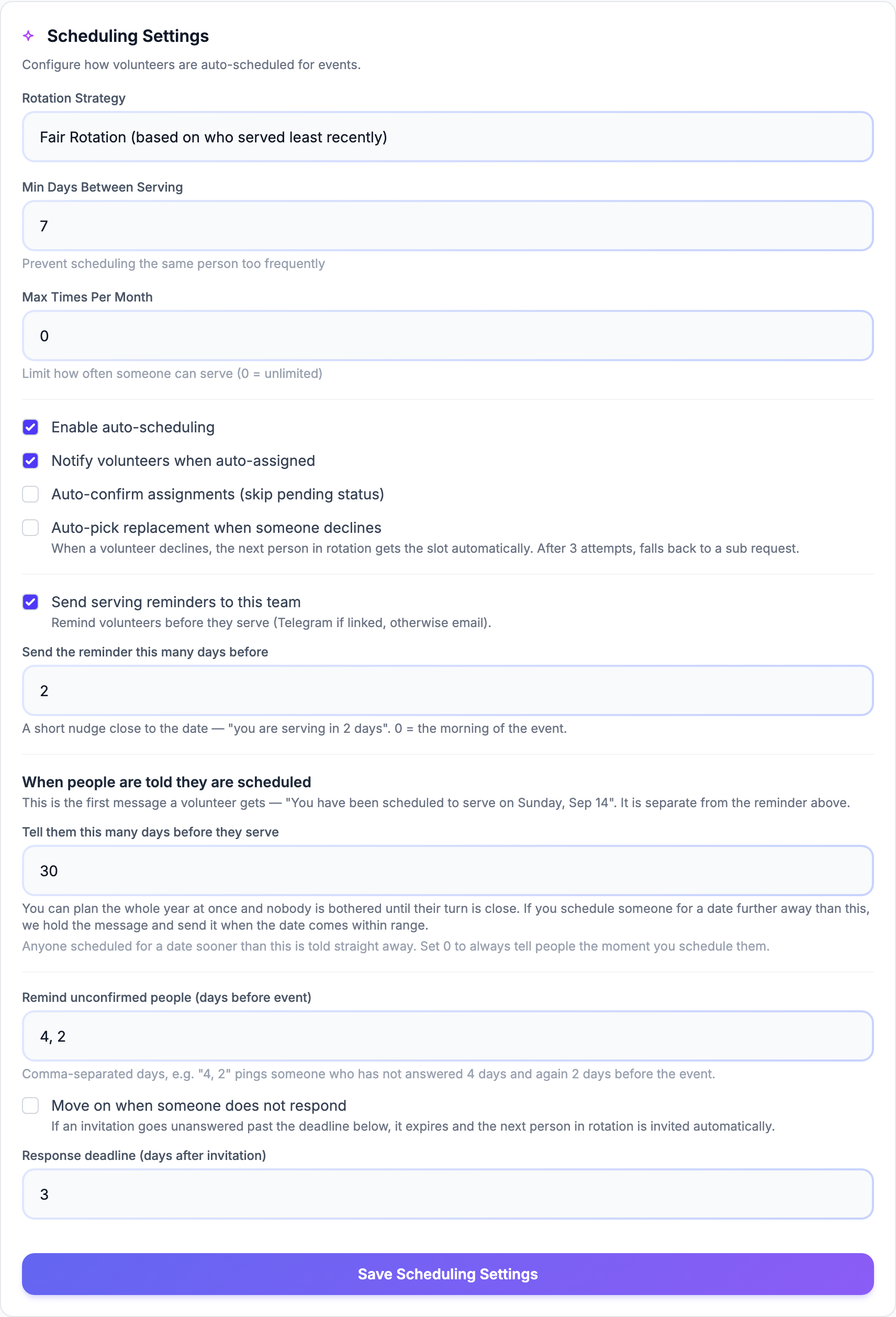
Serving teams have additional settings that control auto-scheduling behavior. You'll find them in the Scheduling Settings card on the team's Details tab. Adjust them and click Save Scheduling Settings.
Rotation Strategy
- Fair Rotation (default) -- Distributes assignments based on who served least recently
- Round Robin -- Follows a fixed order
- Manual Only -- Disables auto-fill; all assignments are made manually
Other Scheduling Settings
| Setting | Description |
|---|---|
| Min Days Between Serving | Minimum number of days between assignments for any member (default: 7) |
| Max Times Per Month | Limit on how many times someone can be scheduled per month (0 = unlimited) |
| Enable auto-scheduling | Turns the automatic scheduler on for this team. On by default. |
| Notify volunteers when auto-assigned | Sends a notification when the auto-scheduler assigns someone |
| Auto-confirm assignments (skip pending status) | If enabled, auto-scheduled assignments and the assignments a leader makes by hand (Serving tab, Schedule Grid) are confirmed automatically instead of starting as "pending". Self sign-ups still follow the position's Require approval setting |
| Auto-pick replacement when someone declines | When a volunteer declines, the next person in rotation gets the slot automatically; after a few attempts (3 by default) it stops, and the leaders are left to find someone |
Reminders and Invitation Timing
| Setting | Description |
|---|---|
| Send serving reminders to this team | Remind volunteers before they serve (Telegram if linked, otherwise email). On by default. |
| Send the reminder this many days before | A short nudge close to the date — "you are serving in 2 days". Default 2; 0 = the morning of the event. When it's 2 or more, people also get one final reminder the day before. |
| When people are told they are scheduled → Tell them this many days before they serve | The first message a volunteer gets — "You have been scheduled to serve on Sunday, Sep 14". Default 30. If you schedule someone for a date further away than this, the message is held and sent when the date comes within range, so you can plan the whole year at once. Anyone scheduled for a date sooner than this is told straight away. Set 0 to always tell people the moment you schedule them. |
| Remind unconfirmed people (days before event) | Comma-separated days, e.g. "4, 2" pings someone who has not answered 4 days and again 2 days before the event. |
| Move on when someone does not respond | If an invitation goes unanswered past the deadline below, it expires and the next person in rotation is invited automatically. |
| Response deadline (days after invitation) | How long people have to answer before the invitation expires (default 3). |
For how these messages reach volunteers, see Volunteer Notifications.
Manual Only and auto-scheduling off mean what they say. If Enable auto-scheduling is off, or the Rotation Strategy is Manual Only, every automatic fill skips this team: Auto-fill on the Schedule Grid, on an event or across a series, single-position auto-fill, and the automatic replacement after a decline. The grid tells you which teams it skipped -- for example "Manual only: auto-fill skipped 1 team (Worship)." -- and a single position says "Manual only: auto-fill is off for Worship." You can still schedule these teams by hand.
Auto-fill and every other volunteer picker (grid suggestions, open-slot lists, invitations, fill requests) never choose people who are archived or inactive.
Ad-Hoc Positions
If you need a serving position for a one-off event that does not belong to any existing team, TimelyChurch supports custom positions. On the Add Volunteer Position form for an event, switch from From Team to Custom and type a Position Name. The system automatically creates a "Custom Roles" team and adds the position to it, so it's ready to reuse on future events.
Ministry Categories
In addition to team-based positions, TimelyChurch also supports ministry-area assignments for volunteers. The built-in ministry categories are:
- Children's Ministry
- Youth Ministry
- Worship Team
- Greeting / Hospitality
- Parking Team
- Tech / AV
- Nursery
- Security
- Kitchen / Food Service
- Cleaning / Facilities
- Office / Admin
- Outreach / Missions
- Prayer Team
- Small Group Leader
- Other
These ministry assignments appear on the volunteer's profile and can be used to filter and search volunteers.
Tip: For best results, create serving teams that mirror your actual ministry structure. If your Worship Team has 15 people with different instruments, create a single "Worship Team" group with positions like "Keys," "Guitar," "Drums," "Bass," and "Vocalist" rather than separate groups for each instrument.