
Who Am I Serving With?
The assignment lands in your inbox: Sound Engineer, Sunday 10:00 AM. You know where to be. What you do not know is who else will be there. Is there a second sound person, or are you covering the board alone? Who is on slides? Who is leading vocals? Until now the only way to find out was to ask in the group chat or to walk in on Sunday morning and see.
Your serving schedule answers that for you. Every upcoming assignment can show the other volunteers serving at the same event -- across every team on that event, not just your own -- so you know who you are serving with before you arrive.
You will find it in four places: My Schedule in the Member Portal, the My Serving Schedule page, the My next serving card on your portal dashboard, and the church's Telegram bot when you send /schedule.
In My Schedule
- Sign in to the Member Portal.
- In the sidebar, under Team, click My Schedule.
- On one of your upcoming serving entries, tap See who's serving with you.
- The event's page opens with Who's serving this day -- every team on the event, each position, and who is filling it. Positions nobody has taken yet read Unassigned, and any classes that day are listed under Teaching with their teacher.
On the My Serving Schedule Page
The My Serving Schedule page -- opened from the My schedule tile in the TimelyChurch app inside Telegram, or from the My Schedule link on the Volunteer Opportunities page -- shows the roster right on each entry:
- Find one of your upcoming serving entries. Under your position there is a line reading Serving with you: David W., James B., Maria L. -- the other volunteers on that event.
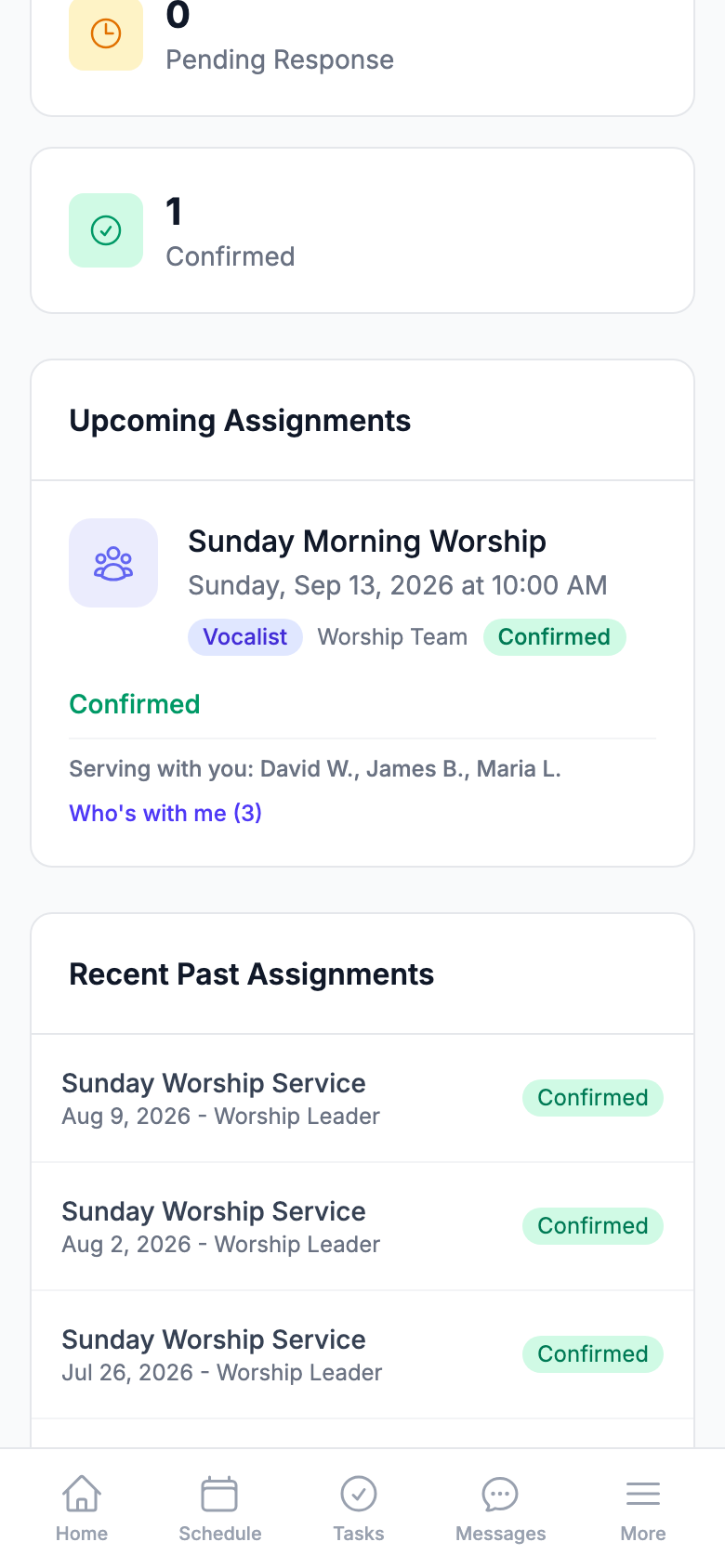
- Tap Who's with me (3) to see the full picture. The number is how many other volunteers are on that event.
- The entry expands into a grouped roster -- team, then position, then the people filling it. You are marked (you). A volunteer who has not confirmed yet carries a Pending badge. A position nobody has taken yet reads open (1).
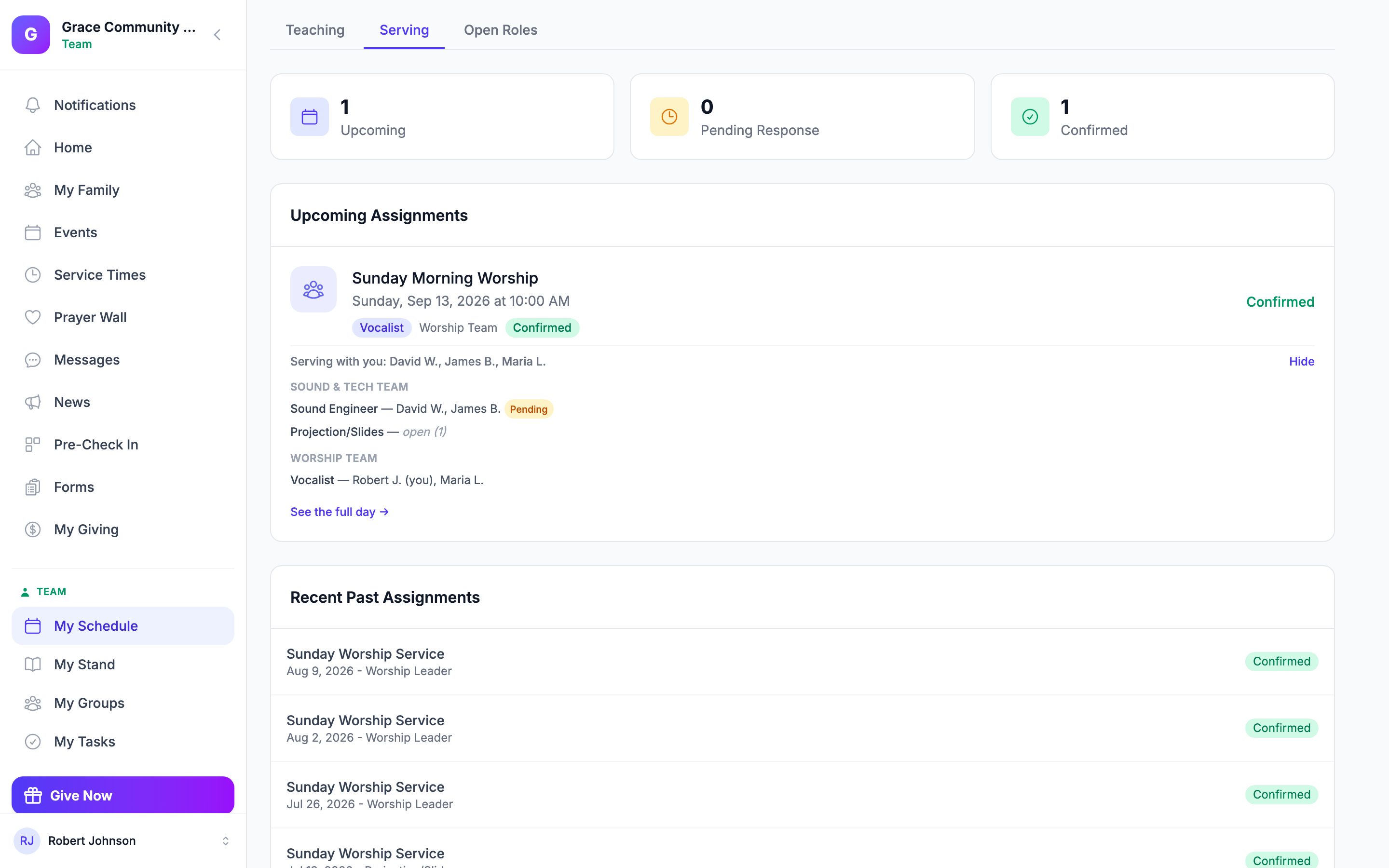
Confirmed volunteers are listed first, then everyone else alphabetically by last name. Positions appear in the order the team uses.
- Want the whole day, including the positions you are not part of? Click See the full day → inside the expanded roster to open that event's page.
- When you are finished, the button reads Hide -- tap it to collapse the roster again.
For team leaders: if you lead the team (or you're a church admin), the roster also shows Call and Message on Telegram buttons next to your volunteers, so you can reach someone in one tap. The phone button appears only for people who show their phone number in the church directory, and never for children.
On the Dashboard
The portal dashboard has a My next serving card, and it now carries the same names as compact chips underneath your next assignment. One glance, no clicking.
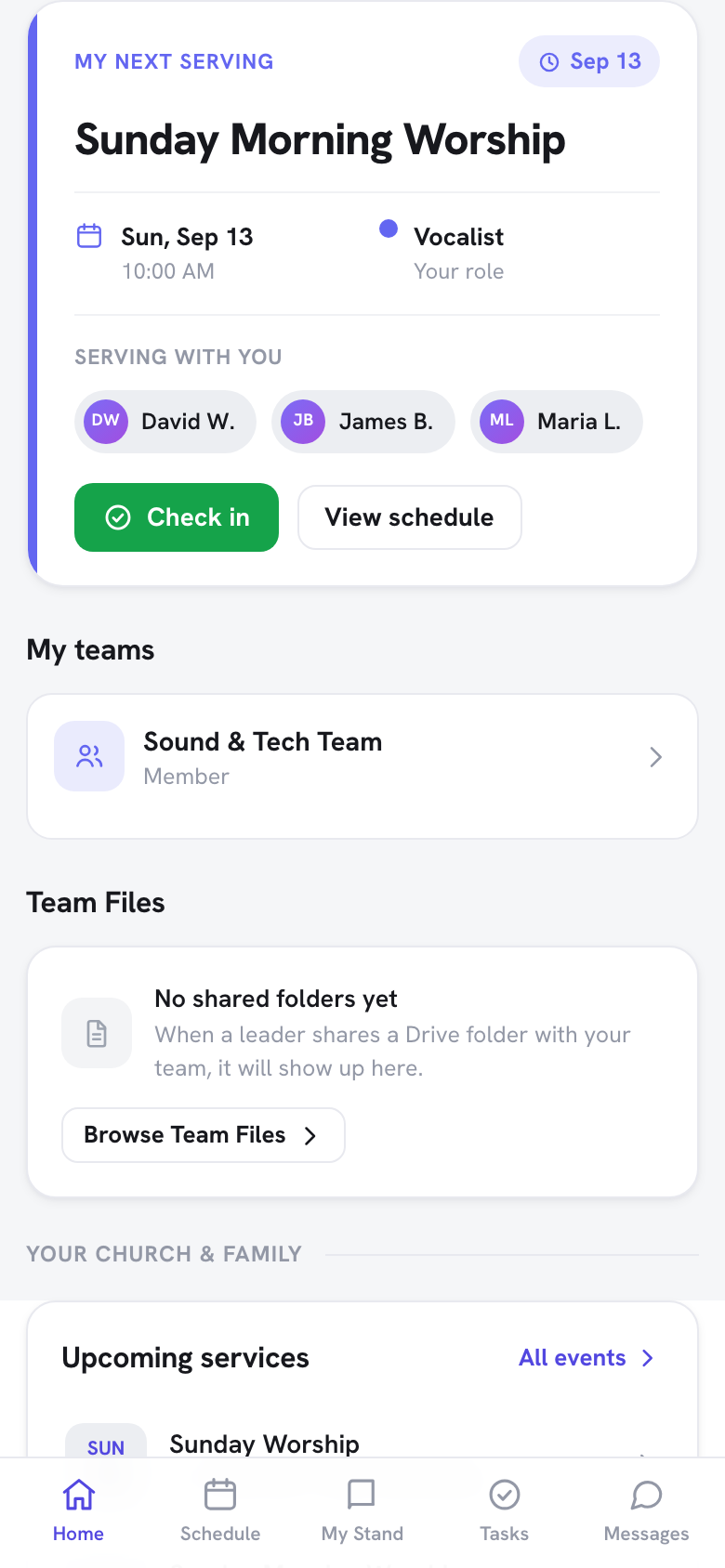
This card is part of the team-member dashboard. If you reach the portal through a one-time link rather than signing in, use My Schedule above.
In Telegram
If you have connected your Telegram account to your church, send /schedule (My Schedule) to the bot to get your upcoming serving list. Each item in that reply now has its own 👥 Who's with me button. If you are serving at more than one upcoming event, each button carries its own short date -- for example 👥 Who's with me · Sep 13 -- so you can tell them apart.
Tap the button and the bot sends a new message with that day's roster:
👥 Sunday Morning Worship — Sun, Sep 13 · 10:00 AM
Sound & Tech Team
• Sound Engineer: David W., James B. ⏳
• Projection / Slides: open (1)
Worship Team
• Vocalist: Robert J. (you), Maria L.
The ⏳ mark means that volunteer has not confirmed yet. open (1) means the position is still unfilled.
Old messages stay in your chat history, so you may end up tapping a button for an event you are no longer scheduled on. If that happens, the bot simply replies "That event is not on your schedule." and nothing else changes.
The buttons and the roster headings are translated, so you see them in whichever language you use TimelyChurch in.
What You Can and Cannot See
- Names, not contact details. For volunteers, the roster shows each person's first name and last initial ("David W."), their position, and whether they are confirmed or pending -- never email addresses or anything else from a profile. Only the team's leaders and church admins see the Call and Message on Telegram buttons, and a phone number only appears for people who show it in the church directory.
- Only the events you are on. You can open the roster for events you are scheduled at -- and only those. That is true in the portal and in Telegram alike.
- Declined and expired assignments never appear. If someone turned the assignment down, or their invitation expired, they are not listed at all.
Common Questions
I am not scheduled this Sunday. Can I still see who is? No. The roster is only available for events you are serving at yourself.
Do I have to turn something on? No. There is no setting for you to enable and nothing for the church office to configure. If you have a pending or confirmed assignment on an upcoming event, the roster is already there.
What languages does it work in? All of them -- English, Spanish, Portuguese, Russian, German, and Lithuanian. The button labels and roster headings follow the language you use.
Someone I expected is missing. Why? Only people with a live assignment are shown. If a teammate declined the invitation, or their invitation expired before they answered, they will not appear on the roster. Ask your team leader if you think someone should be serving.
Related Articles
- Volunteer Serving Schedule -- the full reference for the My Schedule page, including confirming, declining, and checking in.
- Accepting and Declining Volunteer Assignments -- how to respond to an assignment once you see who is on with you.
- Telegram — Messages and Two-Tap Actions -- connecting Telegram and everything else the bot can do for you.