
Small Groups Report
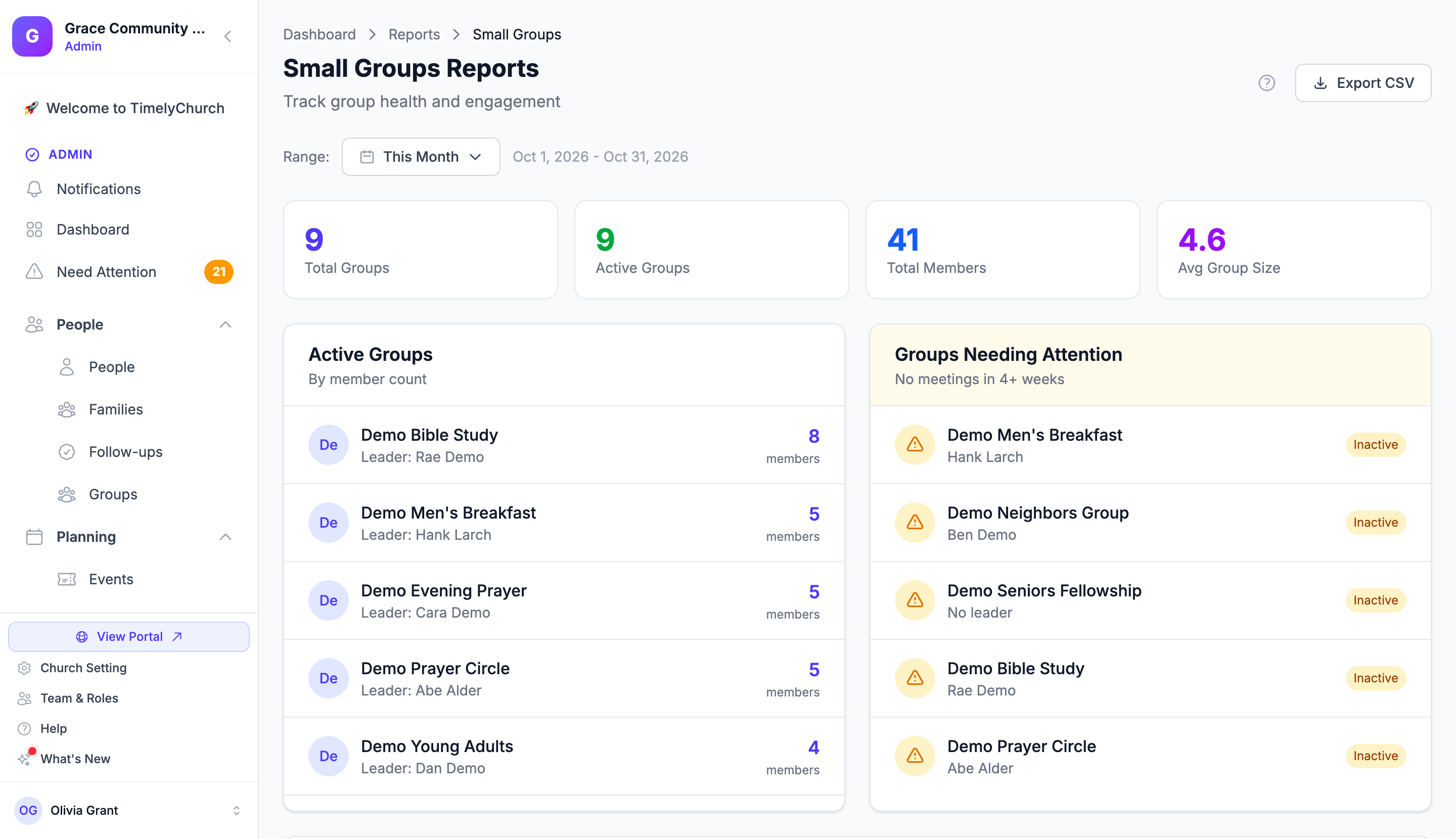
The Small Groups Reports page ("Track group health and engagement") shows how many groups your church operates, total membership, recent meetings, and groups with no recent activity.
How to Access
- Go to Reports in the admin sidebar.
- In the All Reports section, under More, click Groups.
The report displays group names, leaders, and member counts, requiring access to Groups as well as Reports. Without Groups access, the Groups link is hidden. The Export CSV button also requires the Export action on the Reports row. See Who Can Open Which Report.
Team leaders see their own groups. If your role reaches only Their teams, the report covers only the groups you can already see in the Groups list -- the groups you lead. The cards, the lists, and the CSV export are all limited in the same way. See Team reach.
Which Groups Are Listed
The report includes the groups shown on the Private and Public tabs of People → Groups, such as home groups and Bible studies.
- Serving teams are excluded. For teams, see Volunteer Reports.
- Classes are excluded. For classes, see Attendance by Class.
- Custom group types (such as "Life Group") are labels. A group with a custom type is included as long as it is a private or public group.
- Groups in Recently Deleted are excluded.
What You Will See
Summary Cards
- Total Groups: all groups included in the report.
- Active Groups: the number of those groups marked active.
- Total Members: sum of members across all listed groups. Individuals in two groups are counted twice.
- Avg Group Size: average member count in active groups, rounded to one decimal place.
Members are counted using standard Groups rules: active group members whose profile records are not archived. Group leaders are counted as members.
Active Groups
"By member count": active groups sorted from largest to smallest. Each entry displays the group name, Leader: with the leader's name (or No leader assigned), and member count. When multiple leaders or co-leaders exist, the report lists the one who joined first.
If there are no active groups, the section displays No active groups.
Groups Needing Attention
"No meetings in 4+ weeks": active groups with no recorded meeting in the last 4 weeks from today. Groups that have never recorded a meeting also appear here.
Each row shows the group name, leader (or No leader), and an amber Inactive badge indicating lack of recent meetings rather than an inactive group record.
When all groups have recorded recent meetings, the section displays All groups active!
Tip: This list depends on leaders recording their meetings. A meeting is recorded on the group's Meetings tab -- see Group Meetings, Attendance & RSVPs. A group that meets every week but never records it will stay on this list.
Recent Meeting Activity
A table of active groups listing meetings recorded during the selected date range. The header displays the range, such as "Meetings in This Month".
| Column | What it shows |
|---|---|
| Group | The group name. |
| Leader | The leader's name, or Not assigned. |
| Members | The number of members. |
| Meetings | The number of meetings in the range, shown as "3 in period". |
Mobile screens display this data as individual group cards.
Date Range
Use the Range: selector at the top of the page (presets and Custom range…). The date range adjusts only the meeting counts in Recent Meeting Activity. The summary cards, Active Groups list, and Groups Needing Attention reflect current status today.
Date boundaries follow your church's local timezone (see Which day counts as today).
Exporting
Click Export CSV to download a file containing one row per group with columns for Group Name, Leader, Members, Status. The file is saved as small-groups-YYYY-MM-DD.csv.
- The export includes all active and inactive groups in alphabetical order. Status reads Active or Inactive.
- Leader displays Not assigned when no leader is designated.
- The export is not affected by the date range selector.
Tips
- Review Groups Needing Attention regularly to confirm whether groups have paused meetings or leaders simply forgot to enter attendance.
- For groups with No leader assigned, designate a leader in the group profile (see Managing Group Members).
- To review individual group attendance trends and engagement ratings, check the group's Health tab (see Group Reports and Health Metrics).