
Team Positions, Templates and Scheduling
Teams and classes are scheduled through positions -- Vocalist, Greeter, Sound Tech, Teacher. This article covers the serving setup on a team's own page: the Positions card, fixed positions, the Templates tab, and Scheduling Settings. For scheduling people into events, see Event Volunteer Scheduling.
Everything here is on the team's page in the admin panel. For a class, open it from Planning > Classes and click More tools.
Positions
The Positions card on the Group details tab lists the roles this team fills, with a description under each.
To add a position:
- Click + Add on the Positions card, or Add position in the left-hand panel.
- Enter a Position Name and, optionally, a Description ("What does this position do? Any requirements?").
- Click Add position.
To remove a position, use the delete icon next to it and confirm.
A new class starts with Teacher and Assistant Teacher positions already in place.
Assign Fixed Positions
Once a team has at least one position, the Positions card shows Assign fixed positions (Off/On):
- On -- "Each member is tied to specific positions. When scheduling, members can only be assigned to their fixed positions." Each position then shows how many members are assigned and who they are.
- Off -- "Members can serve in any position. When scheduling, anyone on the team can be assigned to any role."
With fixed positions on, assign members from the Members tab (Assign Position). See Managing Group Members.
Schedule Templates
The Templates tab holds reusable staffing plans -- "Create reusable templates to quickly set up volunteer positions for events."
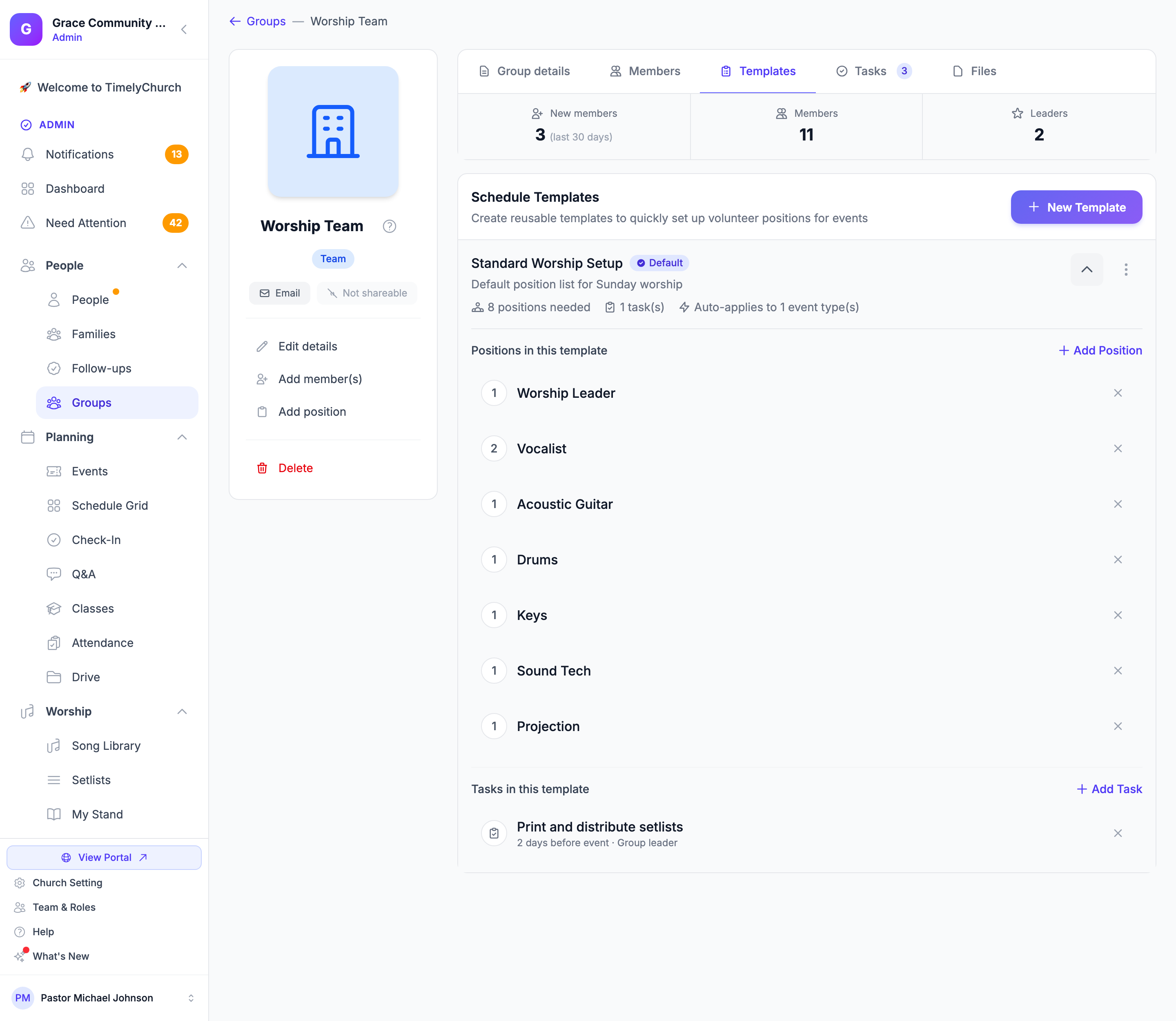
To create a template:
- Click New Template (or Create First Template).
- Enter a Template Name (e.g., "Sunday Morning Worship") and an optional Description (optional).
- Optionally tick Set as default template for this team -- "Default templates are suggested first when creating events."
- Optionally choose event types under Auto-apply to event types (optional) -- the template is then applied automatically when an event of that type is created.
- Click Create Template.
Then build it out:
- Positions in this template -- Add Position, choose the Position, set the Number Needed, and add Notes (optional) (e.g., "Needs early arrival").
- Tasks in this template -- Add Task with a Task title, When is it due? (from 2 weeks before event to 1 day after event), and Assign to (Group leader (default) or a member). "Tasks are created automatically for each event that uses this template."
Each template's menu offers Edit Template, Duplicate, Set as Default, and Delete. See Team Schedule Templates for a full walkthrough.
Scheduling Settings
The Scheduling Settings card on the Group details tab controls how people are scheduled for this team -- "Configure how volunteers are auto-scheduled for events." Click Save Scheduling Settings when you're done.
| Setting | What it does |
|---|---|
| Rotation Strategy | Fair Rotation (based on who served least recently), Round Robin (fixed order), or Manual Only (disable auto-fill) |
| Min Days Between Serving | Prevents scheduling the same person too often (0-60 days; 7 by default) |
| Max Times Per Month | Limits how often someone can serve (0 = unlimited) |
| Enable auto-scheduling | Lets auto-fill pick people for this team |
| Notify volunteers when auto-assigned | Tells people when auto-fill schedules them |
| Auto-confirm assignments (skip pending status) | Assignments start confirmed instead of waiting for an answer |
| Auto-pick replacement when someone declines | When a volunteer declines, the next person in rotation gets the slot automatically; after a few attempts it falls back to a sub request |
| Send serving reminders to this team | Reminds volunteers before they serve (Telegram if linked, otherwise email) |
| Send the reminder this many days before | 2 by default; 0 = the morning of the event |
| Tell them this many days before they serve | Under When people are told they are scheduled. The first "You have been scheduled" message waits until the date is this close (30 days by default), so you can plan a whole year without messaging everyone at once. Set 0 to tell people the moment you schedule them. |
| Remind unconfirmed people (days before event) | Comma-separated days, e.g. "4, 2", to nudge people who haven't answered |
| Move on when someone does not respond | If an invitation goes unanswered past the deadline, it expires and the next person in rotation is invited |
| Response deadline (days after invitation) | How long people have to answer (3 by default) |
See Cascade Auto-Fill, Sub Invites, and Out-of-Office Badges and Volunteer Notifications for more on how these behave.
Tip: Planning far ahead? Leave Tell them this many days before they serve at 30 and schedule the whole season at once. Each person hears about a date only when it comes within range.