
Group Tasks
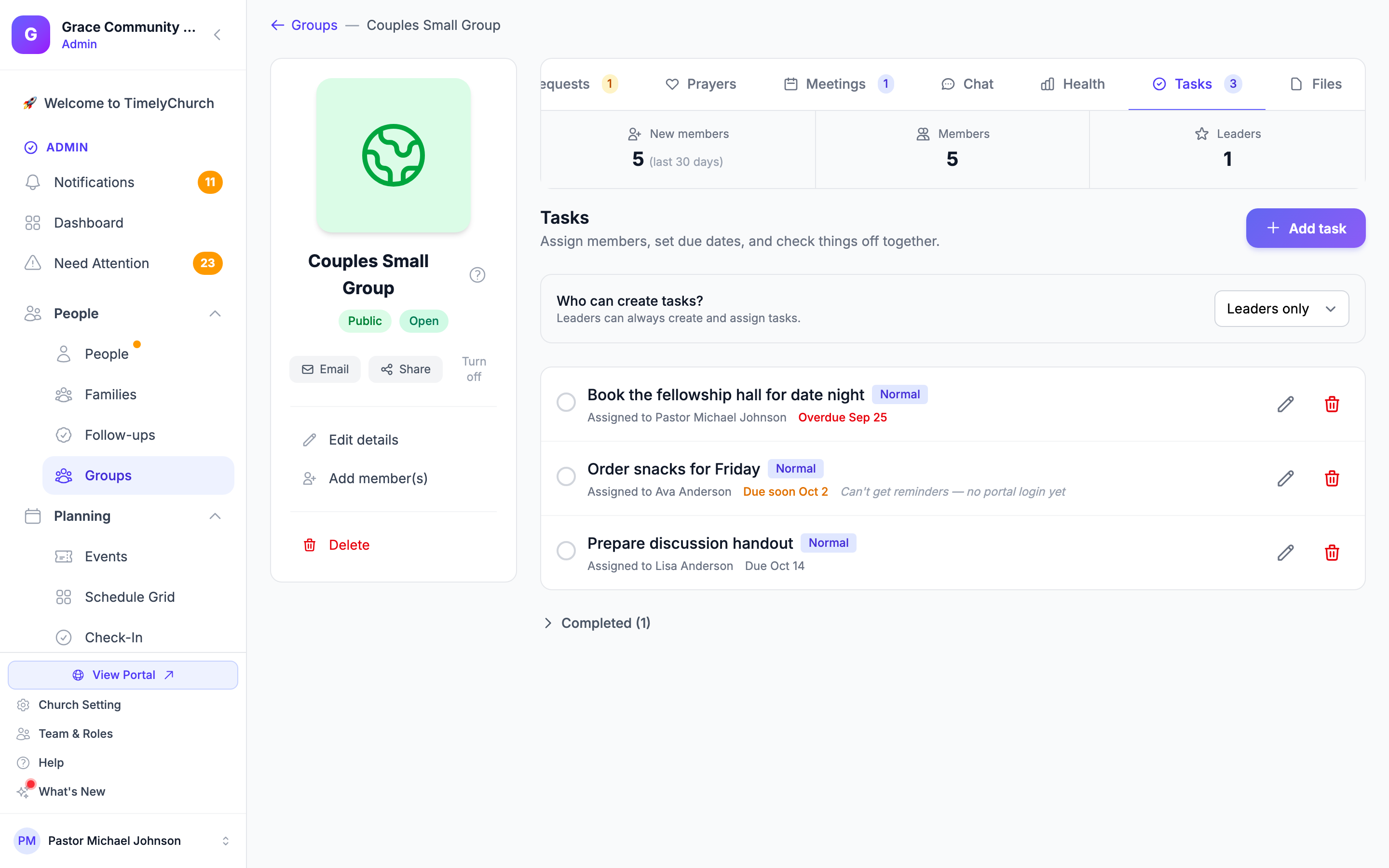
Every group in your church -- a small group, a serving team, a class, a committee -- has a Tasks tab for assigning to-dos. It turns "someone needs to bring the extra Bibles" from a thing a leader has to remember and chase down into an assigned item with a due date that the right person actually sees.
Where to Find It
- Admin panel: open the group and click the Tasks tab. The tab shows how many tasks are still open. (For a class, open it from Planning > Classes and click More tools.)
- Member portal: open the group from My Groups and click Tasks. Every member of the group sees this tab.
Adding a Task
- Open the group's Tasks tab and click Add task (in the portal, use the Add a task form at the top).
- Enter a Title (for example, "Acquire sheet music for Sunday") and, in the admin panel, an optional Description.
- Choose who it's for under Assign to -- yourself ("me") or any active member of the group.
- Optionally set a Due date and a Priority: Normal, Low, High, or Urgent.
- Click Add task.
Where an Assigned Task Shows Up
The moment you assign a task to someone, it also appears:
- On their own My Tasks page in the member portal, labeled with the group it came from.
- As a message from your church's Telegram bot, if they've connected Telegram -- with a Done button they can tap right in the chat.
There's nothing extra to set up for this.
Note: If you assign a task to someone who doesn't have a portal login yet, the task shows "Can't get reminders — no portal login yet". It still appears for everyone on the group's Tasks tab. You can send them a portal invitation from the Members tab.
The Task List
Open tasks are listed first. Each task shows its priority, who it is Assigned to, and its due date -- marked Overdue or Due soon when it needs attention. Finished tasks move to Completed.
Completing, Editing, and Deleting a Task
- The person a task is assigned to can check it off with Complete -- from the group's Tasks tab, from My Tasks, or with the Telegram Done button.
- Leaders, admins, and the person who assigned the task can also complete it, and can Edit it (title, description, due date, and priority, then Save changes) or Delete it.
This keeps one member from deleting a task someone else is counting on.
Who Can Create Tasks
By default, only leaders and co-leaders can create and assign tasks in a group. A leader can change this:
- Go to the Tasks tab.
- Find Who can create tasks? -- "Leaders can always create and assign tasks."
- Choose Leaders only or All members.
This is a per-group setting -- changing it for one group doesn't affect any other group.
Tip: Use a due date on every task that matters. Overdue and Due soon labels make it easy to see at a glance what needs a nudge before Sunday.