
Saved Lists (Smart Lists)
Every church asks the same questions about its people over and over. How many kids do we have between 5 and 12? Which members don't have an email on file? Who's in the youth group? Saved Lists let you answer once and keep the answer — a named list you can reopen any time, that is always current because it re-runs against your live directory every time you open it.
A list is not a frozen snapshot. It stores your filters, not a fixed set of people, so as birthdays pass, families join, and details get updated, the list stays correct on its own. There is nothing to refresh and no "last updated three weeks ago" caveat.
Where Lists Live
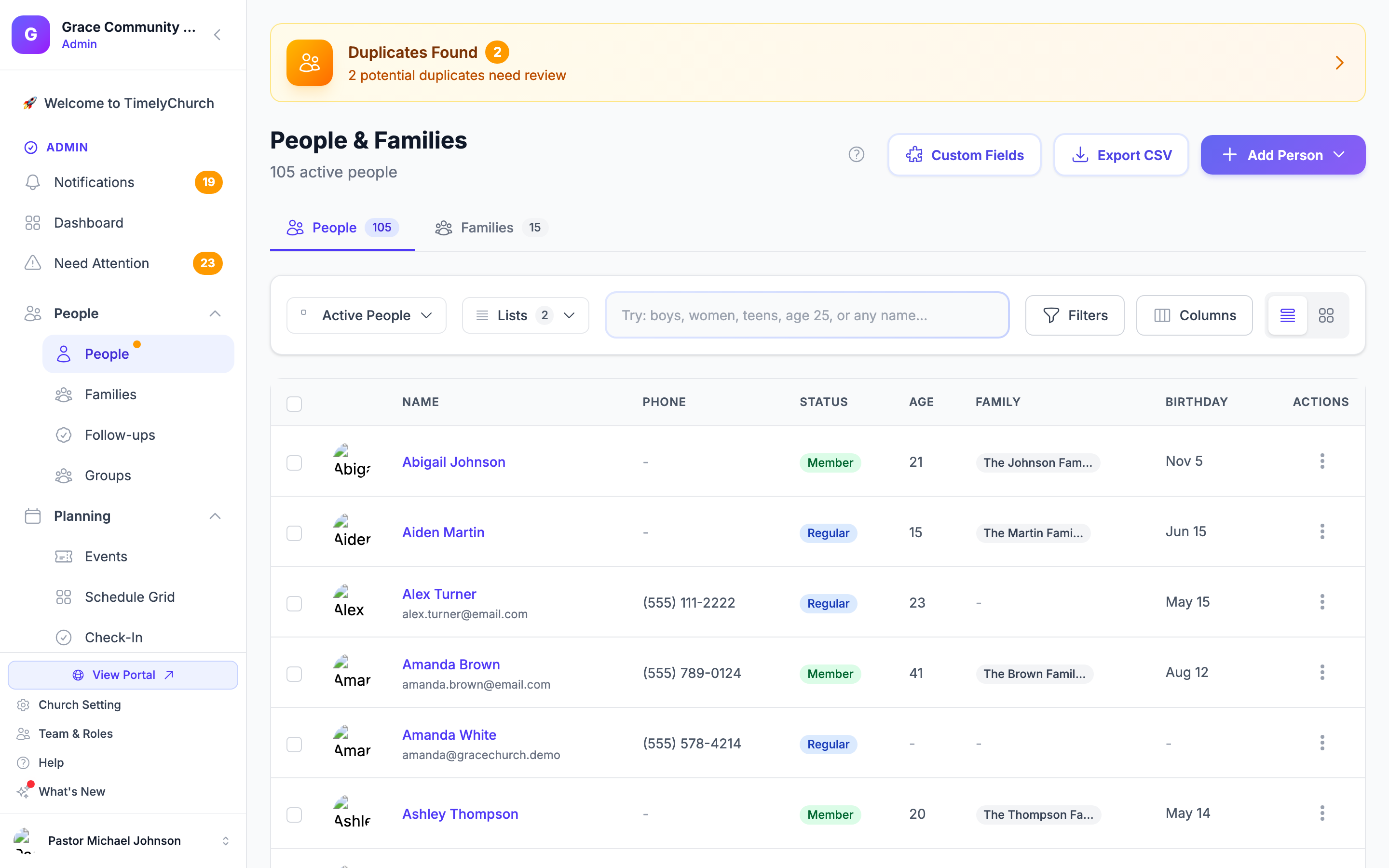
Saved Lists sit right on the People page toolbar, between the Views dropdown and the search box (on a computer or tablet -- the phone layout does not show them):
- A Lists button opens a dropdown of every list you've saved, each with a live count of how many people currently match.
- A Save as List button appears whenever you have one or more filters applied, so you can turn the view you're looking at into a reusable list.
Creating a List
- On the People page, open Filters, set the filters you want (see the full set below), and click Apply.
- When at least one filter is active, click Save as List.
- Enter a List name — for example, Kids 5–12 or Members without email — and click Save List.
You'll land right back on the People page with the list applied, so you immediately see the people it matches. From then on, the list is one click away in the Lists dropdown.
A list needs at least one filter. If you try to save with nothing applied, you'll be asked to add a filter first — an "everyone" list is just the People page.
What You Can Save in a List
A list can hold any combination of the People page's filters, including several that are especially useful for the questions above:
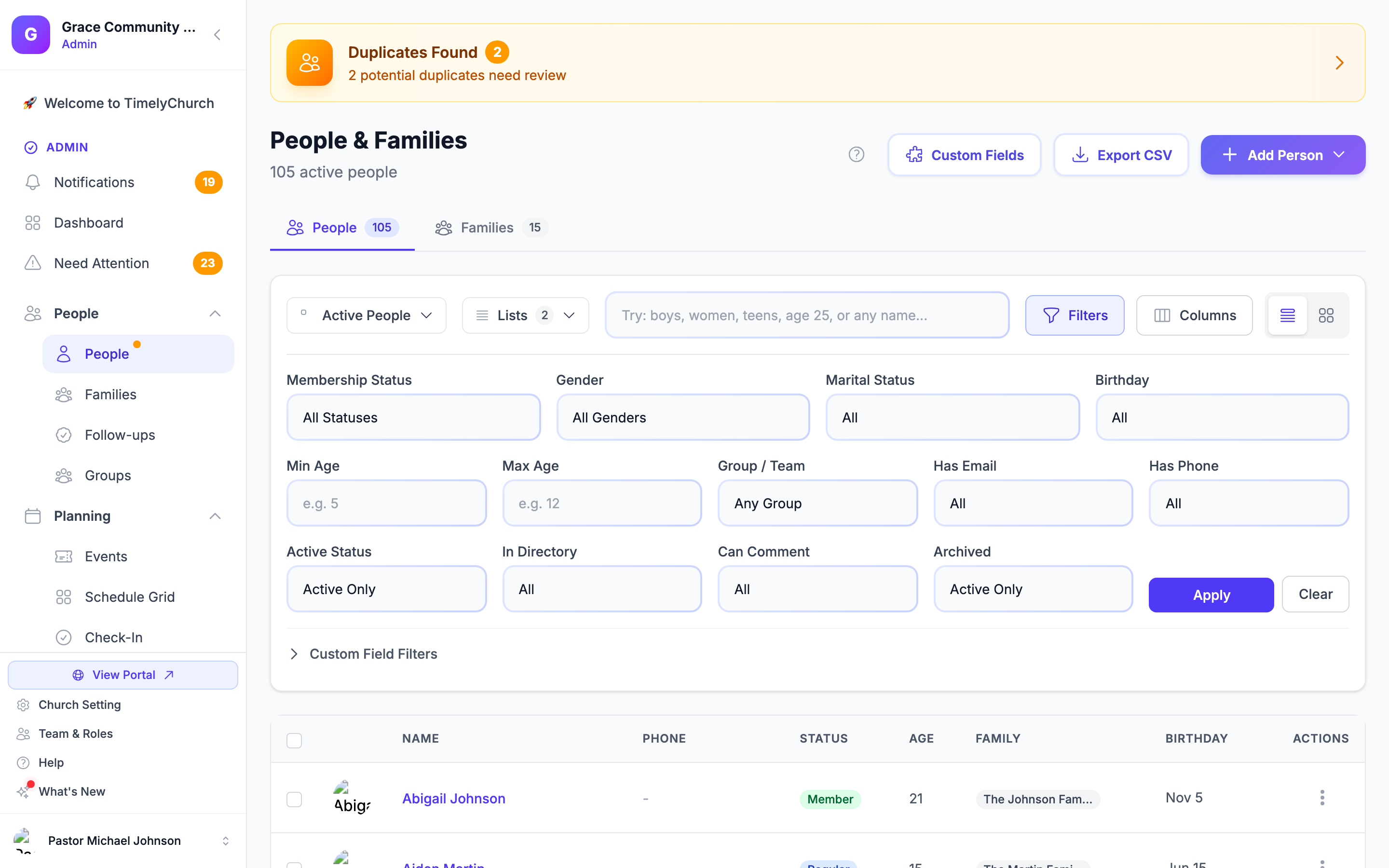
- Min Age / Max Age — a minimum and/or maximum age (for example, 5 to 12).
- Group / Team — everyone in a specific group, class, or team.
- Has Email / Has Phone — people who do (or don't) have an email address or phone number on file.
- Membership Status, Gender, Marital Status, Active Status, In Directory, Can Comment, Birthday — the core people filters.
- A text search — the same smart search box ("boys", "women", "age 25", or a name).
- Custom fields — any custom field you've created for people becomes a filter under Custom Field Filters, and any filter you can set, you can save. See Custom Fields for People.
Because a list stores the filters themselves, it will keep using them against live data forever — no re-building required.
Opening, Renaming, and Deleting Lists
- Open a list — click it in the Lists dropdown. The People page reloads with those filters applied, and the list's count badge reflects the current match.
- Rename a list — hover the list in the dropdown, click the pencil icon, change the name in the Rename List dialog, and click Save.
- Delete a list — hover the list and click the trash icon, then confirm "Delete this list? Your people are not affected." Deleting a list only removes the saved filter; it never touches, hides, or deletes any of your people.
Lists are always current. The count you see on each list is calculated live, so a list called "Kids 5–12" will quietly grow and shrink as children have birthdays and families come and go — you never have to rebuild it.
Who Can Use Lists
- Opening and applying a list uses the People view permission — anyone who can see the directory can use the lists that exist.
- Saving, renaming, and deleting lists uses the People edit permission, so list management stays with the staff who maintain your directory.
Lists belong to your church and are shared across your admin team — a list one staff member saves is available to the others.
Examples
"How many kids are between 5 and 12?"
- Open Filters, set Min Age to 5 and Max Age to 12, and click Apply.
- Click Save as List and name it Kids 5–12.
- The count badge answers the question, and it re-checks itself every time you open it.
"Which members are missing an email?"
- Set Membership Status to Member and Has Email to No Email, then click Apply.
- Save it as Members without email.
- Use the list to plan a data-cleanup or a re-collection campaign — it empties itself as you fill the gaps.
"Everyone in the youth group"
- Set Group / Team to your youth group and click Apply.
- Save it as Youth group.
- Reopen it any time for an always-current roster.