
Managing Sermons
The Sermons module lets you build a searchable library of your church's messages. Each sermon can include video, audio, transcripts, scripture references, topics, and more. Sermons can be organized into series, assigned to speakers, featured on your website, and distributed through a podcast feed.
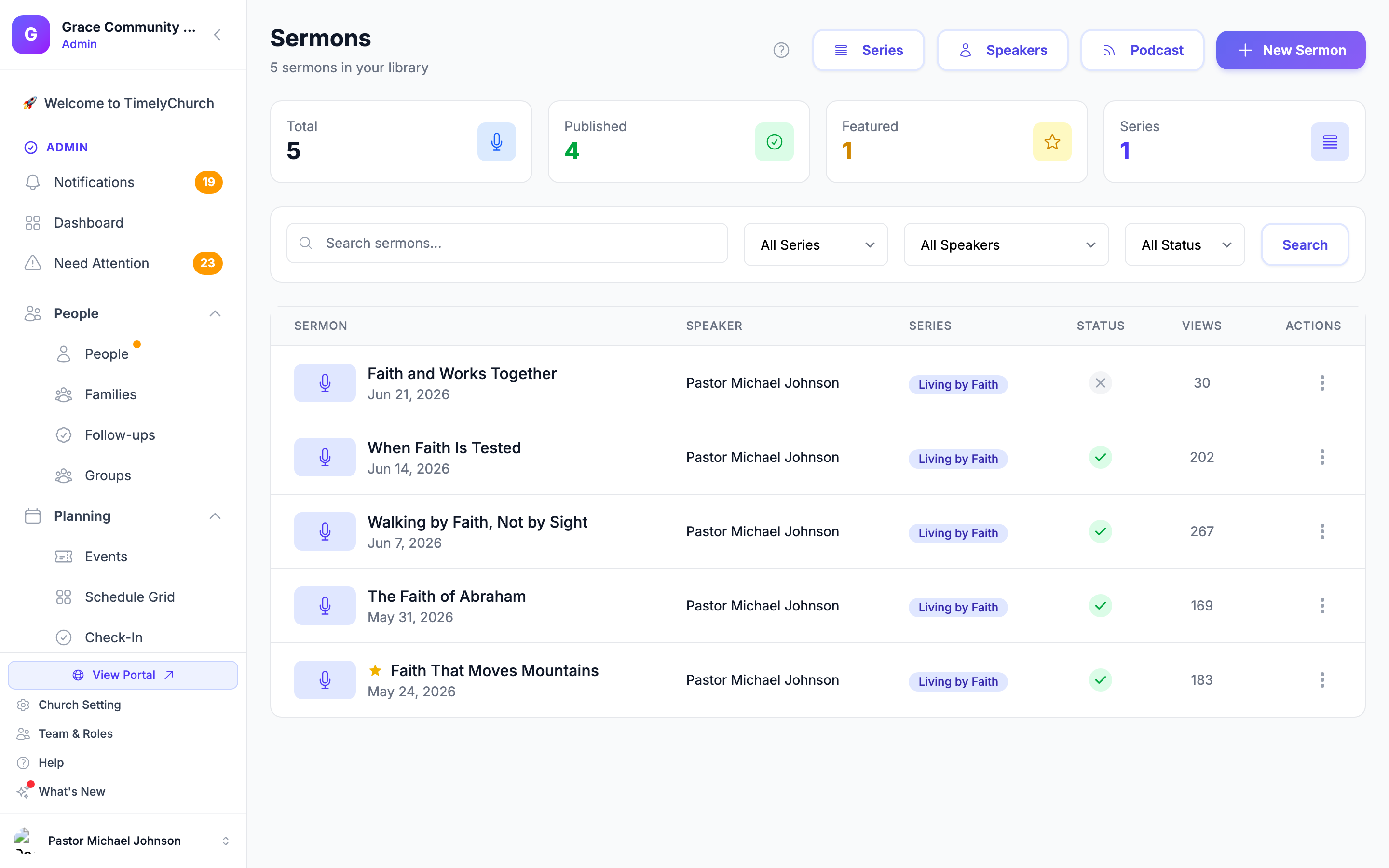
Accessing Sermons
- Log in to your TimelyChurch admin dashboard.
- In the sidebar, expand Communications and click Sermons.
The sermons index page shows all sermons with four summary statistic cards at the top:
- Total sermons
- Published sermons
- Featured sermons
- Series count
Buttons at the top open Series, Speakers, and Podcast settings, next to New Sermon.
Sermons are included in every plan. In a role's settings they are the Sermons module.
Browsing and Filtering
Search
Use the search bar to find sermons by title, description, or scripture reference.
Filters
- Series -- Filter by a specific sermon series.
- Speaker -- Filter by a specific speaker.
- Status -- All Status, Published, or Draft. (Published sermons are live on your website; drafts are hidden.)
Click Search to apply, or Clear to reset.
Sermons are displayed in reverse chronological order (newest first) with 20 per page.
Creating a New Sermon
- Click New Sermon from the sermons index page.
- Fill in the form fields:
Basic Information
| Field | Required | Description |
|---|---|---|
| Title | Yes | The sermon title. |
| Sermon Date | Yes | The date the sermon was delivered (defaults to the most recent Sunday). |
| Scripture Reference | No | The Bible passage (e.g., "John 3:16-17"). |
| Speaker | No | Select from your list of speakers. |
| Series | No | Assign to a sermon series. |
| Preached At | No | Optionally link the sermon to a worship service from the last 60 days or an upcoming service. |
| Topics | No | Comma-separated topic tags (e.g., "faith, hope, love"). Start typing to see suggestions from your other sermons, or use the Quick add chips to reuse existing topics. |
| Description | No | A rich-text description of the sermon (supports headings, bold, italic, lists, and links). |
Media
| Field | Description |
|---|---|
| Video URL | A YouTube or Vimeo URL. The system auto-detects the platform and generates an embeddable player. |
| Audio File | Upload an MP3, M4A, or WAV file (AAC also works). The maximum file size is shown under the upload field ("max … MB"). Large files upload directly while you keep working -- wait for "Uploaded — save the sermon to keep this file." before you save. |
| Thumbnail Image | Upload a custom thumbnail image. If not provided, the system automatically uses the YouTube thumbnail (if a YouTube video is linked) or the series image as a fallback. |
| Duration | Enter the sermon length in minutes and seconds. |
Transcript
A full rich-text editor is provided for the sermon transcript. This supports headings, bold, italic, ordered and unordered lists, and links. Adding a transcript improves accessibility and search engine visibility.
Already have a transcript file? Use Import transcript file above the editor. It accepts plain text (.txt), WebVTT (.vtt) and SubRip (.srt) captions; the timestamps are stripped for you, so only the words land in the editor.
Publishing Options
| Option | Description |
|---|---|
| Published | Makes the sermon visible on your church website. Shown only to roles that may publish sermons. |
| Featured | Highlights the sermon on your homepage. |
| Include in Podcast | Adds the sermon to your podcast RSS feed (requires an audio file). On by default. |
- Click Create Sermon.
Editing a Sermon
- From the sermons list, click the Edit button or link on any sermon.
- All fields from the creation form are available for editing.
- Additional options when editing:
- Remove (next to the current audio file) -- Check this box to delete the audio file.
- Remove thumbnail -- Check this box to delete the current thumbnail.
- Remove (next to each attachment under Current Attachments) -- Check it to delete just that file.
- Click Update Sermon.
At the bottom of the edit page, an Activity list shows who changed the sermon and when.
Publishing and Featuring
Publish or Unpublish
From the sermons list, open a sermon's actions menu and choose Publish or Unpublish without opening the full edit form. The same menu has View Public (opens the sermon's public page), Edit, and Delete.
Publishing and unpublishing need the highest level of access in the Sermons module. A role without it sees "Publishing a sermon needs Manage access in Services & Sermons. Ask your church administrator if you need it."
Feature or Unfeature
From the same menu, choose Feature or Unfeature. Featured sermons are highlighted on your church's public website.
Deleting a Sermon
- Open the sermon's edit page and click Delete Sermon at the bottom-left -- or choose Delete from the sermon's actions menu in the list.
- Confirm the deletion in the confirmation dialog.
Deleting a sermon permanently removes it along with its audio file, thumbnail, and all attachments. This action cannot be undone.
Sermon Attachments
Sermons support file attachments (such as sermon notes, outlines, study guides, or supplementary materials). Upload them with Upload Files (or Add More Files) in the Sermon Notes & Attachments section of the create or edit form. Accepted file types are PDF, Word (.doc/.docx), PowerPoint (.ppt/.pptx), JPEG and PNG images, MP3 and WAV audio, and MP4 video -- up to 10 files at a time. When a sermon is deleted, all associated attachments are automatically cleaned up.
Video Embedding
When you provide a Video URL, the system supports:
- YouTube -- Standard watch URLs (
youtube.com/watch?v=...), short URLs (youtu.be/...), embed URLs, Shorts, and live URLs. - Vimeo -- Standard Vimeo URLs (e.g.
vimeo.com/123456789orplayer.vimeo.com/video/...).
A live preview of the embedded player appears right below the Video URL field as you type. The video is embedded on the public sermon page and an auto-generated thumbnail is pulled from YouTube if no custom thumbnail is uploaded.
View and Listen Counts
Each sermon tracks:
- View Count -- Incremented each time someone loads the public sermon page.
- Listen Count -- Incremented each time someone plays the audio file.
Repeated plays from the same visitor in quick succession are not counted over and over, so the numbers stay honest. The Views column in the sermons list shows the view count.
Visitors can also download the audio of a published sermon from its public page. See Public Sermon Pages for the full visitor-facing surface.
Navigating Between Sermons in a Series
When a sermon belongs to a series, the public sermon page automatically provides links to the next and previous sermons in that series (based on sermon date). Related sermons from the same series or same speaker are also displayed.
Related Articles
Last updated: September 30, 2026