
Lockdown Mode
Lockdown is an emergency child-safety control. When activated, every active check-in session for your church is placed into a state where no one can check out. Not via the Verify & Check Out panel, not via security code, not with the quick-checkout admin override, and not for volunteers. Lockdown is intended for situations where you need to know that every child is in a known room with a known volunteer until the situation clears.
Read this article in full before you ever need to use it.
When to Use Lockdown
Lockdown is appropriate when there is an active threat or unresolved safety concern that means children should remain in their classrooms. Examples include:
- Custody dispute. A parent or non-custodial adult is on the property attempting to retrieve a child without authorization.
- Suspected attempted child removal. Someone unknown to volunteers is asking for a child by name or refusing to show a security code.
- Active police, fire, or weather event that has the property on shelter-in-place orders.
- Lost child. A child is unaccounted for and you need to freeze the rest of the system until they are located.
- Drill. Practicing your church's child-safety response plan.
Lockdown is not for routine situations:
- Don't use it because a parent forgot their security code. An administrator can complete the checkout from the Verify & Check Out panel (for a child, choose the authorized pickup person, or tick "Override pickup authorization").
- Don't use it for a long line at pickup. End the session normally instead.
Important: Lockdown is a safety tool, not a discipline tool. Activating it freezes pickup for every family in every active session. Use it only when the safety benefit outweighs the disruption.
Who Can Activate Lockdown
Lockdown is allowed for roles with the Check-In Manage permission, administrators and the built-in Safety Officer role. Regular check-in volunteers and station staff cannot activate it. If someone without that permission tries, the system shows "Only administrators and safety officers can activate lockdown." (and "Only administrators and safety officers can clear lockdown." for lifting it).
Today, the Activate Lockdown and Deactivate Lockdown buttons on the Check-In Station appear only for church administrators. A Safety Officer who is not an administrator does not see the buttons. During a lockdown they see "Contact a church administrator to lift the lockdown." So in practice an administrator has to activate and lift lockdown.
This is intentional. Lockdown is a heavy intervention and the decision belongs with church leadership.
Recommendation: make sure at least two administrators are on site every Sunday morning, so one is always available to activate lockdown if needed. If you rely on Safety Officers, plan for them to reach an administrator by radio or phone.
The Safety Officer Role
Safety Officer is a built-in role every church has (shown in red on the Roles page, with Reach: Whole church). It is meant for the people who handle child-safety situations without being full administrators. A Safety Officer can:
- view, use, and manage Check-In (including the lockdown permission and releasing unclaimed children from the Need Attention page), and
- view attendance.
A Safety Officer does not get access to the member directory or other admin areas. To give someone this role, open Administration > Team Members and assign them Safety Officer.
How to Activate Lockdown
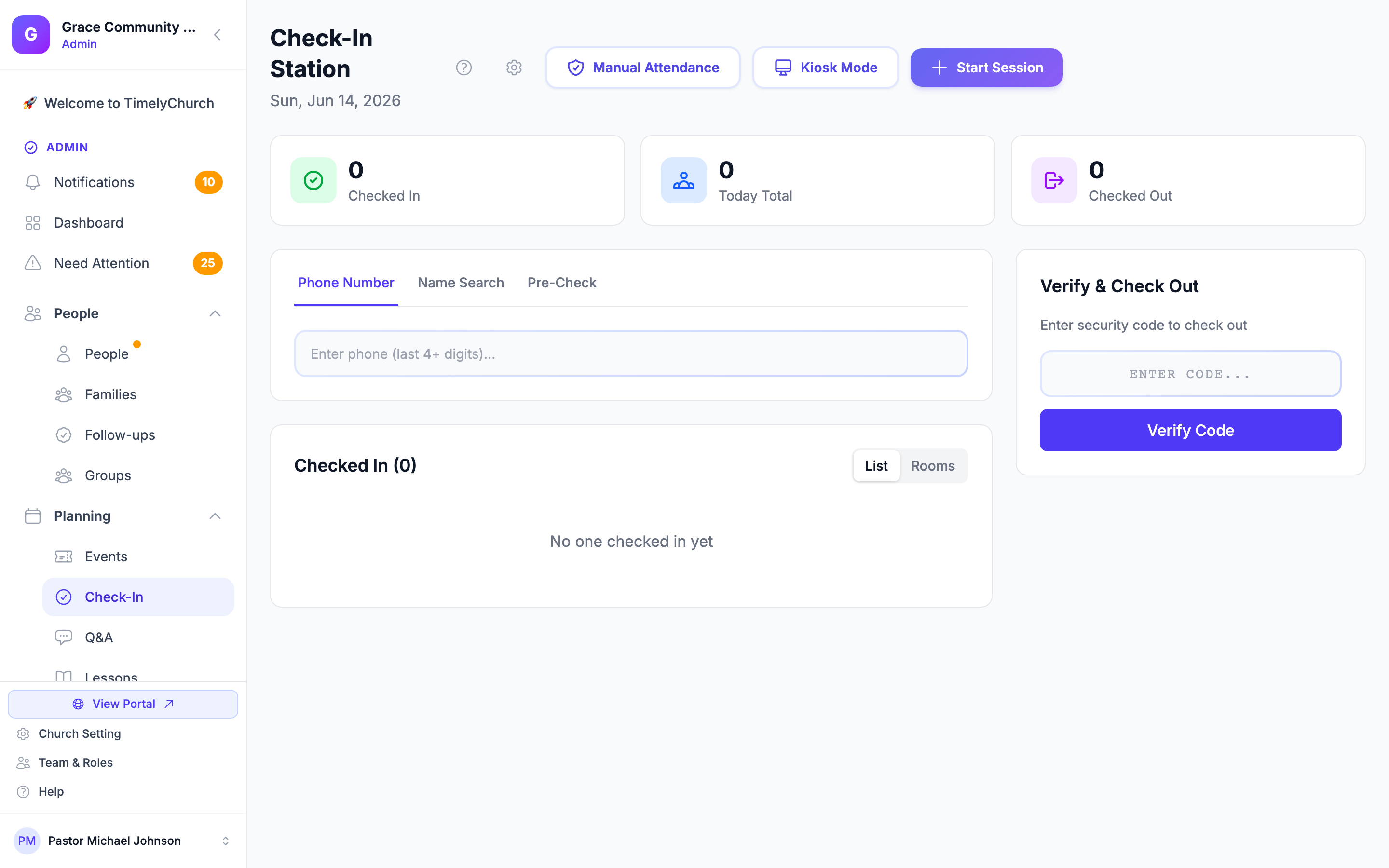
- Sign in as an administrator and open Planning > Check-In.
- Click the red Activate Lockdown button (below the Active Session details).
- A confirmation opens: "Activate emergency lockdown? This immediately suspends ALL check-outs across active sessions until an administrator deactivates it." Click Yes, Activate Lockdown (or Cancel).
- The system applies lockdown to every active check-in session for your church (not just one). All sessions are flagged as lockdown-active and the system records who activated it and when.
- A success banner appears: "Lockdown activated on N active session(s). All checkouts are now suspended."
Who Is Alerted When Lockdown Is Activated
Activating lockdown immediately alerts everyone in your church whose role can manage check-in, administrators and Safety Officers, except the person who activated it:
- An in-app notification ("Emergency lockdown activated") with an Open check-in link.
- A Telegram message, if they have connected Telegram and allow Safety & emergencies messages. Because it is a safety alert, it is delivered even during their quiet hours.
For privacy, the alert only says who activated lockdown. It never includes a child's name, a room, or a security code. No email is sent, because email is too slow for an emergency.
What Happens During Lockdown
While lockdown is active:
- The Check-In Station shows a red banner: "Lockdown active — all check-outs are suspended".
- The Verify & Check Out panel is blocked. Entering a security code shows: "Checkouts are suspended during lockdown." and the Confirm Check Out button is disabled. Attempting the checkout returns: "Checkouts are suspended during lockdown. Contact a church administrator."
- Quick checkout is blocked. The same error message appears.
- Volunteer checkouts are blocked. Volunteers stay marked on duty until lockdown clears.
- New check-ins still work. Families arriving during lockdown can still be checked in. This matters if a family arrived late and needs to be accounted for. (If your safety policy requires no entry during lockdown either, end the session manually before activating.)
- The self-service kiosk continues to display normally for new check-ins; the kiosk has no checkout function, so nothing leaves through it.
- A red "LOCKDOWN ACTIVE -- All checkouts suspended" banner appears on the Classroom Roster, along with who activated it and when.
Communicate the Lockdown to Volunteers
Lockdown only enforces what the software does. Apart from the alert to administrators and Safety Officers described above, it does not notify your classroom volunteers. Your church's safety plan must include:
- A way to alert classroom volunteers (radio, text group, runner, paging system).
- An instruction to volunteers: keep all children inside the classroom until further notice.
- A point person who is responsible for managing the floor while lockdown is active.
Critical: do not rely on lockdown alone. The software prevents checkouts, but the people in the rooms are what keep children safe. A radio or group text is a non-negotiable companion to this feature.
How to Deactivate Lockdown
Deactivation is intentionally protected by an extra step: the signed-in administrator's password.
- Sign in as an administrator and open Planning > Check-In.
- In the red lockdown banner ("Enter your password to lift the lockdown."), type your account password in Your password.
- Click Deactivate Lockdown.
- The system verifies the password. If it matches, lockdown is cleared on every session that had it active.
- A success banner appears: "Lockdown deactivated on N session(s). Checkouts are now permitted."
If the wrong password is entered, lockdown remains active and the system returns: "Invalid password. Lockdown remains active."
Why the password? Lockdown deactivation is the moment children start leaving with adults. Requiring a fresh password confirmation reduces the risk of an accidental deactivation (a misclick) or an unauthorized one (someone walking up to a logged-in admin's tablet).
After Deactivation
Deactivation does not auto-checkout anyone. It simply restores normal checkout behavior on every session that was previously locked. From this point forward:
- Security-code checkout works again at the Verify & Check Out panel. For children, you still also choose an authorized pickup person before Confirm Check Out is enabled (an admin can tick "Override pickup authorization" instead).
- Quick checkout works again.
- Volunteer checkouts work again (volunteers do not require a security code).
It is a good idea to manually verify the rooms after deactivating, especially if lockdown was triggered by a real safety concern. Walk each room with a volunteer or radio in hand and confirm that every child is still with their assigned class.
Positioning Lockdown in Your Child-Safety Plan
Lockdown is one piece of a broader safety plan. A typical church plan looks like:
- Prevention. Verified background checks for all children's volunteers, two-adult rule in every classroom, signed pickup authorization on every family file.
- Detection. Volunteers trained to refuse pickup without a security code and to escalate immediately if pressed.
- Response. A clear escalation path: classroom volunteer alerts a hall monitor, hall monitor alerts the on-call administrator, on-call administrator decides whether to activate lockdown.
- Resolution. A point person who manages the situation, coordinates with law enforcement if needed, and decides when to deactivate.
- Debrief. After lockdown deactivates, document what happened: what triggered it, who was involved, how long it lasted, and what could be improved next time.
Lockdown is a tool for step 3. It does not replace any of the other steps.
Drilling Lockdown
We strongly recommend practicing lockdown at least twice a year, ideally outside of an actual service:
- Schedule a drill on a non-Sunday morning.
- Run a fake check-in session with a few staff members listed as "children."
- Have an admin activate lockdown.
- Walk every room and confirm the volunteer response.
- Deactivate lockdown.
- Debrief: what worked, what was confusing, what needs to be added to your written plan.
Drills surface real-world issues (a missing radio, a volunteer who didn't get the alert, a confusing button location) without the pressure of a real emergency.
Frequently Asked Questions
Does lockdown survive a page refresh or browser restart? Yes. Lockdown is stored on the session record in the database, not in the browser. It stays active until an admin deactivates it.
Does lockdown affect future sessions started after activation? No. Lockdown is applied at activation time to sessions that were active at that moment. New sessions started later will not be in lockdown unless an admin re-activates.
What if the activating admin is unavailable to deactivate? Any administrator can deactivate it with their own password. It is not tied to the person who activated it. As long as another administrator is on site and can sign in, they can clear lockdown.
Is lockdown recorded? While lockdown is active, each affected session stores who activated it and when, and that detail appears on the Classroom Roster banner. Note that deactivating lockdown clears those fields from the session, so capture the details (or a screenshot of the banner) before you deactivate if you need them for a post-event debrief.
Can a family member self-checkout from the member portal during lockdown? The member-portal pre-check flow doesn't perform checkouts. It only creates pre-check-in QR codes. So there is no self-checkout path that would bypass lockdown.
Related Articles
- Check-In Process. The standard check-in and checkout flow.
- Security Codes and Labels. Why every checkout is code-verified, and why child checkouts also require choosing an authorized pickup person.
- Unclaimed Children. Companion safety workflow for end-of-service.
- Troubleshooting. What to do when lockdown is activated by accident.