
Group Waitlist
When a group reaches its member capacity, TimelyChurch puts additional joiners on a waitlist instead of turning them away. Here is the whole process: when the waitlist engages, what leaders can do, how to offer a spot, and past entries.
When the Waitlist Engages
The waitlist is part of every Private and Public group. There is nothing to switch on. It engages as soon as the group is full, which means:
- The group has a Max Members number set on its Group details tab, and
- The number of active members has reached it.
Without a Max Members number, a group never counts as full and nobody is ever waitlisted.
The group's Waitlist tab appears once someone is waiting, with a count of how many people are in line.
How People End Up on the Waitlist
People join the waitlist from the group's public page, whether they found it in the Group Finder, scanned its QR code, or opened a shared link. When the group is full, the join button reads Join Waitlist.
The page shows the same "Thanks! Check your email for next steps." as every other join; the email gives their position. If the address already belongs to someone in your directory, that person must confirm by email first. Each new entry gets the next position in line.
Adding someone from the admin panel works differently: if the group is full, Add member is refused with "This group is at capacity. Consider adding to waitlist." Raise Max Members or remove someone first.
Status Lifecycle
Each waitlist entry carries a status:
| Status | Meaning |
|---|---|
| Waiting | The default. Person is in line and hasn't been offered a spot yet. |
| Notified | A leader offered them the open spot. They have 48 hours to claim it before it expires. |
| Joined | They were moved into the group. The entry is kept for history. |
| Expired | The 48-hour window passed without a claim. |
| Cancelled | A leader removed them from the waitlist. |
The Waitlist tab and its count only include waiting and notified entries. Joined, expired, and cancelled entries show under Previous Waitlist Entries.
Leader Actions (Admin Panel)
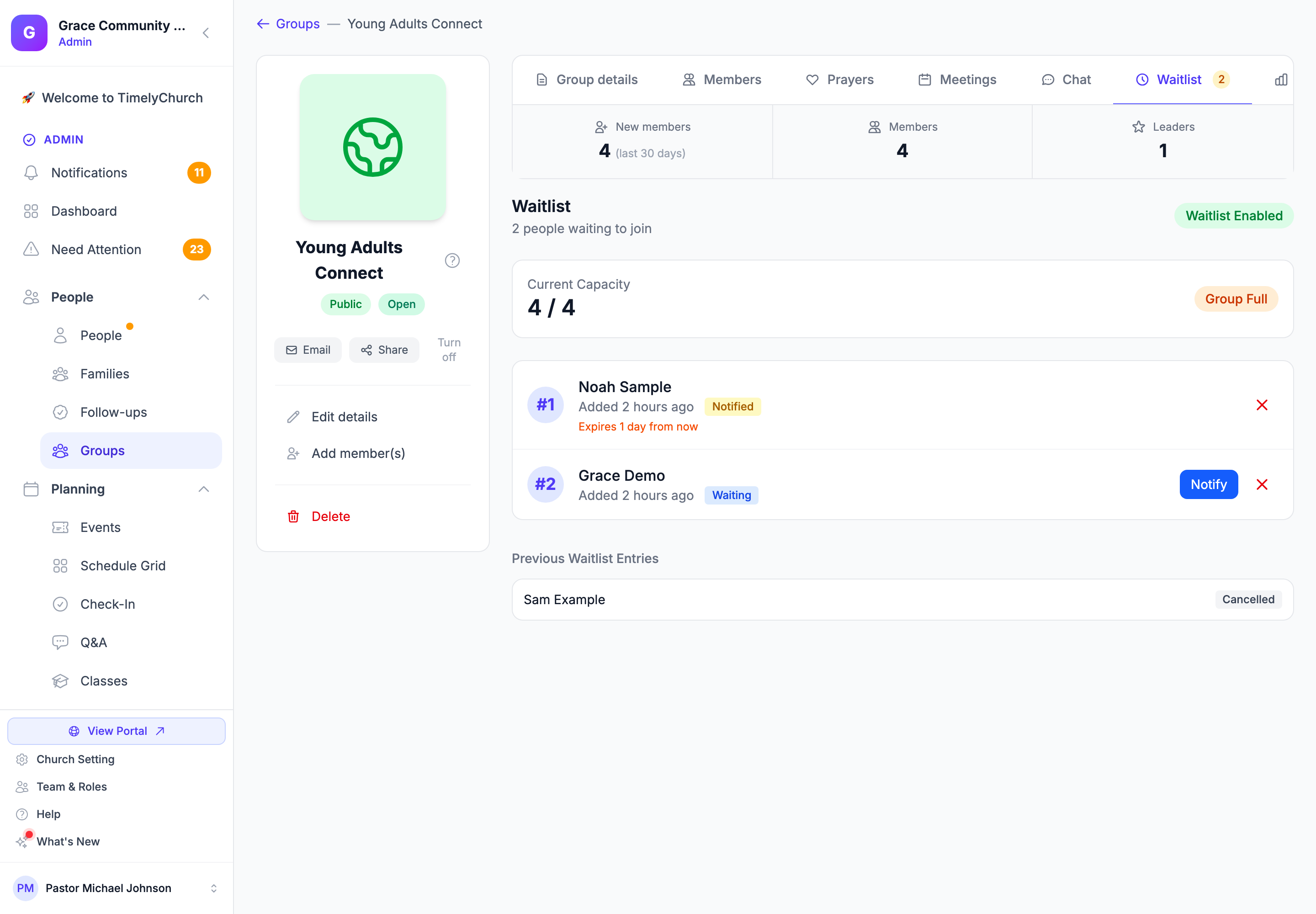
The Waitlist tab shows the group's Current Capacity (for example "12 / 12" and Group Full), then each person in line with when they were added. For each entry:
| Action | What it does |
|---|---|
| Add to Group | Moves the person into the group as a member |
| Notify | Offers the person the open spot (status becomes notified) and shows when the offer Expires |
| Remove | Takes them off the waitlist after you confirm Remove from waitlist? |
These actions require permission to edit groups.
Spots are never handed out automatically. When a member leaves or is removed and people are waiting, the group's leaders get one notice, "A seat opened in [group]. People waiting: N.", with a View Waitlist link, and they choose whom to add or notify.
Adding Someone to the Group
Add to Group checks a few things before adding the member:
- It stops if the person has already joined.
- If the group is still full, it returns an error: "Cannot promote — the group is still at capacity. Remove a member first."
- The person is added to the group as an active member (and to the group chat, when chat is on).
- The person is emailed that they've been approved to join.
The waitlist entry's status becomes joined (it is not deleted), which preserves the history.
Offering a Spot (Notify)
Notify marks the entry notified and sends the person a "spot available" message with a Join Now link, by email, including to people who have no login, and in-app for those who do. The 48-hour window starts here. If the person doesn't claim the spot in time, the entry is marked expired and you can notify the next person in line.
Leader Actions (Member Portal)
Group leaders managing a waitlist from the Waitlist tab of the group's page in the member portal can:
| Action |
|---|
| Add to Group (same capacity check as the admin panel) |
| Remove a waitlist entry |
Offering a spot with Notify is done from the admin panel.
What the Person Sees
A person on the waitlist who returns to the group's public page while signed in sees On the Waitlist, with "You are on the waitlist at position #N. We'll notify you when a spot opens.", instead of a join button.
When they get the "spot available" message, its Join Now link opens a page that says "A spot has opened up in this group for you. Join now to take it." Clicking Join the group adds them if the spot is still free. If someone else took it first, they stay on the waitlist ("Sorry, the spot was taken. You are still on the waitlist..."). After 48 hours the link says "This offer has expired."
Previous Waitlist Entries
The Waitlist tab lists Previous Waitlist Entries: everyone who joined, let their offer expire, or was removed. This is useful for:
- Seeing who eventually got into the group.
- Seeing who let their spot expire.
- Understanding demand for the group over time.
Best Practices
- Set a realistic Max Members first. If you don't, the group never becomes full and the waitlist never engages.
- Notify in batches of 2-3 when you have several openings, instead of everyone at once. The 48-hour window means a few people will lapse, so keep a buffer.
- Open a spot before notifying. An offer can only be claimed while there is room, so remove or add capacity first.
Tip: When a group consistently has 5+ people on the waitlist, consider splitting it. Ask the current leaders to coach a new leader and divide the group.