
AI Activity, Connected Apps and Troubleshooting
When people at your church connect an AI assistant, you can always see who is connected, what their assistants did, and why something was refused. This article covers the lists on the MCP Connector card, the AI Activity page, and the messages an assistant passes on when TimelyChurch says no.
Everything here is under Church Setting → Integrations, on the MCP Connector card. Changing anything on the card, and opening the AI Activity page, needs permission to edit Settings.
Connected Apps
The Connected apps list shows every active connection to your church:
- Who connected, when (Connected …), and when the connection was last used (Last used …, or Never used).
- What the connection can do:
- Can read and propose changes
- Read only
- Read only (writes are off for this church) -- the person agreed to changes when connecting, but Allow AI tools to propose changes is off.
- A note when the connection was made before your church allowed changes: "Connected before changes were allowed -- it can still only read. Ask [name] to remove and re-add the connector in their AI assistant."
If nobody has connected yet, the list reads "Nothing connected yet."
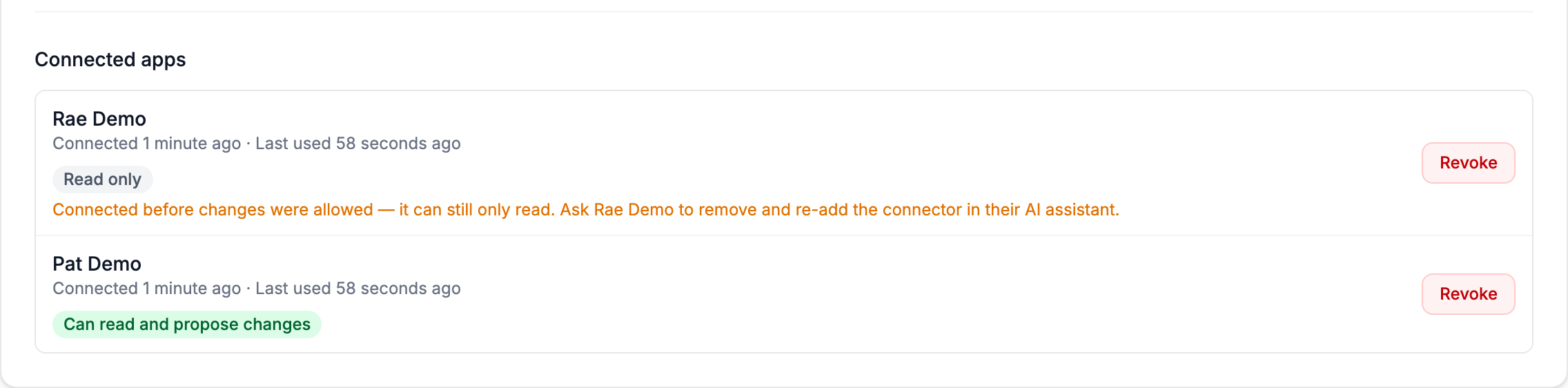
Revoke a connection
Click Revoke next to a connection and confirm "Revoke this connection? The app will lose access immediately." The assistant can no longer read or change anything; the page confirms with "Connection revoked." The person can connect again later if the connector is still on.
Revoke when someone's device is lost, when they change roles, or when you are simply not sure about a connection. To disconnect everyone at once, switch off Enable MCP for this church.
A connection also stops working by itself when the person leaves your church or their account is deactivated. When someone changes or resets their password, every connection of theirs is removed from the list at once; they connect their assistant again to keep using it.
Recent AI Changes
The card lists the latest 20 changes that were applied through an assistant: a one-line summary, who asked, how long ago, and Approved in chat when the person approved it in the chat. If there are none, it reads "No AI changes have been applied yet."
For changes that are still waiting for an administrator, see Pending approvals on the same card and Approving Changes an AI Assistant Proposes.
The AI Activity Page
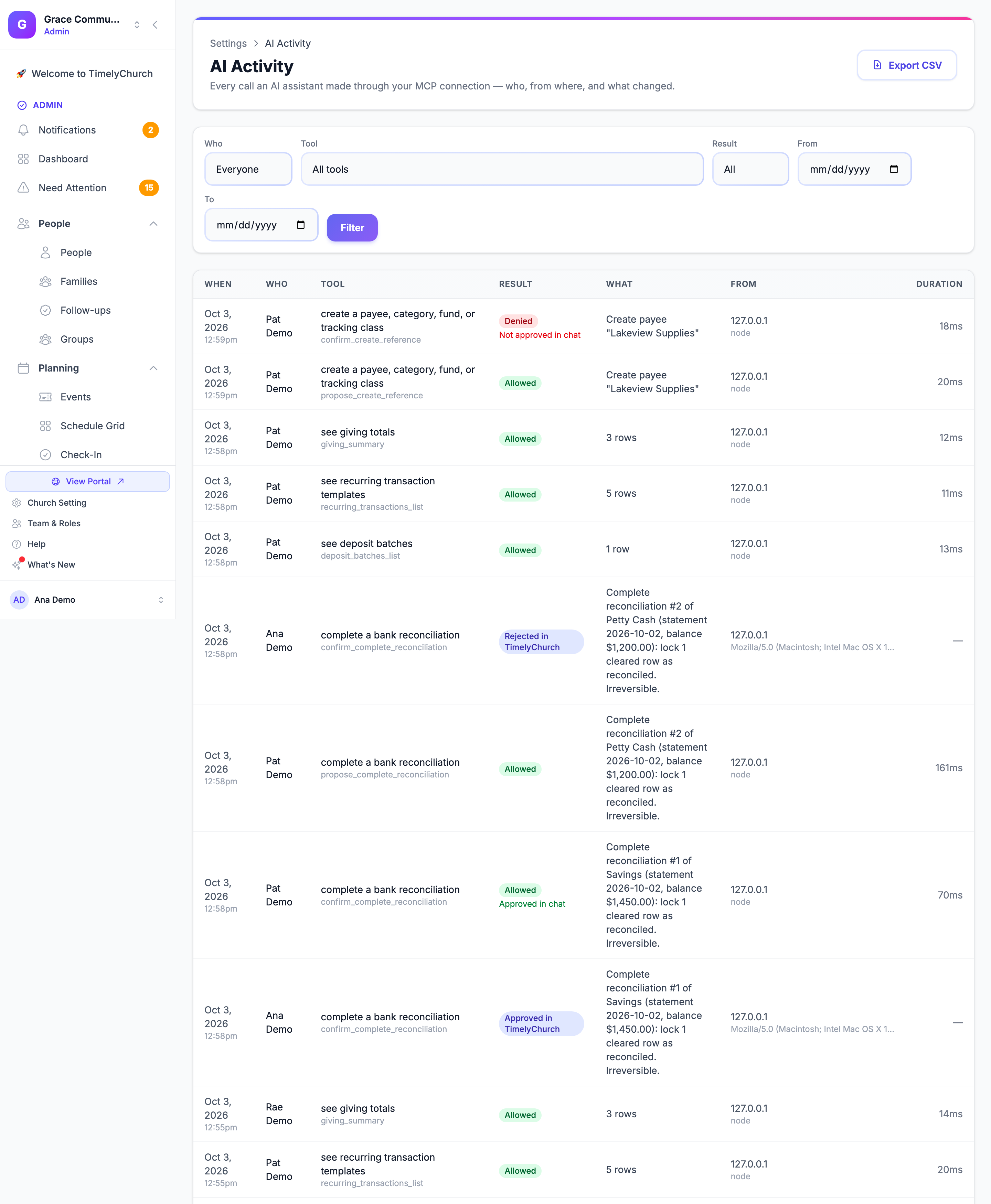
Click View AI activity at the top of the card. The page lists every request an AI assistant made through your church's connector -- look-ups as well as changes, allowed as well as refused. The link stays on the card after the connector is switched off, so the history remains available.
Each entry shows:
| Column | What it tells you |
|---|---|
| When | Date and time, in your church's time zone. |
| Who | The person whose assistant made the request. A person who has since left your church is still named. |
| Tool | What was asked for, in plain words ("pay vendor bills", "see the bank import review queue"), with its technical name underneath. |
| Result | Allowed or Denied. A denied entry carries a short reason (see the table below). An applied change shows Approved in chat when it was approved there. A decision made on the Pending approvals page shows Approved in TimelyChurch or Rejected in TimelyChurch, with (self, sole administrator) added when the only qualified person approved their own proposal. |
| What | For a change or a proposal, its summary. For a look-up, how many rows came back. |
| From | The internet address and the app the request came from. |
| Duration | How long it took. |
Narrow the list with Who, Tool, Result (All, Allowed, Denied), From and To. The list shows 50 entries per page, newest first.
Export CSV downloads the entries that match your filters, for your finance committee or an auditor.
Entries for changes and proposals are kept. Entries for plain look-ups are cleared after a retention period, and the summary of an old proposal may read "Details no longer available" -- the entry itself stays.
Tip: Changes made through an assistant also appear in the regular Audit Log with the values before and after, like changes made on the website.
Troubleshooting: Messages an Assistant Passes On
When TimelyChurch refuses a request, it tells the assistant why, and the assistant passes that on -- sometimes in its own words. The Result column of the AI Activity page shows the short reason.
Connecting and access
| The assistant says | On AI Activity | What it means and what to do |
|---|---|---|
| "You do not have permission to …" | No permission | The connected person's role does not include this. A church admin can change the role under Administration → Roles & Permissions; the assistant follows on its next request. |
| "This connection is read-only." | Read-only connection | The connection was made without permission to propose changes, usually before your church allowed them. Remove the connector in the assistant and add it again. |
| "This connection cannot read that." | Read-only connection | The person did not grant this area when connecting. Reconnect and authorize it. |
| "AI changes are switched off for this church." | Changes switched off | Allow AI tools to propose changes is off on the MCP Connector card. |
| "Your church's plan does not include …" | Not in church plan | That area is not part of your plan. See AI Assistant Permissions, Privacy and Plans. |
| The assistant cannot reach TimelyChurch at all | No longer a member, Account deactivated or Church deactivated (nothing is listed for a revoked connection) | The person left the church or was deactivated, the connection was revoked, or the connector was switched off. Reconnect once that is resolved. |
| The assistant stopped working right after a password change | Nothing is listed | Expected: changing or resetting a password disconnects every assistant connected to that account. Connect it again. |
Approvals
| The assistant says | On AI Activity | What it means and what to do |
|---|---|---|
| "Not applied: the person has not approved this change. …" | Not approved in chat | Reply Approve to the preview. |
| "Not applied: the person rejected this change, so nothing was changed. …" | Rejected in chat | You answered no. Ask for a new proposal if you want something different. |
| "Not applied: this change first needs approval by a church administrator in TimelyChurch. …" | Needs approval in TimelyChurch | An administrator approves it on the Pending approvals page; then reply Approve in the chat. |
| "Not applied: a church administrator rejected this change in TimelyChurch, so nothing was changed. …" | Rejected in TimelyChurch | Ask the administrator why (a reason may be shown under Recent decisions), then ask for a new proposal. |
| "Proposal not found or no longer valid." | The same sentence | The proposal expired (30 minutes, or 24 hours for one that needs website approval). Ask the assistant to propose it again. |
| "Records changed since proposed. Propose again." | The same sentence | Someone changed one of the records after the preview was made. Ask for a fresh proposal. |
Limits
| The assistant says | On AI Activity | What it means and what to do |
|---|---|---|
| "Too many change requests. Try again in a minute." | Rate limited | One connection can apply up to 10 changes a minute. Wait a moment. |
| "Too many proposals from this connection. Wait a minute, then propose again." | Rate limited | The assistant prepared proposals too quickly. Wait a moment. |
| "Too many proposals are waiting for approval (50). …" | Too many open proposals | Approve or reject the open previews, or wait for them to expire. |
| "Too many changes are already waiting for an administrator's approval in TimelyChurch (10). …" | Too many open proposals | An administrator decides the waiting ones on the Pending approvals page first. |
| "Daily limit for AI changes reached." | Daily limit reached | Your church applied 200 changes through AI assistants today. Continue tomorrow, or make the change in TimelyChurch directly. |
Your books said no
These are the same protections you meet on the website. The assistant names the row and the reason.
| On AI Activity | What it means |
|---|---|
| Closed fiscal year / Fiscal year closed | The date falls in a year you closed with Close Fiscal Year. |
| Inside a completed reconciliation | The date falls in a period you already reconciled for that account. A completed reconciliation cannot be reopened, so use a later date. |
| Difference is not zero | A reconciliation can be completed only at a difference of $0.00. |
| Uncleared rows block completion | Items dated on or before the statement date are still unchecked. |
| Reconciliation already in progress | Finish or cancel the open reconciliation of that account first. |
| Refund of a bill payment | An expense that is a bill's payment cannot be refunded. Void the bill payment instead. |
| Bill already paid / Payment exceeds amount due | Check the bill; void its payment first if it must be corrected. |
| Donor privacy / Not allowed at this level | The connected person's Giving level does not allow this. |
| Attachment limit reached, File too large, File type not allowed, File unavailable | A transaction holds up to 5 receipts; a receipt must be a PDF, JPEG, PNG or HEIC of 10 MB or less that the person can open in Drive. |
| Batch not closed / Batch already deposited | Only a closed batch can be marked deposited, and only once. Close it first, or check whether it was already deposited. |
| Gift already on another account | A gift in the batch was already recorded straight into a different bank account. Reopen the batch on the website and remove that gift, or deposit the batch to that account. |
| Gift not in the ledger | A gift in the batch has no entry in your books. Open the gift in Giving and save it again, then try again. |
| Gift already reconciled / Gift ticked in an open reconciliation | A gift in the batch is reconciled, or checked off in a reconciliation in progress, so it cannot be moved onto the bank account. Uncheck it in the reconciliation in progress first. |
| Recurring template paused / Occurrence already posted or skipped | Resume the recurring transaction first; or it was already posted or skipped for that date. |
| Not found in this church / Not found | The assistant used a name or number that does not exist in your church. It can look up the right one in your accounting lists. |
| Something went wrong | An unexpected error. Ask the assistant to try again; if it keeps happening, contact support. |