
Sermons and Livestream
Website Studio has three section types that surface video and sermon content on your public website: Livestream, Latest Sermon, and Sermon Archive. Together they cover everything from "we're live right now, watch with us" to "browse our last three years of teaching."
This guide covers how each section works, where the content comes from, and how they relate to the Sermons module elsewhere in TimelyChurch.
At a Glance
| Section | Purpose | Source |
|---|---|---|
| Livestream | Embeds a live video stream and an optional schedule for future streams. | URL or embed code you paste in (YouTube, Facebook, Vimeo, or custom). |
| Latest Sermon | A featured display of your most recent sermon with title, series, speaker, and a play button. | Pulled live from the Sermons module. |
| Sermon Archive | A searchable, filterable archive of all your sermons. | Pulled live from the Sermons module. |
Livestream Section
The Livestream section is for "we're live now" or "we're going live soon" moments. It is great for the Home page or a dedicated /live page.
Adding a Livestream Section
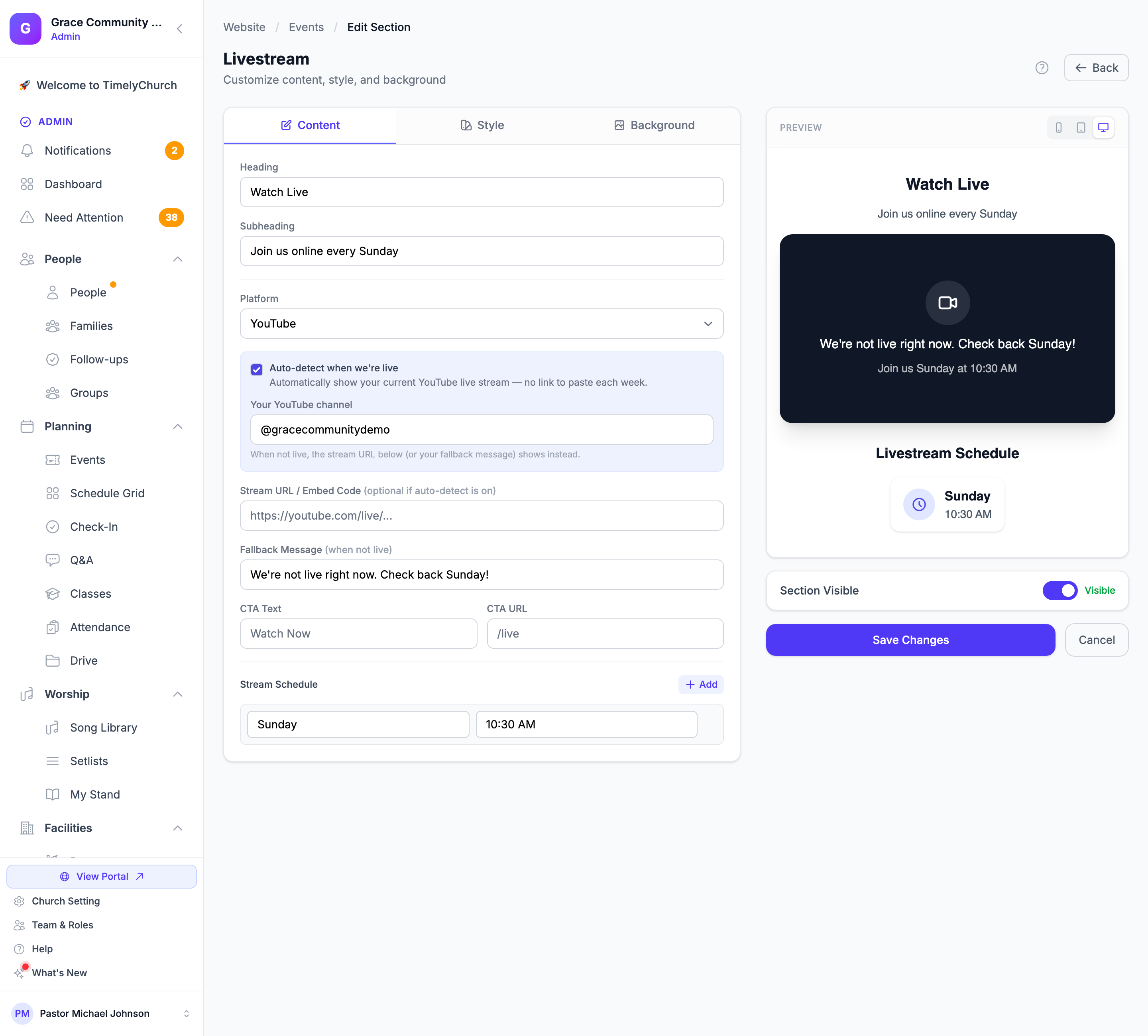
- Open a page in the editor.
- Click Add Section > Dynamic Content > Livestream.
- Click the edit icon on the new section to open the section editor.
Configuring the Stream Source
In the Livestream editor you'll find:
- Heading -- e.g., "Watch Live."
- Subheading -- e.g., "Join us live every Sunday at 9 AM."
- Platform -- Pick one of:
- YouTube -- Best for most churches. Paste either a watch URL (
https://youtube.com/watch?v=...), a live URL (https://youtube.com/live/...), or a channel-live URL. - Vimeo -- Paste a Vimeo video or live event URL.
- Facebook -- Paste a Facebook live URL.
- Custom -- Paste a raw embed code or an iframe-friendly URL from any other provider.
- YouTube -- Best for most churches. Paste either a watch URL (
- Stream URL / Embed Code -- The URL or embed code matching the platform you selected.
- Fallback Message -- Text shown when the stream is not currently live (e.g., "We're not live right now. Check back Sunday at 9 AM!").
- CTA Text + URL -- An optional call-to-action button (e.g., "Watch Past Sermons" →
/sermons).
Stream Schedule
Below the source fields, the Livestream editor has a Stream Schedule repeater where you can list upcoming stream times (day, time, label). The schedule is shown alongside the player on the public site so visitors know when to come back.
Best Practices for Livestream
- Test the URL before Sunday. Open your URL in an incognito window and confirm the embed plays.
- Keep the fallback message warm. When the stream is offline, the fallback is what visitors see -- make it inviting.
- Use the CTA button for archives. Most weeks visitors arrive between live streams. Send them somewhere useful.
Latest Sermon Section
The Latest Sermon section is a featured "watch the most recent message" block. It pulls automatically from the Sermons module, so it always shows your latest sermon without manual updates.
Adding a Latest Sermon Section
- Open a page in the editor.
- Click Add Section > Dynamic Content > Latest Sermon.
What the Editor Lets You Customize
- Heading -- e.g., "Latest Message."
- Subheading -- e.g., "Catch up on Sunday morning."
- CTA Text + URL -- e.g., "Browse All Sermons" →
/sermons.
The actual sermon content (title, speaker, series, thumbnail, video player) is pulled live from your Sermons module: the section always shows the published sermon with the most recent sermon date. To change which sermon appears here, publish a newer sermon (or correct the sermon dates) in Sermons.
Sermon Archive Section
The Sermon Archive is a full library experience for visitors who want to browse and search past messages.
Adding a Sermon Archive Section
- Open a page in the editor (often a dedicated "Sermons" or "Watch" page).
- Click Add Section > Dynamic Content > Sermon Archive.
What the Editor Lets You Customize
- Heading and Subheading.
- CTA Text + URL -- a fallback link, often unused on a dedicated archive page.
The archive itself includes built-in search, series filter, and speaker filter on the public site. All sermons published in the Sermons module appear here automatically.
Where Sermon Content Comes From
Sermons themselves -- titles, dates, speakers, video URLs, audio files, scriptures, transcripts -- are managed in the Sermons module, not in Website Studio's section editor. The website sections above are display layers; the data lives one level up.
To manage sermons (also reachable from Communications → Sermons in the sidebar):
- Sermons: Website Studio > Sermons.
- Sermon Series: Website Studio > Sermons > Series.
- Sermon Speakers: Website Studio > Sermons > Speakers.
- Podcast Settings: Website Studio > Sermons > Podcast.
Anything published in the Sermons module is immediately available to the Latest Sermon and Sermon Archive sections.
For the related worship-set workflow (planning songs, copyright reporting), see the Worship Songs module documentation.
Best Practices
- Use Livestream + Latest Sermon together on the Home page. Livestream catches "right now" visitors; Latest Sermon catches the rest.
- Keep series art consistent. A clean, branded series image makes the Latest Sermon and Archive look professional.
- Tag speakers and series. Filters in the Sermon Archive only work if your sermons are tagged.
- Publish weekly. Search engines reward fresh content -- a new sermon every week keeps your site indexed.
Next Steps
- Website Sections -- See how these sit alongside other section types
- SEO Settings -- Sermon content benefits from per-page SEO