
Event Volunteer Scheduling
When an event has the Volunteers capability turned on, the Serving tab on the event page becomes the hub for defining what volunteer positions you need and assigning people to fill them. This article covers the full workflow from adding positions through auto-fill, invitations, and reminders.
For broader volunteer management (qualifications, availability, teams) see the volunteer-management section.
Tip: To plan many weeks and people at once, invite, confirm, remind, and fill an entire rota visually from one screen, use the Schedule Grid. This article covers setting up a single event in detail; the Schedule Grid is the across-everyone view.
The Serving Tab at a Glance
The top of the Serving tab shows how many positions are filled, with counts of confirmed, pending, declined, and open slots. Switch between By team (positions grouped under each team) and Roster (a plain list of everyone assigned, with their position, team, and status).
The header buttons are Add position, Assign team, Auto-fill all, and a More actions menu with Copy from event, Confirm all pending, Send reminders, Select template, and Save as template.
Note: Team leaders who aren't administrators can only schedule positions for the teams they lead. Other teams' buttons are greyed out with "You can only schedule positions for a team you lead."
Adding Positions
A position is an open volunteer role for the event (e.g., "1 sound tech," "2 greeters," "3 nursery workers").
Adding a Position
- Open the event and click the Serving tab.
- Click Add position. The Add Volunteer Position dialog opens.
- Choose From Team and pick the Team and Position, or choose Custom and type a Position Name for a one-off role that doesn't fit your regular teams (e.g., "Face Painting").
- Enter How many needed?
- Optionally add Notes (optional) (e.g., "Need someone with the new soundboard training").
- Optionally tick Open for self sign-up so team members can sign themselves up, set a Sign-up deadline (optional), and choose whether to Require approval (if unchecked, sign-ups are auto-confirmed). See Volunteer Self Sign-Up.
- Click Add Position.
A team with no positions of its own shows no positions yet — use "Assign team" in the Position list.
Assign a Whole Team
If you have a serving team configured, you can add all of its positions to the event in one step:
- Click Assign team.
- In the Assign Serving Team window, choose the team under Select Team and, if the team has templates, pick a Template (or — Use all team positions instead —).
- Click Assign Team.
This adds the team's positions only. Nobody is assigned or notified yet. Assign people by hand, or use Auto-fill all when you're ready.
If the team has no positions yet, TimelyChurch adds one position named Volunteer to the team, puts it on the event, and tells you so in the confirmation message. You can rename it later under Groups → the team → Positions.
Editing or Removing a Position
Click the Edit position menu (⋯) on a position to:
- Change People needed and click Save capacity.
- Send fill request: invite several people at once; the first to claim wins. See Fill Requests: Offer Open Spots, First to Claim Wins.
- Turn Open for sign-ups on or off.
- Remove position from this event.
Assigning Volunteers
Assigning One Person
- On a position, click Assign. The Find Volunteers window opens.
- Browse Team Members (people on that team) or switch to All People and search by name, email, or phone.
- Candidates are grouped to help you choose:
- Suggested (rotate in): people who haven't served recently, with how often they've served this month.
- Recent (served recently): people who have served lately.
- Conflicts: people already serving at an overlapping time. Click Assign anyway if it's fine (you'll see Schedule anyway? first).
- Unavailable: people who marked this date (or a recurring pattern covering it) as unavailable.
- Click Assign next to the person. Click Done when finished.
New assignments start as Pending until the volunteer answers, unless the team confirms assignments automatically (Groups → the team → Details → Auto-confirm assignments (skip pending status)). Then the person you assign starts as Confirmed and is told they're scheduled, with nothing to answer. A position's Require approval setting does not change this: it only decides whether volunteers who sign themselves up need approving.
A volunteer already scheduled for a genuinely overlapping time elsewhere shows up under Conflicts with the reason. See Two Services on the Same Day for how this tells a real double-booking apart from simply serving at more than one service in the same day.
Managing an Assignment
Each assigned person's row shows their status and small action buttons:
- Confirm: mark a pending person as confirmed (for example, when they told you in person).
- Ask again (pending) or Remind (confirmed): send them another message about this date.
- Remove: take them off the position.
- Call and Message on Telegram: contact them directly (shown when they have a phone number or have linked Telegram).
A warning icon marks a Scheduling conflict (double-booked elsewhere).
Auto-Fill
TimelyChurch can pick the best available volunteer for each open slot automatically. It considers qualifications, availability for the event date, and how recently and often each person has served (so the same volunteer is not asked every week). It also honors recurring unavailability. If someone has said they're never free on a given weekday, auto-fill and the Find Volunteers window both skip them, the same as a one-time unavailable date.
- One position: click Auto (Auto-fill best candidate) on the position.
- The whole event: click Auto-fill all at the top of the Serving tab.
Auto-filled people start as Pending unless the team is set to auto-confirm.
Tip: For series-wide auto-fill that fills every event in a recurring series at once, see Auto-Fill All Events in Managing Event Series.
Quick Actions
The More actions menu speeds up common patterns.
Copy Volunteers From a Similar Event
If last week's worship service had a great team, just clone it:
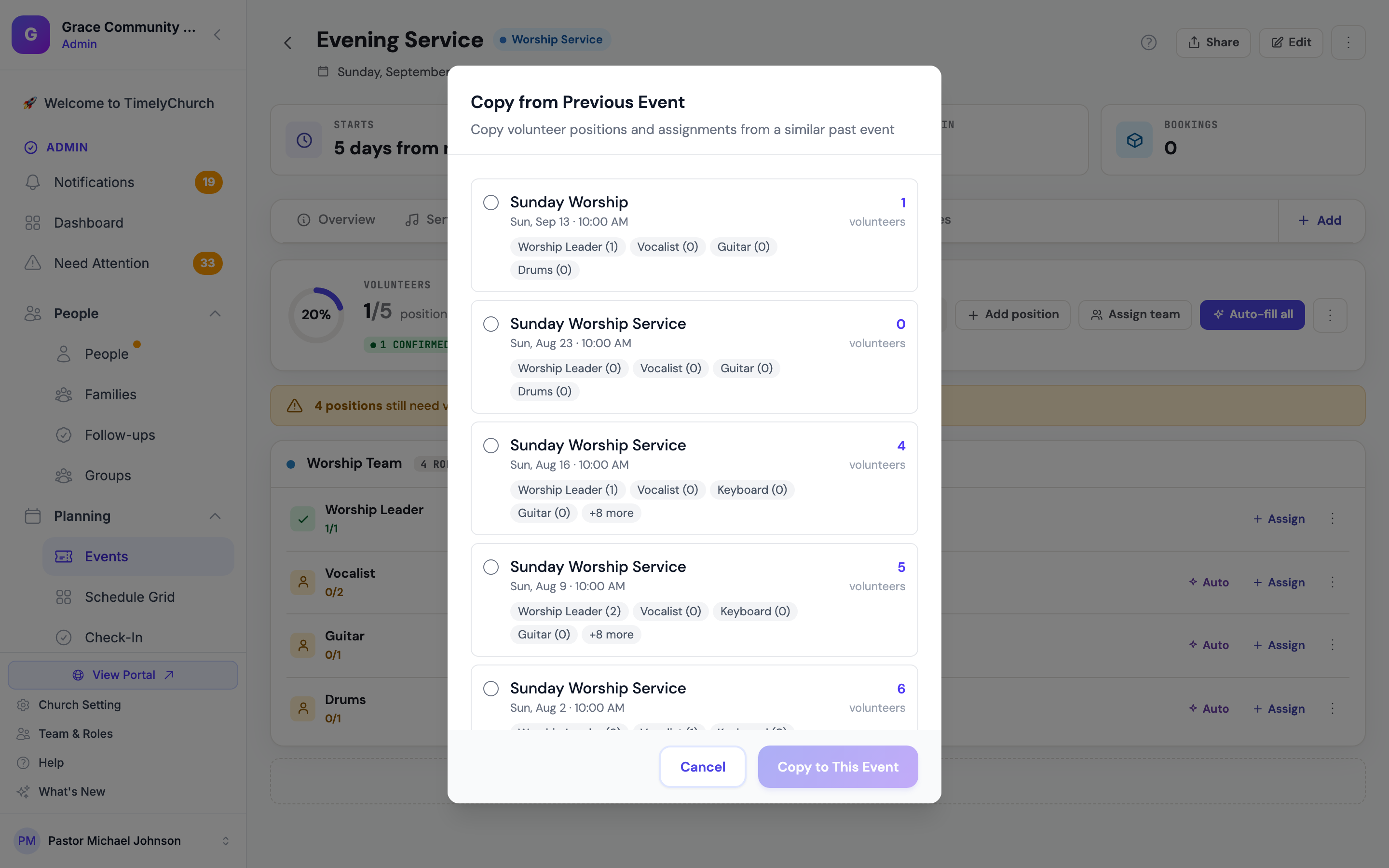
- Open More actions and click Copy from event. The Copy from Previous Event window lists past events of the same type that had volunteers. Each shows its date and time, so if your church runs more than one service a day you can tell them apart. If the event you're copying to has another service that same day, it's offered right alongside the others.
- Pick the event to copy from.
- Choose whether to Copy volunteer assignments (not just positions) and whether to Send notifications to assigned volunteers. Volunteers marked as unavailable on this date are skipped automatically.
- Click Copy to This Event.
Confirm All Pending
After auto-fill places people as Pending, Confirm all pending sets them all to Confirmed without clicking each one.
Serving Templates
- Save as template saves this event's positions (and how many of each, not the people) as a reusable serving template.
- Select template opens Apply Serving Template so you can add a saved set of positions to this event with Apply to This Event.
Saved serving templates are listed on the Templates page. See Event Series Templates.
When Volunteers Hear About It
Assigning someone doesn't always message them straight away. Each team decides how far ahead its people are told, under Groups → the team → Details → Scheduling Settings → When people are told they are scheduled → Tell them this many days before they serve (default 30 days).
- If the event is within that window, the volunteer is told right away.
- If it's further out, the "you have been scheduled" message is held and sent in the morning (about 9 AM church time) on the day the event comes within range. You can plan a whole term or year at once and nobody is bothered until their turn is close.
- Set it to 0 to always tell people the moment you schedule them.
Volunteers who have linked Telegram get the message on Telegram with Yes, I can, Not this time, and Remind me before… buttons; everyone else gets a "Serving Request" email with Accept and Decline buttons. A volunteer whose assignment is already Confirmed (the team confirms automatically) gets a "you're scheduled" message instead, "You're confirmed — no need to reply.", with no buttons. See Volunteer Notifications.
Sending Volunteer Reminders
Manual Reminders
Open More actions and click Send reminders to remind every confirmed volunteer for this event right now.
Automatic Reminders
TimelyChurch also reminds volunteers automatically, both Pending and Confirmed, once, in the evening (6 PM church time) on each team's reminder day. Each team sets this under Scheduling Settings:
- Send serving reminders to this team: turn automatic reminders on or off for the team.
- Send the reminder this many days before: default 2. When it's 2 or more, people also get one final reminder the day before.
Reminders go by Telegram if the volunteer has linked it, otherwise by email.
Email Action Links
Invitation and reminder emails include Accept and Decline buttons. The volunteer can answer directly from the email without signing in. The link is secure and tied to that one assignment.
When Someone Declines
When a volunteer declines, the team's leaders are told (or your church admins, if the team has no leader). What happens next depends on the team's settings:
- If Auto-pick replacement when someone declines is on, the next person in rotation is invited automatically.
- Otherwise, find a replacement yourself: Assign someone, use Send fill request on the position, or, from Telegram, tap Find a sub or Re-invite on the decline message.
See Cascade Auto-Fill, Sub Invites, and Out-of-Office Badges and Substitute Requests.
Team Schedule Templates
If a serving team has a schedule template, it can load all the standard positions onto an event in one step. Set this up at:
- The Templates tab of the team (Groups > [Team] > Templates).
- Apply automatically: configure the template's auto-apply to event types rule (e.g., "Worship"), and every new event of that type arrives with the template's positions pre-loaded, no manual step needed. There is no template picker in the Create event drawer; templates apply by event type.
- Apply to one event: on the event's Serving tab, click Assign team and choose the team's Template, or use More actions → Select template for a saved serving template.
This auto-apply behavior is the single biggest time-saver in volunteer scheduling. For the full setup walkthrough, see Team Schedule Templates. For the full mental model, see How Volunteer Scheduling Is Organized.
Per-Event Serving Workflow Summary
A typical worship-service flow:
- Create the event (or generate it from a series); team templates add the positions.
- Click Auto-fill all to place the best available people.
- Review the picks; swap any that look off with Remove and Assign.
- Click Confirm all pending if you've already agreed the rota with people, or let volunteers accept for themselves.
- Volunteers hear about it when the date comes within their team's notice window, and get an automatic reminder before the day (or click Send reminders any time).
- Volunteers click Accept or Decline; declines work as described above.