
Creating a Q&A Session
Getting Started
To create a new Live Q&A session:
- Sign in to your admin portal.
- Open Q&A from the sidebar navigation.
- The Q&A list page shows all existing sessions for your church.
- Click the New Q&A Session button in the top-right corner.
Live Q&A is its own feature on your plan. The Q&A area is available only when your plan includes the Live Q&A feature -- if your plan does not, the Q&A entry in the sidebar appears grayed out with a lock icon and leads to the upgrade page.
Q&A has its own set of permissions, separate from any other module. To create, edit, delete, or moderate sessions, a team member's role needs the matching Q&A Sessions permissions (view, create, edit, delete, moderate). Having permission to manage Events does not, by itself, grant access to Q&A.
If you have reached your plan's session limit, you will see a prompt to upgrade instead. Your current usage (for example, "2 / 3 sessions used") is displayed at the top of the sessions list.
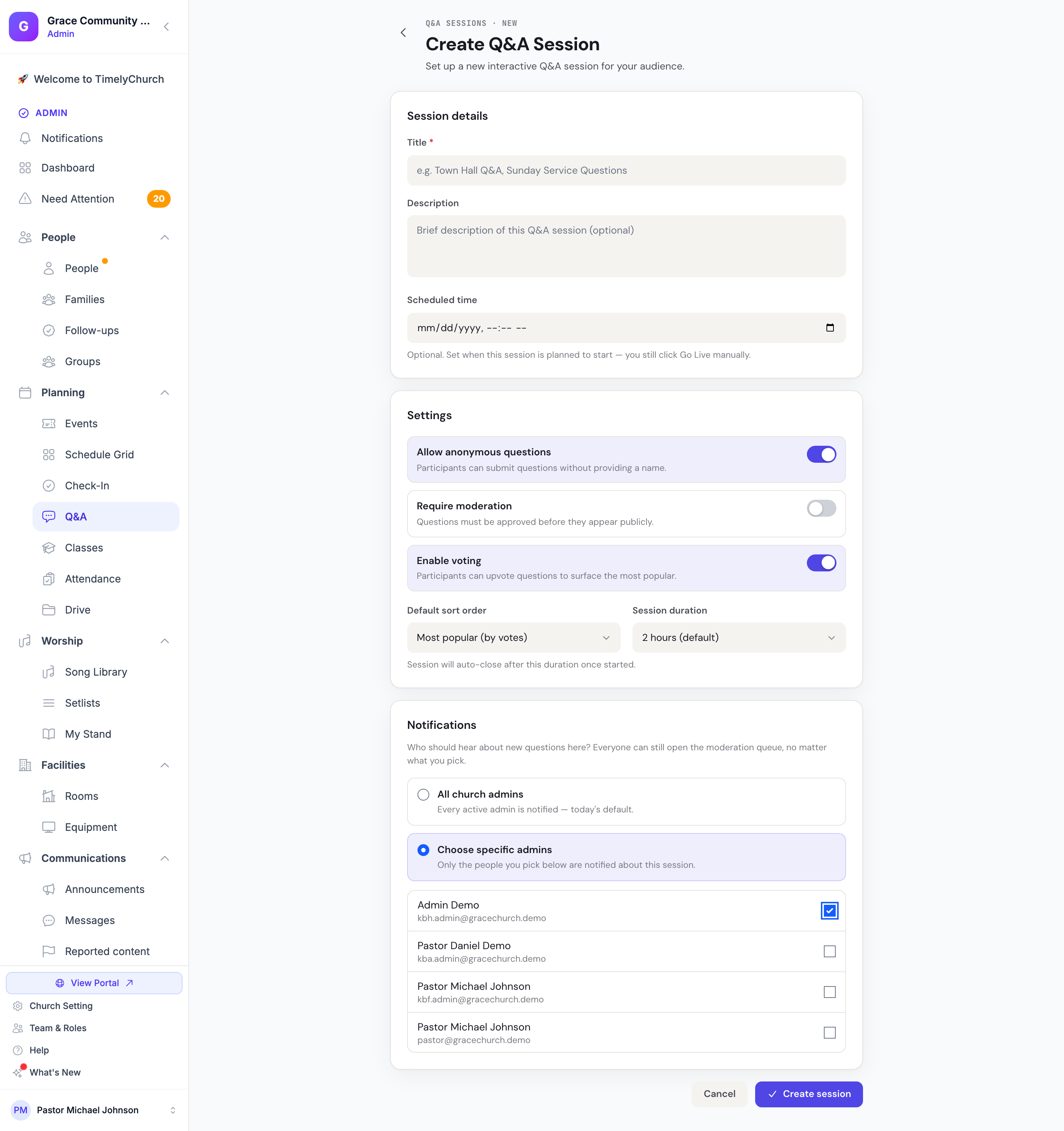
The form opens on the Create Q&A Session page ("Set up a new interactive Q&A session for your audience.").
Session Details
Title (Required)
Give your session a clear, descriptive title. This title is displayed to participants in the header of their view and on the display screen.
Examples:
- "Sunday Service Q&A"
- "Bible Study: Book of Romans"
- "Town Hall -- January 2026"
Description (Optional)
Add an optional description of up to 2,000 characters to provide context for participants. This appears in the admin dashboard for your reference.
Scheduled Time (Optional)
Set a date and time for when the session is planned to start. This is informational and does not automatically start or stop the session ("Optional. Set when this session is planned to start — you still click Go Live manually.").
Settings
Allow Anonymous Questions
Default: Enabled
When enabled, participants can submit questions without entering their name. When disabled, participants must provide their name before submitting.
For sensitive topics or town hall settings, consider requiring names to encourage accountability. For casual Sunday Q&A, anonymous mode encourages broader participation.
Require Moderation
Default: Disabled
When enabled, every submitted question goes into a "Pending" queue and must be approved by the host before it becomes visible to other participants. When disabled, questions appear immediately.
Enable moderation for large audiences or sensitive topics where you want to screen questions before they are shown publicly. For small group settings, leaving moderation off keeps things moving.
Enable Voting
Default: Enabled
When enabled, participants can upvote questions they find interesting. This helps surface the most popular topics. Voting works as a toggle -- tap once to upvote, tap again to remove your vote.
Default Sort Order
Controls how questions are ordered for participants:
| Sort Mode | Behavior |
|---|---|
| Most Popular (default) | Questions with the most votes appear first. Pinned and highlighted questions always appear at the top. |
| Most Recent | Newest questions appear first. |
| Manual Order | Questions are displayed in a custom order set by the host. |
Session Duration
Default: 2 hours
Sets how long the session will stay active after it is started. The countdown begins when you click Go Live -- time spent in "Collecting" before that doesn't count. Available durations range from 30 minutes to 12 hours:
- 30 minutes
- 1 hour
- 2 hours (default)
- 3 hours
- 4 hours
- 6 hours
- 8 hours
- 10 hours
- 12 hours
When the duration expires, the session automatically closes. The host can add time from the host panel with the +15 and +30 buttons next to the countdown if more time is needed (see Using the Host Panel).
Choose a duration slightly longer than you expect to need. The session can always be closed early, and the host can extend it if the conversation runs long.
Notifications
The Notifications card asks: "Who should hear about new questions here? Everyone can still open the moderation queue, no matter what you pick."
- All church admins -- "Every active admin is notified — today's default."
- Choose specific admins -- "Only the people you pick below are notified about this session." Tick the admins who are working this session.
Your choice covers all three ways of being told about a new question: the in-app notification (the bell), web push, and email. Anyone left off the list hears nothing about this session, but can still open the moderation queue. Only active church admins can be picked.
Email is paced so a busy session doesn't flood inboxes: the first question of a session is emailed right away, and every question after that arrives in a digest -- at most one every 10 minutes per person, listing every question since their last email. The in-app notification and web push are not paced; they arrive for every question.
You can change this later on the session's Settings tab.
Linking to an Event
You can create a Q&A session linked to a specific church event. When you create the session from within an event page, the event will be automatically linked. The session title defaults to "Q&A: [Event Title]" and the event name is shown on the session dashboard.
To link a session to an event:
- Navigate to the event in your Events section.
- Look for the option to create a Q&A session from the event page.
Alternatively, standalone sessions (not linked to any event) work just as well for general-purpose Q&A.
After Creating the Session
Once you click Create session, you are taken to the session page where you can:
- See the Join Code (8 characters, with easily-confused characters automatically removed -- the digits
0and1, and the lettersO,I, andL, are each swapped out, so a join code never contains any of those five) and QR Code for sharing with participants - View the Host PIN for moderator access
- Change session settings at any time on the Settings tab
- Control the session status (Start Collecting, Go Live, Pause, Close Session)
- Use the Overview, Questions, Polls, and Settings tabs
- Open the Host Panel, the public Display View, and a participant preview
The session starts in Draft status. Participants who join early will see a "Waiting for session to begin" message until you change the status.
Inviting Participants and Hosts
The session page gives you several ways to hand out the session:
- Invite participants -- Click Send invite and choose Email invite (opens your email app with the join details), Text message (opens your phone's messaging app), Copy text invite, or Download QR.
- Share -- Opens Share Q&A session with a short link, the full join link, and social sharing buttons (also reachable from Short link + social…).
- Join link -- The attendee-facing link, with a Copy button.
- QR code to join -- "Scan to join", for slides or printed handouts.
- Host PIN -- Admin only. Reveal PIN to see it, or Copy host PIN. "Share only with the person running the session. Required to open the Host Panel."
- Host panel link & regenerate -- The Host panel URL and Copy host invite (panel link + PIN), plus Regenerate code (a new join code; existing links and the current QR stop working) and Regenerate PIN (the current PIN stops working).
Next: Using the Host Panel