
Event Series Templates
The Templates page is where you set up the reusable building blocks your church relies on week after week — service-day blueprints, event series patterns, service plans, and volunteer role sets — so you build them once and reuse them instead of starting from scratch every time.
Opening the Templates Page
- Navigate to Events in the sidebar.
- Open the ⋮ More menu at the top right of the Events page and click Templates. You can also reach it from the Templates tab in the planning tab strip (Series · Schedule Grid · Templates).
The page ("Build something once, reuse it every week.") shows every kind of template in its own section.
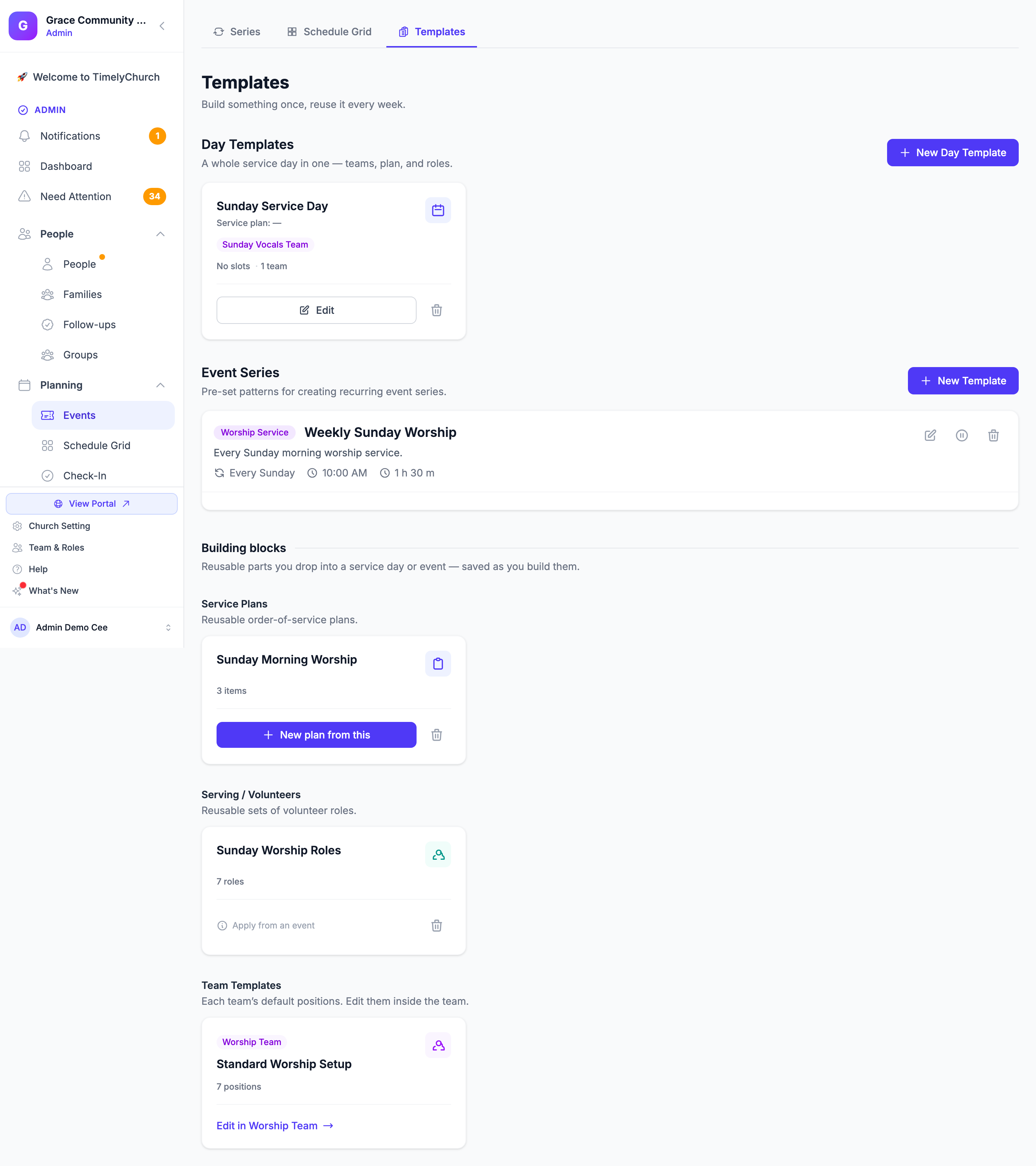
The Five Sections
| Section | What it holds | Where you use it |
|---|---|---|
| Day Templates | A whole service day in one — the teams, the service plan, and any extra roles. | Chosen on an Event Series (Edit → Serving Setup → Use a Day Template). |
| Event Series | Pre-set patterns for creating recurring event series: recurrence, start time, duration, and type. | Picked from Start from a template (optional) when you create an Event Series. |
| Service Plans | Reusable order-of-service plans. | New plan from this starts a new service plan from the saved order. |
| Serving / Volunteers | Reusable sets of volunteer roles and how many of each are needed. | Applied from an event's Serving tab. |
| Team Templates | Each team's default positions. | Maintained inside each team; shown here with a link back to the team. |
Service Plans and Serving / Volunteers appear together under Building blocks — reusable parts you drop into a service day or event, saved as you build them.
Day Templates
A Day Template is a blueprint for a whole service day. It combines the teams that serve, the service plan the day usually runs, and any one-off roles, so a complete day can be set up in one step instead of piece by piece every week.
Each card shows the linked Service plan, the teams involved (as colored labels), and a count of slots and teams.
Creating a Day Template
- In the Day Templates section, click New Day Template (or Create one when the section is empty).
- Under Day Details, enter a Day Template Name (for example, "Sunday Service") and an optional Description.
- Optionally choose a Service Plan — the order of service this day usually runs.
- Under Teams Involved, tick the teams that serve on this day. Each team brings its default positions (its team template).
- Under Extra Positions, click Add Position for any one-off role the day needs beyond those teams (for example, Choir Director), and set how many are Needed.
- Click Save Day Template.
Use Edit on a card to change a Day Template, or Delete to remove it.
Using a Day Template
Open an Event Series, click Edit, and under Serving Setup choose it in Use a Day Template. Each occurrence then uses the Day Template's positions and service plan. While a Day Template is selected, the series' own manual positions are ignored. See Managing Event Series.
Event Series Templates
An Event Series template saves the setup of a recurring series so you don't retype the same details each time.
What an Event Series Template Includes
| Field | Description |
|---|---|
| Template Name | A descriptive name (e.g., "Sunday Worship Template" or "Wednesday Bible Study"). |
| Description | An optional note on when to use the template. |
| Event Type | Worship Service, Class/Study, Meeting, or Event. |
| Default Recurrence | One of the recurrence presets (e.g., "Every Sunday" or "First Monday of month"). |
| Default Start Time | The typical start time for series made from this template. |
| Default Duration (minutes) | How long each event lasts. |
| Active | "Template is available for use." |
Creating an Event Series Template
- In the Event Series section, click New Template.
- On the Create Event Template page, enter the Template Name, optional Description, and Event Type.
- Under Default Settings, pick a Default Recurrence preset and set the Default Start Time and Default Duration (minutes).
- Leave Active checked so the template can be used.
- Click Create Template.
Suggested Starter Templates
These are the three patterns most churches set up first. The Event Series section starts empty — use this table as a guide.
| Template Idea | Event Type | Recurrence | Typical Start Time | Typical Duration |
|---|---|---|---|---|
| Sunday Worship | Worship Service | Every Sunday | 10:00 AM | 90 minutes |
| Wednesday Bible Study | Class/Study | Every Wednesday | 7:00 PM | 60 minutes |
| Monthly Board Meeting | Meeting | First Monday of month | 7:00 PM | 120 minutes |
Tip: TimelyChurch does not create templates for new churches automatically. Click New Template to add the patterns your church actually needs.
Using an Event Series Template
When you create a new Event Series, choose a template in Start from a template (optional) at the top of the form. It prefills the title, description, event type, start time, duration, and recurrence; you can edit anything afterwards. For a full walkthrough, see Creating an Event Series With a Template.
Editing, Deactivating, and Deleting
- Edit opens the template so you can change its fields; click Update Template to save. Editing a template does not affect series already created from it — templates only shape new series.
- Deactivate hides a template from the list when creating new series without deleting it; Activate brings it back. Inactive templates show an Inactive badge.
- Delete removes the template after you confirm. Series created from it are not affected.
Service Plan Templates
A Service Plans template saves an order of service so you can start a new plan from it instead of rebuilding the item list each week.
- Save one from an event's Service Plan tab with Save as template; it then appears in this section.
- Each card shows the service type and a count of items.
- Click New plan from this to create a new service plan preloaded with the saved order, or Delete to remove the template.
Serving / Volunteer Templates
A Serving / Volunteers template is a reusable set of volunteer roles and how many of each a service needs. It saves which positions are needed — not the people assigned.
- Save one from an event's Serving tab: open More actions and click Save as template.
- Apply one from an event's Serving tab: More actions → Select template, pick the template, and click Apply to This Event. Its roles are added as serving positions on that event.
- Each card shows a count of roles. Applying is done from the event ("Apply from an event"), not from this page.
Team Templates
Team Templates are the default positions each team brings to a service. They are kept on each team and listed here so you can see them all at once.
- Each card shows the team it belongs to and a count of positions.
- Use Edit in [team] to jump to the team and change the template there.
For the team-side setup, see Team Schedule Templates.