
Getting Help and Chatting with Sam
Stuck on something, or just not sure where a setting lives? Help is built into every page of TimelyChurch. Once you are signed in, a Help button sits in the bottom-right corner of the screen. It opens a private chat with Sam, TimelyChurch's AI support assistant, and it links to the Help Center and to our support team.
This works the same way for church admins, team members and members signed in to the Member Portal.
Three Ways to Get Help
| Where | Best for |
|---|---|
| Sam (the Help button) | Quick "how do I…?" and "where is…?" questions, any time of day |
| Help Center | Step-by-step articles like this one, with screenshots |
| Contact support | Anything Sam can't sort out, or anything about your account that needs a person |
All three are in the Help panel, so you never have to go looking.
Ask Sam a Question
- Click Help in the bottom-right corner of any page. (On a phone, it sits just above the bottom menu.)
- The Sam · Support panel opens and greets you by name: "Hi Anna. How can I help?"
- Type your question in the box at the bottom and press Enter -- or tap one of the starter questions, such as How do I invite my team? or Where can I manage my subscription?, to put it in the box for you.
There is no form to fill in. As the panel says: "We already know who you are, so you can get straight to your question." Sam knows who is signed in and which church you are in.
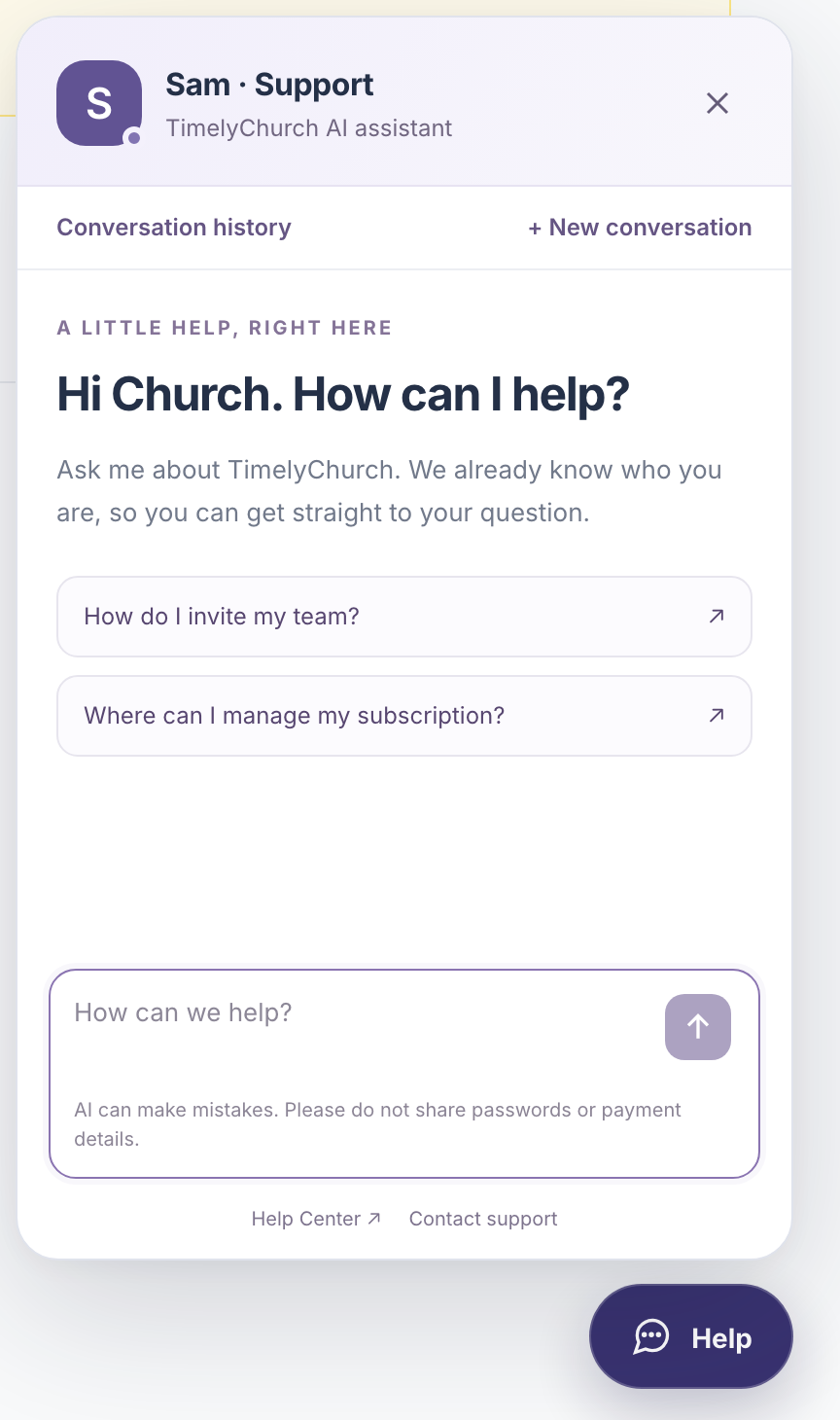
Please don't share passwords or payment details in the chat. As the note under the message box says: "AI can make mistakes." If an answer doesn't look right, check the Help Center or contact support.
While Sam is working
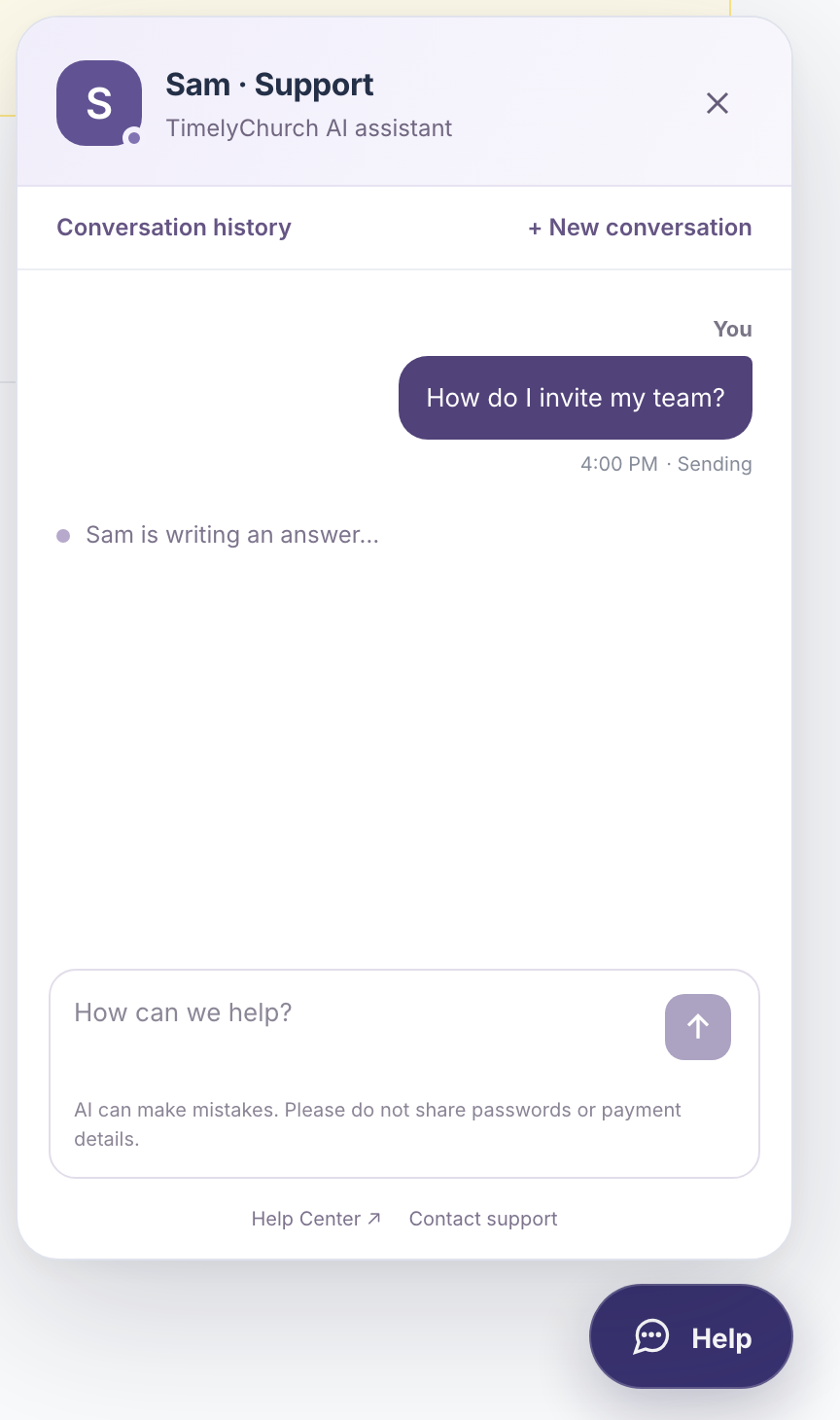
Sam takes a little time to look things up, usually under a minute. The line under your message tells you where things stand:
- Sending to Sam…
- Sam is reading your question…
- Sam is writing an answer…
- Still working — Sam usually answers within a minute…
- Taking longer than usual. Sam is still working on it…
You can send your next message once Sam has replied. If you try sooner, you'll see "Please wait for Sam to reply before sending another message."
If there's no reply
- "No reply yet. You can retry or contact support." -- click Retry message to send the same question again.
- "Sam is temporarily unavailable. Please use the Help Center or contact support." -- Sam is offline for the moment. The Help Center and support team are still there.
- "Unable to connect. Please try again." -- check your internet connection, then click Try again.
- "Your session changed. Reload this page to continue." -- you were signed out, or signed in somewhere else. Click Reload page.
Your Conversation History
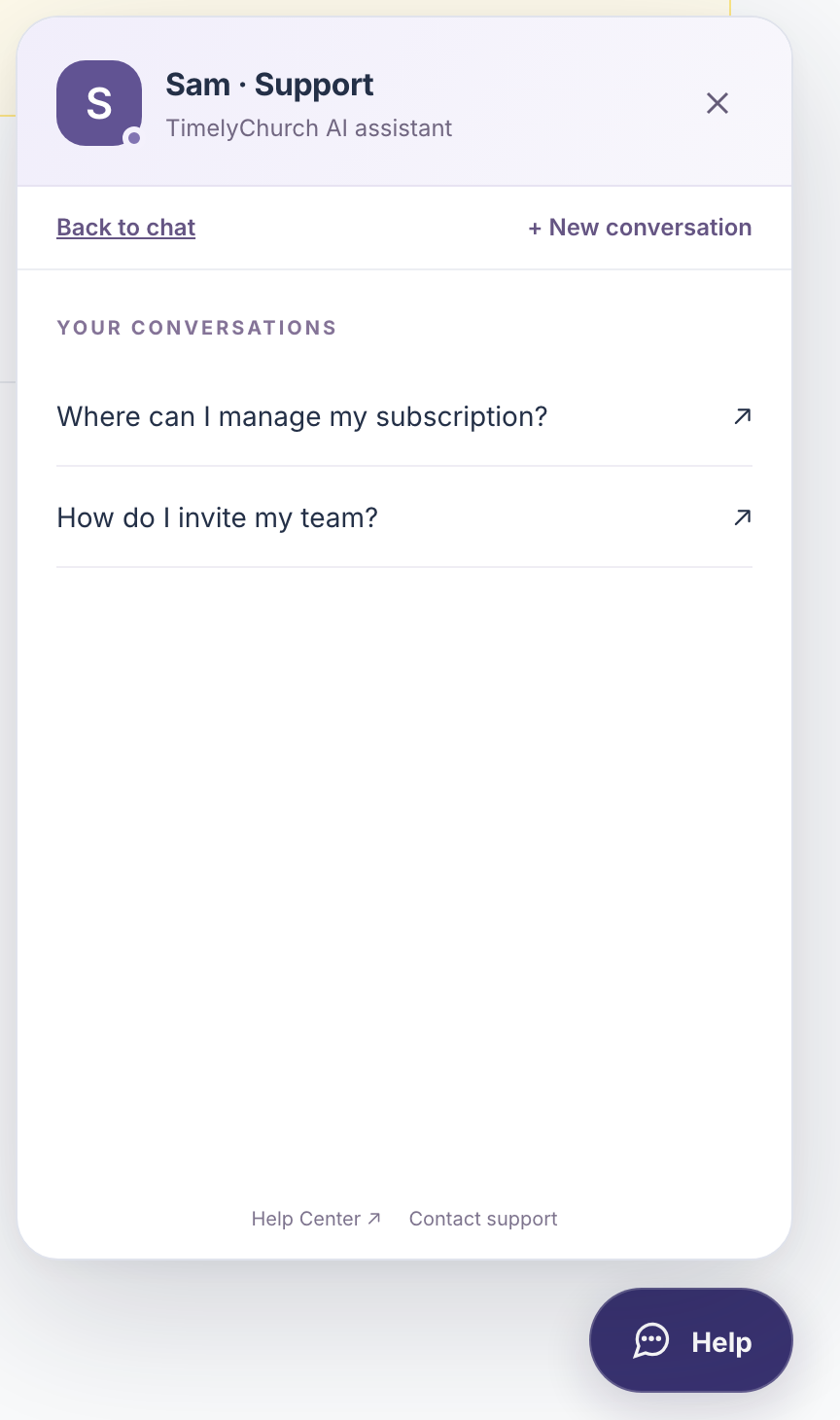
Click Conversation history at the top of the panel to see Your conversations. Click any one to pick up where you left off, or Load more to see older ones. Click Back to chat to return, or + New conversation to start fresh on a new topic.
Your conversations are private to you. Other people at your church can't see them, and each church you belong to keeps its own history.
A single conversation can hold up to 200 messages. If you reach that, you'll see "Please start a new conversation to continue." Each message can be up to 4,000 characters.
When You Need a Person
If Sam thinks a person should take a look, the answer ends with "Need more help? Contact our support team below." At the bottom of the panel:
- Contact support opens your email app with a new message to [email protected].
- Help Center opens the Help Center in a new tab.
Sam is here to help you use TimelyChurch -- how things work and where to find them.