
Unclaimed Children Alerts
TimelyChurch watches for children who are still checked in when they should have been picked up, in two ways:
- The Need Attention dashboard. When a child has been checked in for longer than the threshold you set, the child is listed as "unclaimed," with the session they belong to, how long they have been checked in, and a Check Out action.
- Staff alerts. When a child is still checked in after their session has ended, TimelyChurch notifies the staff you choose. See Staff Alerts below.
This is a safety workflow. Read it in full so you know how to respond when children appear on the list.
When Does a Child Become "Unclaimed"?
A child is added to the unclaimed list when all of these are true:
- The child is currently checked in (no check-out has been recorded).
- The child's check-in is a child check-in (not a volunteer or general check-in).
- The check-in belongs to a session that is still active (not yet ended).
- The child has been checked in longer than your unclaimed-children threshold, a number of hours you configure (3 hours by default).
The threshold is a simple "hours since check-in" value, set on the Need Attention dashboard. Any child who was checked in longer ago than the threshold shows up. You do not need to set an end time on each session for this to work.
The threshold is configurable. If your services run long and 3 hours produces false alarms, raise it; if your children's program is short and you want earlier warnings, lower it. The allowed range is 1 to 24 hours. See "Configuration Tips" below for where to change it.
Accessing the Unclaimed List
- Open Need Attention from the left sidebar.
- Scroll to the System items. Unclaimed children appear under a red Unclaimed Children heading with a count, e.g. "Unclaimed Children (2)."
- The dashboard refreshes as children are checked out, so a child who is picked up drops off the list shortly after their checkout is recorded.
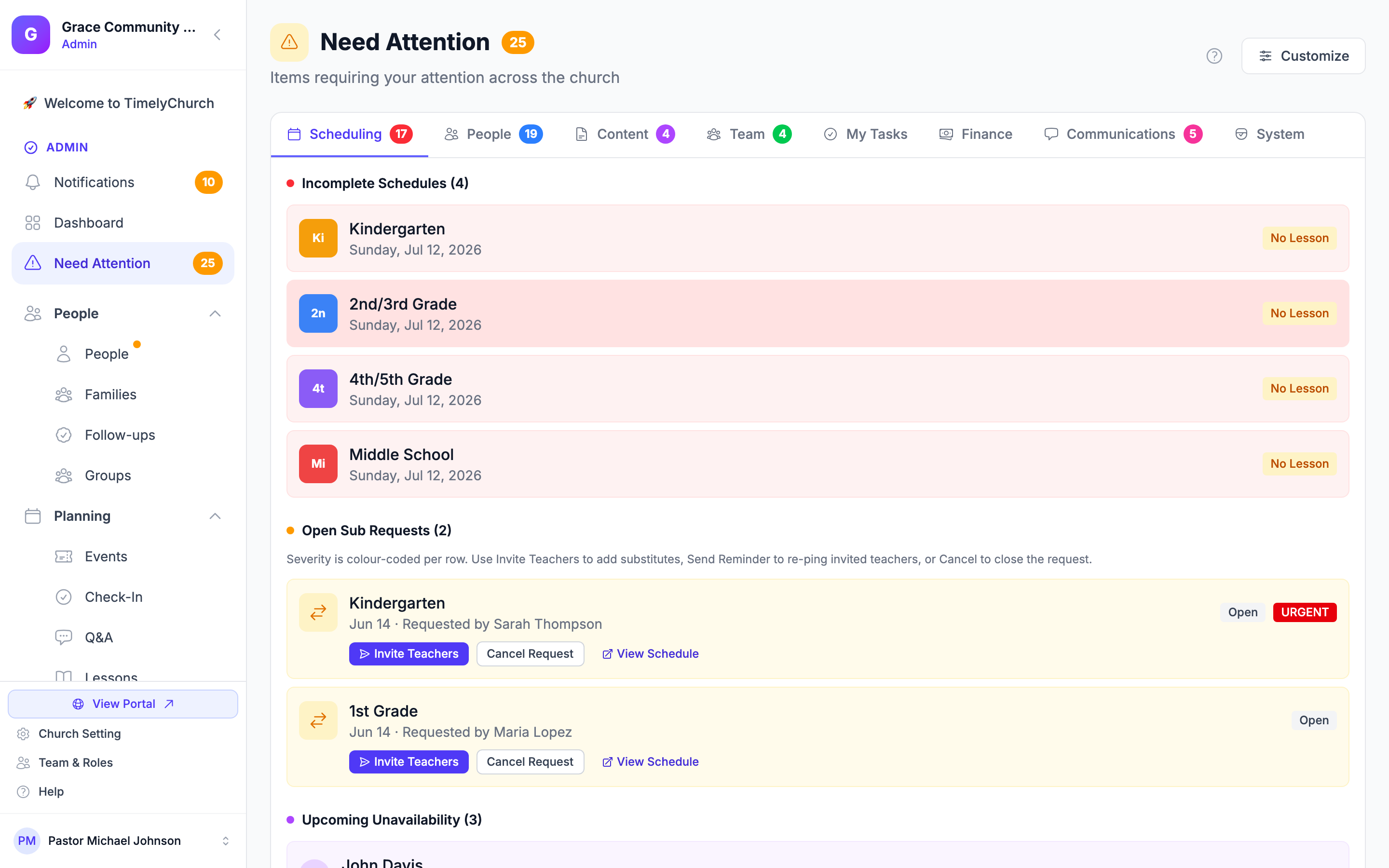
If no children are past the threshold, the Unclaimed Children section does not appear. When every item on the dashboard is clear, you see the "All caught up!" empty state instead.
What the Alert Shows
Each unclaimed child appears as a card with a Check Out button. The card shows:
| Field | What it tells you |
|---|---|
| Name | The child's full name. |
| Session | Which check-in session they belong to. |
| Checked-in time | A plain-language summary of how long ago they were checked in (e.g., "Checked in 3 hours ago"), with an hours-elapsed badge. |
| Check Out action | A red Check Out button that releases the child from the system once they have been collected. |
The card is intentionally compact. It is an at-a-glance safety prompt, not a full family record. To see the child's security code, allergies, room, and authorized pickup contacts, open the child's record (or the session roster) in the Check-In module, where that information lives.
Who Sees the Alert
Anyone with access to the Need Attention dashboard and the Check-In Use permission sees the Unclaimed Children section. In practice, the people who should be watching it are:
- The children's ministry lead for the service.
- Any hall monitor assigned to the children's area.
- The on-call administrator during service hours.
Some churches keep the Need Attention dashboard open on a dedicated tablet at the children's check-in desk during the second half of the service. That way, an unclaimed child surfaces the moment they cross the threshold.
Recommended Response Workflow
When a child appears on the unclaimed list, here is a recommended response. Adapt it to your church's safety plan.
1. Confirm the Child Is Still There
Walk to the room and confirm the child is physically present. Sometimes a child has been informally handed off to a parent without the volunteer scanning them out; in that case, the immediate fix is to perform the checkout in the system and clear the alert. (Coach volunteers to check every child out going forward.)
2. Locate the Family
- Page the family by name if you have a paging system.
- Walk the lobby or fellowship hall and look for parents matching the family last name.
- If your church has a children's pickup area near a designated door, check it.
3. Contact the Parents
If the family is not found within a few minutes, look up their contact information in the child's record or family record in the Check-In / People module.
- Call the primary parent / guardian first.
- If no answer, try the next contact on the family record.
- If no family contact answers, fall back to the emergency contact on the person record.
- A simple script: "Hi, this is [Name] at [Church]. I have [Child's First Name] still with us in [Room]. We just want to make sure everything is okay -- can you let us know your status?"
Most unclaimed-child situations resolve at this step. Parents are running late from a different service, fellowship-hall conversation went long, or a sibling pickup is delayed.
4. Stay With the Child
A volunteer remains in the room with the child the entire time. Two-adult rule still applies. Never have a single volunteer alone with an unclaimed child.
5. Escalate if Necessary
If you cannot reach any contact and the situation crosses a defined threshold (your church should set this, commonly 30 to 60 minutes past the expected pickup time), escalate to:
- The on-call administrator.
- The pastor / lead staff.
- Local authorities, if circumstances warrant.
6. Document What Happened
After the situation resolves, write a brief note: when the alert appeared, when the parent arrived, who was contacted, what the resolution was. This goes in your safety log. Use it to spot patterns. If the same family has multiple late pickups, leadership can have a conversation with them.
When the Child Is Picked Up
There are two ways to clear an unclaimed child, depending on where you do it.
At the Check-In Station (a parent is present). Run the normal checkout flow. For a child, this requires selecting who is picking up from the family's authorized-pickup list before the checkout can be confirmed. If the parent has lost their receipt, an administrator can use the admin pickup override after confirming identity by other means. (See Check-In Process for the full kiosk checkout flow.)
From the Need Attention dashboard (release). The Check Out button on the unclaimed-child card releases the child directly from the dashboard. It needs the Check-In Manage permission (administrators and Safety Officers). This is a custodian action. It records who checked the child out and when, in the check-in's notes, but does not run the authorized-pickup selection. Use it when you have confirmed the handoff in person and just need to clear the record. (This action is blocked while Lockdown Mode is active.)
In either case, once the checkout is recorded the child drops off the unclaimed list, and it is good practice to note the resolution in your safety log even when there was no real concern.
Staff Alerts
Besides the dashboard, TimelyChurch can alert staff when a child is still checked in after a session has ended. Set it up in Check-In Settings → Options → Unclaimed children alerts ("For kids still checked in after a session ends"):
- Leave Alert staff about unclaimed children on (it is on by default).
- Under Who gets these alerts, choose The class leaders (recommended), A specific coordinator (tick them under Check-in coordinator(s)), Only whoever started the check-in, or All church admins. With class leaders, a class that has no leader falls back to the coordinator(s), or to all admins.
- Click Save Options.
When a session counts as ended. If the session is linked to an event with an end time, it has ended once that time passes. Otherwise TimelyChurch treats it as ended four hours after it was started.
How often. TimelyChurch checks every 15 minutes. It sends the alert once per session, then only again about two hours later if the child is still checked in, not every few minutes. Recipients get a notification with a View Unclaimed Children button that opens the Need Attention dashboard (and an email, depending on their notification settings).
Who counts. Staff alerts leave out anyone whose birthdate shows they are over 12, since older young people usually leave on their own. (The dashboard list itself still shows every child check-in past the threshold.)
Old sessions. A session from a previous day never triggers alerts; TimelyChurch closes it quietly instead. The people in it stay checked in until you close them. See Closing an old session.
Church administrators can also turn Unclaimed children alerts on or off for themselves in their own notification settings.
Configuration Tips
The Unclaimed Children alert is only as useful as the data and settings behind it. Check that:
The Threshold Matches Your Services
On the Need Attention dashboard, open its settings and confirm:
- Unclaimed children (child-safety) is turned on.
- The Unclaimed children threshold (hours) value fits your typical service length (1 to 24 hours; default 3).
If the alert never appears, the most likely cause is that the threshold is longer than your service or the toggle is off.
Sessions Are Ended When Service Is Over
Both the dashboard and the staff alerts only consider sessions that are still active. End sessions when your program is over. But check everyone out first, because ending a session does not check anyone out; it only stops new check-ins and removes the session from the unclaimed checks.
Link Sessions to Events With End Times
Staff alerts use the linked event's end time to decide when a session is over. Without one, they wait four hours from the start of the session.
Family and Emergency Contacts Are Up to Date
Parent, guardian, and emergency contacts come from the person and family records in the People / Check-In module. The card itself is compact, so when you need to call someone you will open the child's record. Make sure those numbers are current. Encourage families to keep their portal profile up to date.
Authorized Pickups Are Flagged
Mark the correct family members as authorized to pick up. This matters most at the Check-In Station, where a child checkout requires choosing an authorized pickup person. A parent in a custody dispute, for example, should not be on the authorized list.
Test the Workflow on a Quiet Sunday
Pick a session, deliberately leave a fake "child" check-in active past the threshold, and watch how the alert behaves on the Need Attention dashboard. Walk your team through the response workflow without the pressure of a real situation.
Frequently Asked Questions
What controls when a child shows up as unclaimed on the dashboard? A single setting: the unclaimed-children threshold (hours since check-in) on the Need Attention dashboard, default 3 hours. A child past that threshold, still checked in, in an active session, appears on the list.
What about volunteers who haven't checked out? The unclaimed list only includes child check-ins. Volunteers who haven't checked out are visible on the regular roster but not on this safety alert.
Does the alert auto-call or auto-text parents? No. The dashboard and the staff alerts go to your team, not to parents, and nothing places a call or text on its own. Outreach is a human action, intentionally, so a real person is in the loop, evaluating the situation and choosing the right tone.
Can I clear an alert without checking the child out? No. The alert clears when the child is checked out. The fastest way is the Check Out button on the card (an admin release), which records who cleared it and when. Ending the session does not check anyone out, so it will not clear the alert on its own.
Does the alert work across multiple concurrent sessions? Yes. The list evaluates every active session independently, so children from any active session that have crossed the threshold all appear together.
Related Articles
- Check-In Process. Standard checkout flow, including authorized-pickup selection for children.
- Parent Check-In / Check-Out Notifications. Keep guardians in the loop the moment their child is checked in or picked up.
- Lockdown Mode. The escalation step beyond a contact-the-parent response.
- Room Occupancy. Companion live-room dashboard.
- Attendance Reports. The Check-in Analytics report shows durations by class, which can reveal late-pickup patterns.
- Check-In Settings. Where the staff alert options live.