
Importing from Another Platform
If your church is moving to TimelyChurch from another church management system, whether it's Planning Center People, Breeze, ChurchTrac, Elvanto, Tithely, Realm (ACS), Pushpay / Church Community Builder (CCB), Church Windows, Servant Keeper, a Google Sheet, or anything else, this guide walks you through bringing your people and family data over.
The short version:
- Export your data from the other platform as a CSV file.
- In TimelyChurch, open People in the sidebar.
- Click the Add Person ▾ dropdown (top right) and choose Import from File.
- Upload the CSV. TimelyChurch auto-detects the source format and maps fields automatically.
- Review the import summary. Done.
We support generic CSV imports plus auto-detection of several common platforms' export formats. This page covers the generic CSV format in detail.
Plan limits: Imported people count toward your plan's people limit (for example 100 on Starter and 500 on Growth; unlimited on Pro and during your trial). If your church is already at the limit, the import is refused with "You've reached the maximum of … people records on your current plan. Please upgrade to add more."
Step 1: Export from Your Current System
Every platform's export process is different, but the goal is the same: produce a CSV file (comma-separated values) with one row per person.
Tips for a clean export:
- Include email and phone if you have them; these power portal login and member communications.
- Include family relationships if your platform supports it. Family identifiers help us reconstruct households.
- If you have custom fields in the other system, export them too and keep the file. The import doesn't bring them in, but you can recreate them as TimelyChurch custom fields afterwards (see Custom fields can come later below).
- Don't worry about column order or capitalization. TimelyChurch normalizes both.
Save the file as .csv (UTF-8 encoding if your platform offers it).
Tip: If you have more than one CSV (people + families + giving), import people first. We'll get to giving and other modules separately.
Step 2: Download the TimelyChurch Template (Optional)
If you're starting from a spreadsheet and want to know exactly which columns we expect, download our template:
- In the sidebar, open People.
- Click Add Person ▾, then Import from File.
- In the Import People window, click Download template.
- Open the file in Excel, Numbers, or Google Sheets.
The template has these columns:
| Column | Required | Example | Notes |
|---|---|---|---|
first_name |
Yes | John |
|
last_name |
Yes | Smith |
|
email |
No | [email protected] |
Recommended: powers portal access |
phone_mobile |
No | (555) 123-4567 |
Recommended: powers member communications |
gender |
No | male or female |
|
membership_status |
No | visitor |
One of: visitor, regular_attendee, member, inactive, former |
birthdate |
No | 1990-05-15 |
Format: YYYY-MM-DD |
address_line_1 |
No | 123 Main Street |
|
city |
No | Springfield |
|
state |
No | IL |
|
postal_code |
No | 62701 |
Only first_name and last_name are required. Everything else is optional but helpful.
Step 3: Upload Your CSV
- In the sidebar, open People.
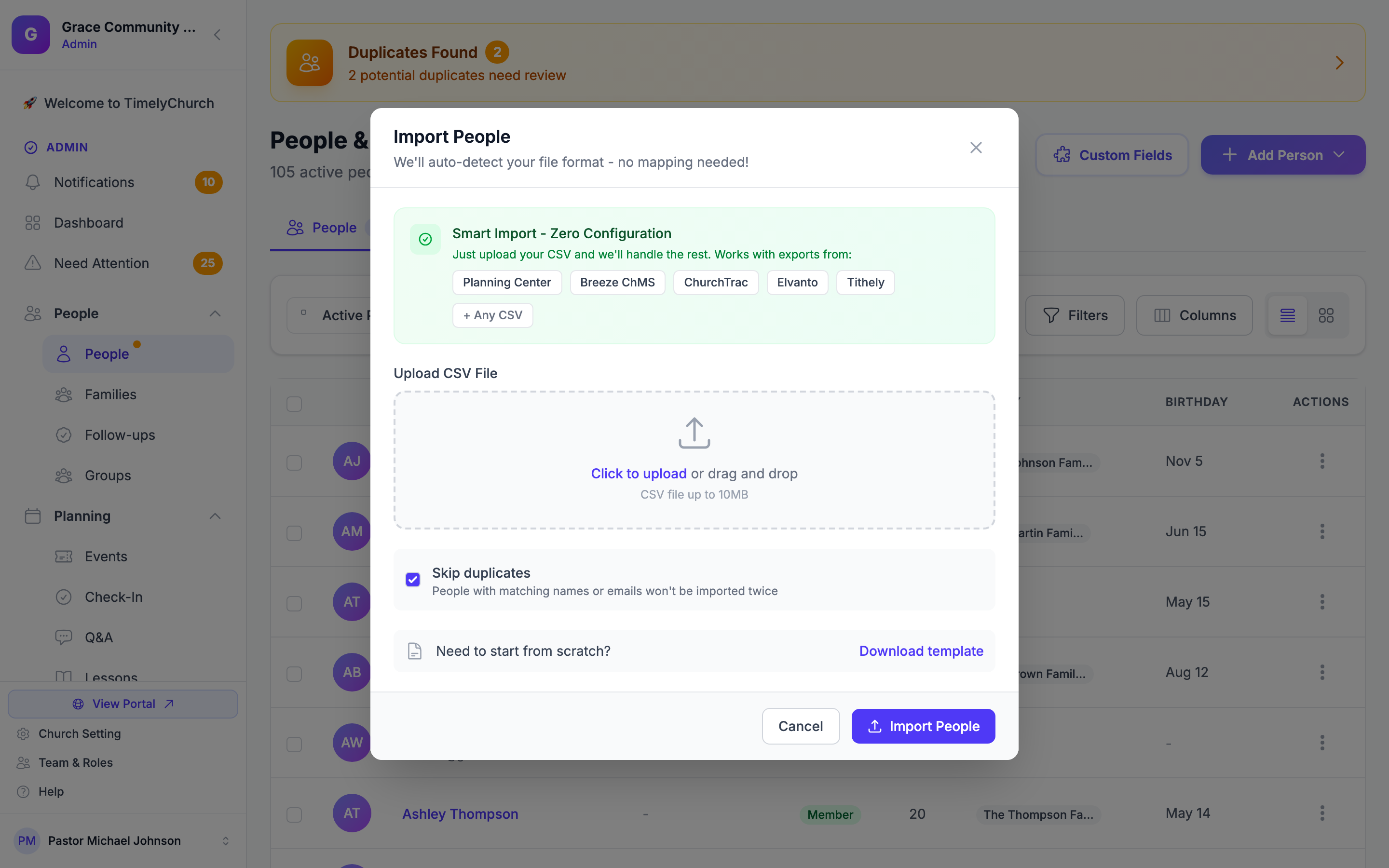
- Click Add Person ▾, then Import from File. The Import People window opens.
- Drag your CSV onto the upload area, or click Click to upload and select your file. We accept
.csv(or.txt) files up to 10MB. - Decide whether to keep Skip duplicates checked (recommended; on by default).
- Click Import People.
TimelyChurch will:
- Auto-detect the source format by scanning your column headers (no field mapping needed).
- Map fields automatically based on the detected source.
- Create Person records in your directory.
- Create Family records when family identifiers are present.
- Skip duplicates if a person with the same email address, or the same first and last name, already exists (configurable).
Tip: New churches start with a handful of sample people (the Smith, Johnson and Williams families and two others). Delete them before or after your import so they don't mix with your real congregation.
Step 4: Review the Import Summary
When the import completes, a confirmation message appears at the top of the People page:
Detected Planning Center format. 247 people imported successfully. 38 families created. 4 duplicates skipped.
Or, if some rows couldn't be read:
47 people imported successfully. 3 rows skipped due to errors.
The summary tells you:
- The detected source format (so you can confirm we matched your platform correctly).
- How many people were created.
- How many families were reconstructed.
- How many duplicates were skipped (existing people with a matching email or name).
- How many rows had errors (malformed data, missing required fields).
Auto-Detected Formats
TimelyChurch recognizes people exports from these platforms and maps their columns automatically; no set-up needed:
- Planning Center
- Breeze ChMS
- ChurchTrac
- Elvanto
- Tithely
- Realm (ACS)
- Pushpay ChMS (CCB)
- Servant Keeper
- Church Windows
The import window highlights a few of the most common sources, plus + Any CSV. Any other CSV is imported as a generic file: TimelyChurch matches common column names like First Name, Last Name, Email, Phone, Address, City, State, Zip, and so on.
Tips for a Smooth Import
Run a small test first. Before importing your full congregation, try a 5-10 row test export. This catches issues like wrong date formats or special characters before they affect 500 records.
Email is your friend. Email is the first thing we check for duplicates, and it's what powers portal login. Make sure your export has emails wherever possible.
Family roles help.
If your export includes a column like Family Role (Primary, Spouse, Child, Other) or Family Position, we use that to wire up household relationships correctly. Families are only created when the export has a household or family column (an ID or a household name).
Date formats matter.
Birthdates should be YYYY-MM-DD (1990-05-15). If your export uses MM/DD/YYYY, that usually still works, but 1990-05-15 is foolproof.
Custom fields can come later. If your old system had custom fields (volunteer skills, baptism dates, and so on), don't try to fit them into the standard import. Get the people in first, then create custom fields on the Fields tab of Church Settings (Pro plan), then fill them in on each person's profile.
Troubleshooting
The summary says "0 imported" with rows skipped.
Check your column headers. The most common issue is a missing or misspelled first-name or last-name column; those two are required. Headers such as first_name, First Name, or First are all recognised.
Duplicates I didn't expect were skipped. TimelyChurch flags duplicates on email match first, then on first name + last name. If two real people share an email (for example, a married couple sharing one address), the second one will be skipped. Add those people by hand, or re-import them with separate emails. You can also uncheck Skip duplicates before importing if you want every row brought in.
The import was refused because of my plan's limit. Your church already has as many people as your plan allows. Remove people you don't need (such as the sample people) or upgrade on the Billing & Plans tab, then import again.
Family records weren't created. Family creation needs a household or family column in your export (such as a family ID or a household name). Without one, people are imported individually. Create the families by hand under People → Families, or re-export with a household column included.
The wrong format was detected. Rare, but possible if your CSV has unusual headers. Re-save the export using TimelyChurch's template column names instead. Auto-detection is a convenience, not a requirement.
Special characters look broken (José becomes Jos?). Save your CSV in UTF-8 encoding rather than Latin-1 / ANSI. Most modern spreadsheet apps default to UTF-8; older Excel may need an explicit "Save as CSV UTF-8" option.
Migrating More Than People
This page covers people and families. For other modules:
- Giving history: contact support to talk through your options.
- Events / calendar: if your old platform publishes a calendar feed (an iCal /
.icslink), you can link it under Events → More → Linked calendars so its events show up in TimelyChurch (see Linked Calendars). Regular services are quickest to recreate as repeating events. - Groups, classes, attendance, lessons: typically rebuilt manually in TimelyChurch. Most churches use the migration as a chance to clean up.
Tip: Many churches migrate during a low-activity month (December or summer) so the new system has a quiet period to settle in before peak Sunday operations resume.
If you hit a snag with your import, contact support and we'll help.
Related Articles
- Quick Start Checklist: includes "Add Your People" as Step 4
- Church Settings: custom fields and export
- Data Import & Export: what the import maps and what the exports contain
- Magic Link Login for Members: how imported members get portal access
Verified against TimelyChurch 8.205.308 on 2026-10-22.