
Page Templates and the Wizard
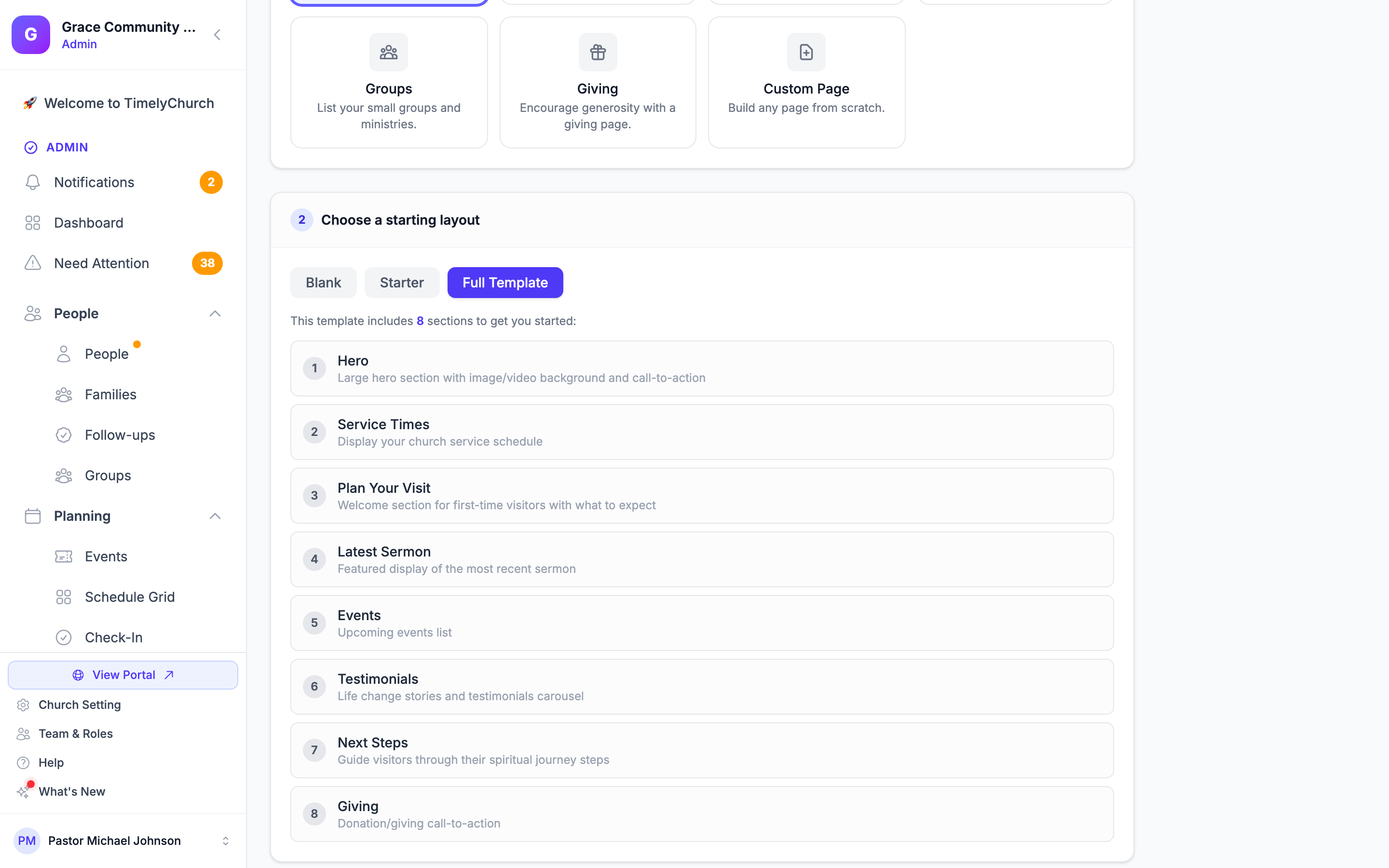
When you create a new page in Website Studio, the page wizard offers up to three templates per page type. Templates are not "themes" or "designs" -- they are pre-built section stacks that get inserted into the new page automatically. Picking the right template up front saves a lot of clicking.
This guide breaks down each page type, the templates it offers, and what is in each template -- so you can pick the right starting point with confidence.
How Templates Work
When you complete the wizard:
- Website Studio creates the new page with the details you entered (title, address, page type, navigation settings).
- It then adds each of the template's sections to the page, in order.
- You land on the page editor with those sections already in place, ready to be filled in.
Templates do not:
- Lock you into a layout. You can delete, reorder, or add sections freely.
- Pre-fill content. Sections start with their default placeholder text and require editing.
- Change once chosen. There is no "switch template" command after creation -- you would create a new page and migrate content.
Templates do:
- Save time. A "Full" Home page template inserts 8 well-chosen sections in seconds.
- Demonstrate good structure. Even if you delete sections, the order suggests how the page should flow.
Templates by Page Type
Home
The Home page is the most-customized page on most sites, so it has the richest template options.
| Template | Sections Inserted |
|---|---|
| Blank | (none) |
| Starter | Hero → Service Times → Content → Events |
| Full | Hero → Service Times → Plan Your Visit → Latest Sermon → Events → Testimonials → Next Steps → Giving |
When to use which:
- Blank: You have a strong, opinionated design in mind and want to assemble it section by section.
- Starter: You want the essentials (hero, when we meet, who we are, what's coming up).
- Full: You want a comprehensive landing page that covers visitor flow end-to-end. Best for new sites or relaunches.
Tip: The Full template is laid out in the order most churches benefit from -- hero (catch attention), service times (when can I come?), plan your visit (what's it like?), sermon (what do you teach?), events (what's coming up?), testimonials (proof), next steps (what now?), giving (close the loop).
About
| Template | Sections Inserted |
|---|---|
| Blank | (none) |
| Starter | Hero → Content → Staff → Beliefs |
| Full | Hero → Content → Staff → Beliefs → Testimonials → FAQ |
When to use which:
- Starter: Your About page is short and focused -- an overview, the team, what you believe.
- Full: Your About page is doing more work -- it includes social proof (testimonials) and addresses common questions (FAQ).
Contact
| Template | Sections Inserted |
|---|---|
| Blank | (none) |
| Starter | Hero → Contact Form → Map → Service Times |
The Contact template is opinionated and most churches use it as-is. The order matches what visitors are looking for (call to action → reach us → find us → when to come).
Events
| Template | Sections Inserted |
|---|---|
| Blank | (none) |
| Starter | Hero → Events |
Minimal by design. The Events section pulls live from the Events module, so the page essentially configures itself.
Groups
| Template | Sections Inserted |
|---|---|
| Blank | (none) |
| Starter | Hero → Groups → Next Steps |
The Next Steps section is included to convert browsers into joiners. Customize it with steps like "Find a Group," "Visit on Sunday," "Talk to a Pastor."
Giving
| Template | Sections Inserted |
|---|---|
| Blank | (none) |
| Starter | Hero → Giving → FAQ |
The FAQ section is included because giving pages are full of common questions: "Is my gift tax-deductible?", "Can I give stock?", "How do I update my card?". Pre-populating an FAQ section is a quality-of-life win.
See Contact Forms and Giving for the full giving-page playbook.
Custom
| Template | Sections Inserted |
|---|---|
| Blank | (none) |
| Starter | Hero → Content |
Custom pages exist precisely so you can build anything. The Starter template gives you a hero and a content block to start typing in -- a minimal but useful scaffold.
Choosing the Right Template
Use this quick decision tree:
- Do you already know exactly what sections you want? → Pick Blank.
- Are you building a new church website from scratch and want the bones in place? → Pick Full for Home and About, Starter for everything else.
- Are you adding a single page to an existing site? → Starter is almost always the right call.
After You Pick a Template
Templates only handle the structure -- the content is up to you. Once the wizard finishes:
- The page editor opens with all the template's sections present.
- Each section starts with placeholder text and default settings.
- Click each section to edit headings, subheadings, images, and other content.
- Reorder sections, add new ones, or delete any you don't need.
For details on configuring individual sections, see Website Sections.
Next Steps
- Creating and Managing Pages -- The wizard end-to-end
- Website Sections -- Edit and customize the sections inserted by templates
- Contact Forms and Giving -- Deep dive on two key conversion flows