
Service Times
Service Times in Website Studio is the canonical place to define when, where, and what kinds of services your church holds. The schedule you set here drives several things at once:
- The Service Times website section that you can drop on any page.
- The opening hours in your site's automatically generated structured data, which Google may surface directly in search results.
- The Plan Your Visit and Contact page templates, which include a service-times block by default.
Accessing Service Times
- Click Website in the left sidebar to open Website Studio.
- On the dashboard, click Manage on the Service Times card.
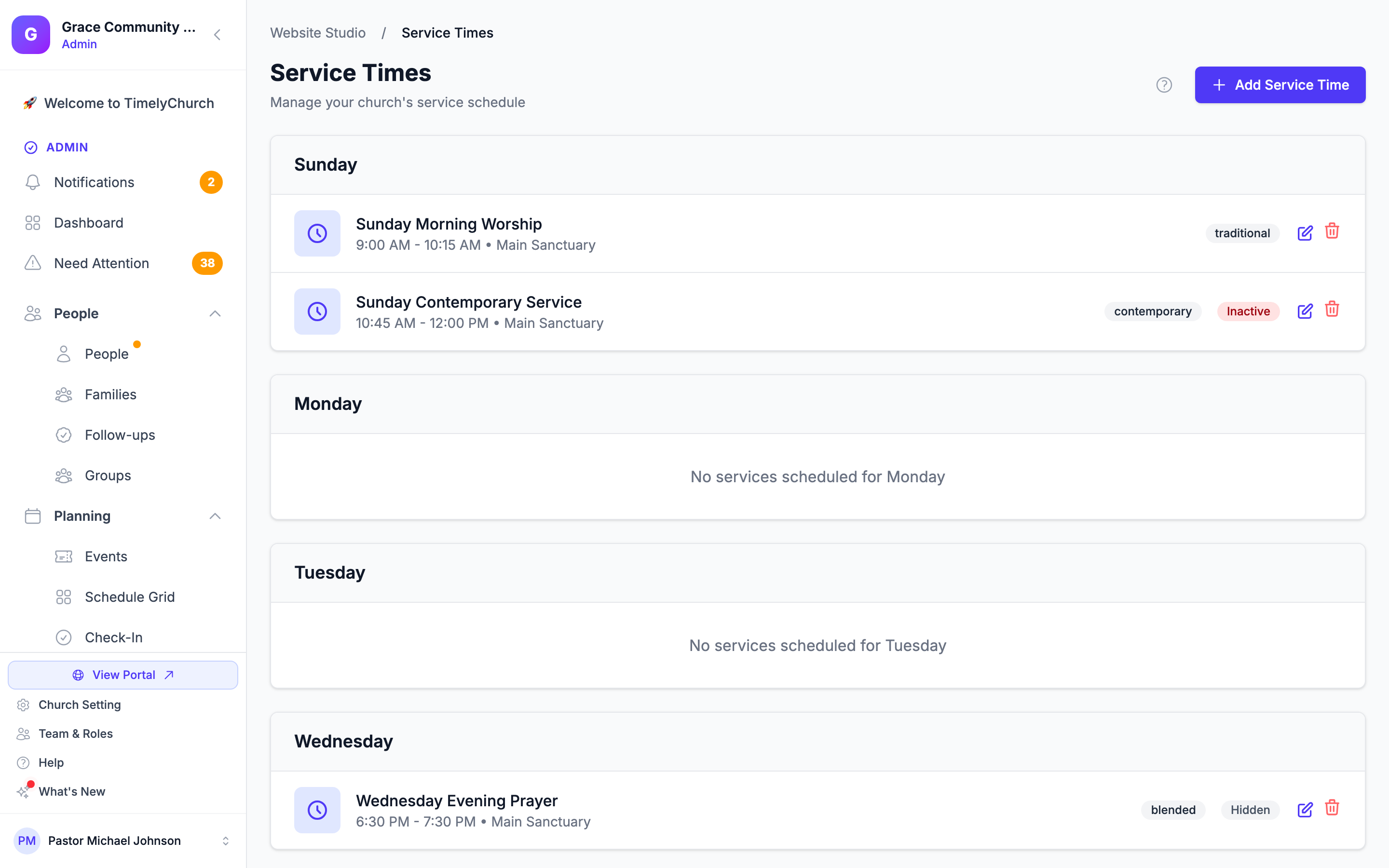
The list view shows your existing service times grouped by day of the week and sorted by start time, in the order they will appear publicly.
Adding a Service Time
- Click Add Service Time.
- Fill in the form:
| Field | Required | Description |
|---|---|---|
| Service Name | Yes | The display name (e.g., "Sunday Morning Worship", "Wednesday Bible Study"). |
| Day of Week | Yes | Sunday through Saturday. |
| Service Type | Yes | Worship Service, Bible Study, Prayer Service, Youth Ministry, Children's Ministry, or Other. Used for icons and grouping. |
| Start Time | Yes | When the service begins, in your church's time. |
| End Time | No | Optional -- leave blank if there is no fixed end time. If set, the public site shows a "9:00 AM - 10:30 AM" range. |
| Location | No | A campus name, building name, or room (e.g., "Main Sanctuary"). |
| Description | No | A short note shown beneath the time (up to 1,000 characters). |
Under Visibility:
- Active (service is currently happening) -- Inactive service times are kept in the system but hidden everywhere. Use this for seasonal services.
- Show on public website -- Active times can still be kept off the public site (e.g., for a leadership-only meeting).
- Click Add Service Time (or Update Service Time when editing).
Tip: Use specific names. "Sunday 9 AM Service" reads better in search results and on mobile than just "Worship."
How Service Times Are Ordered
Service times are sorted by day of week, then by start time, automatically -- there is nothing to drag. On the list, an Inactive badge marks services that are switched off, and a Hidden badge marks services that are active but not shown on the public website.
Editing and Deleting
- Edit: Click the edit (pencil) icon on the service-time card. To pause a service without deleting it, untick Active (service is currently happening) and save.
- Delete: Click the delete (trash) icon and confirm. Deletion is permanent.
How Service Times Appear on Your Public Site
There are three places service times surface to visitors:
1. The Service Times Website Section
Drop a Service Times section onto any page (Home, Contact, Plan Your Visit, etc.). The section automatically renders all active, public service times in the layout you choose: cards, list, or compact.
2. SEO Structured Data
Website Studio automatically adds structured data about your church to every page. Your service times become its opening hours. Google may use this to display your service times directly in search results -- no extra configuration needed. See SEO Settings for more on structured data.
3. The Public Service Times Page
Your site has a dedicated service-times page (on a custom domain, /service-times) that lists all your active, public services. This is also linked from some templates and from the Plan Your Visit section.
Best Practices
- Keep the list short and current. A long list of historical services confuses visitors. Untick Active (or delete) for seasonal services you no longer hold.
- Always set Start Time accurately. Times are displayed in your church's local format.
- Use End Times for events that have a definite end (services, classes, meetings). Skip End Time for ongoing things like a 24/7 prayer room.
- Match your bulletin. What is on the website should match what is printed in the order of service or announcement slides.
Real Weekdays in Plan Your Visit
The Plan Your Visit section shows the real weekday for each service, not just "Sundays". (8.205.304)
Next Steps
- Website Sections -- Drop a Service Times section on a page
- SEO Settings -- Service times feed your structured data
Last updated: 2026-10-21 (8.205.306).