
Approving Changes an AI Assistant Proposes
An AI assistant connected to your church never changes anything by itself. Every change goes through the same three steps:
- It proposes. You ask for something ("categorize these twelve rows as Utilities"), and the assistant prepares the change. Nothing is saved yet.
- You see a preview. The assistant shows what will change -- the rows, the amounts, the before and after.
- Someone approves. Only then is the change applied -- as a whole, or not at all.
Most changes are approved in the chat, by the person who asked. A few are consequential enough that a church administrator must also approve them on the TimelyChurch website. This article explains both.
For the list of what an assistant can change in the first place, see What Your AI Assistant Can Read and Change.
Approving in the Chat
When the assistant has prepared a change, it shows something like:
"Here is what I will do: … 12 rows will change. Reply 'Approve' to proceed, or tell me what to change."
- To apply it, reply Approve. A clear "Approved", "Yes", "Confirm", "Go ahead" or "Do it" also counts, and so do the matching words in Spanish, Russian, Portuguese, German and Lithuanian. Reply in your own language; your words are passed on as you typed them.
- To reject it, reply "No", "Cancel", "Stop" or "Reject". The proposal is closed for good; ask for a new one if you want something different.
- Anything else is not an approval. A question ("approve?"), a vague "ok", or an approval with a condition ("approve, but change the fund") changes nothing. The proposal stays open for a clear answer, or you can tell the assistant what to change and get a new preview.
Good to know: TimelyChurch checks the wording of the reply; it cannot tell who typed it. Only connect an assistant on a device and account that you alone use.
Your church's approval setting
A person who can edit Settings chooses when the chat reply is required. At the bottom of the left sidebar, click Church Setting, open the Integrations tab, and on the MCP Connector card pick an option under Approval in the chat, then click Save. (The setting appears once Allow AI tools to propose changes is on.)
| Option | What it means |
|---|---|
| Every change (recommended) | Every change waits for the reply. This is the default. |
| Only changes that post to the ledger | The reply is required for changes that post to your books, and for a few steps of similar weight: accepting bank-import rows; recording, editing, deleting and restoring transactions; journal entries; refunds on expenses; recording a gift; marking a deposit batch deposited; paying a bill and voiding a bill payment; posting a recurring transaction, and setting up one that posts automatically; starting and cancelling a reconciliation; activating and closing a budget; removing a receipt. Preparation steps apply without it: categorizing, splitting or excluding review rows, recording or editing an unpaid bill, drafting a budget, checking reconciliation items off, attaching a receipt, closing a deposit batch, adding a payee or category, and events and serving. |
| Do not require it | TimelyChurch does not wait for a reply. The assistant still prepares a preview first, but it can apply the change without your answer. |
The setting takes effect immediately, for every connected person.
Changes That Need Approval on the Website
Two kinds of change cannot be applied on a chat reply alone, whichever option your church chose above:
| Change | Why |
|---|---|
| Completing a bank reconciliation | It locks the reconciled period for good. There is no reopening. |
| Correcting the amount or the date of a posted transaction | It changes money that is already in your books and your account balances. |
For these, a church administrator approves the change on the Pending approvals page first, and the person who asked then confirms it in the chat.
What happens
- The assistant shows the preview as usual and adds that the change needs an administrator's approval in TimelyChurch, with a link to the page.
- Every administrator who is able to approve it is notified: a notification in TimelyChurch titled "An AI change needs your approval" with a Review proposal button, plus an e-mail and a Telegram message according to each person's own notification settings. The Telegram message offers Reject and Review in TimelyChurch -- approving is done on the website only.
- An administrator opens the page and clicks Approve or Reject.
- After an approval, the person returns to the chat and replies Approve. (If your church chose Do not require it, they ask the assistant to go ahead.) The change is applied.
Proposing the same change twice does not notify the administrators a second time.
Opening the Pending approvals page
- At the bottom of the left sidebar, click Church Setting and open the Integrations tab.
- On the MCP Connector card, find Pending approvals and click Review. A number next to Review shows how many changes are waiting for you.
Opening the page needs permission to edit Settings.

Who can approve
To approve or reject a change you need all of the following:
- Permission to edit Settings.
- The permission the change itself needs -- Close on the Accounting row of your role to complete a reconciliation, Edit on Accounting to correct an amount or a date. You can never approve something you could not do yourself.
- If the person who proposed the change can see donor names, you must be able to see them too (the Bookkeeper Giving level or higher), because the preview may contain them.
You cannot approve your own proposal while someone else at your church is able to. If you are the only person who qualifies, you may approve it yourself, and the activity history records that. You can always reject your own proposal.
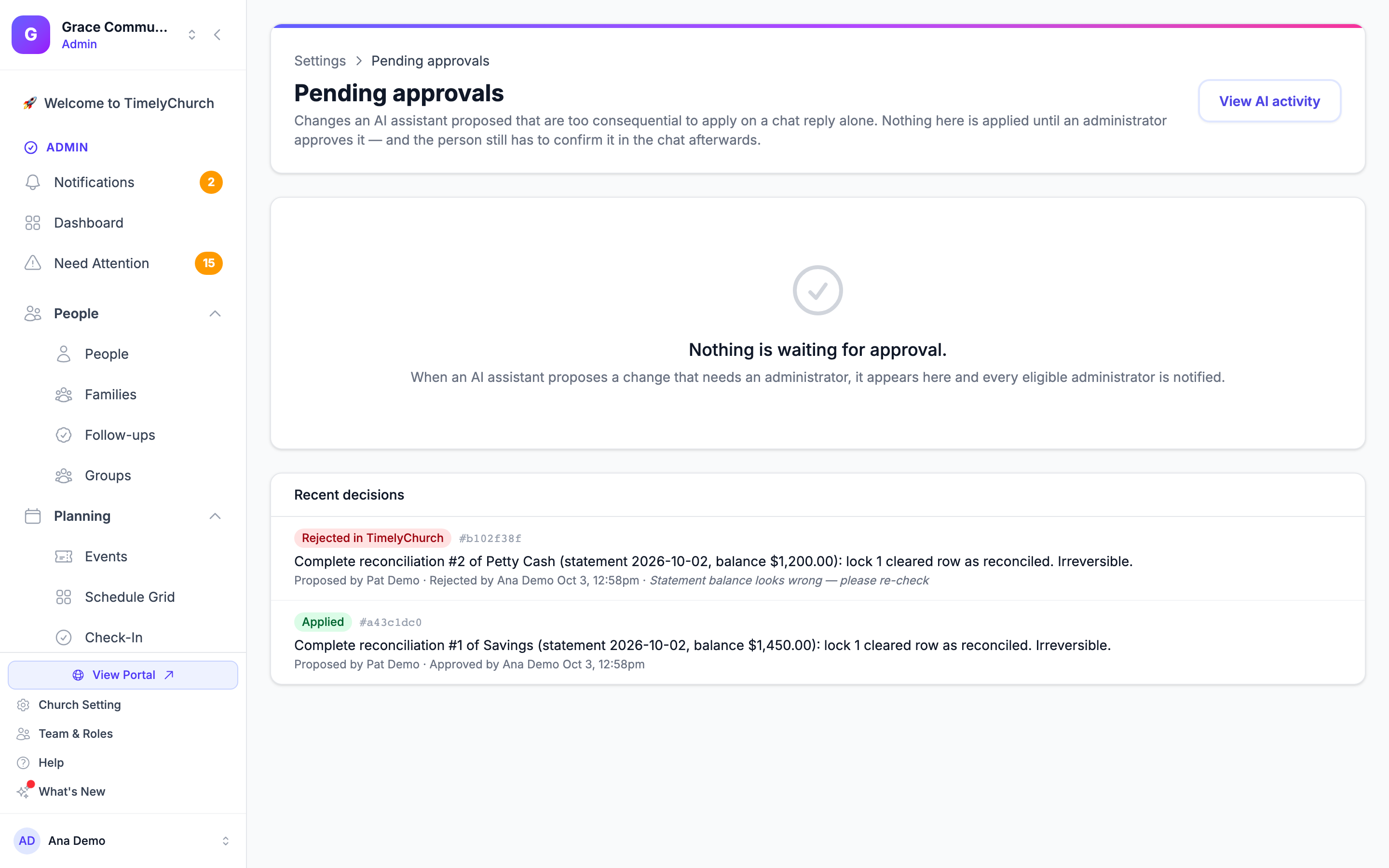
The page lists only the changes you are able to see in full. Someone who can edit Settings but has no Accounting permission finds the page empty: "Nothing is waiting for approval." When a change is hidden from you only because its preview includes donor details, the page tells you so -- "Some changes waiting for approval include donor details. Someone with Giving access (Bookkeeper or higher) needs to review them." -- without showing the change or how many there are.
What the approver sees
Each waiting change shows:
- A Needs approval label and a short reference code.
- A one-line summary of the change, and the kind of action in plain words (for example "Complete a bank reconciliation") followed by its technical name.
- Proposed by -- who asked, through which app, when, and when the proposal Expires.
- Show the preview exactly as the chat saw it -- opens the complete preview the person was shown, in a technical layout: the account, statement date and balance, the items and totals for a reconciliation; each transaction and each account's balance before and after for an amount or date correction.
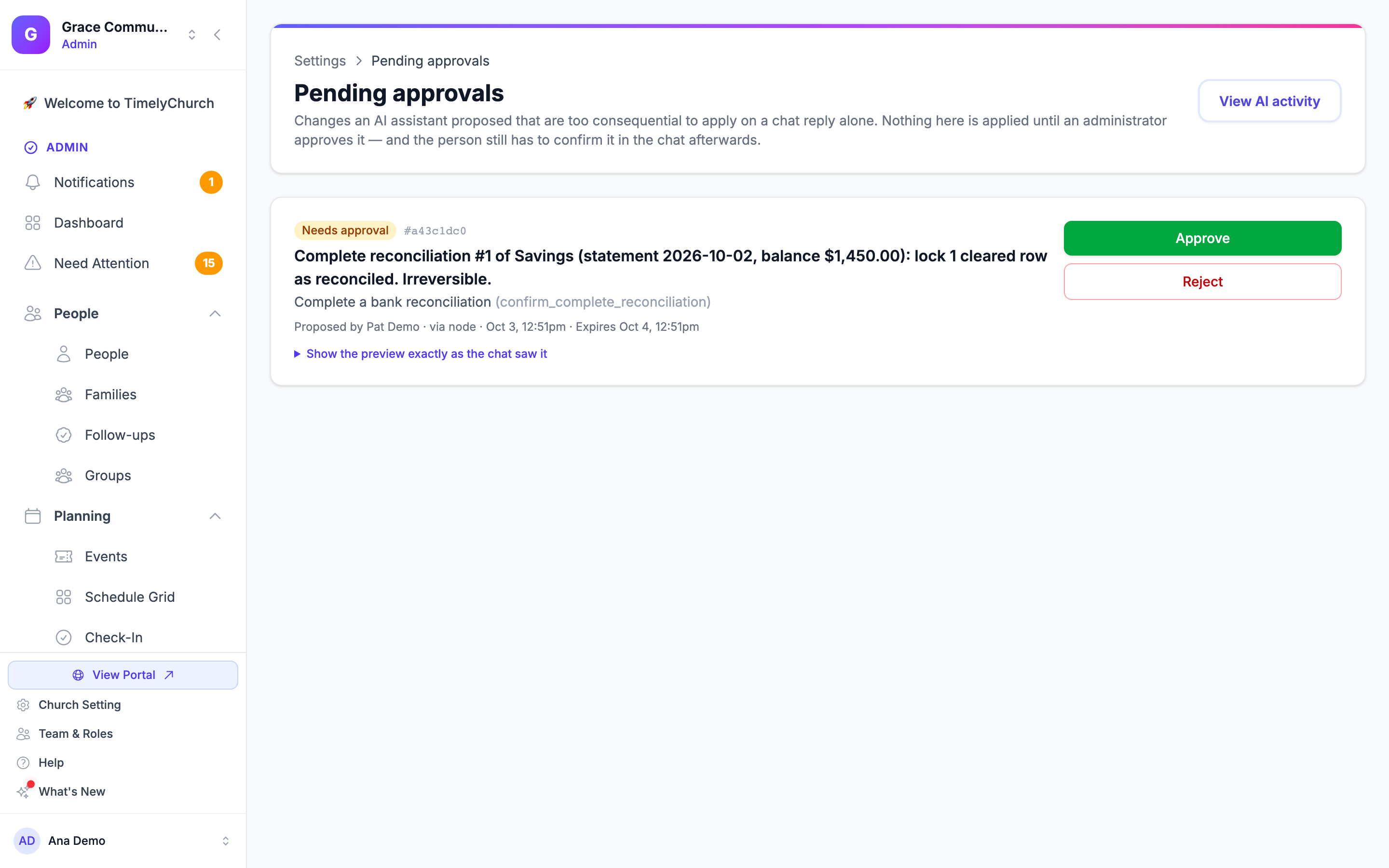
Approve
Click Approve and confirm "Approve this change? It is applied once the person confirms it in the chat." The page answers "Approved. The change is applied once the person confirms it in the chat with 'Approve'." and the change now carries an Approved in TimelyChurch label with your name. Nothing has been applied yet -- that happens when the person confirms in the chat.
Changed your mind before then? Click Withdraw approval. This rejects the change.
An approval counts only while the approver still qualifies. If that person leaves the church, is deactivated or loses the needed permission before the change is applied, another administrator has to approve it.
Reject
Click Reject, optionally type a Reason ("Tell the person why"), and click Reject again. The page answers "Rejected. Nothing was changed, and the AI assistant will be told." A rejected change is closed for good; the person can ask the assistant for a new proposal.
Recent decisions
Below the waiting changes, Recent decisions lists the latest ones that were decided, each labelled Approved in TimelyChurch, Applied, Rejected in TimelyChurch or Expired, with who proposed it, who approved or rejected it and when, and the reason if one was given.
How Long a Proposal Stays Open
| Proposal | Stays open for |
|---|---|
| Approved in the chat | 30 minutes |
| Needs approval on the website | 24 hours -- for the website approval and the chat confirmation together |
After that the proposal has expired and the assistant is told "Proposal not found or no longer valid." Ask it to propose the change again.
A proposal also ends early when the person who asked for it changes or resets their password: every proposal of theirs that is still open expires at once, and their assistant has to be connected again. See Connect an AI Assistant (MCP Connector).
A proposal is also tied to the records exactly as they were when it was prepared. If someone edits one of those records in the meantime, the assistant is told "Records changed since proposed. Propose again." and nothing is applied. For a change that needed website approval, the new proposal needs a new approval.
At the moment a change is applied, TimelyChurch checks everything again: the person's permission, your church's plan, the Allow AI tools to propose changes switch and the approval setting. A proposal made earlier never gets around a permission that was taken away since.
How Much One Proposal Can Cover
| Action | In one proposal |
|---|---|
| Categorize bank-import rows | Up to 500 rows, with up to 50 different category, payee or fund assignments |
| Set a note, payment method or the anonymous mark on review rows; exclude or restore review rows | Up to 500 rows |
| Change the type of review rows | Up to 200 rows |
| Accept review rows into your books | Up to 300 rows -- the same as Accept categorized on the website |
| Edit posted transactions | Up to 100 |
| Correct the amount or date of posted transactions | Up to 20 |
| Delete or restore posted transactions | Up to 50 |
| Check reconciliation items off | Up to 200 |
| Journal entry; split of a review row | 2 to 20 lines |
| Budget lines | Up to 100 lines |
| Gift | One gift, across up to 10 funds |
| Transaction, bill, bill payment, refund, receipt, budget, recurring transaction, deposit batch, event, serving assignment | One at a time |
For a larger job, the assistant works in several proposals, each with its own preview and approval.
There are also limits on how fast and how much an assistant can work:
- One person can have up to 50 proposals open at once, and a church up to 10 changes waiting for website approval.
- One connection can apply up to 10 changes a minute.
- A church can apply up to 200 changes through AI assistants in a day. After that the assistant is told "Daily limit for AI changes reached." -- continue the next day, or make the change in TimelyChurch directly.