
Adding a Translation to a Song
Many churches sing in one language while part of the congregation reads in another. TimelyChurch lets your own translation team add a second language to any song, so the words can go on screen in both — and nobody has to retype lyrics into presentation software on a Saturday night.
Who This Is For
The translation itself is usually done by people in your church who already do this work — a translation team, a bilingual volunteer, or the person who has been keeping a document of translated lyrics for years. This feature gives them somewhere to put that work so the media team can use it every week without asking.
You need permission to edit songs in the Worship module.
Adding a Language
- Go to Worship → Song Library and open a song.
- Click the Translations tab.
- Click Add a language.
- Type the language — Русский, Español, Հայերեն, Tagalog, anything. Suggestions appear as you type, each written the way that language writes its own name, and you are not limited to them.
- Click Start translating.
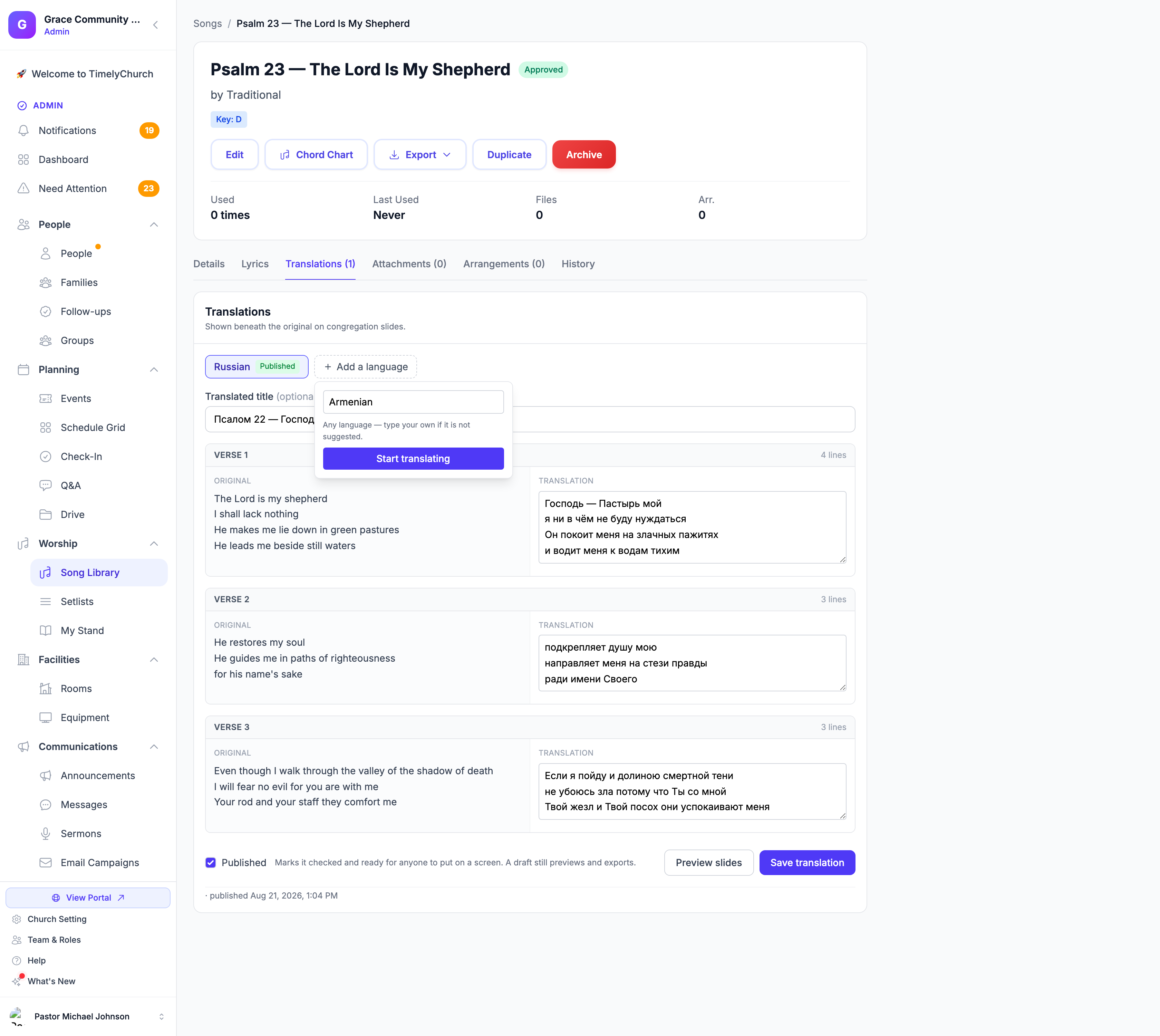
There is no approved list of languages. If your congregation needs it, you can type it. The suggestions exist so common choices are quick, not to limit you.
Writing the Translation
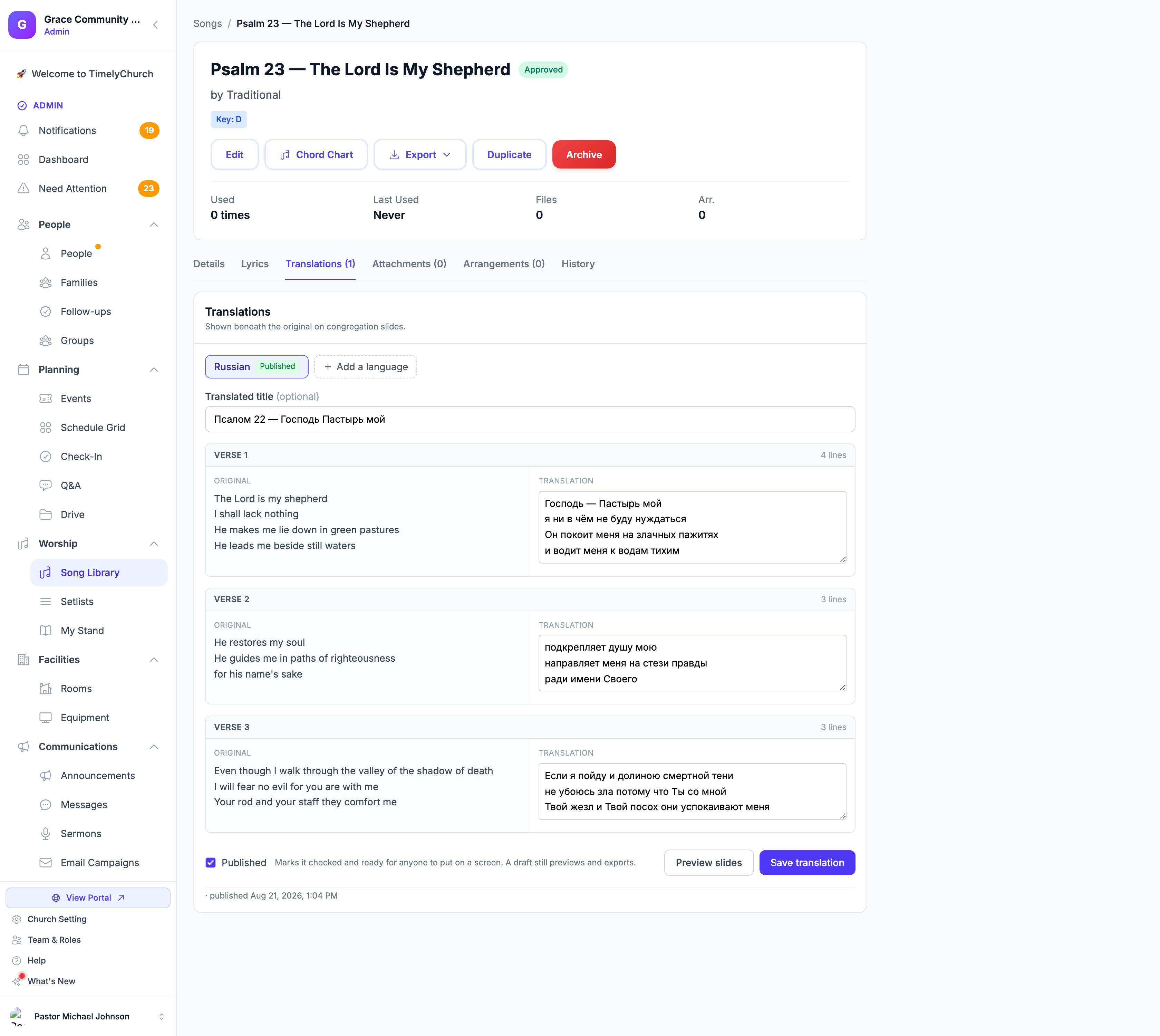
The editor shows the song one section at a time — Verse 1, Chorus, Bridge — with the original lyrics on the left and a box on the right.
Paste or type the translated section into the box, one line for each line on the left. The line count above each box turns amber if the two sides do not match, so you can see at a glance whether anything has drifted.
That is deliberate. Most translation teams already have the text written down somewhere, and pasting a whole verse at once is far quicker than filling in a box per line.
Translated Title
There is a field at the top for the song's title in the other language. It is optional, and it appears on the title slide when you export.
Draft or Published
The Published checkbox marks a translation as checked and ready for anyone to put on a screen. A draft still previews and exports normally — it simply has not been signed off yet.
This lets one language be in use on Sunday while another is still being worked on.
Several Languages on One Song
A song can hold as many languages as you need. Each appears as a chip at the top of the Translations tab with its own Draft or Published badge; click one to switch to it.
The tab label shows a count — Translations (2) — so you can see from the song page which songs already have translations.
When the Song's Words Change
This is the part that makes translations trustworthy over time.
When a translation is saved, TimelyChurch records the structure of the song it was written against — which sections existed and how many lines each had. If someone edits the chord chart later, any translation written against the old version is flagged Needs review, with a banner explaining that some lines may no longer line up.
Fixing a spelling mistake in the original will not trigger this. Adding, removing or renaming a section will, because that genuinely breaks the pairing.
Nothing is blocked — you can still preview and export. You are simply told, rather than finding out on Sunday.
Who Did What
Each translation records who started it, who last edited it, and when it was published. That line sits at the bottom of the editor. On a team where several people translate, it answers "who wrote this?" without anyone having to remember.
Next Step
Once a translation exists, see Previewing and Exporting Slides to put both languages on screen in ProPresenter, PowerPoint, PDF or images.