
Custom Group Types
TimelyChurch ships with four built-in engine types: Private Group, Public Group, Team, and Class. These determine which features a group has (positions, scheduling, check-in, and so on). On top of those four, your church can define Custom Group Types with their own names, default settings, and color. Here is how to set them up and how they interact with the four engine types.
Why Custom Group Types?
The four engine types are intentionally generic. Every church uses them differently. Custom Group Types let you:
- Use names your members already understand ("Life Group" instead of "Public Group", "D-Group" instead of "Private Group", "Worship Team" instead of "Team").
- Apply sensible defaults to each new group of that kind (meeting frequency, max members, approval, check-in).
- Filter groups by custom type, on the admin Groups list and in the public Finder.
- Give each type its own color so staff can scan the Groups list quickly.
- Give leaders of worship teams access to Songs & Setlists without a separate role (see "Ministry Areas" below).
A custom type does not add new features. Every type still maps to one of the four engine types behind the scenes, so a custom type is really just a label plus default settings.
Setup Page
To get there, open Groups from the left sidebar, then click the Settings button at the top of the Groups page. The Group Settings page opens with a Group Types card.
You'll need permission to edit groups to manage group types.
When the page first loads, if no custom types exist for the church, TimelyChurch adds 10 ready-made defaults for you:
| Default Name | Engine Type | Notes |
|---|---|---|
| Small Group | Public | Weekly, max 12 members |
| Bible Study | Public | Weekly |
| Fellowship | Public | Monthly |
| Men's Group | Public | Weekly |
| Women's Group | Public | Weekly |
| Young Adults | Public | Weekly |
| Support Group | Private | Weekly, requires approval |
| Prayer Group | Public | Weekly |
| Ministry Team | Team | No defaults |
| Sunday Class | Class | Requires check-in |
These built-in defaults carry a System badge. They cannot be deleted (only deactivated), but you can edit their names, colors, and defaults freely.
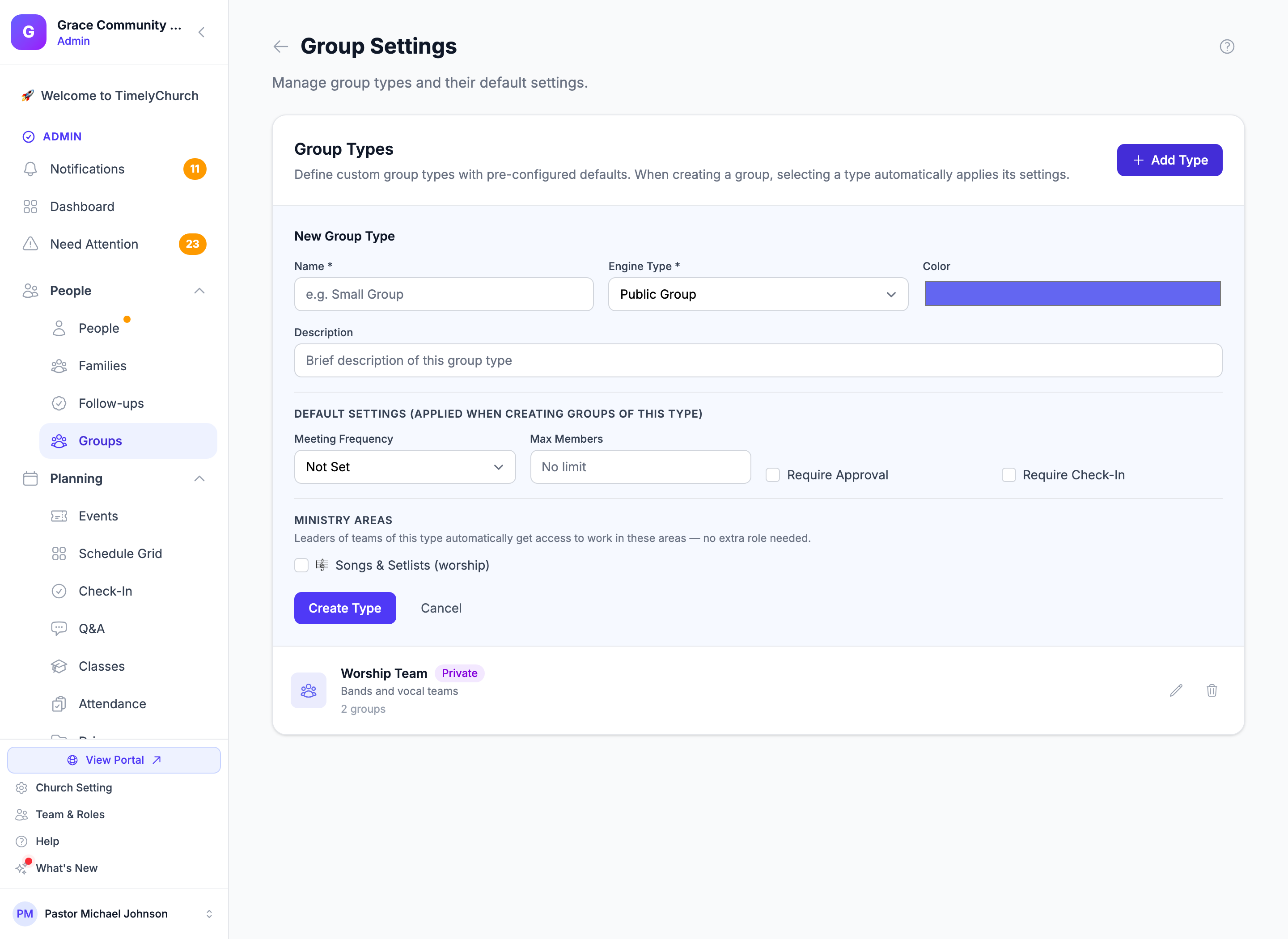
Creating a Custom Type
In the Group Types card, click Add Type to open the New Group Type form, then fill in:
| Field | Required | Notes |
|---|---|---|
| Name | Yes | Up to 100 characters. Used everywhere the type is shown. |
| Engine Type | Yes | Public Group, Private Group, Team, or Class. Determines which features (positions, scheduling, check-in, room) groups of this type have. |
| Color | No | A color for the type. |
| Description | No | Up to 500 characters. |
| Meeting Frequency | No | Not Set, Weekly, Bi-Weekly, Monthly, or Varies. |
| Max Members | No | 1-999. Leave empty for no limit. |
| Require Approval | No | On or off. |
| Require Check-In | No | On or off. |
The four fields under Default Settings (applied when creating groups of this type) are applied when a new group is created with this type. Click Create Type to save.
Ministry Areas
If you have access to Songs, the form also shows Ministry Areas, with the note "Leaders of teams of this type automatically get access to work in these areas — no extra role needed." Tick Songs & Setlists (worship) on your worship team's type, and the leaders of those teams can work in Songs and setlists without being given a separate role.
Applying Defaults
When a staff member opens Add Group and picks a type under Group Type (optional):
- The group is created with the type's engine type. A group created with "Support Group" becomes a Private group, even if another card was selected.
- The type's meeting frequency and max members are filled in (unless you already set them), and its approval and check-in settings are applied.
The values are defaults, not rules. Staff can change them on the group's Group details tab afterwards.
Editing and Deactivating
From the Group Types card you can:
- Click the pencil (Edit) to update a type's name, engine type, color, description, defaults, and ministry areas, then click Save Changes.
- Untick Active to deactivate a type. Deactivating a type hides it from the group creation form. Inactive types show an Inactive badge.
- Delete a type with the trash icon (Delete) and confirm "Delete this group type? This cannot be undone."
Two delete guards apply:
- Cannot delete if groups are assigned. TimelyChurch shows: "Cannot delete this type — N group(s) are still assigned to it. Reassign them first."
- System types cannot be deleted, only deactivated: "System group types cannot be deleted. You can deactivate them instead."
Filtering by Custom Type
Two views can be filtered by custom type:
- Admin Groups list: the Ministry menu narrows the list to a single custom type (All ministries clears it).
- Public Group Finder: visitors can refine results with the All Types menu.
How Custom Types Relate to the Engine Types
Some practical examples:
| Custom Type | Engine | Outcome |
|---|---|---|
| "Life Group" → Public | Public | Can be listed in the Finder once sharing is on, can take guest registration, no positions/scheduling |
| "D-Group" → Private | Private | Never listed in the Finder, members managed by leaders |
| "Worship Team" → Team | Team | Has positions, schedule templates, rotation strategies, skill levels |
| "Sunday Class - Preschool" → Class | Class | Has room assignment, age/grade ranges, check-in integration, Teacher/Assistant Teacher positions seeded automatically |
You can have many custom types pointing at the same engine type. For example, "Life Group" and "Recovery Group" might both map to Public but ship different defaults.
Tip: When a custom type's defaults turn out to be wrong, edit it once at Groups → Settings rather than fixing every new group individually. Existing groups keep whatever values they have, but every new group picks up the corrected defaults.