
Recording Donations
This article covers how to manually record cash, check, and other in-person donations, as well as how to view, edit, and manage donation records. Online donations from the public giving page are recorded automatically.
Navigating to Giving
- From the admin sidebar, open the Finances category and select Giving.
- The Giving page shows the year's summary cards and, for people at the Bookkeeper level or higher, the list of gifts with filtering tools.
Heads up: Giving is a Pro feature. On the Starter or Growth plans, the Giving item in the Finances menu appears locked with an upgrade prompt. Upgrade to Pro to record and manage donations.
Recording a New Donation
- Click Add giving in the upper-right corner of the Giving page.
- Fill in the Record Donation form.
Donor Information
| Field | Required | Description |
|---|---|---|
| Anonymous Donation | No | Tick this to record the gift without linking it to anyone ("Donor information will not be recorded"). The donor fields below are hidden. |
| Search Donor | No | Type a name to search your church members and select the person. |
| Donor Name | No | For donors not in your directory, type their name manually ("Or enter donor details manually below"). |
| Donor Email | No | Used for sending receipts. |
If you navigate to the donation form from a person's profile page, that person is automatically pre-selected.
Counters: If your role is at the Counter Giving level, the donor search matches names only and shows each match with a partly hidden email hint (for example
j***@example.com) instead of the full address. Opening the list of gifts, a gift's page, or someone's giving history needs the Bookkeeper level -- see Who Can See Giving and Donations.
Donation Details
| Field | Required | Description |
|---|---|---|
| Donation Date | Yes | The date the donation was received. |
| Payment Method | Yes | Select from: Cash, Check, Card, Envelope, Direct Deposit, Online, Cash App, Zelle, Venmo, PayPal, or Other. |
| Check Number | No | Appears when Check is selected as the payment method. |
| Envelope Number | No | Appears when Envelope is selected as the payment method. |
| Frequency | No | One-time (default) or Recurring. |
| Notes | No | Internal notes about the donation (not shown to donors). |
When you choose Recurring, a Recurring Details box appears with Recurring Interval (Weekly, Bi-weekly, Monthly, Quarterly, or Annually) and Next Expected Date. These details only help you track expected future gifts from this donor -- they do not charge anyone.
Linking the Gift to an Event, Campaign, or Pledge
These optional sections appear only when there is something to link to:
| Section | What it does |
|---|---|
| Linked Event (Optional) | "Associate this donation with a church event." Lists events from the last 30 days and upcoming events. |
| Apply to Campaign (Optional) | "Link this donation to an active fundraising campaign." The gift counts toward the campaign's goal. Once a campaign is chosen you can add a Donor Message (Optional) and tick Show this donation on the public campaign page (ticked by default). |
| Link to Pledge | Switch it on and pick an active pledge. "Selecting a pledge will automatically update the pledge's fulfillment progress." |
The campaign and pledge links are set when you record the gift -- the edit form lets you change the linked event, but not the campaign or pledge.
Fund Allocation
Every donation must have at least one fund allocation. You can split a single donation across multiple funds.
| Field | Required | Description |
|---|---|---|
| Fund | Yes | Select which fund receives this portion of the donation. |
| Amount | Yes | The dollar amount allocated to this fund (minimum $0.01, maximum $999,999.99). |
| Memo | No | An optional note for this specific allocation (up to 255 characters). |
To split a donation:
- Enter the first fund and amount.
- Click Add Another Fund (Split Gift).
- Enter the second fund and amount.
- Repeat as needed.
The total of all allocations becomes the donation's total amount (shown as Total Amount:). If you have no funds yet, the form shows Create your first fund instead.
Processing Fee
Click Add processing fee under the total to record a fee a third-party platform deducted from this gift (PayPal, Venmo, Cash App, Zelle, or a deposit fee on a check). The panel shows the Gross Amount (from the allocations above), the Processing Fee you enter, and the resulting Net Amount. "The fee is recorded as a separate expense. The donor receives full credit for the gross amount on their giving statement."
About processing fees on online gifts: For online card gifts made through your Stripe giving page, TimelyChurch records the processing fee for you (see Stripe Processing Fees). Use Add processing fee only for payments that came through another service.
- Click Record Donation. The donation is recorded and assigned a unique Giving ID.
What Happens When You Save a Donation
- A unique Giving ID is generated (format: DON-YYYY-NNNNN, e.g., DON-2026-00001).
- Fund allocations are created.
- Accounting transactions are automatically created in the accounting module (one income entry per fund allocation). When the gift is later part of a deposit batch that is marked deposited, these entries move onto the bank account -- no second income entry is made. See Deposit Batches.
- If the donation is linked to a campaign, the campaign's totals are updated.
- If the donation is linked to a pledge, the pledge's fulfilled amount is updated.
Viewing a Donation
- In the Giving list, open the row's actions menu and choose View details (or click the donation).
- The detail page shows:
- The amount, Giving ID, donor, date, and primary fund at the top
- Status pills (One-time or the recurring frequency, plus a Refunded / Partial Refund badge if the gift has been refunded)
- Donor Information (or "Anonymous Donor -- Donor information was not recorded")
- Fund Allocation with amounts
- Notes
- Details: Donation Date, Payment Method, Check Number and Envelope Number (if applicable), Frequency, Source, and Recorded By
Editing a Donation
Editing needs the Bookkeeper Giving level or higher.
- Open the donation detail page (or use Edit in the row's actions menu).
- Click Edit.
- Update the donor details, date, payment method, frequency, notes, linked event, or fund allocations.
- Click Save Changes.
When you update a donation, the corresponding accounting transactions are automatically re-synced to reflect the changes.
Refunding a Donation
For online card gifts processed through Stripe, you can issue a refund directly from TimelyChurch -- you do not need to delete the donation or log into Stripe separately.
- Open the donation detail page.
- Click Refund. (This button only appears for Stripe-processed card donations that have not already been refunded, and only for people at the Administrator Giving level. Offline gifts such as cash or check do not have a Refund button.)
- In the Refund Donation window, leave Refund Amount blank to refund the full amount the church received, or enter a smaller amount for a partial refund.
- Optionally choose a Reason (Requested by donor, Duplicate charge, or Fraudulent).
- Click Issue Refund.
When you issue a refund, TimelyChurch processes it through Stripe and automatically updates the related records: the donation is marked as refunded (or partially refunded), the accounting entries are reversed, any linked pledge fulfillment is adjusted, and the gift is excluded from giving statements.
Note on processing fees: The Stripe processing fee is non-refundable -- Stripe keeps it -- so the most you can refund is the net amount the church actually received. The window shows Donor paid, Stripe fee, non-refundable, and Available to refund.
For recurring gifts, the donation detail page also shows a Cancel Recurring button when the gift is tied to an active subscription. Cancelling stops future charges; it does not refund past charges. To refund a specific past charge, use the Refund button instead.
Deleting a Donation
Deleting is intended for correcting a mistaken or duplicate manual entry. For online card gifts that need to be returned to the donor, use Refund (above) instead -- deleting a donation does not return any money to the donor. Deleting needs the Administrator Giving level.
- Open the donation detail page, then open the More actions menu (three-dot icon) and choose Delete Donation. (You can also choose Delete from the row's actions menu in the Giving list.)
- Confirm in the dialog.
- The donation moves to Recently Deleted, and its accounting entries, pledge fulfillment, and campaign totals are removed.
A donation whose accounting entry has been reconciled cannot be deleted -- you will see "Cannot delete a reconciled donation — unreconcile it first."
Restoring a Deleted Donation
- On the Giving page, open More actions and choose Recently Deleted.
- The Recently Deleted Donations page lists each deleted gift with its amount, donor, and when it was deleted.
- Click Restore to bring the gift back. "Restore a deleted donation to bring back its accounting entry, pledge fulfillment, and campaign totals."
- To remove a gift for good, click Delete Permanently. This cannot be undone.
Deleted donations stay in Recently Deleted until someone restores them or deletes them permanently. Restoring needs the Bookkeeper level; deleting permanently needs the Administrator level.
Sending Donation Receipts
Receipts are sent from the Giving list, not from the donation's detail page. Receipts name the donor, so they need the Bookkeeper Giving level or higher.
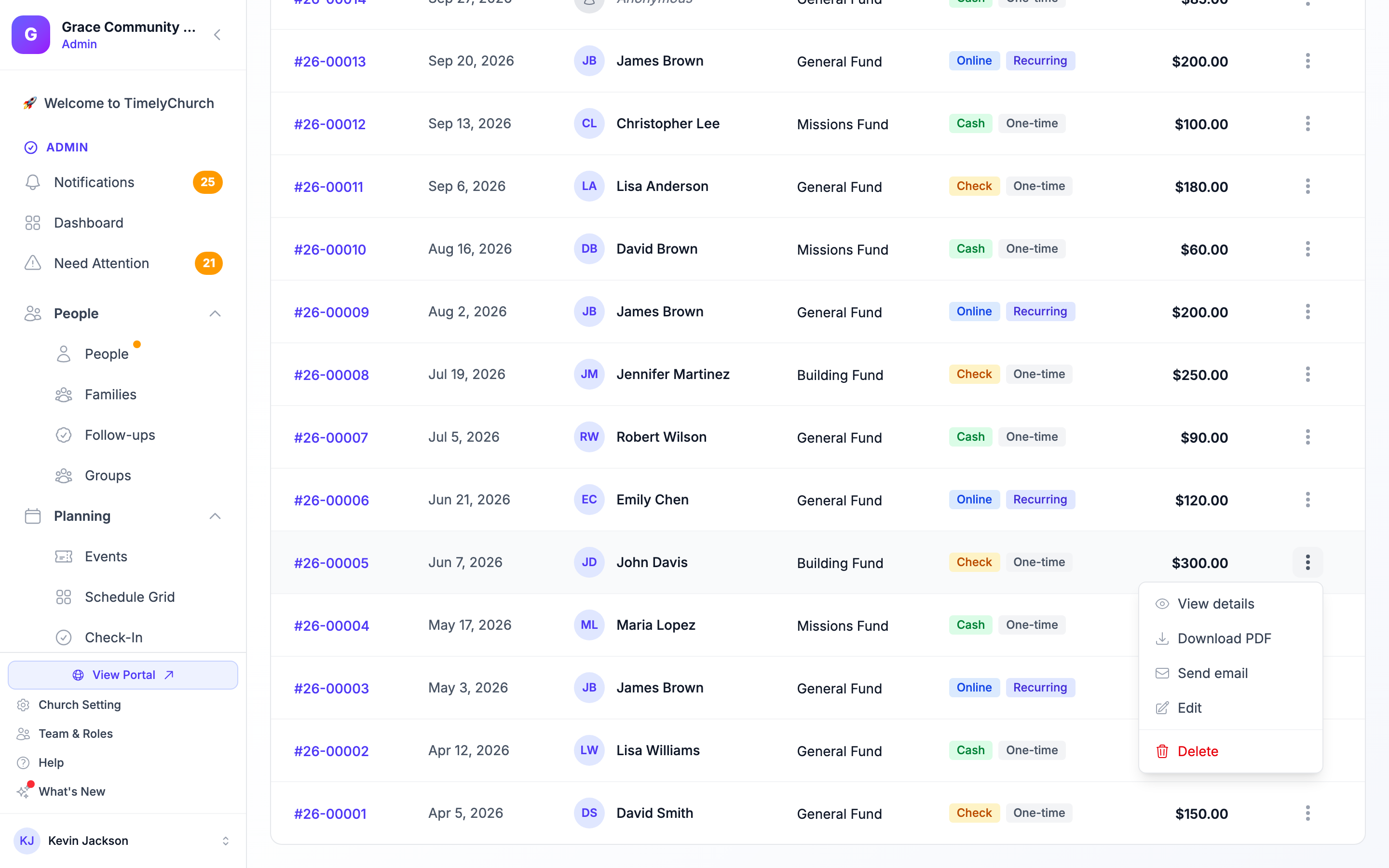
Download a Receipt as PDF
- In the Giving list, open the donation row's actions menu.
- Choose Download PDF.
- A PDF receipt is downloaded, named with your church and the Giving ID (for example
your-church-donation-receipt-DON-2026-00001.pdf).
Email a Receipt to the Donor
- In the Giving list, open the donation row's actions menu and choose Send email.
- The Email Receipt window shows who it goes To and the donation details.
- Optionally change the Subject and add a Personal message (optional). "The donation receipt PDF will be attached automatically."
- Click Send Email.
The email includes:
- A personalized greeting using the donor's first name.
- The donation amount and date.
- The PDF receipt as an attachment.
Send email only appears when the donor has an email address on file.
Filtering and Searching Donations
The Giving page provides these filters:
| Filter | Description |
|---|---|
| Search... | Search by donor name or Giving ID. Shown only to people who can see donors. |
| Year of YYYY | Choose the year to show (the current year or up to five years back). Defaults to the current year. |
| All methods | Filter by payment method (Cash, Check, Card, and so on). |
| All / One-time / Recurring | Show every gift, only one-time gifts, or only recurring gifts. |
Dashboard Statistics
The top of the Giving page displays four summary cards for the selected year:
- Total -- Sum of all donations.
- In-person -- Cash, check, envelope, and direct deposit donations.
- Online -- Card, online, Cash App, Zelle, Venmo, and PayPal donations.
- Recurring -- Donations marked as recurring. When there are active recurring gifts, the card also shows how many are active and the monthly amount expected from them.
Exporting Donations
Exports contain donor names and details, so Export reports... appears only for people at the Administrator Giving level.
- From the Giving page, click the More actions menu (three-dot icon).
- Select Export reports.... The Export Giving/Donations window opens.
- Configure your export:
| Setting | Description |
|---|---|
| Date Range | Start Date and End Date, or a quick pick: This Month, Last Month, This Year, Last Year, or Last 2 Years (Max). |
| Fields to Include | Choose which columns to include: Donor Name, Email, Amount, Fund, Date, Payment Method, Frequency, Check Number, Notes (or Select All). |
| Format | Excel, CSV, or PDF. |
- Click Export.
Data preservation policy: Financial data exports are limited to the last 2 years. The date range cannot exceed 2 years.
The exported CSV and Excel files include proper UTF-8 encoding for Excel compatibility. Fields are sanitized so spreadsheet programs do not treat them as formulas.