
Opening and Starting Balances
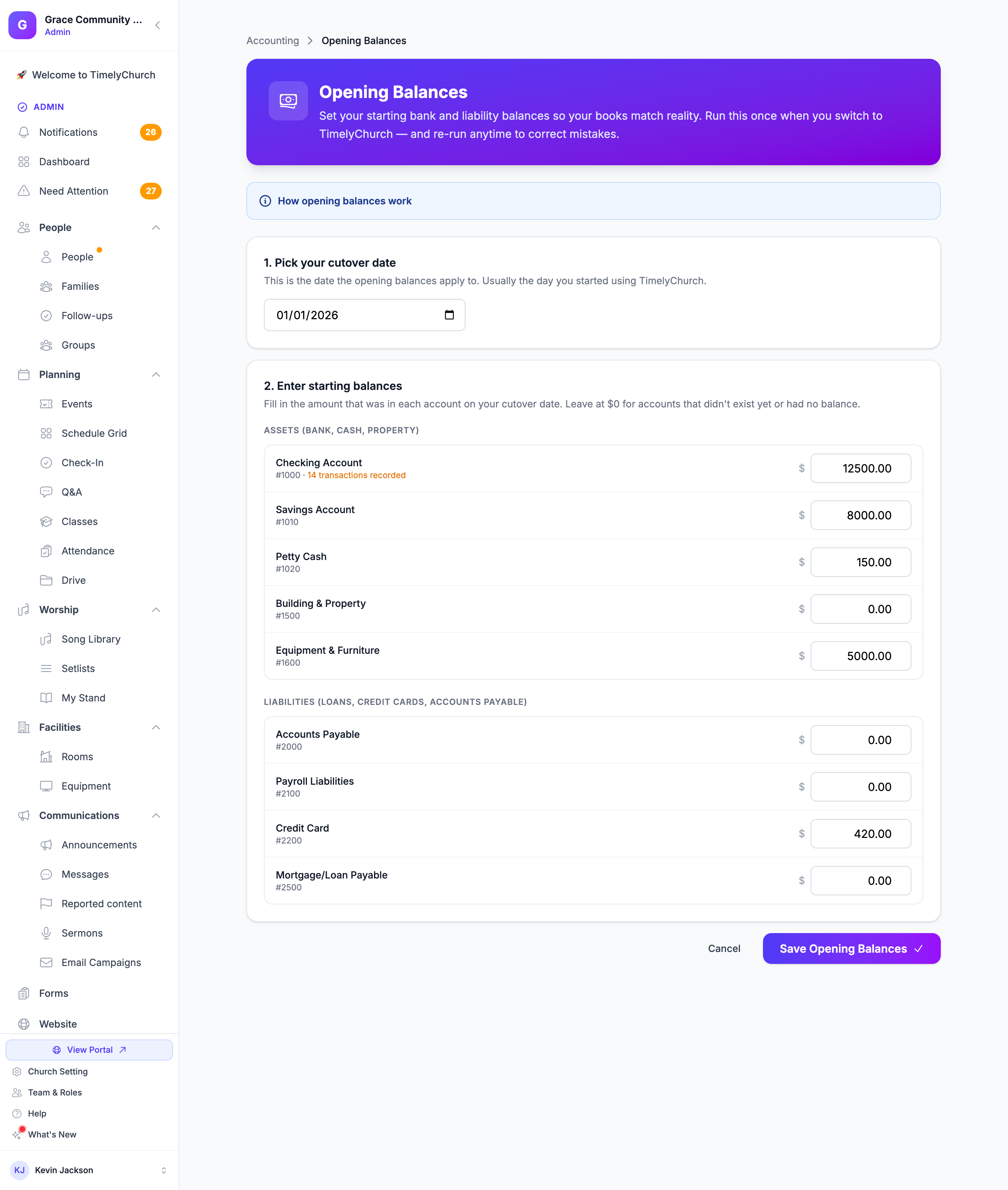
When you move your church's books to TimelyChurch, your bank accounts already have money in them and your loans or credit cards already have balances. The Opening Balances page (called Starting Balances in Simple Checkbook) is where you enter those amounts as of the day you started, so your reports, check register, and reconciliations begin from the right numbers. Run it once when you switch to TimelyChurch -- and re-run it any time to correct a mistake.
Opening the Page
- Finance Dashboard: until you enter balances, the dashboard shows a callout -- Set up your starting balances (Simple Checkbook) or Enter your conversion balances (Full Accounting): "Tell us what your bank accounts had at the start of using TimelyChurch. This makes reports and reconciliation work correctly." Click Set Starting Balances or Set Conversion Balances. Someone who can edit Settings can Dismiss the callout.
- Chart of Accounts (Full Accounting): click Opening Balances at the top of the page.
Saving balances needs the Edit permission on the Accounting row of your role.
Key Terms
- Cutover date -- "The date you started using TimelyChurch for your books." Transactions before this date are history -- only the ending balance matters. Transactions after it are tracked one by one in TimelyChurch.
- Opening (starting) balance -- "The amount in each account on the morning of your cutover date. For bank accounts: read it off the statement. For credit cards or loans: enter what you owe."
Example: if you switched to TimelyChurch on January 1, 2026 and your General Checking had $5,247.83 that morning, enter a cutover date of January 1, 2026 and a balance of 5247.83.
Entering Your Balances
-
Pick your cutover date -- "This is the date the opening balances apply to. Usually the day you started using TimelyChurch."
-
Enter starting balances -- "Fill in the amount that was in each account on your cutover date. Leave at $0 for accounts that didn't exist yet or had no balance." The page lists:
- Assets (bank, cash, property)
- Liabilities (loans, credit cards, accounts payable)
An account that already has transactions shows how many are recorded, as a reminder that its balance will be recalculated.
-
Click Save Opening Balances (Save Starting Balances in Simple Checkbook).
If you have no asset or liability accounts yet, the page points you to the Chart of Accounts to create one first.
Correcting a Balance Later
Re-running the page is "Safe to update anytime." Each save recalculates balances and immediately updates your Balance Sheet and Treasurer's Report (the Treasurer's Report in Simple Checkbook). No data is deleted. Open the page again, fix the date or amount, and save.
You can also correct one account's balance from its Edit Account window on the Chart of Accounts page -- the Starting Balance section holds the same Opening Date and Opening Balance.
The Check Register shows each account's starting amount as an Opening Balance line ("Starting balance from Conversion Balances wizard").
How Opening Balances Appear in Reports
The Balance Sheet and Trial Balance show an Opening Balance Equity line when the balances you entered need a balancing amount on the equity side. That is expected right after you enter balances. See Financial Reports.