
Chord Charts and Key Transposition
TimelyChurch includes a full-featured chord chart editor built around inline chord notation. You can write chord charts with chords placed on the words they belong to, transpose to any key instantly, convert to Nashville Numbers, and export to PDF -- all from within your browser.
This article is the reference for the notation itself -- what the brackets, the section markers, the slash chords and the bar and beat marks mean, and how Nashville Numbers and capo suggestions work.
For how to use the editor screen -- the split view, the section and chord chips, the five previews, drafts and publishing -- see Writing a Chord Chart in the Editor. For keys -- View in, Written in and why the key line matters to My Stand -- see Keys, Transposing and What the Band Sees.
Accessing the Chord Chart Editor
There are several ways to open the Chord Chart Editor for a song:
- From the Song Library, hover over a song card and click the music note icon, or click the music note icon in the table view's Actions column.
- From a song's detail page, click the Chord Chart button in the header.
- Adding a new song with Add Song takes you straight into the editor for that song's default arrangement.
- From a song's Arrangements tab, click Edit chart on the arrangement you want.
Editor Layout
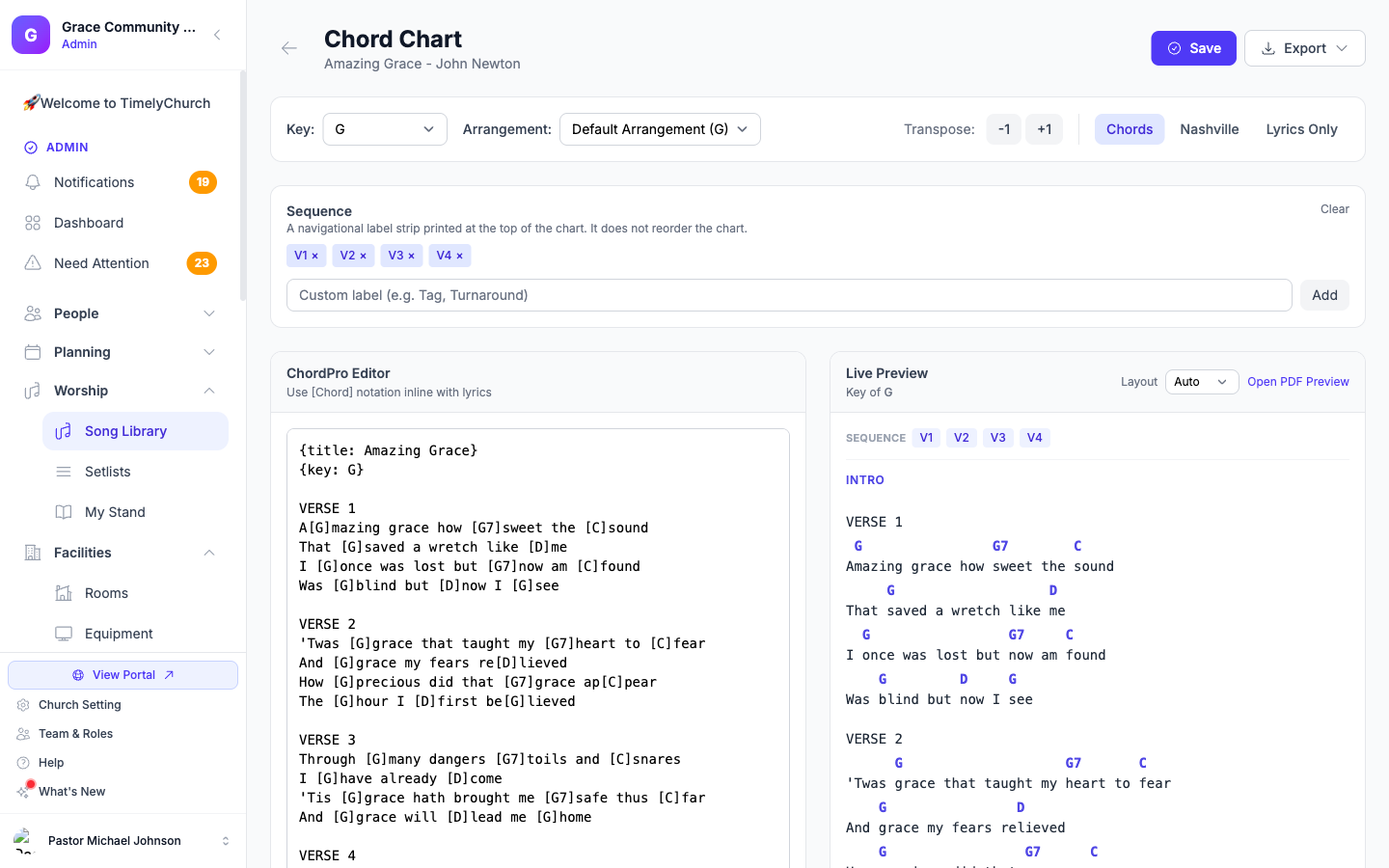
The editor opens as a workspace with the text on the left and a live preview on the right, following every keystroke. Write, Split and Preview decide how much room each side gets, and Split is what you get every time you open a chart.
Above both panes are a command bar (the song, the arrangement, Written in, the save-state pill, Revert, Publish and Export) and a ribbon (section chips, chord chips, Rhythm, Insert, undo/redo and Find & replace).
The preview has five tabs -- Chart, Numbers, Lyrics, Stand and Slides -- and each is drawn by the same thing that produces the real output.
The full walkthrough of the screen is in Writing a Chord Chart in the Editor.
The Chord Notation
The notation is a simple system that places chord names in square brackets inline with lyrics. The editor renders chords above the corresponding words. You do not have to type the brackets yourself -- the ribbon's chord and section chips insert them for you -- but knowing the notation helps when you are reading or correcting a chart.
Basic Syntax
[G]Amazing [G/B]grace, how [C]sweet the [G]sound
That [G]saved a [Em]wretch like [D]me
Section Markers
Use square brackets with section names to create labeled sections:
[Verse 1]
[G]Amazing grace, how [C]sweet the [G]sound

[Chorus]
[G]I once was [G/B]lost, but [C]now I'm [G]found- A colon after the name is fine:
[Chorus:]shows as Chorus. - Lines before the first section marker show with no label -- nothing is added that you did not type.
- To label one line of chords without starting a new section, start the line with the label and a colon:
[Instrumental:] [F] [Cm] [F]. The label prints in front of the chords and is never transposed.
Metadata Directives
Use curly braces for song metadata:
{title: Amazing Grace}
{key: G}
Chart Marks
Four more directives put things into the chart that are neither chords nor lyrics. The ribbon inserts them for you -- Insert → Band note, Column break, Page break, Repeat ×2 -- but they are ordinary text you can type as well.
| Directive | What it does | Where it shows |
|---|---|---|
{comment: Watch me on the last chorus} |
A band note, on its own line | Italic grey on the Chart and Numbers previews, on the Stand tab, in the Chord Chart and Nashville PDFs, and on My Stand. Never on slides, in the PowerPoint or ProPresenter export, in the text export, on the Lyrics sheet or in search |
{break: column} |
Splits the Chord Chart PDF's two columns here -- one per song; a second one is marked "Only the first column break is used." | The PDF splits there; the preview draws a "— column break —" divider; invisible on My Stand |
{break: page} |
Starts a new page here | The PDF breaks there; the preview draws a "— page break —" divider; invisible on My Stand |
{repeat: 2} -- the first line under a section heading |
The section is played twice (any number works: {repeat: 3}) |
A ×N on the section heading, on the Chart preview, on My Stand and on both PDFs |
The ChordPro spellings {colb}, {column_break}, {np} and
{new_page} are understood as breaks too, so a chart written in another
program behaves correctly when you paste it in.
A very wide chart still prints in one column. With a
{break: column}, the PDF prints in slightly smaller text when it has to (never below 9 point) so the longest line fits half a page. If a line is too long even then, the PDF keeps the whole chart in one column, and the editor marks the break: "Too wide for two columns — the PDF will use one column." A{break: page}in the same chart does not affect this: the two columns carry on across the page turn.
The full walkthrough is in Writing a Chord Chart in the Editor.
Supported Chord Formats
- Simple chords:
[G],[Am],[F#m] - Slash chords:
[G/B],[C/E] - Extended chords:
[Cmaj7],[Am7],[Dsus4] - Flat and sharp:
[Bb],[F#],[Ebm]
Quick Reference (shown below the editor)
[G]-- Chord placed above the next word[Verse 1]-- Section marker{key: G}-- The song key written into the chart (set it with Written in and publish)[G/B]-- Slash chord (G over B)[C] / [D] |-- Beats (/) and measures (|) -- keep them outside the brackets so chords still transpose
Bar and Beat (Measure) Notation
For instrumental intros, turnarounds, and "vamp" sections, it helps to show when each chord change lands, not just which chords appear. Add a slash / for each beat and a pipe | at the end of each measure -- as long as they sit outside the [chord] brackets, they render on the same row as the chords and stay fully transpose-safe.
[Intro]
[G] / [G] / | [C] / [C] / | [D] / [D] / | [G] / [G] / |
This renders as one combined chord-and-rhythm row -- four beats per measure, a bar line after every fourth slash -- and transposes, capos, and converts to Nashville Numbers exactly like any other chord line, because the / and | characters are never touched by those transforms (only the bracket contents are).
Common mistake: putting the bar inside the bracket, like
[C |]. That is not a recognized chord, so it will not transpose, capo, or convert to Nashville along with the rest of the chart. Always keep/and|outside the brackets.
Key Selection and Transposition
The Two Controls
The editor keeps "look at another key" and "change the chart's key" apart:
- View in, above the preview, transposes the preview only. The text you wrote stays exactly as written.
- Written in, in the command bar, either rewrites the chart in another key (the chords in the text are rewritten) or fixes a wrong key label without touching the text.
All 12 major keys and 12 minor keys are available:
Major Keys: C, C#/Db, D, Eb, E, F, F#/Gb, G, Ab, A, Bb, B
Minor Keys: Cm, C#m, Dm, Ebm, Em, Fm, F#m, Gm, Abm, Am, Bbm, Bm
Publishing with a key chosen writes that key into the chart, so the song header, your setlists and My Stand all agree with the editor -- and My Stand can transpose the chart on screen. The full explanation is in Keys, Transposing and What the Band Sees.
Capo Suggestions
When you view the chart in certain keys, the system will display capo suggestions -- for example, "Capo 2 -- play G shapes" for the key of A. These suggestions appear on the capo line of the Chart and Numbers previews and in the header of the Chord Chart PDF. They are calculated automatically from the target key (not user-defined). They are intended as guitar-friendly hints; they will not appear for every key.
Arrangement Selection
If a song has more than one arrangement, an Arrangement menu appears in the command bar so you can switch between them. Each arrangement has its own chord chart and key. If you have unpublished changes when you switch, TimelyChurch asks whether to Publish or Discard them first.
Preview Tabs
The preview pane has five tabs, each drawn by the same thing that produces the real output:
- Chart -- What the Chord Chart PDF prints, including the sequence strip and the capo line.
- Numbers -- Nashville numbers, as they appear in the Nashville PDF. Ideal for musicians who read numbers instead of chord names.
- Lyrics -- The words on their own. Useful for vocalists.
- Stand -- Exactly My Stand's reader, as the band sees it on a tablet. It opens in the light theme, with a moon toggle for the dark look.
- Slides -- What goes to slides, PowerPoint and ProPresenter. Chords and band notes never reach them.
Nashville Number System
The Nashville Number System replaces chord letter names with numbers representing scale degrees. For example, in the key of G:
| Chord | Nashville Number |
|---|---|
| G | 1 |
| Am | 2m |
| Bm | 3m |
| C | 4 |
| D | 5 |
| Em | 6m |
To see your chord chart as Nashville Numbers:
- Make sure the chart's Written in key is correct -- the numbers are worked out from it.
- Click the Numbers tab above the preview.
The preview pane will show numbers instead of chord names.
Drafts and Publishing
Every edit autosaves as a private draft. Only you can see it, so your band never reads a half-typed chart. The save-state pill in the command bar tells you where you stand.
- Publish makes your work live -- for My Stand, for setlists and for every export. It saves to the arrangement you are editing.
- Revert returns you to the published chart.
- If edits are waiting from an earlier session -- on this device or another -- a banner offers to Restore or Discard them. Discard asks you to confirm first.
Exports use the published chart, not an unpublished draft.
Exporting (PDF, ProPresenter & PowerPoint)
Click the Export button in the command bar. It carries every format -- Chord Chart PDF (current key), Lyrics PDF, Nashville PDF, text, PowerPoint, ProPresenter, slides PDF and slide images:
PDF options:
- Chord Chart (Current Key) -- Exports the full chord chart in the currently selected key.
- Lyrics Only -- Exports a lyrics-only version without chords.
- Nashville Numbers -- Exports the chart with Nashville Number notation.
Slide options (lyrics only, for projection):
- Text — for ProPresenter & others -- A plain-text file with one slide group per section, ready to import into ProPresenter and most other presentation software.
- PowerPoint (.pptx) -- Widescreen lyric slides with a dark background and large centered text, one slide per section (long sections split automatically).
- ProPresenter (.pro), Slides PDF and Slide Images -- The congregation slides as a finished ProPresenter presentation, a PDF, or a set of pictures.
The slide exports carry no chords or section labels on the congregation slide. See Exporting Charts and Slides for a complete walkthrough of each format.
PDF Layout
A Layout selector sits in the footer of the preview pane (on larger screens), next to Open PDF Preview:
- Auto (default) -- The system measures your chart and picks one or two columns automatically, so a short song fits on a single tidy page and a long one does not waste paper with huge gaps.
- 1 column -- Force a single, full-width column every time.
- 2 columns -- Prefer two columns, for songs with many short lines (this still automatically falls back to one column if a line is genuinely too wide to split without breaking the chord/lyric alignment -- Auto and a forced "2 columns" can never misalign a chord over the wrong syllable).
Your choice is remembered for the session (it is a viewing preference, not something saved on the song). Every PDF is US Letter, portrait, with a readable standard font size regardless of the column choice.
The Chord Chart (Current Key) option uses whatever key you are currently viewing in, so set View in to the key you want before exporting.
PDF Preview
Click Open PDF Preview at the bottom of the preview pane to open a PDF preview in a new browser tab before downloading, using the currently selected Layout. The preview opens in a separate browser tab and displays the PDF inline (no file download). When you pick one of the options in the PDF dropdown, the file is generated with that same layout choice and your browser saves it.
The PDF is produced instantly in three output modes: standard chord chart, lyrics-only, and Nashville numbers. There is no waiting for processing.
The whole songs area, including the chord-chart editor, is part of the Growth and Pro plans. Publishing a chart needs edit access to songs; everyone else who can open the editor can read and export but not change it.
Problems
The editor checks your chart as you type and marks anything wrong on the exact line, explained in plain words -- an unclosed bracket, a stray chord. Where it can, it offers a one-click Fix it:
[E7burst on my sight → Fix it → [E7]burst on my sight
The write pane's status strip shows No problems when the chart is clean, Warnings: and a number when there are only warnings, or Problems: and a number when something needs fixing.
Tips for Writing Good Chord Charts
- Always set the key -- Set Written in to the key the chords are typed in, and publish with it, so transposition works correctly everywhere.
- Use section markers -- Label every section (Verse 1, Chorus, Bridge, etc.) to make the chart easy to follow. The ribbon's section chips insert them for you, and Verse numbers itself.
- Place chords precisely -- Put the chord bracket immediately before the syllable where the chord change occurs.
- Use slash chords for bass lines -- Notation like
[G/B]helps bass players follow the intended bass movement. - Keep it consistent -- Use the same chord naming convention throughout (e.g., always use "Bb" rather than mixing "Bb" and "A#").
Related Articles
- Writing a Chord Chart in the Editor
- Keys, Transposing and What the Band Sees
- Song Library
- Service Orders (Service Plans)
- Worship Team View
- Song Arrangements
- Exporting Charts and Slides
- Analyze a Song's Key, BPM & Time Signature
Last updated: October 3, 2026