
Approve or Decline Event Requests
When someone requests an event of a type that needs approval, it doesn't just appear on the calendar — it lands in your Need Attention inbox, waiting for you to say yes or no. This article covers finding pending requests, the greyed calendar badge, approving, declining with a note, what the requester sees afterward, and the case where more than one person has to sign off.
Finding Your Pending Requests
Go to Need Attention in your admin sidebar and open the Scheduling tab. Any event request waiting on you specifically shows up first, under Event Requests (with the number waiting), with the event's title, date/time, hosting group, who requested it, and why you're the one being asked (for example, "Your approval is needed as hosting group leader").
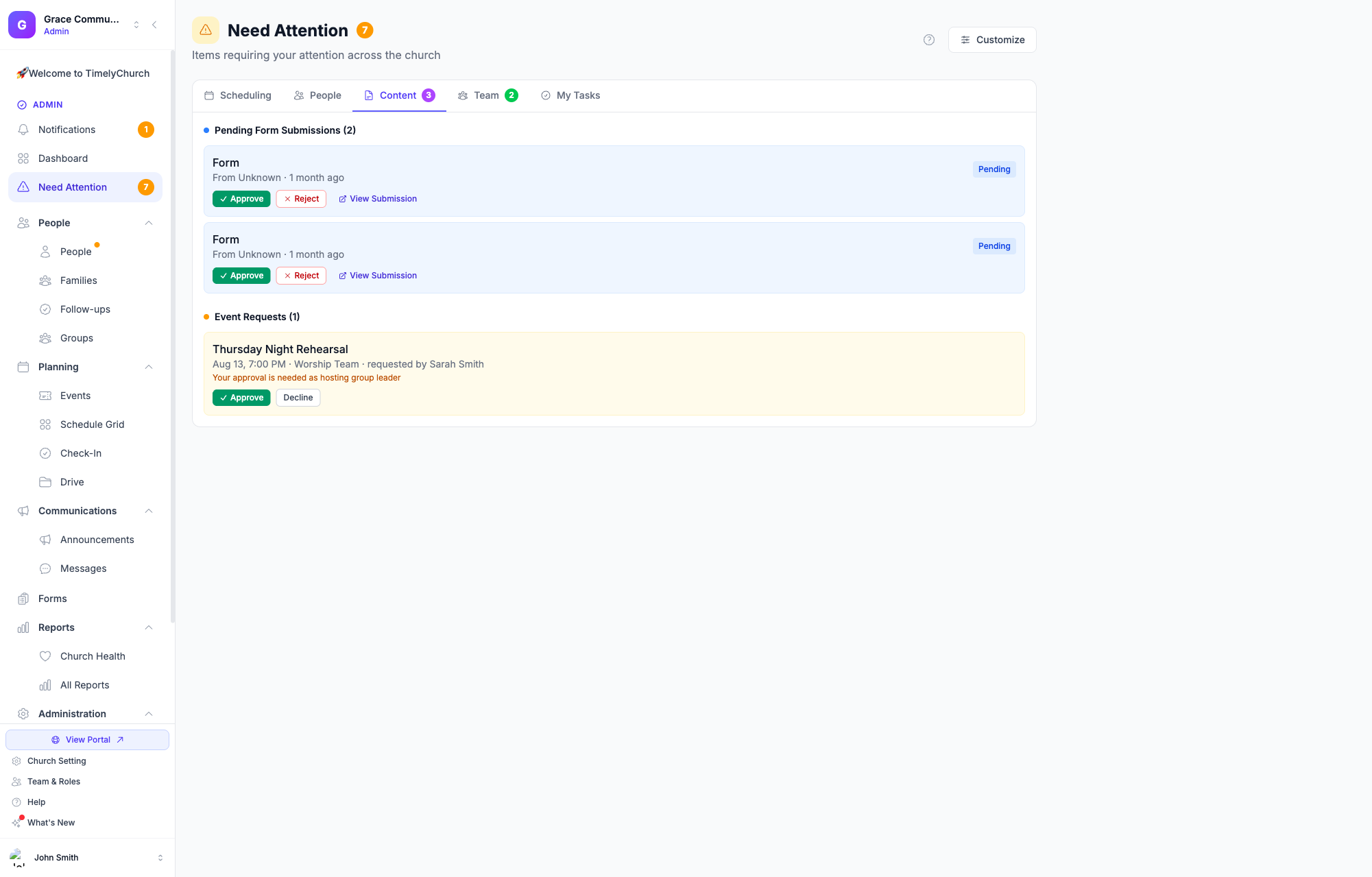
You only see requests where you're the resolved approver — a leader of a different team doesn't see your team's pending requests, and vice versa. A church administrator sees every pending request across the whole church here too, as a backstop, in case an approver is away.
Tip: You don't need to go looking for these — the Need Attention badge in your sidebar counts them, and you get a notification the moment a request needs your approval.
The Calendar Badge
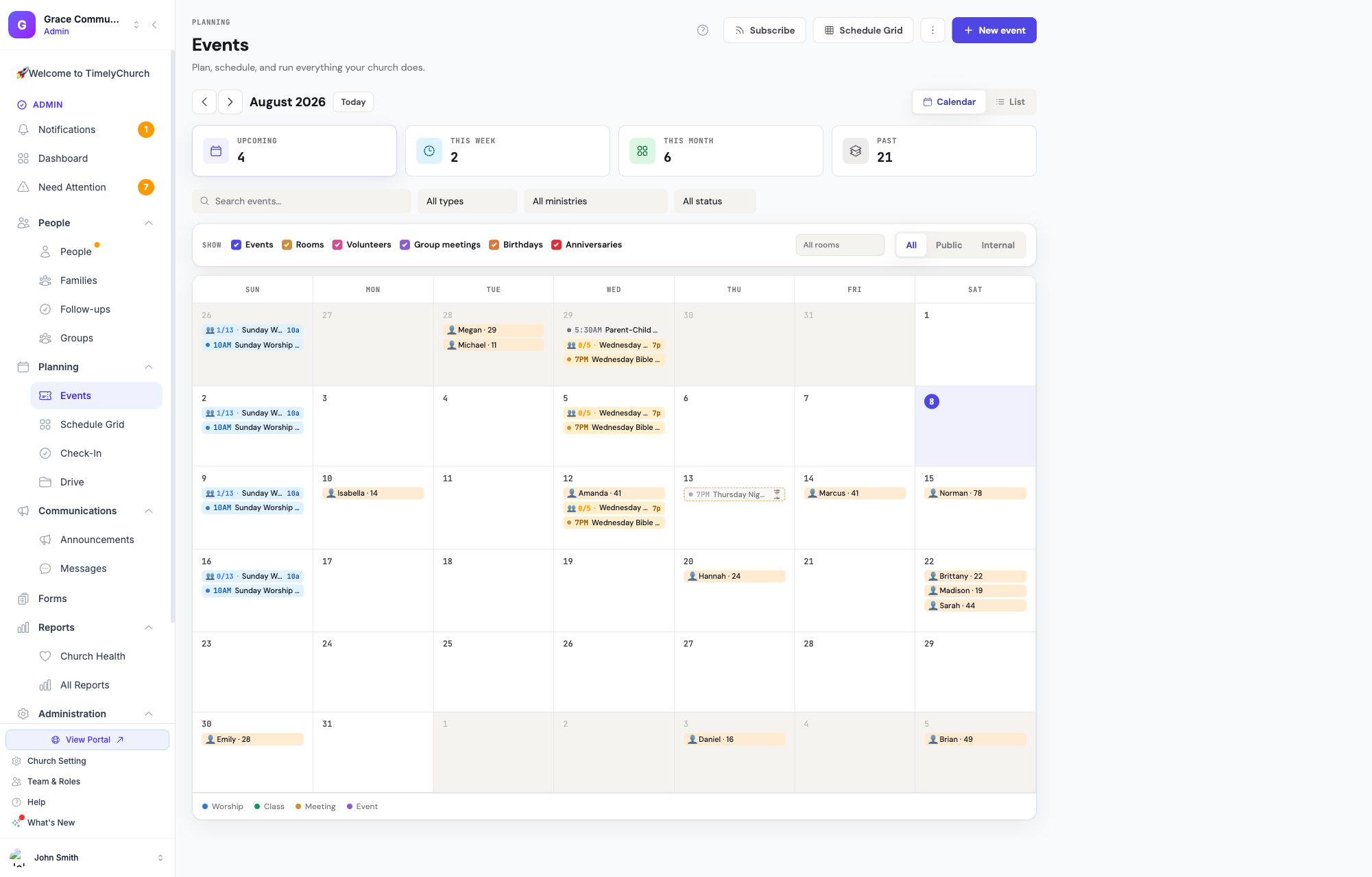
A request that's still pending also shows up on the admin Events calendar itself, so nothing is a total surprise even before you open Need Attention — it renders faded with a dashed outline and a small ⏳ mark. A request that gets declined shows faded with a strikethrough and a ✕ mark instead, so you can see at a glance what happened to something you remember being asked about. Neither of these is visible to anyone outside the approver(s) and admins — a pending or declined event never shows on the public calendar, the website, or a regular member's view.
Approving a Request
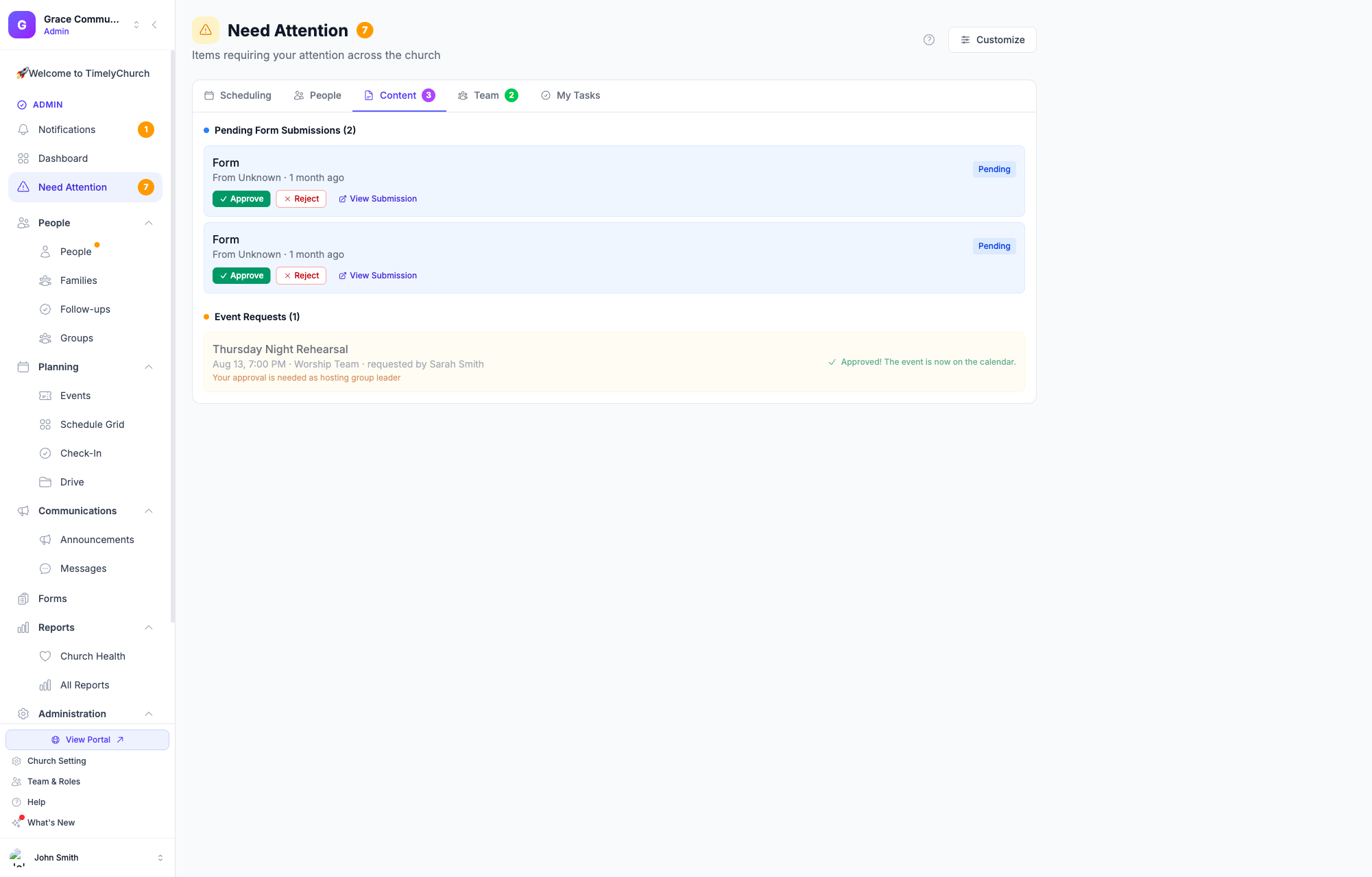
Tap Approve. That's the whole action — the event is scheduled immediately, the room (if one was picked) is confirmed, and the requester is notified right away.
Declining a Request — With a Note
Tap Decline Request. TimelyChurch asks you to "Add a note for the requester (optional)" before it finalizes the decision — this is your chance to say why ("that room's already booked that night," "let's do it the following week instead") so the requester isn't left guessing. Leave it blank if you'd rather not add one; the decline still goes through.
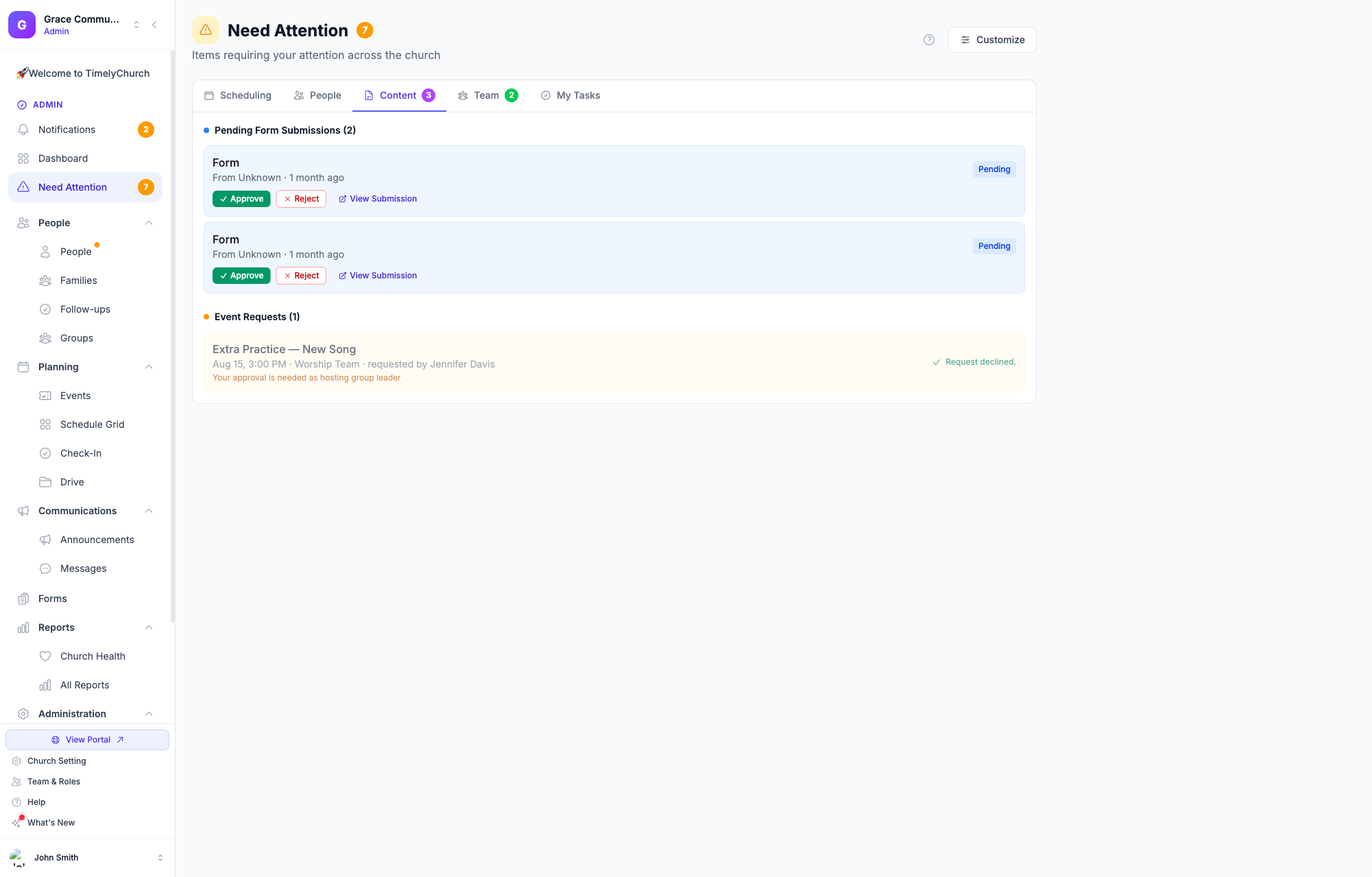
A declined request never lands on the calendar. If the group still wants the event to happen, the simplest path is for them to submit a new request with a different time or room.
What the Requester Sees
Either way, the requester gets a notification (in-app, email, and Telegram if they've connected it) as soon as you decide:
- Approved — "Your event request was approved — [event] is now on the calendar," with a link straight to it.
- Declined — "Your event request was declined," including your note if you added one.
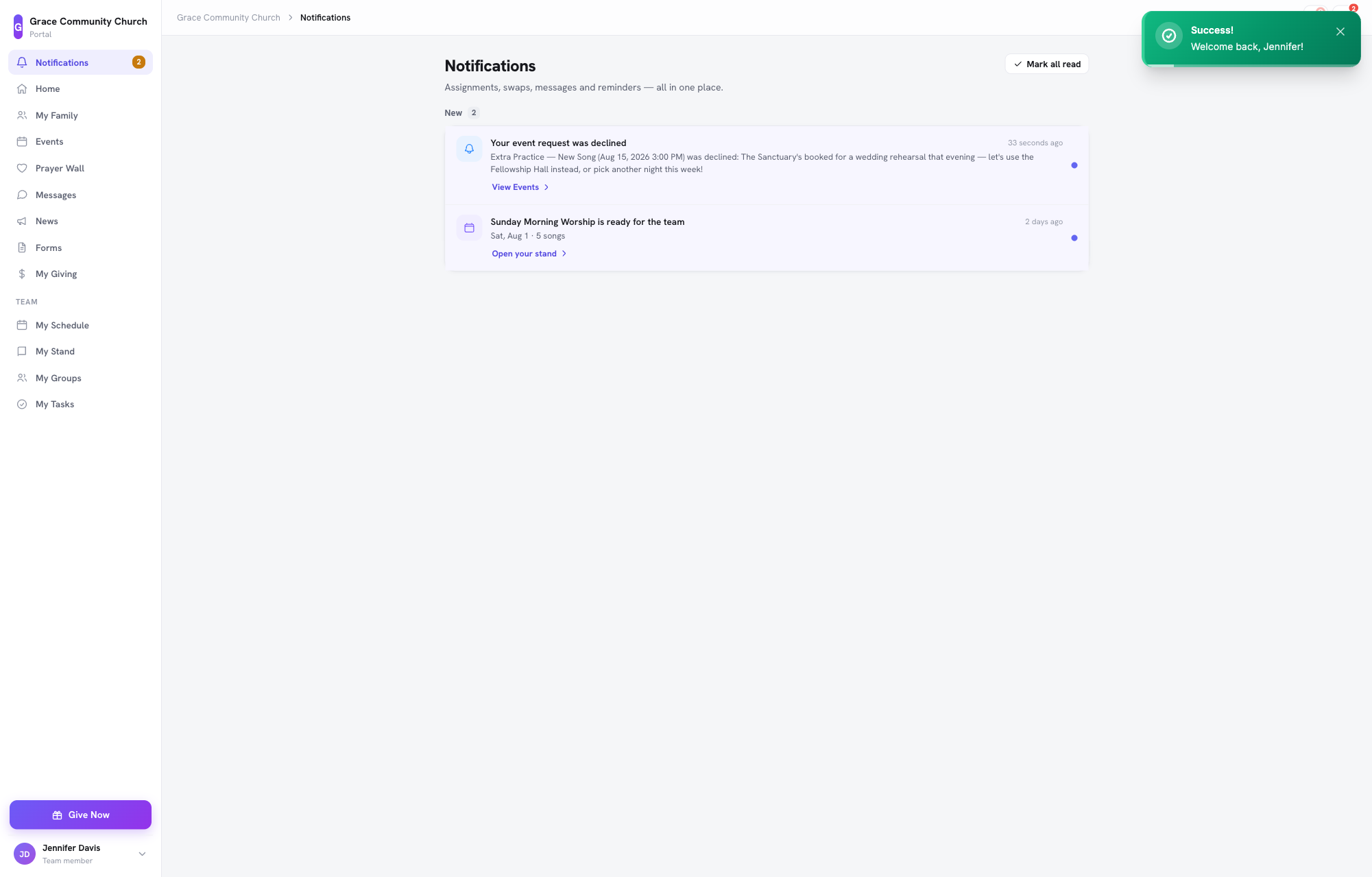
When Two People Have to Approve
Most event types just need one approver — the hosting group's leader, or an admin. But a type set to the Resource owner + leader approver mode (see Set Up Event Types & Approval Rules) needs both:
- The hosting group's leader (or co-leader), and
- The room's owner — the person or group your admin assigned as that room's owner.
Both approvals are required before the event goes live; either one declining declines the whole request. If you're only one of the two approvers, your Need Attention card says so, and your side of the decision doesn't schedule the event on its own — after you approve you'll see "Your approval was recorded. Waiting on 1 more approver." until the other person acts too.
This is the setup for a shared space that a specific ministry needs oversight of — say, the youth group wants to book the main Sanctuary for a special event. The youth leader approves as the hosting leader, and whoever owns the Sanctuary (typically your facilities coordinator) also has to sign off, since it's not their team's usual space. If a room has no owner assigned, that half of the approval simply falls to an administrator instead — a request is never left with nobody able to act on it.
Who Can Approve
Deciding a request is limited to:
- The resolved approver(s) for that specific request — a hosting group's leader/co-leader, a room's owner, or whoever the event type's policy names.
- A church administrator, as an override — useful if the usual approver is unavailable. Admin decisions are logged separately from the approver's own so there's a clear record of who actually decided.
Nobody else sees the Approve/Decline buttons for a request that isn't theirs to decide.
Related Articles
- Set Up Event Types & Approval Rules — configuring who can request and who approves.
- Request an Event — the requester's side of this flow.
- Room and Equipment Booking
Last updated: September 30, 2026