
Team Schedule Templates (Auto-Apply Pattern)
A Team Schedule Template is a saved set of serving positions that automatically gets attached to every new event of a chosen event type. Set it up once for the Worship Team, and every new worship event arrives with Sound, Greeters, Vocals, and Tech slots already in place. You never have to add the same five positions to a Sunday again.
This is the single biggest time-saver in volunteer scheduling.
When to Use a Team Schedule Template
A template is the right tool when:
- The same positions recur every time your team serves (every Sunday Worship needs 1 Sound Tech, 2 Vocalists, 3 Greeters, etc.).
- You want event creation (whether by a series or by a one-off admin) to never require a manual "Add position" pass.
- You want a default lineup that an admin can override on a specific event without breaking the pattern.
If your team's needs change drastically event to event, a template is less useful; just add positions by hand.
Where to Find Templates
- In the admin sidebar, click Groups.
- Open the team you want to template (e.g., "Worship Team," "Hospitality Team").
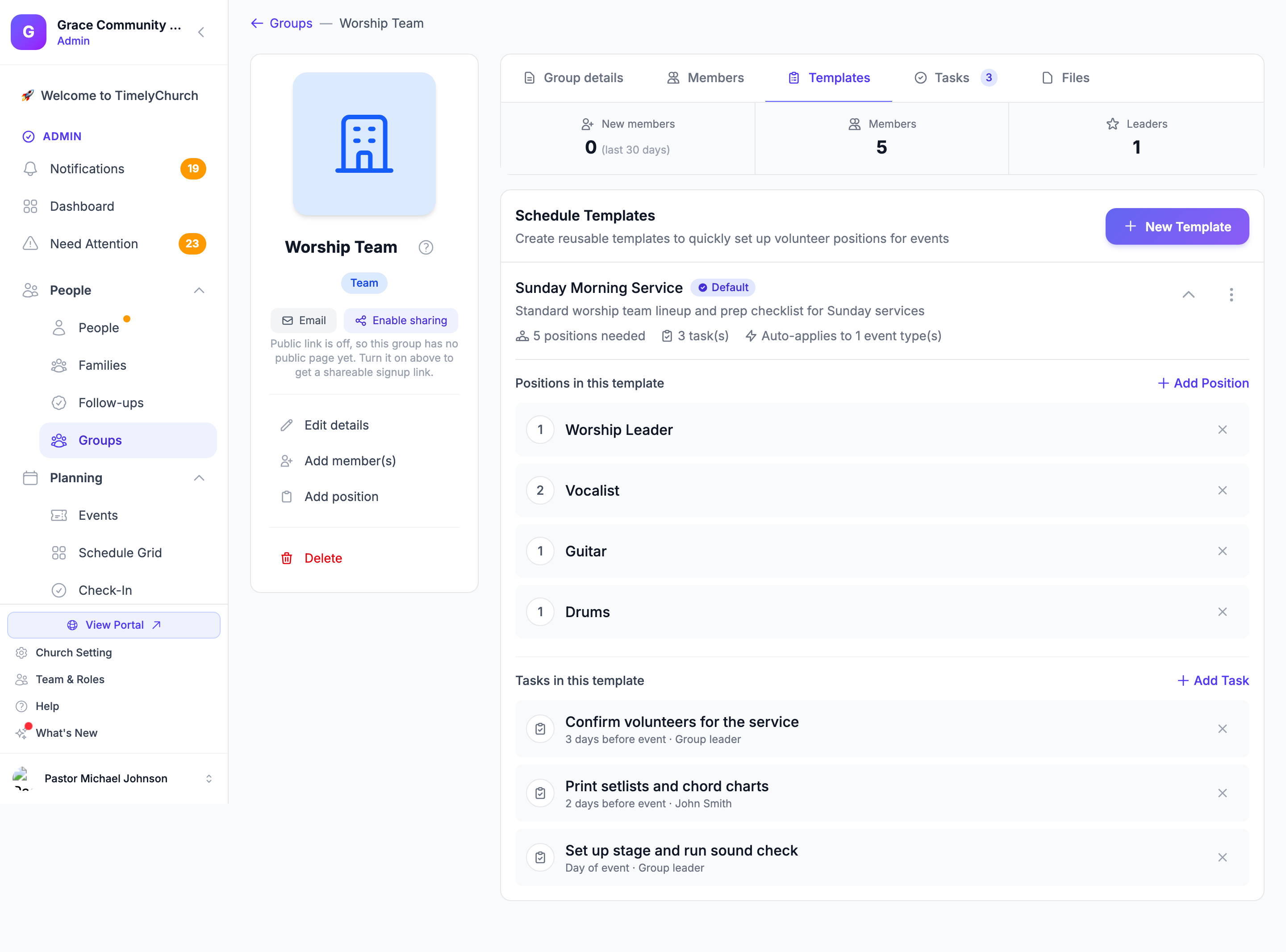
- Click the Templates tab on the team page. The Schedule Templates section lists the team's templates.
Each team has its own templates panel. Templates do not cross teams. A Worship template and a Hospitality template are separate, even if both auto-apply to "Worship" events.
Creating a Template
- From the team's Templates tab, click New Template (or Create First Template when the team has none).
- Enter a Template Name. We recommend the format "[Team] [Service Style] Setup":
- Standard Worship Setup
- Communion Sunday Setup
- Wednesday Bible Study Setup
- Add a Description (optional) so other admins know what this template is for.
- Set the auto-apply rules:
| Setting | What It Does |
|---|---|
| Set as default template for this team | Only the team's default template applies automatically. A team has one default at a time. Ticking this replaces the current default. |
| Auto-apply to event types | Pick one or more event types (Worship, Class/Study, Meeting, Event). Every new event of those types will arrive with the default template's positions pre-loaded. |
- Save the template.
- On the template's card, under Positions in this template, click Add Position for each role this template should pre-load. In Add Position to Template, set:
- Position: pick from the team's existing positions (Sound Tech, Greeter, etc.)
- Number Needed: how many slots of this position to create on each event (e.g., 3 Greeters, 1 Sound Tech)
- Notes (optional): a reminder shown on the slot ("Needs early arrival")
Each template card shows Default (if it is), how many positions are needed, how many tasks it has, and which event types it Auto-applies to.
What Happens After You Save
From this point forward, any new event whose event type matches the default template's auto-apply rule will arrive with the template's positions pre-loaded. This applies to:
- Events generated by a recurring series
- Events created by an admin in the Create event drawer (the confirmation message names the templates that were applied)
You can still edit the positions on a specific event if that week is different (e.g., you want only 2 Greeters instead of 3 because of a small Christmas Eve service). Editing one event does not change the template; the next event will still arrive with the standard 3.
Tip: Each team's default template applies on its own, so several teams can pre-load the same event. You get the union. The Worship Team can have a "Standard Worship Setup" default, and the Hospitality Team can have its own "Sunday Greeting Setup" default, and both apply to the Sunday Worship event without conflicting.
To use a template that isn't the default on a single event, open the event's Serving tab, click Assign team, choose the team, and pick the template under Template.
Walkthrough: Setting Up a Sunday Worship Template
Here is the full setup for the most common case: standardizing your Sunday morning service.
- Go to Groups > open the Worship Team.
- Click the Templates tab.
- Click New Template.
- Name it Standard Worship Setup.
- Tick Set as default template for this team.
- Auto-apply to event types: check Worship.
- Save.
- On the new template's card, add positions with Add Position:
- Sound Tech: 1 needed
- Worship Leader: 1 needed
- Vocalist: 3 needed
- Instrumentalist: 4 needed
- Projection: 1 needed
Done. Every new Sunday Worship event from this point onward arrives with all 10 slots ready to fill. Open the event's Serving tab, click Auto-fill all, and you have a draft schedule in one more click.
Task Checklists: Prep Work That Creates Itself
Positions cover who serves; task checklists cover what must get done. Right below the Positions section on every template you will find Tasks in this template, the team's standing prep list. Every event the template applies to gets these tasks created automatically, as real group tasks with real due dates.
Adding a Task
- On the template card, click Add Task in the Tasks in this template section.
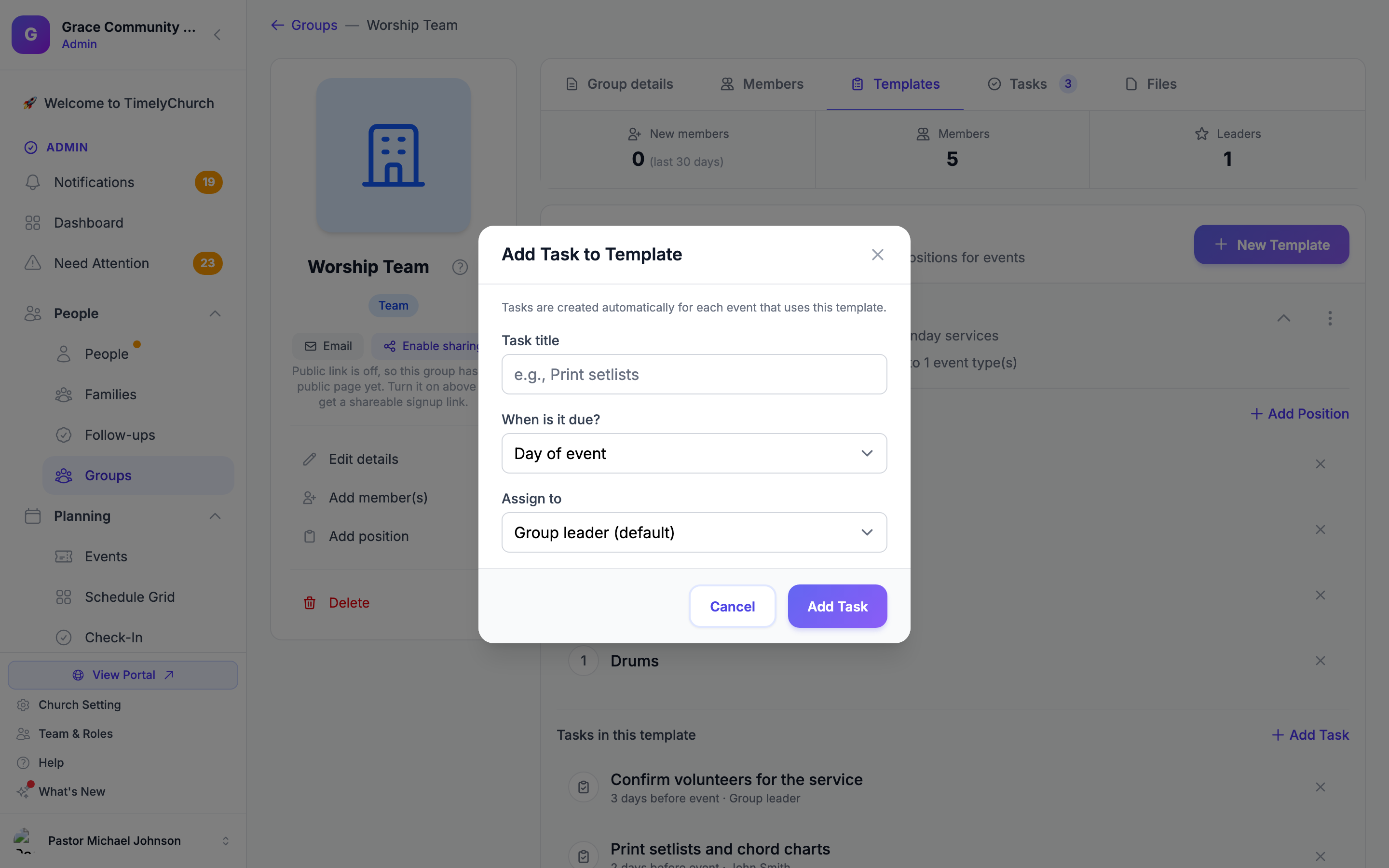
- Fill in the three fields:
- Task title: what needs doing ("Print setlists and chord charts").
- When is it due?: relative to the event date, from 2 weeks before event down to 1 day after event. When the task is created for a real event, this becomes an actual calendar date, computed in your church's timezone.
- Assign to: pick a specific active team member, or leave Group leader (default) and the task goes to whoever leads the team at that moment.
- Click Add Task. Remove a task any time with the × on its row. This only changes the template, never tasks already created for events.
What Happens on Each Event
When the template applies to an event (automatically by event type, or applied manually), each checklist row becomes a group task:
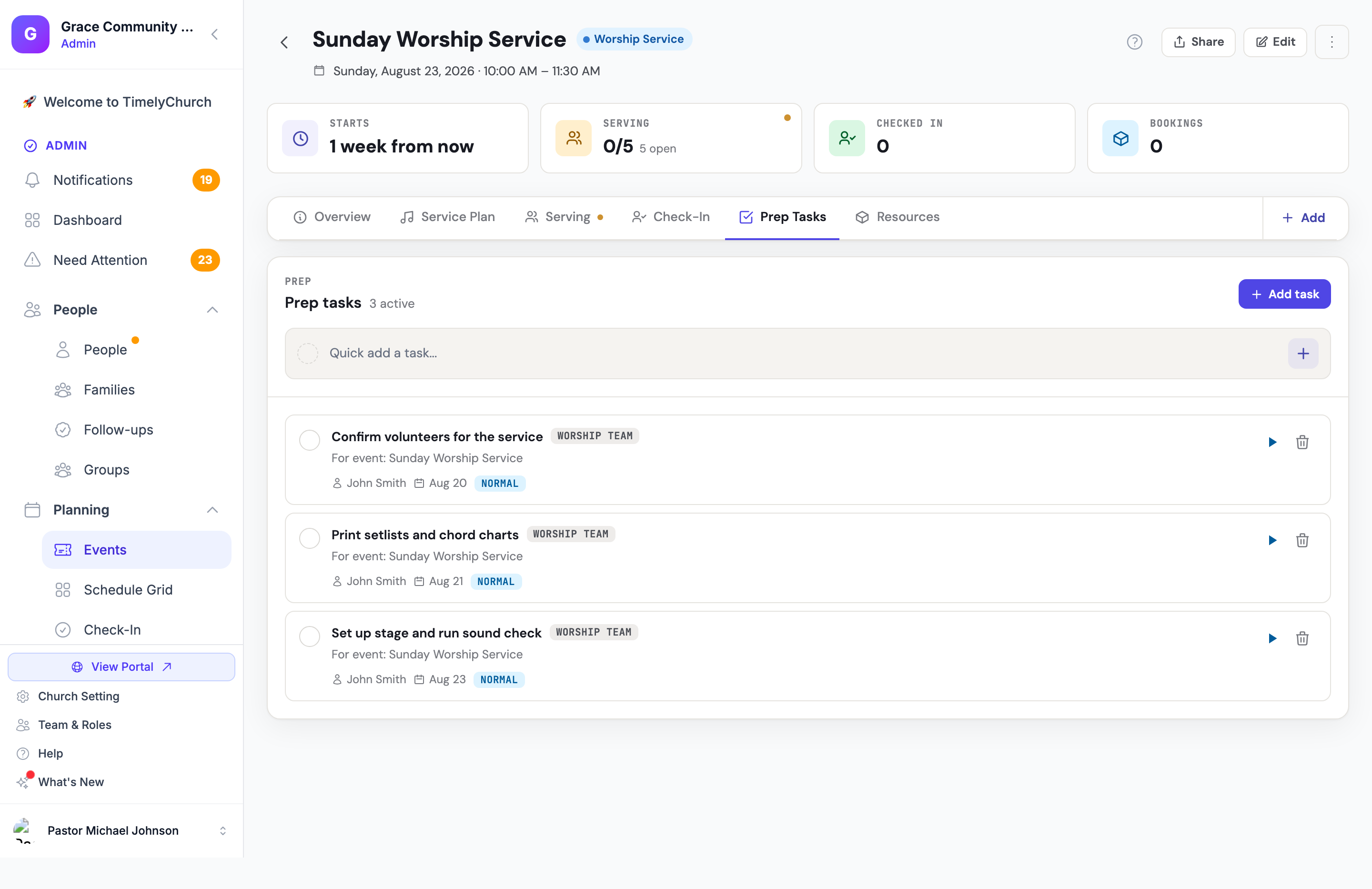
- It appears in the team's Tasks tab, in each assignee's My Tasks, and on the event page's Prep Tasks tab, where team tasks carry the team's name so they are easy to tell apart from one-off tasks added by hand.
- Its description says which event it belongs to ("For event: Sunday Worship Service").
- Re-applying the template to the same event never duplicates tasks.
- If the event is cancelled, its unfinished checklist tasks are removed automatically. Completed tasks stay. They are part of your history.
Tip: Task checklists only auto-apply together with the rest of the template. The template must be marked Default for this team and match the event's type. You can always apply a template to any event by hand.
Editing or Retiring a Template
- Edit Template: change the name, description, default setting, or auto-apply event types, then Save Changes. Add or remove positions and tasks right on the card. Existing events that already had the template applied are not retroactively changed; only newly created events use the new shape.
- Duplicate: make a copy to start a variation (for example, a Communion Sunday version).
- Set as Default: make this the team's default template (the one that auto-applies).
- Stop auto-applying: untick all event types under Auto-apply to event types (or make another template the default). The template is kept in case you want it back.
- Delete: removes the template entirely. Existing events keep whatever positions were already on them.
Related Articles
- How Volunteer Scheduling Is Organized: the big-picture model this fits into.
- Cascade Auto-Fill, Sub Invites, and Out-of-Office Badges: the next-best workflow win, after templates.
- Creating Serving Teams and Roles: you need positions defined on the team before they can appear in a template.
- Scheduling Volunteers for Events: once positions are pre-loaded, this article covers filling them.