
Sermon Speakers
Sermon Speakers are the people who deliver the messages in your sermon library. Maintaining a speaker list lets you tag every sermon with who preached it, surface a speaker's full archive on your public website, and pull biography and photo information automatically from your Staff Directory.
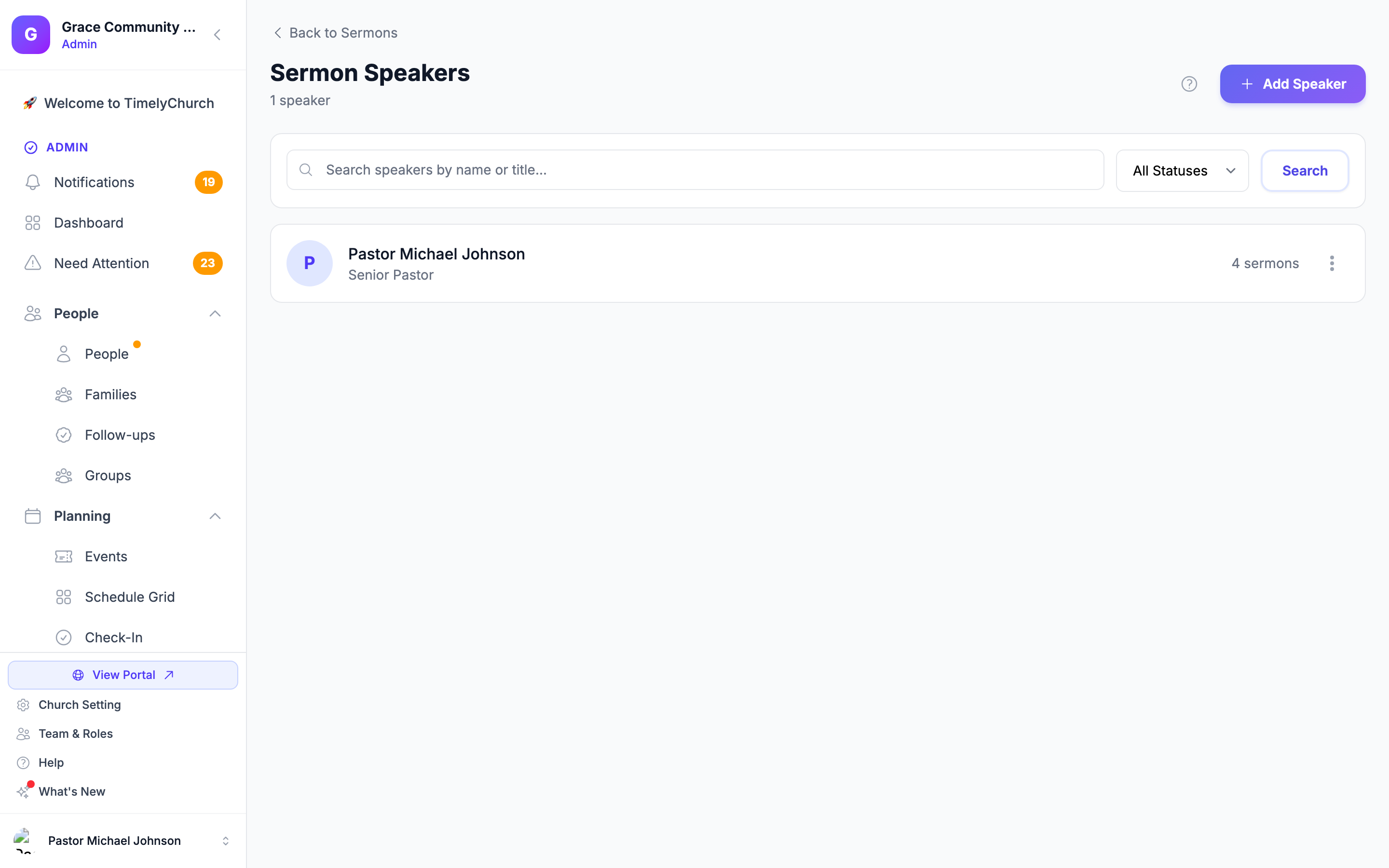
Accessing Speakers
- From the admin sidebar, expand Communications and click Sermons.
- At the top of the sermons page, click the Speakers button.
You will see the Speakers index page with a paginated list of every speaker in your church (default 20 per page), each showing their name, title, photo, sermon count (published only), and an active/inactive badge.
Browsing and Searching
The Speakers index supports:
- Search -- A text box that matches against name and title.
- Status filter -- All Statuses, Active only, or Inactive only. Click Search to apply or Clear to reset.
- Sermon counts -- Each row shows how many published sermons that speaker has preached, helping you spot inactive accounts or guest speakers.
Speakers are sorted by their display order and then by name.
Adding a New Speaker
- From the Speakers index, click Add Speaker in the top-right corner.
- Fill in the form:
| Field | Required | Description |
|---|---|---|
| Link to existing staff member | No | Tick this and pick a Staff Member to fill in the name and title from their staff profile. |
| Name | Yes | The speaker's full display name. |
| Title | No | Their role or title (e.g., "Senior Pastor", "Guest Speaker", "Youth Pastor"). |
| Bio | No | A short biography (up to 5,000 characters). Plain-text or simple Markdown. |
| Photo | No | Upload a JPG, PNG, GIF, or WebP image up to 5 MB. A square (1:1) image is recommended. |
| Active (show on website) | No | Whether the speaker shows on your website and in the Sermon-form dropdown (on by default). |
- Click Add Speaker.
Linking to a Staff Member
If your speaker is already in the Staff Directory (and marked as public), tick Link to existing staff member and pick them from the Staff Member dropdown. Selecting a staff member fills in the name and title fields for you. Only staff members within the same church and marked public are available.
A staff link is informational -- speaker records and staff records remain independent so you can have guest speakers who are not on staff, and so you can edit a speaker's photo without disturbing the staff directory.
Editing a Speaker
- From the Speakers index, click the speaker's row (or the Edit action in their row menu).
- The edit form shows every field from the create form, plus:
- Remove photo checkbox -- Delete the current photo without uploading a new one.
- Recent Sermons -- A list of the speaker's last ten sermons by date, each linking to the sermon's edit page.
Make changes and click Update Speaker.
Toggling Active Status
From the speakers index, every row has an "Activate" or "Deactivate" action. Inactive speakers:
- Hidden from the Sermon-form Speaker dropdown (so you cannot assign new sermons to them).
- Hidden from the public sermon archive's speaker filter and the public speaker page.
- Still available in the admin Speakers index -- their existing sermons keep their speaker link, so historical attribution is preserved.
This is the right tool for retired pastors, one-time guest speakers you want to keep on file, or anyone whose sermons you want to keep but who should not appear in current dropdowns.
Deleting a Speaker
From the speaker's edit page, click Delete Speaker at the bottom-left and confirm -- or choose Delete from the speaker's row menu in the index. Deletion:
- Removes the speaker record and their uploaded photo.
- Clears the speaker attribution from every sermon they were attached to. Those sermons remain published; they simply lose the speaker attribution.
- Cannot be undone -- if you might need the speaker later, deactivate instead of deleting.
Public Speaker Archive Page
Every active speaker gets an automatic public archive page on your website. This page shows the speaker's photo, bio, title, and a list of every published sermon they have preached, newest first, 12 to a page. Visitors can use the speaker page as a way to follow a particular pastor's teaching or to find every message in a multi-speaker series.
An inactive speaker's page shows "not found".
Permissions
Speakers follow the Sermons module in a role's settings. Adding a speaker needs create access, editing and activating/deactivating need edit access, and deleting needs the highest level of access. Anyone who can open Sermons can browse the list.
Related Articles
Last updated: September 30, 2026